US-based companies can issue virtual American Express Cards for their employees through Payhawk. For compliance reasons, if you've been issued such a Card, you need to make sure you've provided specific personal information to activate it.
You don't need to provide your Social Security Number when activating your virtual American Express Card in Payhawk.
Activating your virtual American Express Card in the Mobile App
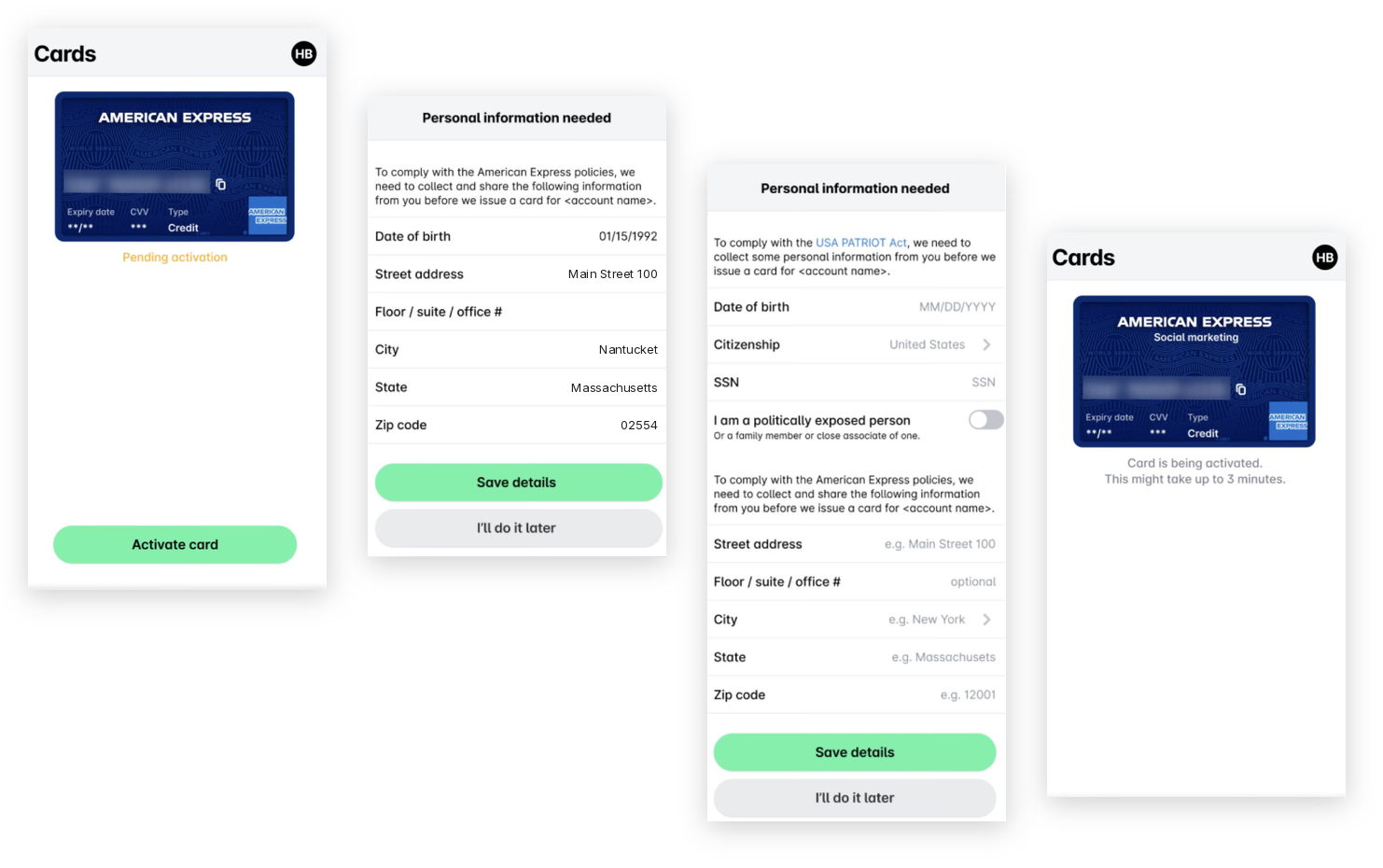
To activate your virtual American Express Card from the Payhawk Mobile App:
Open the Payhawk Mobile App and tap Cards.
Click on Activate card.
On the next screen, fill in your required personal data.
Note that if you've been issued both Payhawk and virtual American Express Cards, you will be asked to provide additional personal details following the specific legal requirements.
Tap Save details.
Activating your virtual American Express Card in the Web Portal
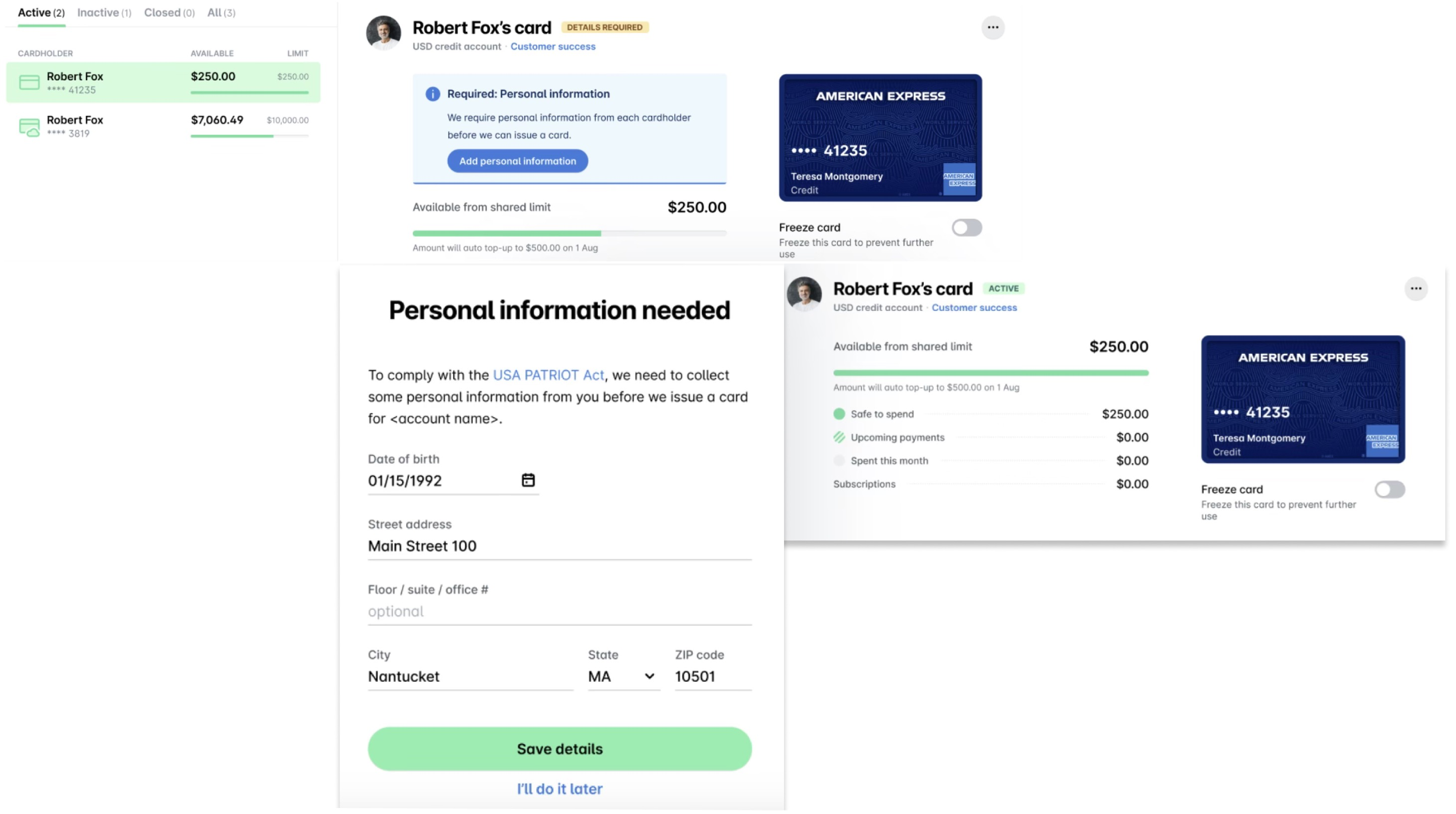
To activate your virtual American Express Card from the Payhawk Web Portal:
Log in to the Payhawk Web Portal, open the app switcher in the top-left corner, and go to Cards.
Select the card you want to activate by clicking on it. The virtual American Express Card that is pending activation will have the DETAILS REQUIRED tag.
Click on Add personal details.
In the dialog that opens, fill in your required personal data and click on Save details. As a result, the tag of the card will change to ACTIVE and you can start using it based on the stand-alone limit or company spend policy that's been assigned to it.
Useful resources
Viewing the company spend policies affecting you as a cardholder
Adding your virtual American Express Card to mobile payment systems