Expense owners can add or remove their expenses from existing subscriptions as long as the expenses meet the criteria.
Adding your expenses to existing subscriptions
To add an expense to an existing subscription:
In the Payhawk Web Portal, open the app switcher in the top-left corner and go to Spend, then select the desired expense.
Click on its three-dot menu and select Mark as subscription.
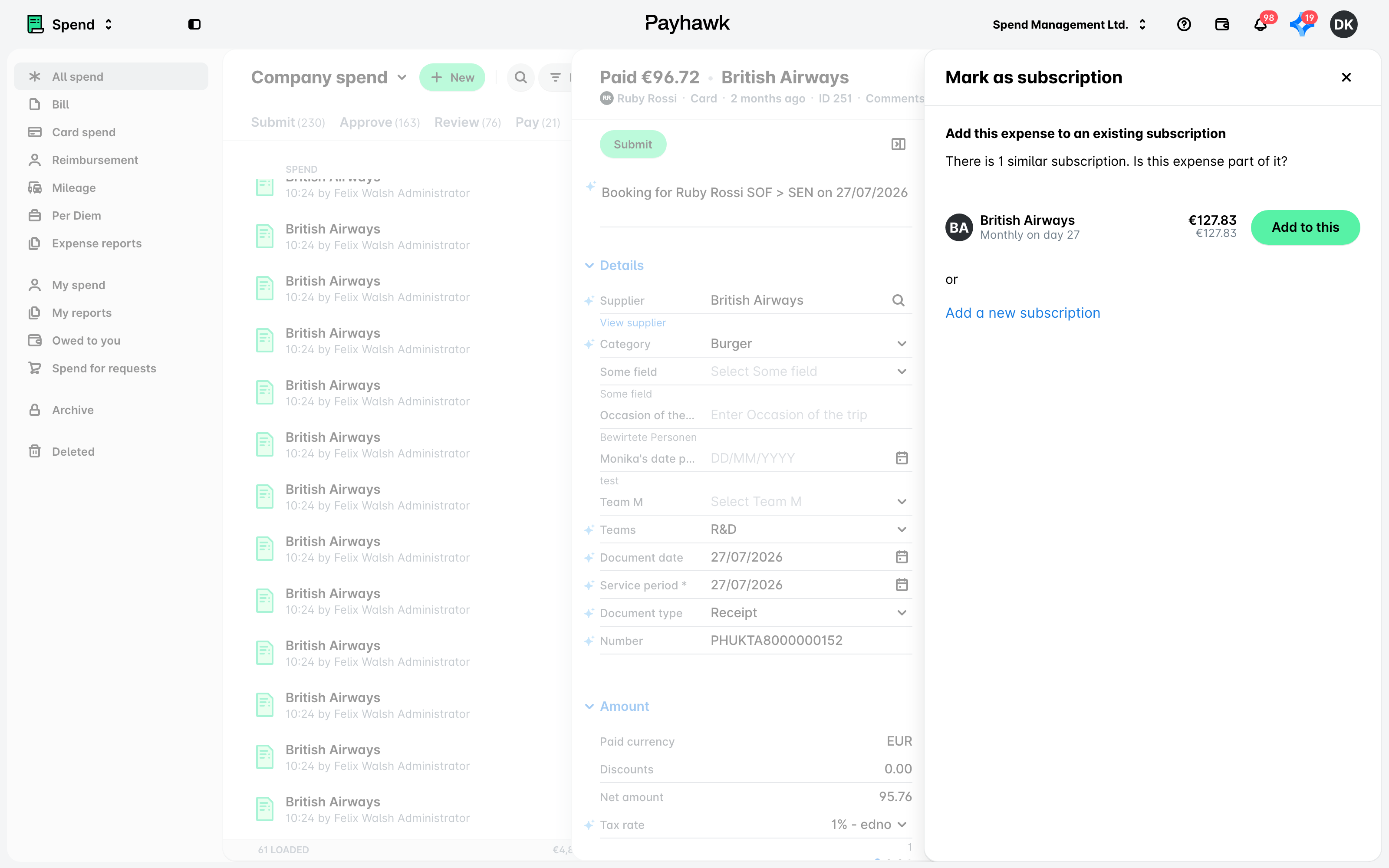
In the dialog that opens, click on the Add to this button.
Alternatively, you can create a new subscription from this expense by clicking on Add a new subscription.
Removing your expenses from existing subscriptions
To remove an expense from an existing subscription:
In the Payhawk Web Portal, open the app switcher in the top-left corner and go to Spend, then select the desired expense.
Click on its three-dot menu and select Remove expense from subscription.
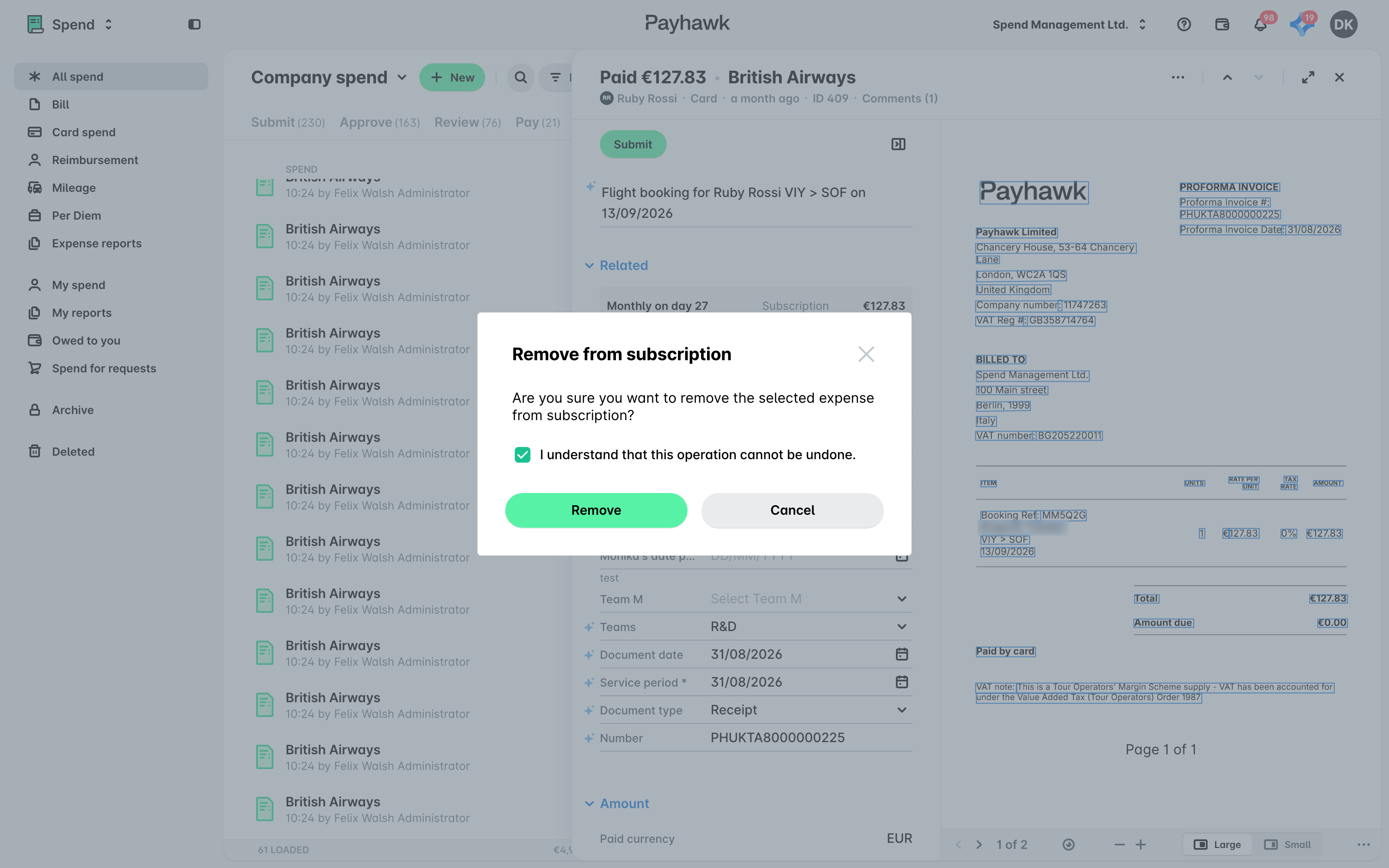
In the dialog that opens, confirm your decision by selecting the checkbox and click on Remove.
Useful resources