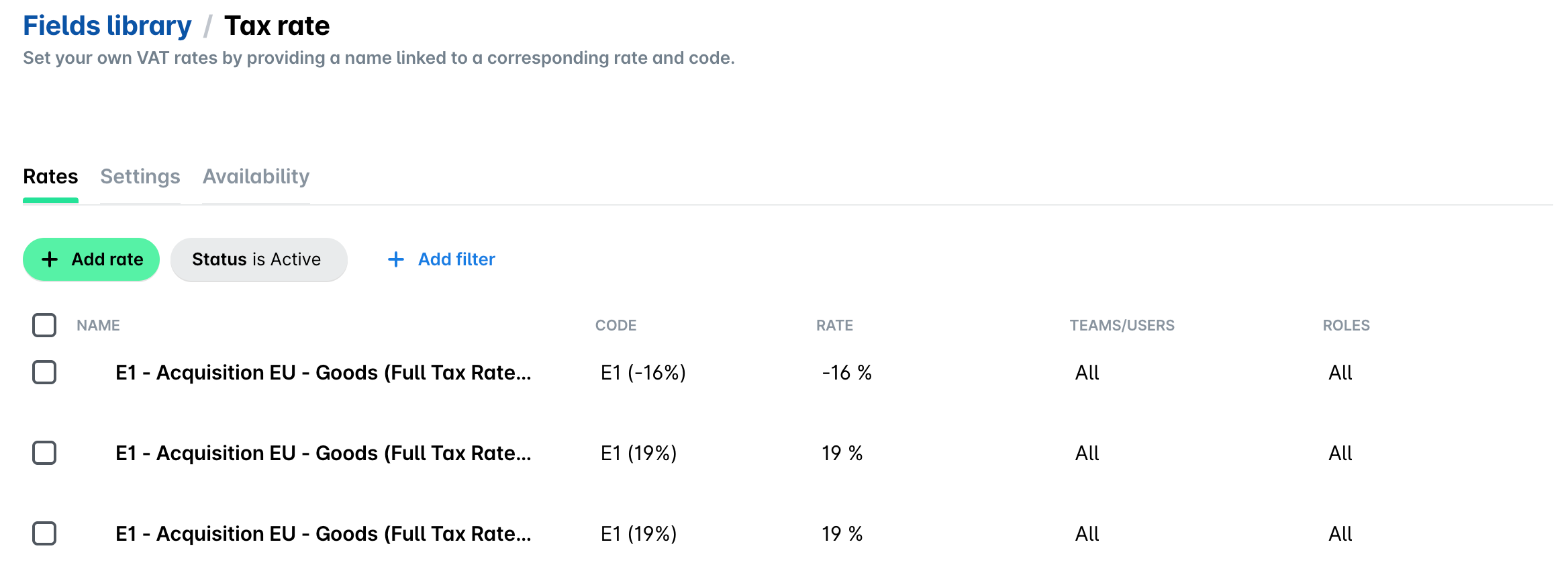
In many cases, the tax amount on the document is not the actual amount your company can claim. The supported integration between Payhawk and DATEV automatically creates the BU7, BU8, and BU9 VAT rates. However, you can add your own, custom VAT rates (BU codes) in Payhawk.
All of your VAT rates will appear in Spend. When a new expense is created, it will use the default VAT rate from the expense category. You can set default VAT rates in the categories.
Creating new VAT rates in Payhawk
To create additional custom VAT rates (BU codes):
Log in to your Payhawk account.
Go to Settings > Fields library.
Click on Tax rate.
Click on Add rate and, in the New tax rate panel, enter the desired VAT name in Name.
In Code, enter the BU-Code from DATEV.
Enter the rate in Rate %.
Click on Save.
Editing or deleting existing tax rates from Payhawk
To edit or delete existing VAT rates (BU codes):
In the Payhawk Web Portal, go to Settings > Fields library.
Click on Tax rate.
To edit a VAT rate, click on it. In the panel that opens, update its values and click Save.
To delete a VAT rate, select its checkbox. In the panel that opens, under Operations, click on Delete and confirm.