After your Mastercard or Visa cards have been bulk-linked to Payhawk, a Payhawk Administrator must assign each card to the correct cardholder by matching the last four digits of the card.
To map a card to its proper cardholder:
In the Payhawk Web Portal, open the app switcher in the top-left corner and go to Cards > Linked cards > Inactive tab.
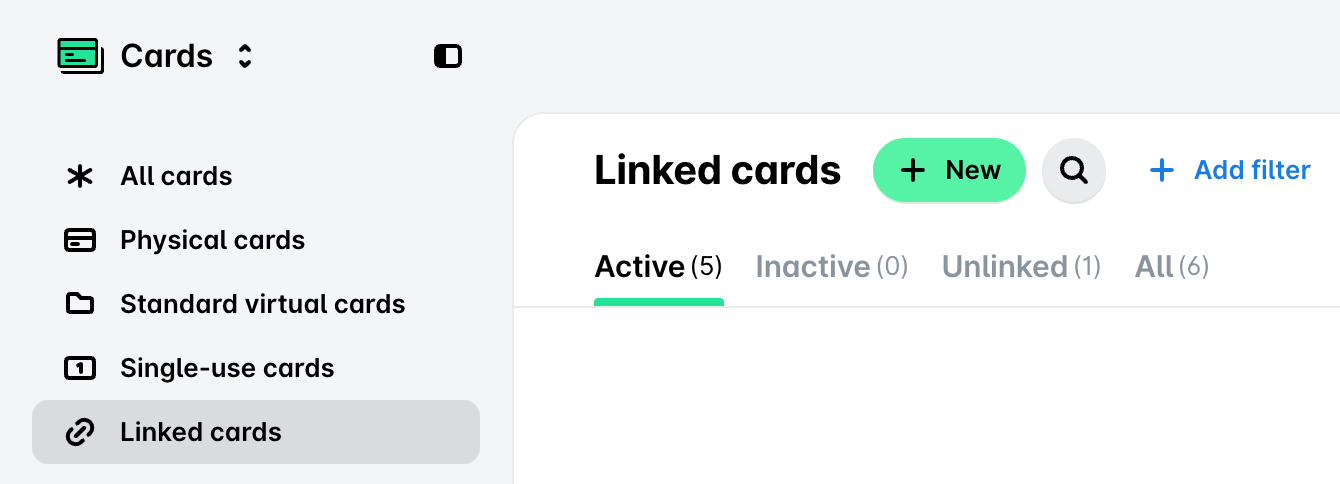
Find the desired card by using its last 4 digits.
Assign the correct cardholder name to the card:
Click on Assign owner.
From the Select the cardholder drop-down list of options, select the employee.
(Optional) In the Card name field, add a name for the card.
Click on Assign.
Repeat these steps for all cards you want to assign.