As a Payhawk Administrator, you can issue physical pre-order cards in bulk and assign them to the respective cardholders later.
To be activated, a pre-order card has to be assigned first.
You can only assign the card owner once. Assigned pre-order cards cannot be re-assigned.
Prerequisites
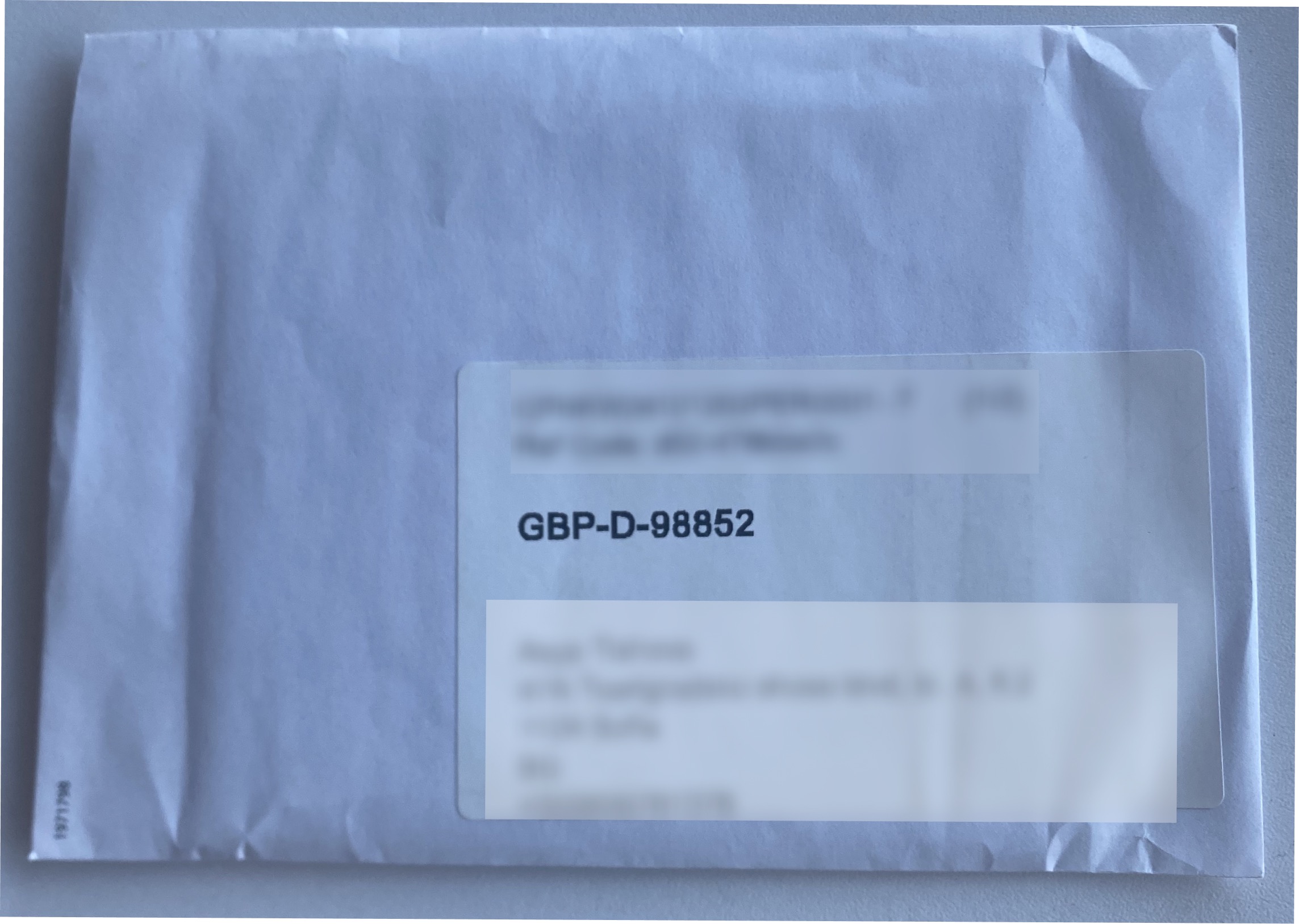
To assign a pre-order card, you need the code from the card envelope. The code follows the format: Currency-D/C-five digits, where:
Currency - Indicates the card currency (for example, GBP).
Card type - The possible types are D indicating debit cards and C indicating credit cards.
Assignment code - A 5-digit code used for identifying the specific card, for example, 98852. Note that this is different from the last four digits of the card number.
Assigning pre-order cards
It's recommended that you assign pre-order cards when they are handed to the employee, as the assignment code is only visible on the card envelope.
If the assignment code is lost, you can view it in the card audit log of the desired card.
To assign a physical pre-order card:
In the Payhawk web portal, go to the Cards > All cards > Inactive tab.
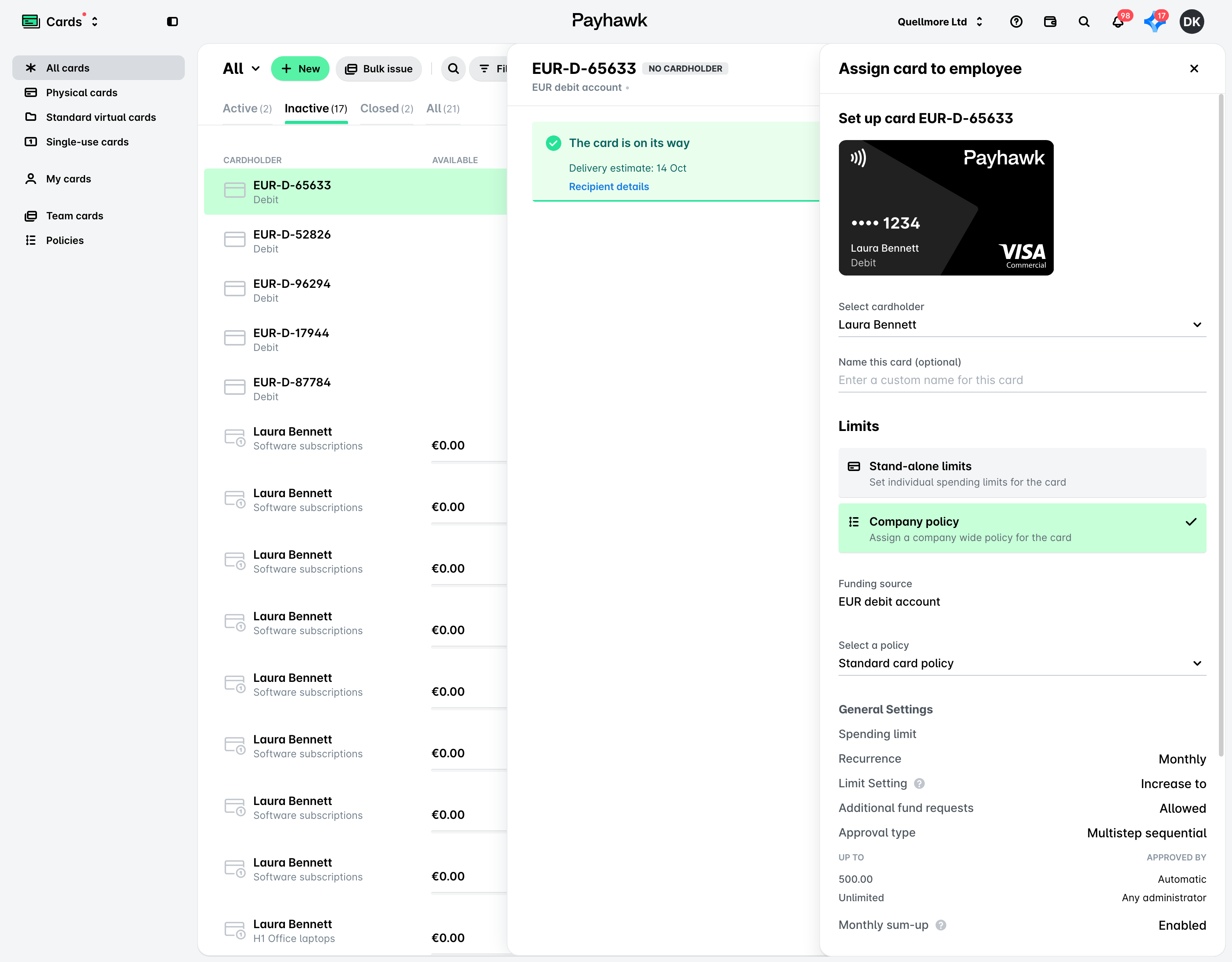
Select the desired card and click on Assign owner.
In the dialog that opens:
From the drop-down menu, select the employee to whom the card will be assigned.
(Optional) Define a custom name for the card.
Click on Assign.
When the card has been assigned, the system will send an email to the cardholder. To be able to start using the pre-order card, assigned cardholders must first activate their card.
Before the first in-store payment
Ask the cardholder to use the card once at an ATM before their first in-store payment, for example, you can tell them when you hand over the card envelope.
Why the ATM step is needed
Pre-order cards are made before they're assigned to anyone. The card's PIN is created when you assign the card, so the card's chip doesn't hold the PIN yet.
Some payment terminals check the PIN against the chip without contacting the card issuer. These terminals are common in some countries, such as France. Until the chip has received the PIN, these terminals decline a pre-order card with an incorrect PIN message, even when the cardholder enters the PIN displayed in the app.
Contactless payments within the merchant's contactless limit, Apple Pay, Google Pay, and online payments work as soon as the card is activated, without the ATM step.
If the cardholder needs chip-and-PIN payments from day one, issue them a personal physical card instead, because a personal card's PIN is stored on the chip when the card is made.
Updating the chip at an ATM
If a terminal has already rejected the PIN, the cardholder must not keep trying. After 3 rejected attempts, they must reset the PIN in the app before doing the ATM step.
To update the chip, the cardholder must:
In the Payhawk Mobile App, open the activated card and tap View PIN.
Insert the card into any ATM and enter that PIN.
Don't change the PIN at the ATM. Changing the PIN at an ATM can block the card. For more information, see viewing and resetting the PIN for your Payhawk card.
Do a balance inquiry or a cash withdrawal.
A balance inquiry works even if ATM withdrawals are turned off for the card.
After that, the card works at all payment terminals.