You may want to update your Payhawk account password for security reasons or convenience, or reset it if you have forgotten it.
You cannot reuse an old password when updating or resetting your password.
Updating your password
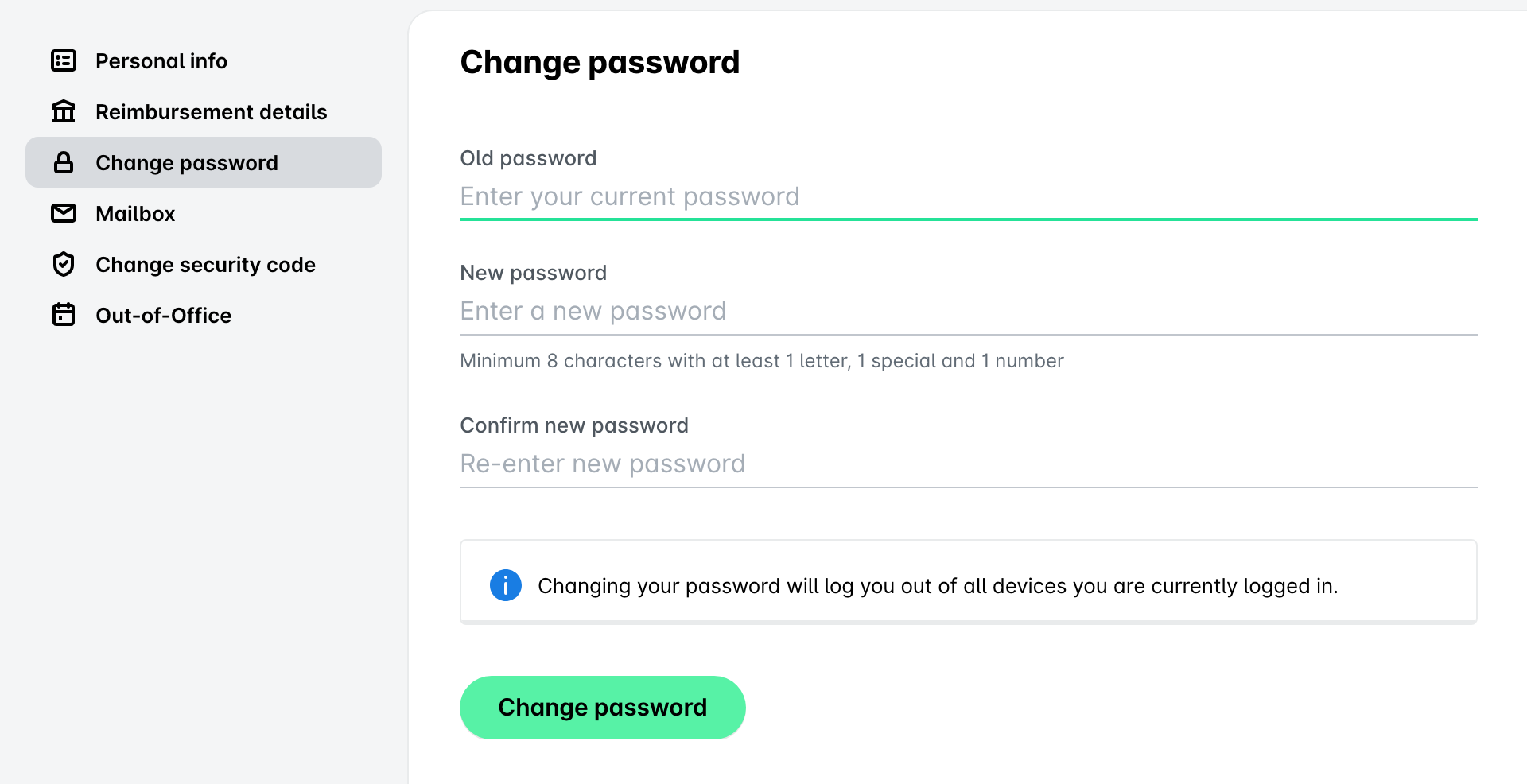
To update your password:
Log in to the Payhawk Web Portal.
Click on your profile picture.
Select Manage profile > Change password.
On the Change password page:
Enter your current password.
Enter your new password. See password requirements.
Re-enter the new password to confirm.
Click on Change password.
Changing your password logs you out of all devices you are currently logged in on.
Resetting your password
To reset your password, follow the steps:
Log in to the Payhawk Web Portal.
Enter the email address of your Payhawk account.
Select Continue.
Click on the Forgot your password? option.
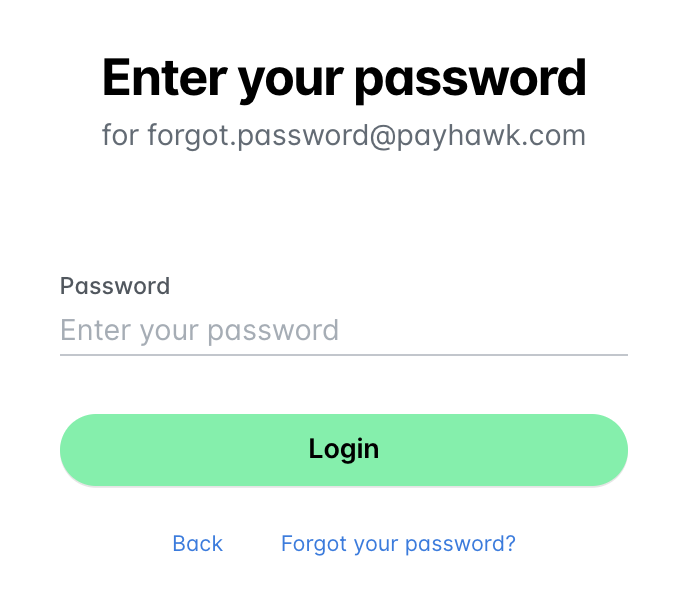
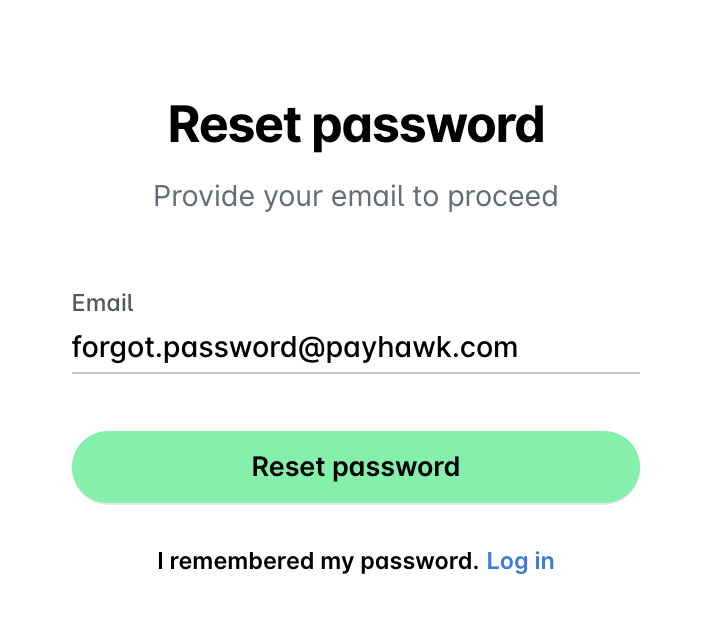
Enter your email address and click on Reset Password.
Check your email inbox for the password reset email.
Note the following:
It may take up to 10 minutes for the email to come.
If you still cannot find the email in your inbox after that time, check your spam folder. Alternatively, ask your system administrator for assistance as the email may have been blocked by your company's email security settings.
Click on the URL provided in the email and enter the verification code and your new password.
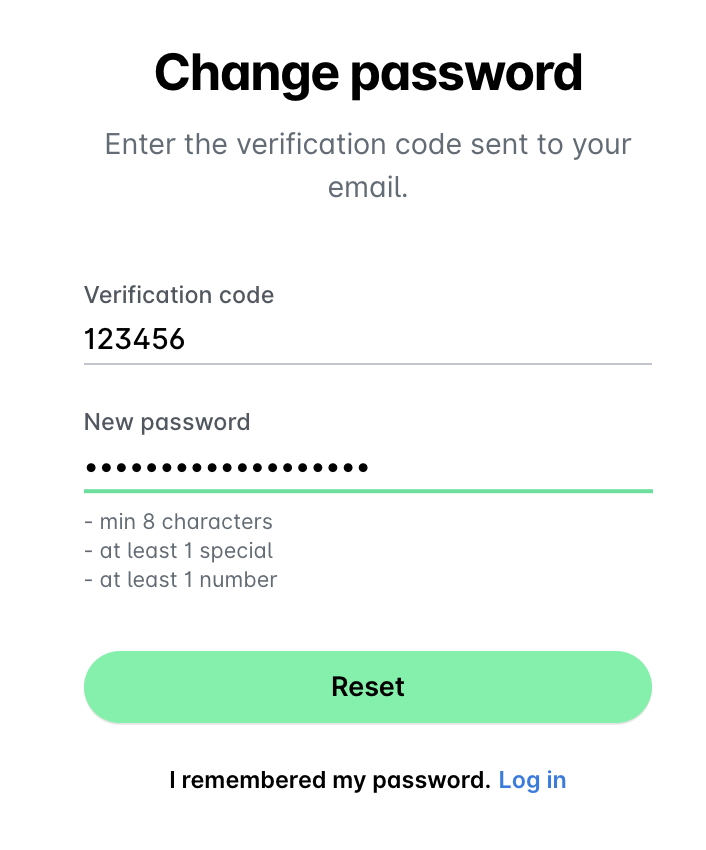
After you have successfully changed your password, try to log in to the Payhawk Web Portal. If you still can't, clear your cache and cookies, close and reopen your browser, and try logging in again with your username and the new password.
Useful resources