Group administrators can create their Group in Payhawk and invite other teammates as Group administrators.
Creating a group for multi-entity management
To create the group of entities you need to manage collectively:
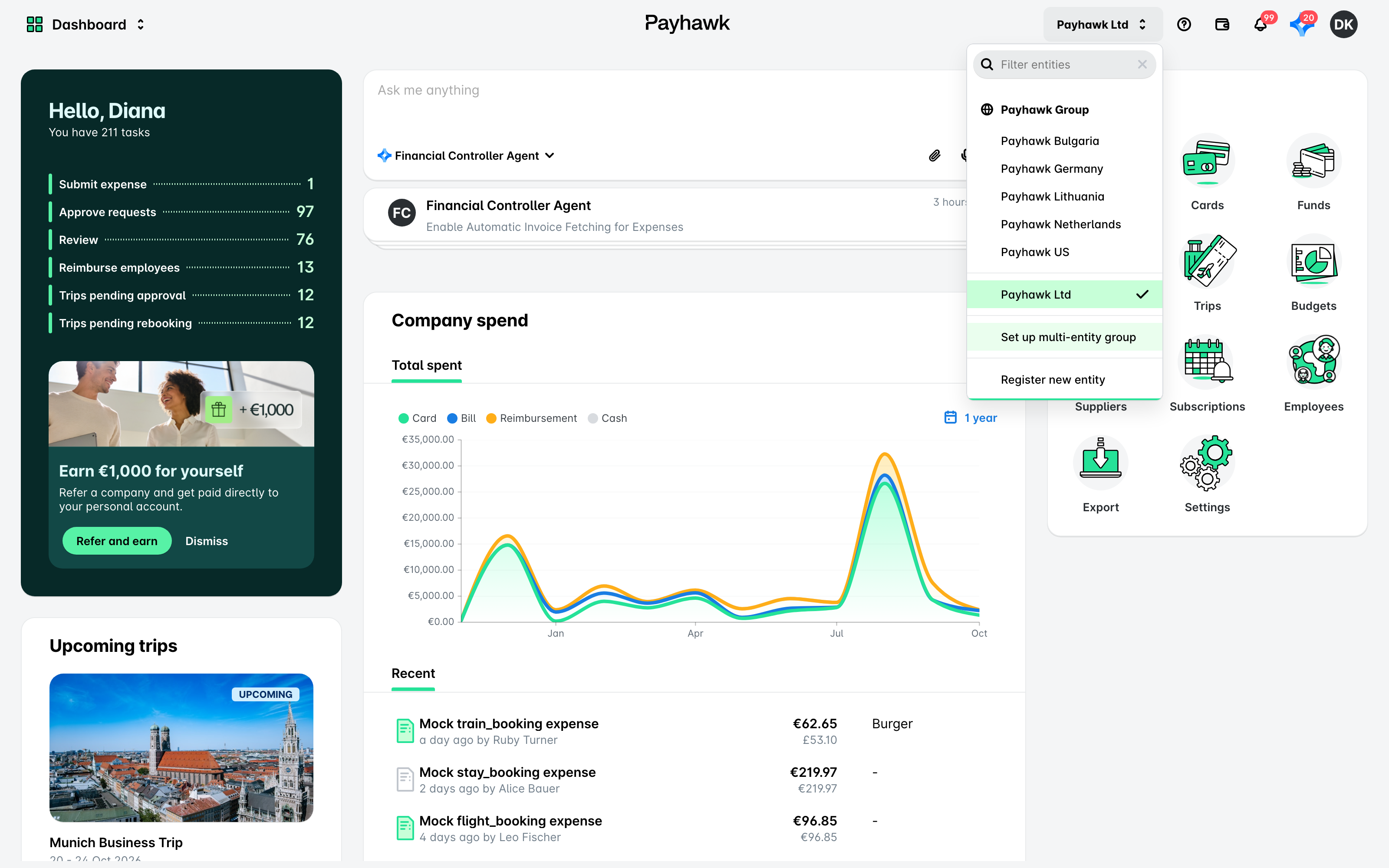
In the Payhawk Web Portal, hover over the name of the current entity and click on the Set up multi-entity group option.
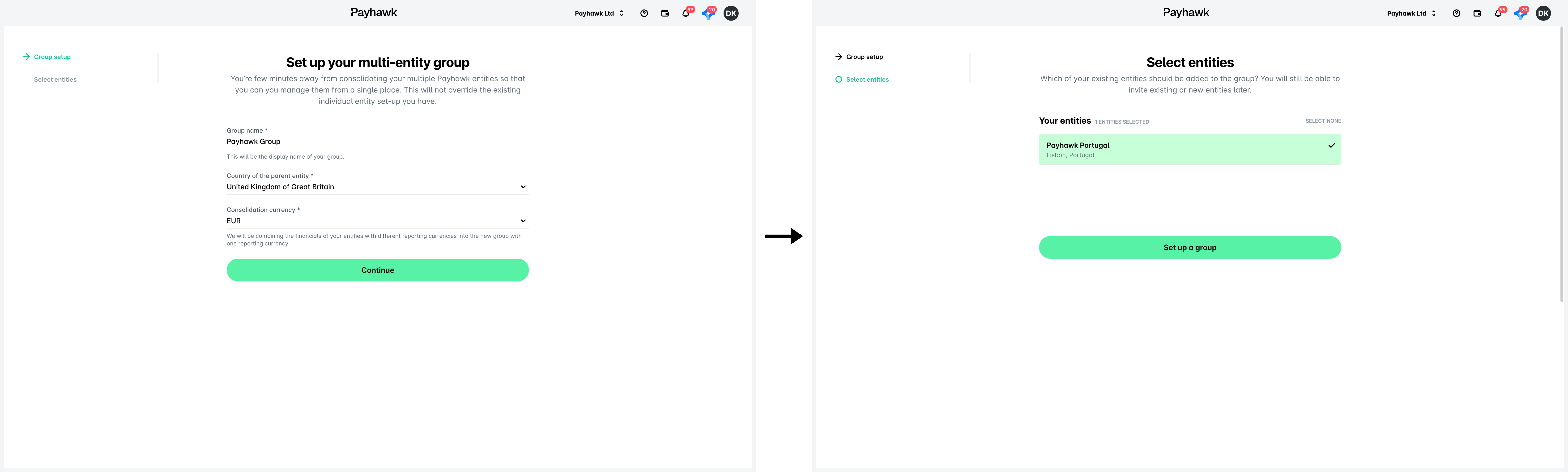
On the screen that opens, enter the desired name of the group, the country of the parent entity, and the consolidated currency. Click on Continue.
On the next screen, select the entities you want to include in the Group for multi-entity management by clicking on them. Click on Continue.
Adding new entities to a Group
As a Group administrator, you can add new entities to an existing Group in Payhawk:
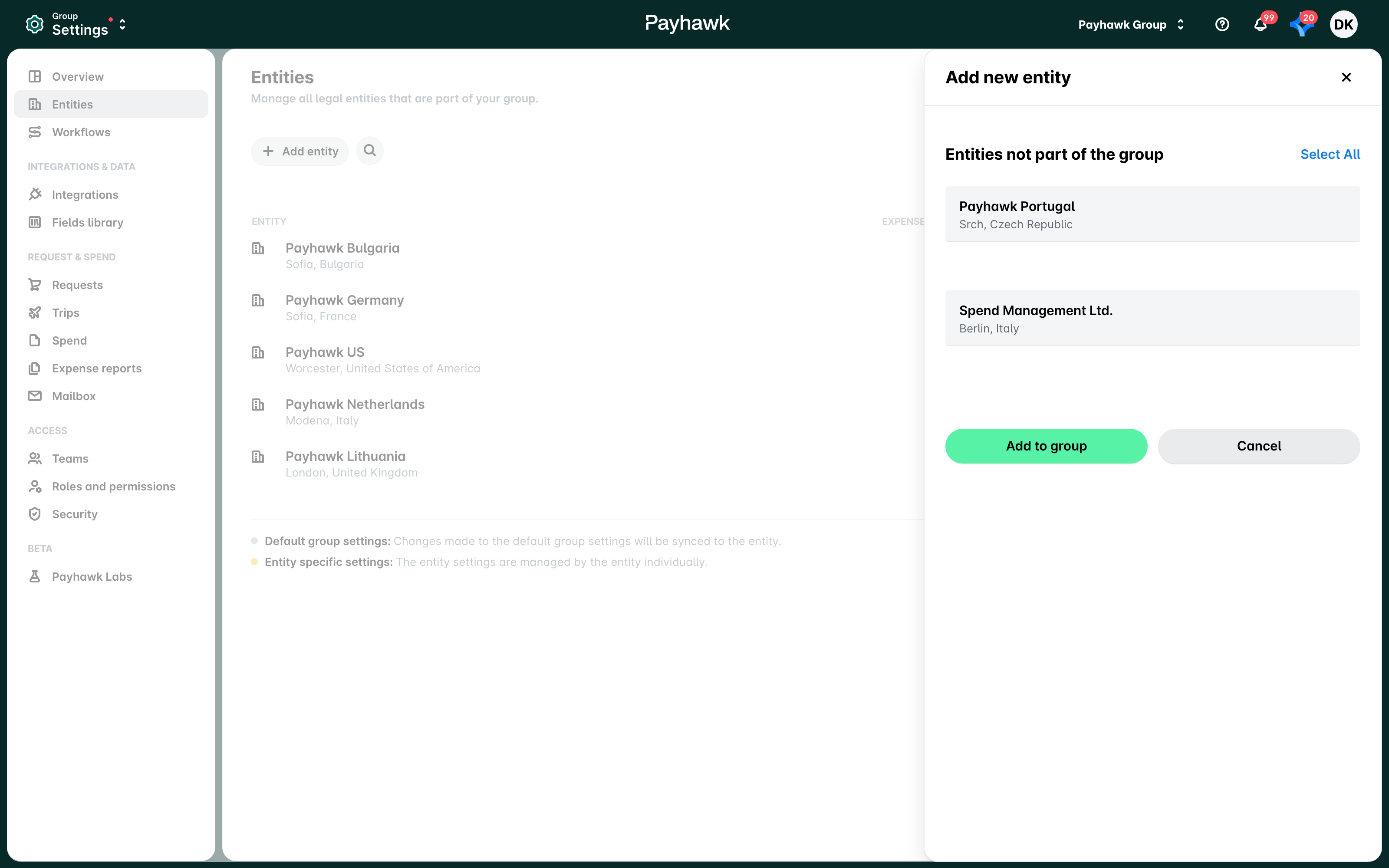
In the Payhawk Web Portal, open the app switcher in the top-left corner and go to Settings > Entities.
Click on + Add entity.
On the screen that appears, the entities that you are part of but are not yet part of the group will be automatically selected. Select or deselect the required entities by clicking on them.
Click on the Add to group button to confirm your choice.
Inviting Group administrators
Only Group administrators can invite more users as Group administrators. If a teammate is already a Group administrator, they'll also be displayed as members of the Group.
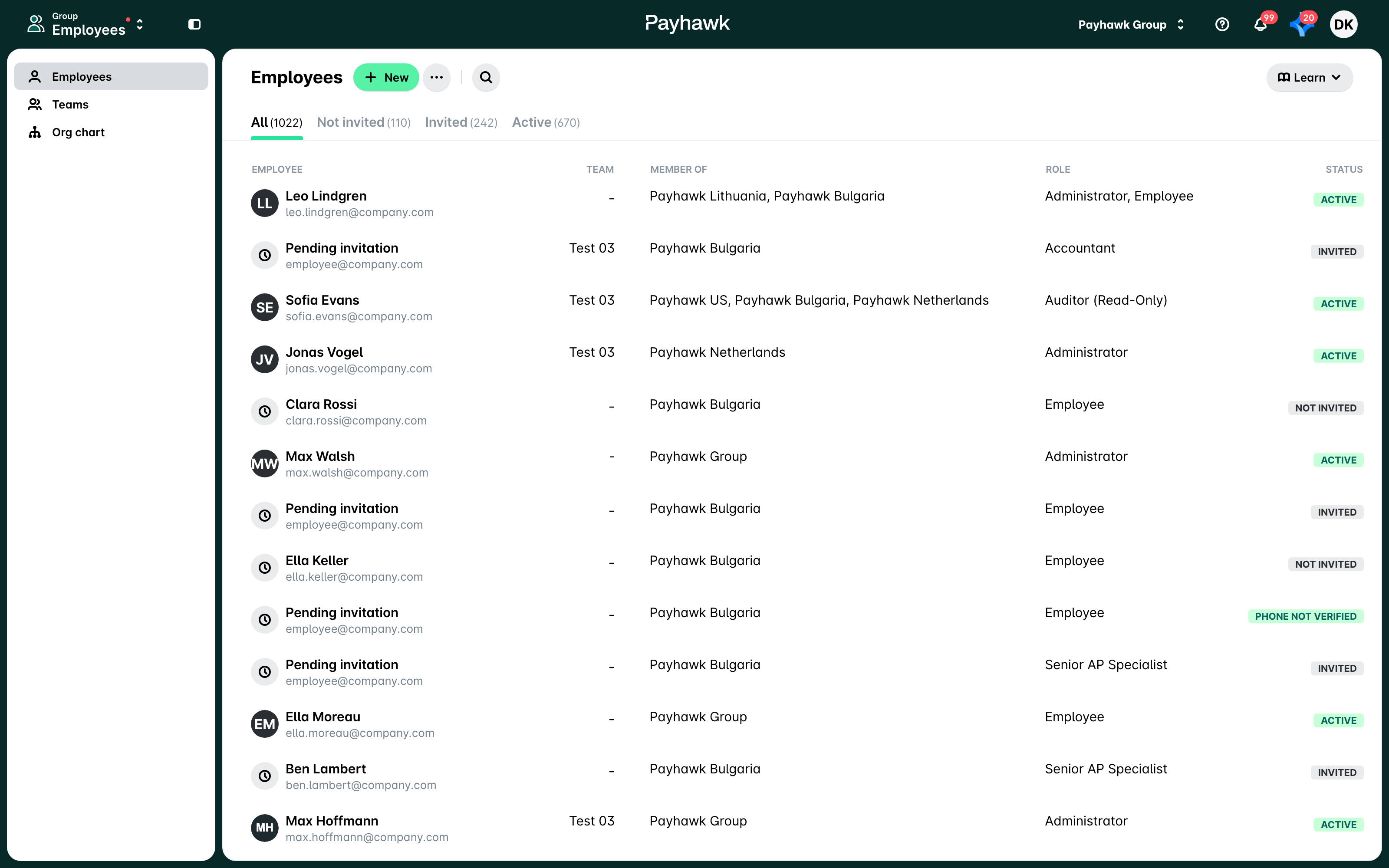
To invite a teammate as a Group administrator in Payhawk:
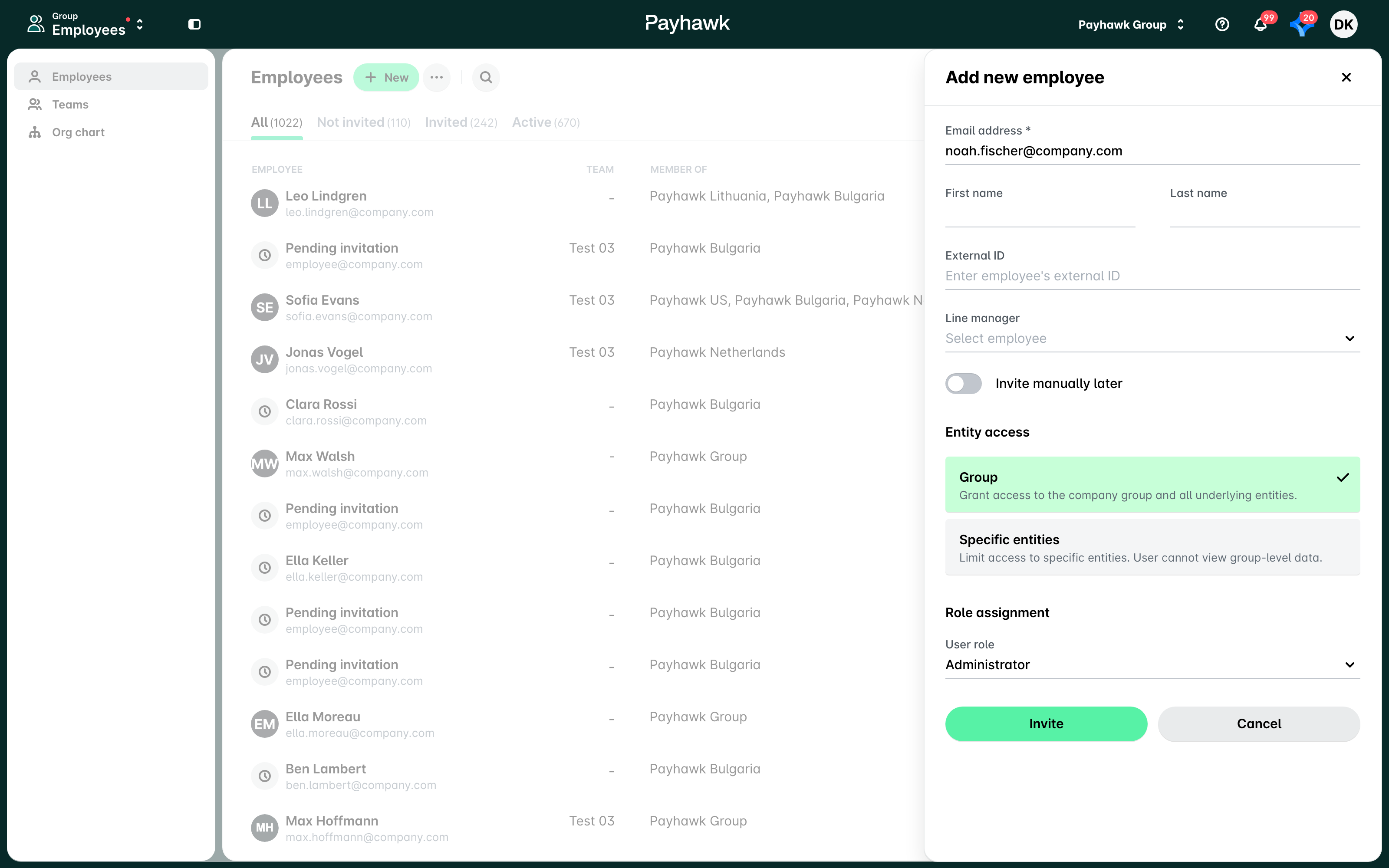
Open the app switcher in the top-left corner and go to Employees and click on New.
On the next screen, enter the email of the teammate.
Under Entity access:
Select Group to grant the teammate access to the company group and all underlying entities.
Select Specific entities to limit the access of the teammate to specific entities by choosing the relevant entities from the drop-down list.
Under Role assignment, from the drop-down menu select the user role.
Click on Invite. As a result, the user receives an email invite and will automatically become an Administrator.
Useful resources