In the Payhawk web portal, you can edit and remove expense report expenses in bulk before they have been paid.
Expense report expenses can be edited in bulk by different roles at your company, depending on the stage of their lifecycle:
Employees can edit expense report expenses in bulk before the expense report has been submitted.
Employees assigned as approvers, as well as Payhawk accountants and administrators, can edit expense report expenses in bulk before the expense report has been approved.
Payhawk accountants and administrators can also edit expense report expenses in bulk before the expense report has been reviewed.
Editing expense report expenses in bulk
You cannot bulk-edit the tax rate for expenses that are split into line items.
You can bulk-edit up to 100 expenses at a time.
As an expense report owner, you can edit your expense report expenses in bulk.
To edit expense report expenses in bulk:
In the Payhawk Web Portal, open the app switcher in the top-left corner and go to Spend > Expense reports > Submit and select the desired report.
Select the desired expenses.
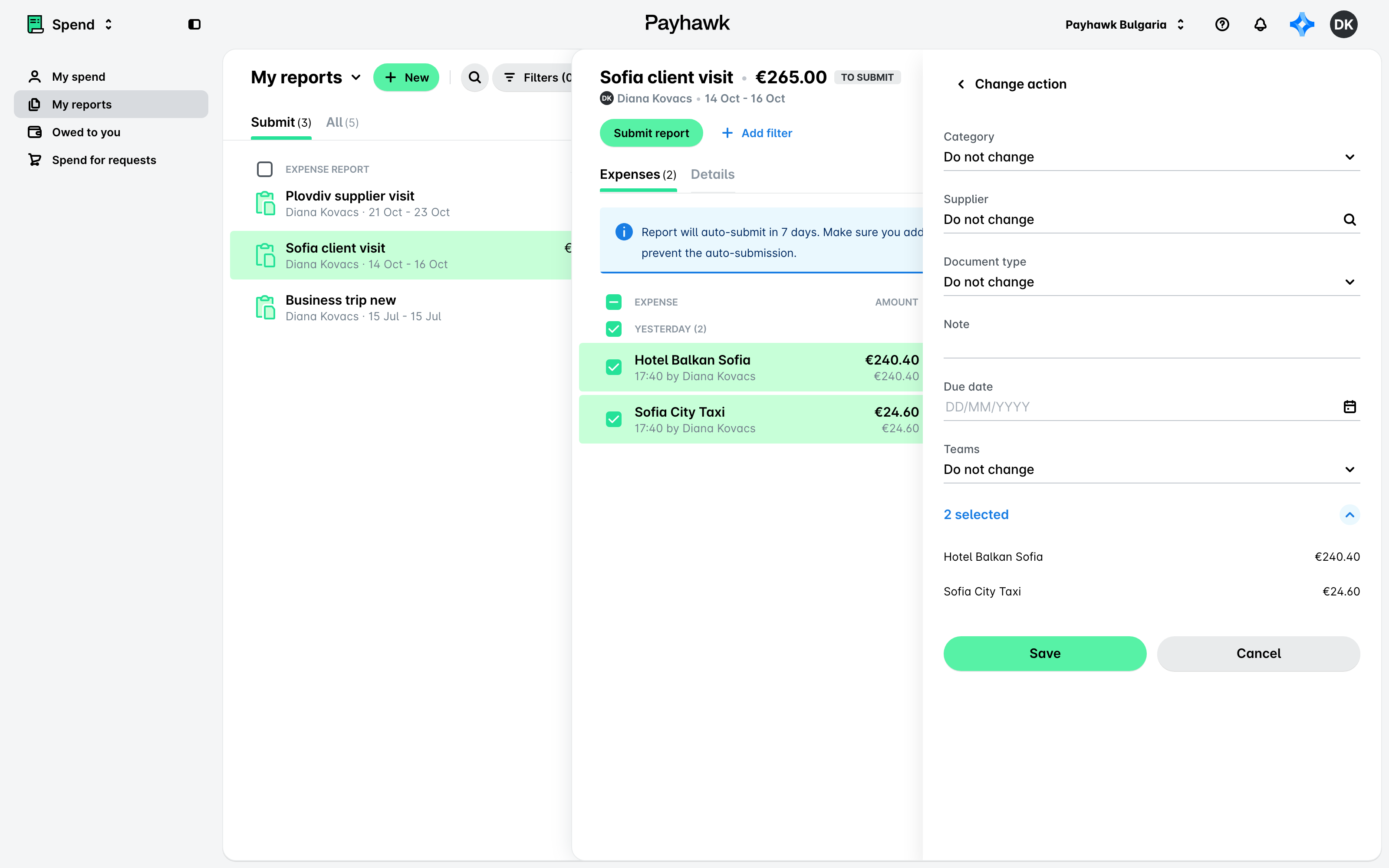
In the dialog that opens, click Edit.
Use the drop-down menus to update the Category, Tax rate, or other custom fields of the expenses.
Click Save.
Removing expense report expenses in bulk
As an expense report owner, you can delete expense report expenses in bulk as long as they haven't been paid.
To delete expense report expenses in bulk:
In the Payhawk Web Portal, open the app switcher in the top-left corner and go to Spend > Expense reports > Submit and select the desired report.
Select the desired expenses.
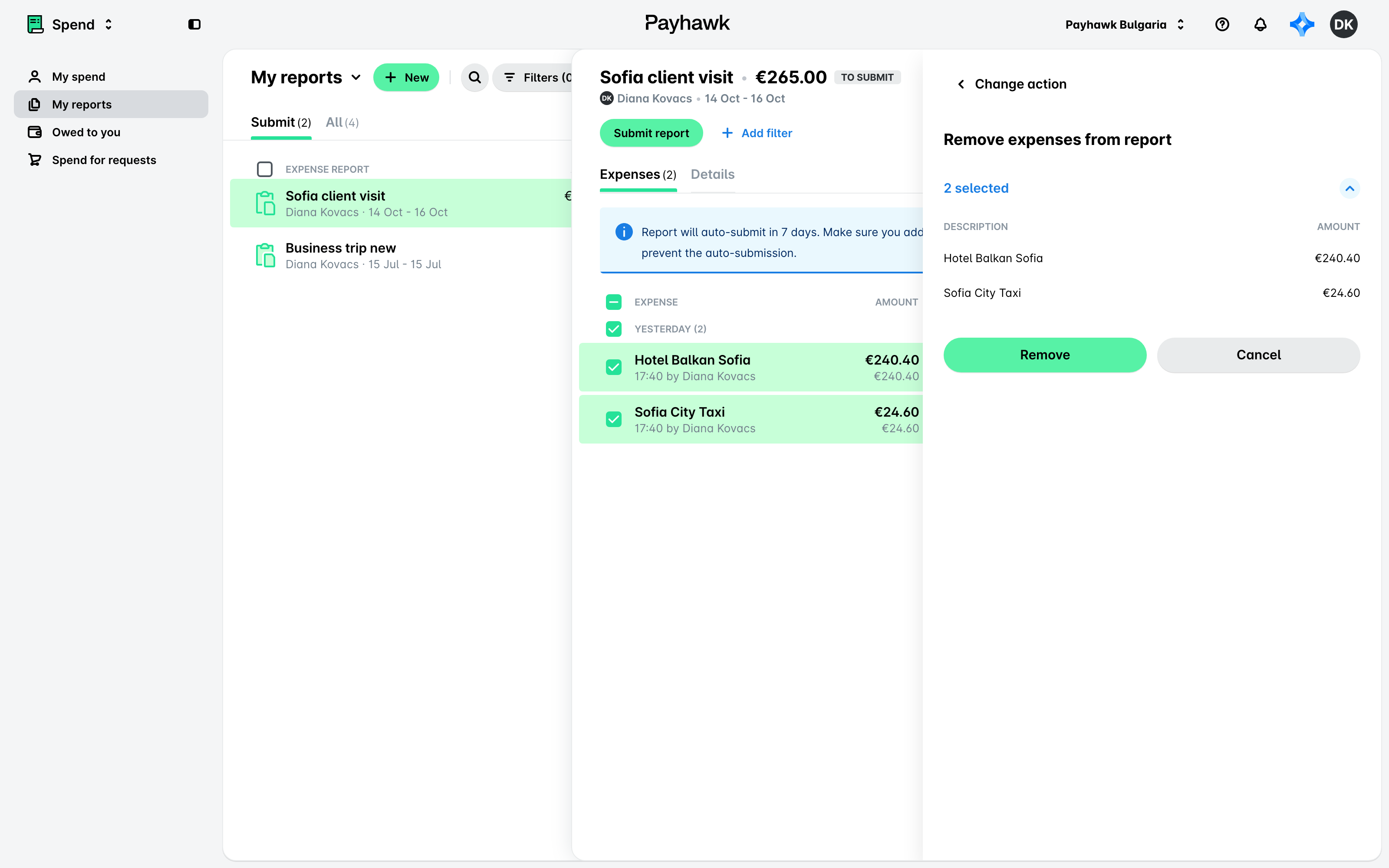
In the dialog that opens, click Remove from report.
On the next screen, click Remove. As a result, the expenses will be removed from the expense report and will move under the Submit tab as single expenses.
Moving expense report expenses in bulk to another report
As an expense report owner, you can move expense report expenses in bulk to another expense report.
To move expense report expenses in bulk:
In the Payhawk Web Portal, open the app switcher in the top-left corner and go to Spend > Expense reports > Submit and select the desired report.
Select the expenses you want to move.
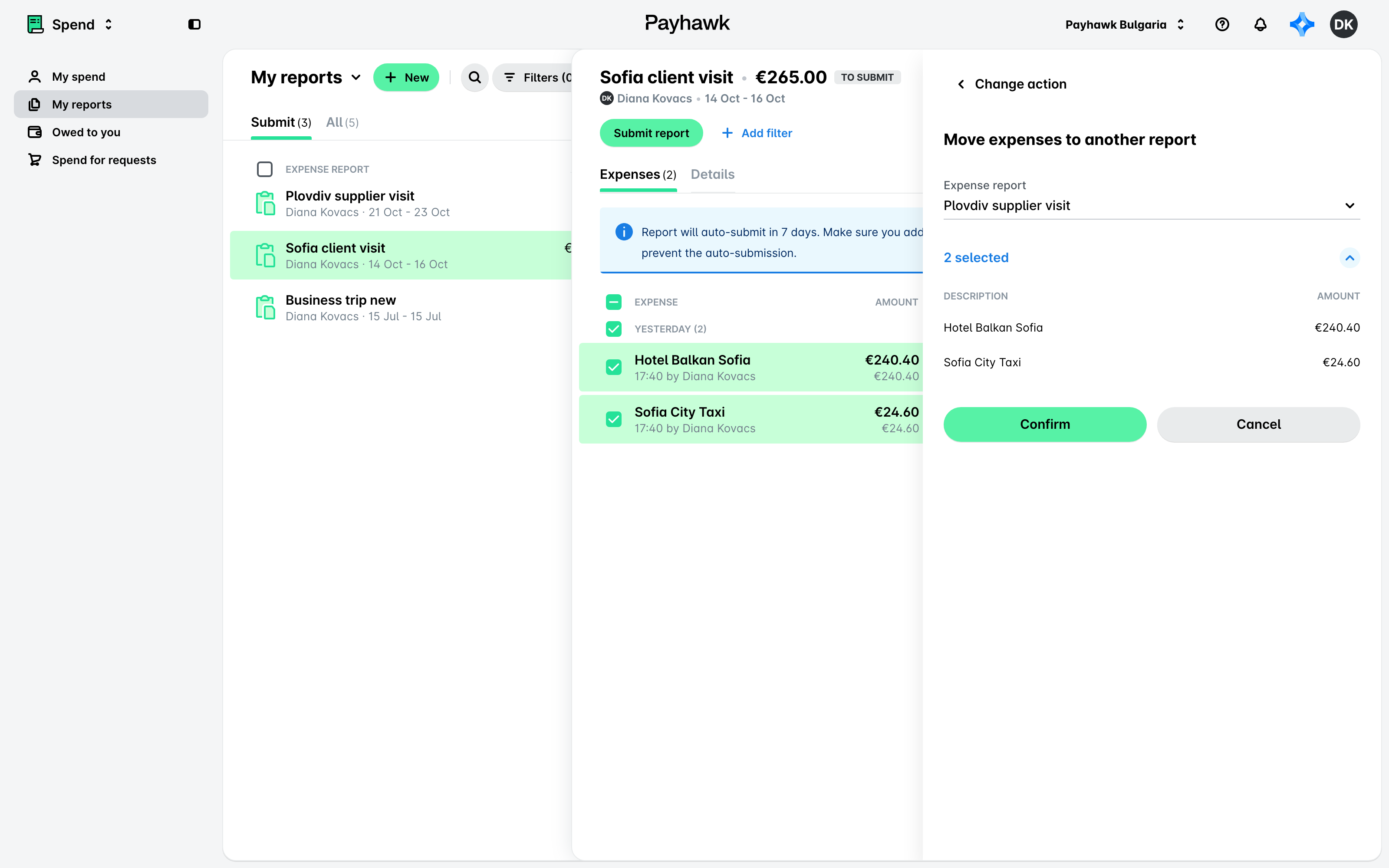
In the dialog that opens, click on Move to another report.
On the next screen, use the drop-down list to select the report where you want to move the expenses.
Click on Confirm.
Useful resources