You can export expense data for settled transactions upon request (on demand).
Specifics
All on-demand reports are downloaded directly in the browser.
At the time of file download, you will also receive an email with a download link, which, for security reasons, is only valid for 12 hours.
Generating on-demand exports
To generate an expense report on demand in Payhawk:
Log in to the Payhawk Web Portal.
Open the app switcher in the top-left corner and go to the Export app. Click on the Export button.
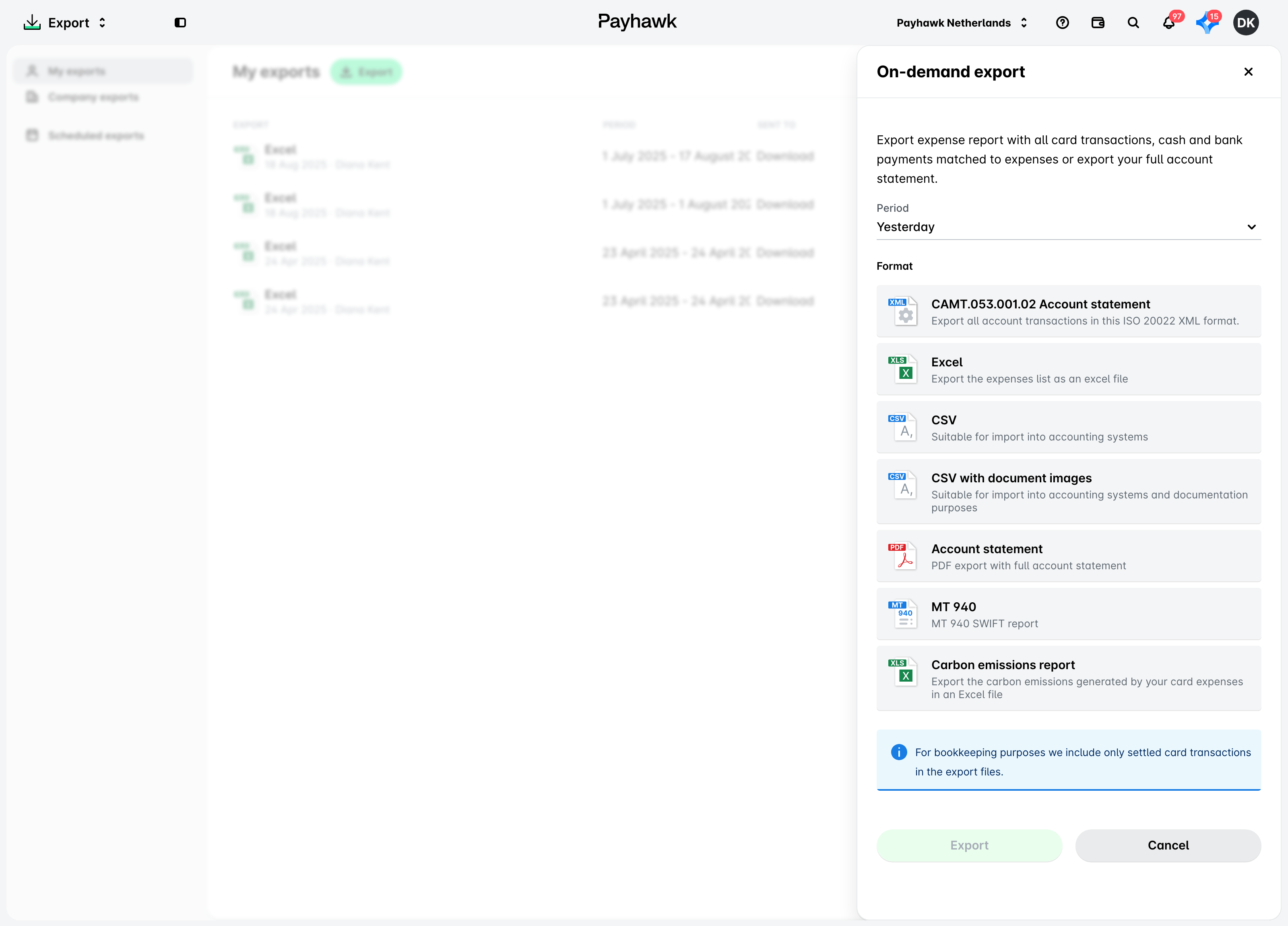
In the dialog that opens and from the Period drop-down list, either select a predefined period or choose the Custom period option to define a specific date range.
Select the type of report you want to export:
To export the data in Excel, select the Excel option.
To export the data in CSV without document images, select the CSV option.
To export the data in CSV with document images, select the CSV with document images option. This option extracts (downloads) all your invoices and receipts in one go.
To export an account statement in PDF, select the Account template option.
To export an account statement in a CAMT.053 format, select the CAMT.053 option.
To export the data in a custom format, select from the available accounting templates.
To export a carbon emissions report, select the Carbon emissions report option.
Click on the Export [number] button to generate the report.
Useful resources