The Payhawk Mailbox functionality allows you to configure automatic forwarding for expense documents you receive.
When a forwarding Mailbox email address is set, whenever a supplier sends you an invoice, the document is automatically forwarded to the Mailbox email.
Specifics
The Payhawk Mailbox parses the body of the email if there's no attachment to that email. It is highly recommended that you auto-forward only emails with attachments if the filter is very broad.
If you have a supplier that sends the receipts in the body of the email, then, do not filter out those emails. In such cases, you can create a second rule to include specifically those suppliers.
Setting the forwarding rules and email
To configure a forwarding email address for your Mailbox through Gmail:
Log in to your Gmail account.
Go to Settings > See all settings > Forwarding and POP/IMAP > Add a forwarding address.
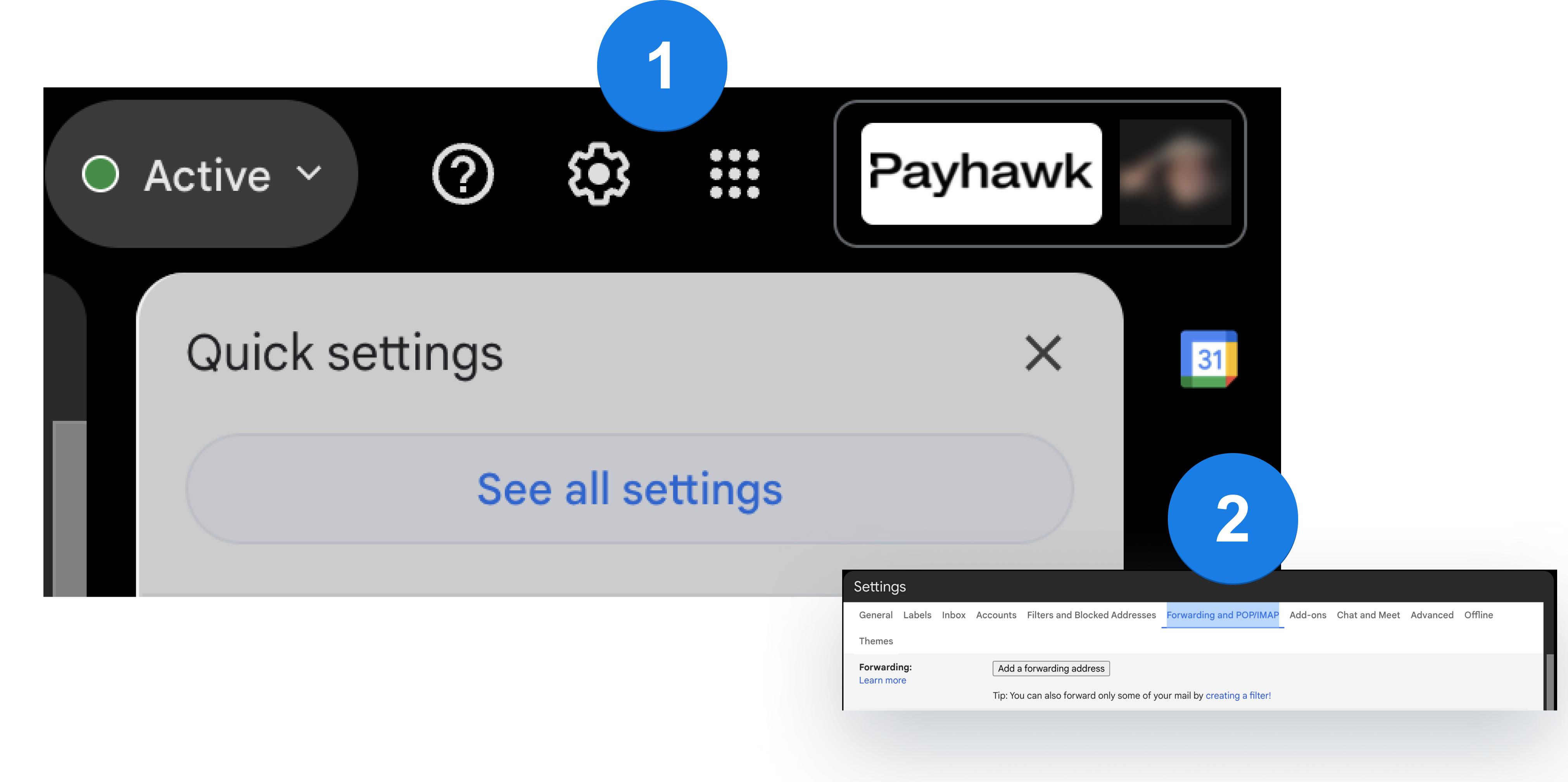
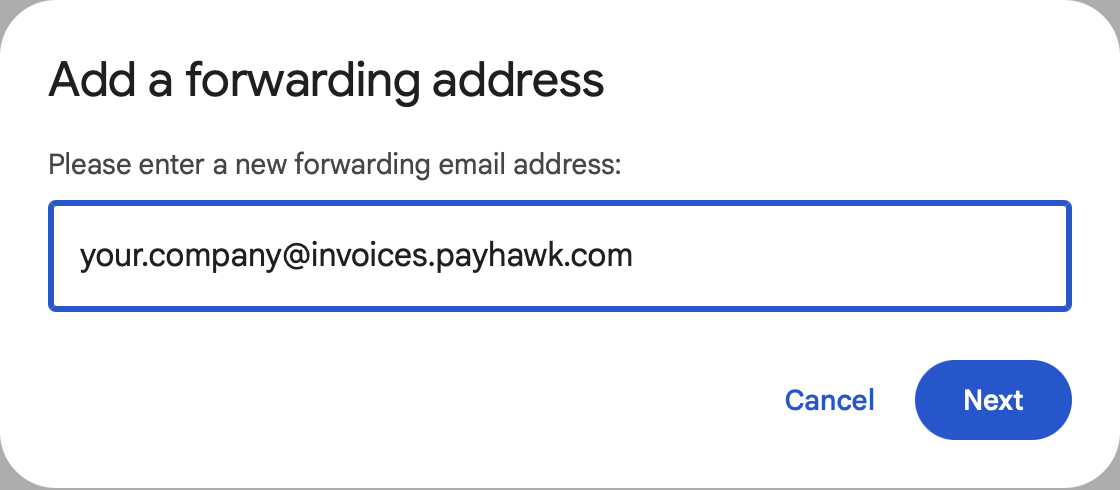
Select the email that you would like to whitelist. Click on Next. As a result, Payhawk will send you an email with the confirmation code and link.
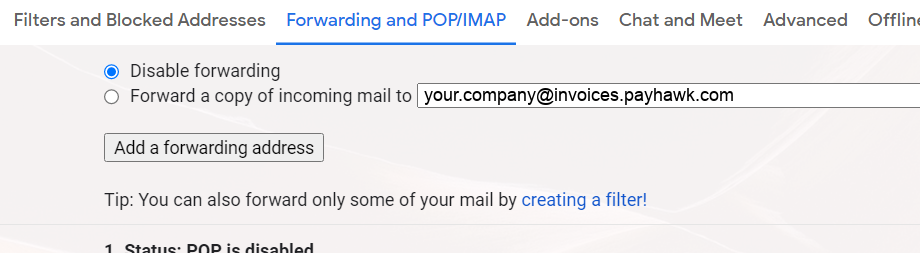
Click on the link you received from Payhawk, or use the code to manually verify the forwarding email address.
Now, you can create a custom filter for a given supplier. Click on the creating a filter link in the tip.
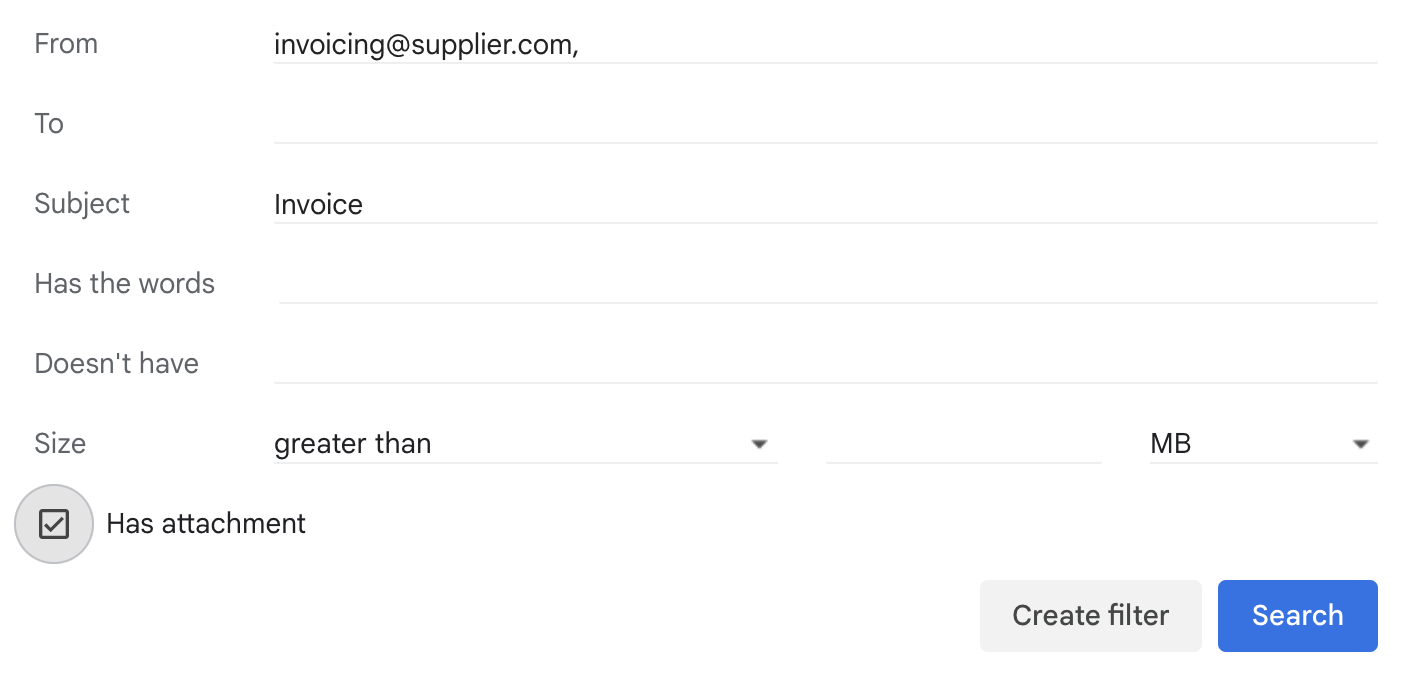
In the From input field, add the email of the desired supplier. In the To input field, add the forwarding Mailbox you created. You can further customize your rule by filling out the other depending on the subject that the supplier invoices you.
Click on Create filter.
Check the Forward it to option. From the drop-down menu, select a forwarding address from the ones you have whitelisted.
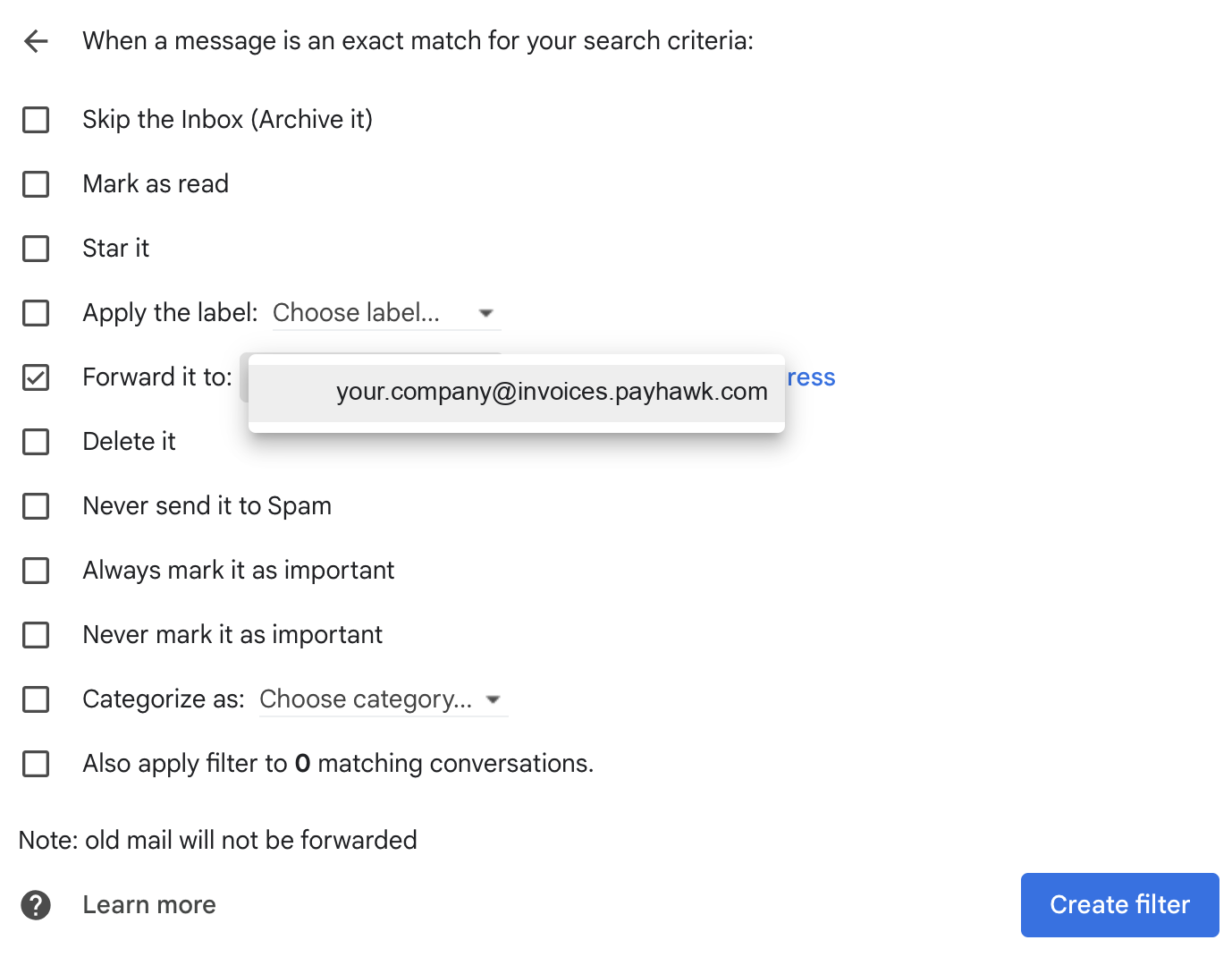
Click on Create filter. As a result, all invoices from that supplier will be forwarded straight to Payhawk.
Useful resources