When your auditors need confirmation of the funds your company holds with Payhawk, you can request an audit confirmation letter yourself, directly in Payhawk. The letter confirms the available balance of every open account of your entity on a date you choose. Payhawk emails it to you as a PDF, usually within a few minutes.
If your auditors need a letter in their own format, you can request one from Payhawk Support by email instead.
You can request a letter if your role has the View company funds permission. Payhawk Administrators and Auditors have it by default.
Each letter covers one entity. If your company has several entities, request a letter from each entity's Funds page.
The letter confirms balances at 23:59 UTC on the date you choose. Reserved funds aren't included.
Requesting a letter in Payhawk
To request an audit confirmation letter:
In the Payhawk Web Portal, open the app switcher in the top-left corner and go to Funds.
Click on the three-dot menu and select Audit confirmation letters.
In the dialog that opens, click on Request a letter.
Under Balance as of, choose the date the letter confirms. You can choose any date up to yesterday. By default, it's the last day of the previous month.
Click on Request letter.
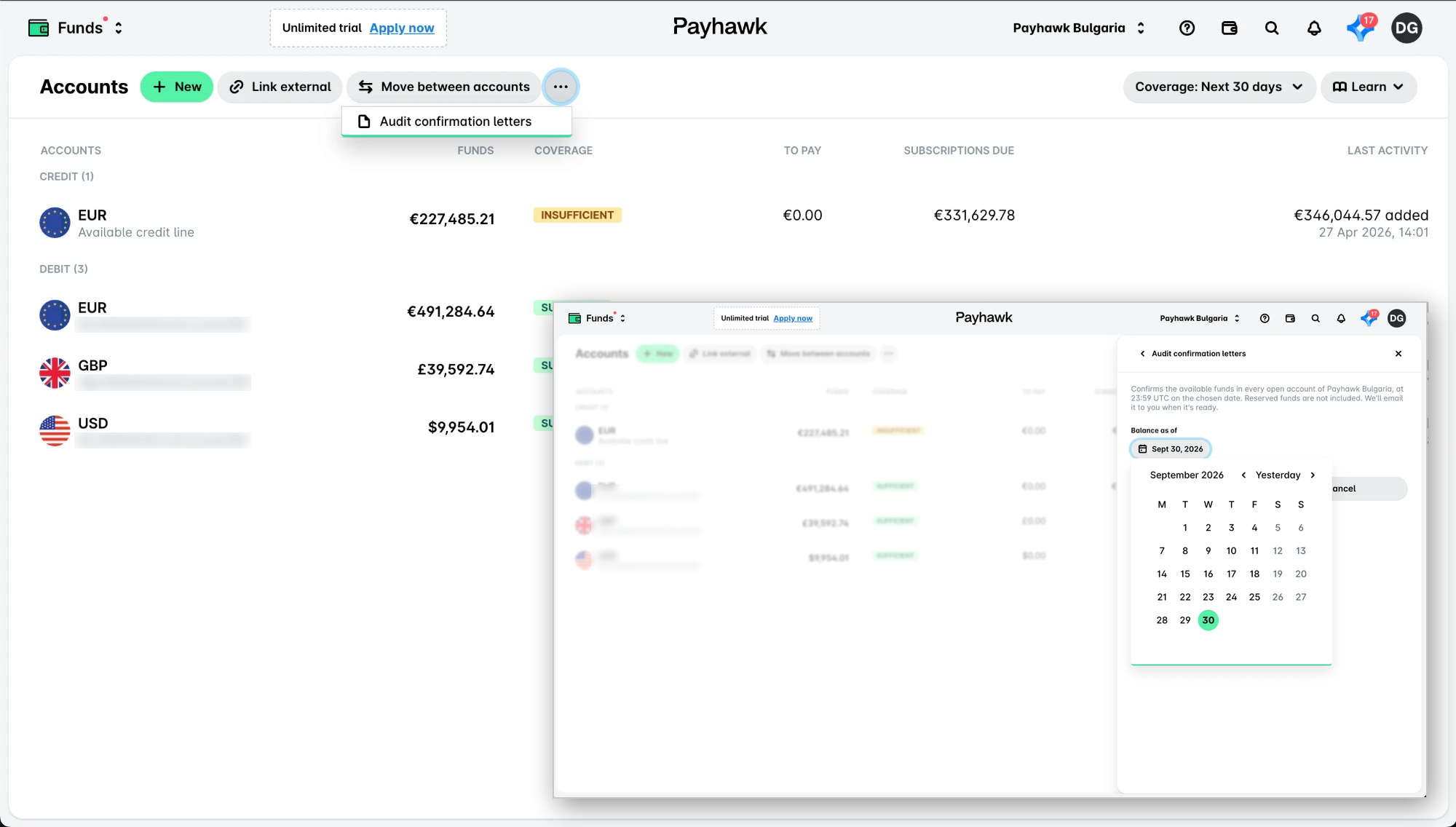
As a result, your request appears at the top of the list with the status In progress. When the letter is ready, Payhawk emails it to you with the PDF attached, and the request shows Emailed to and your email address.
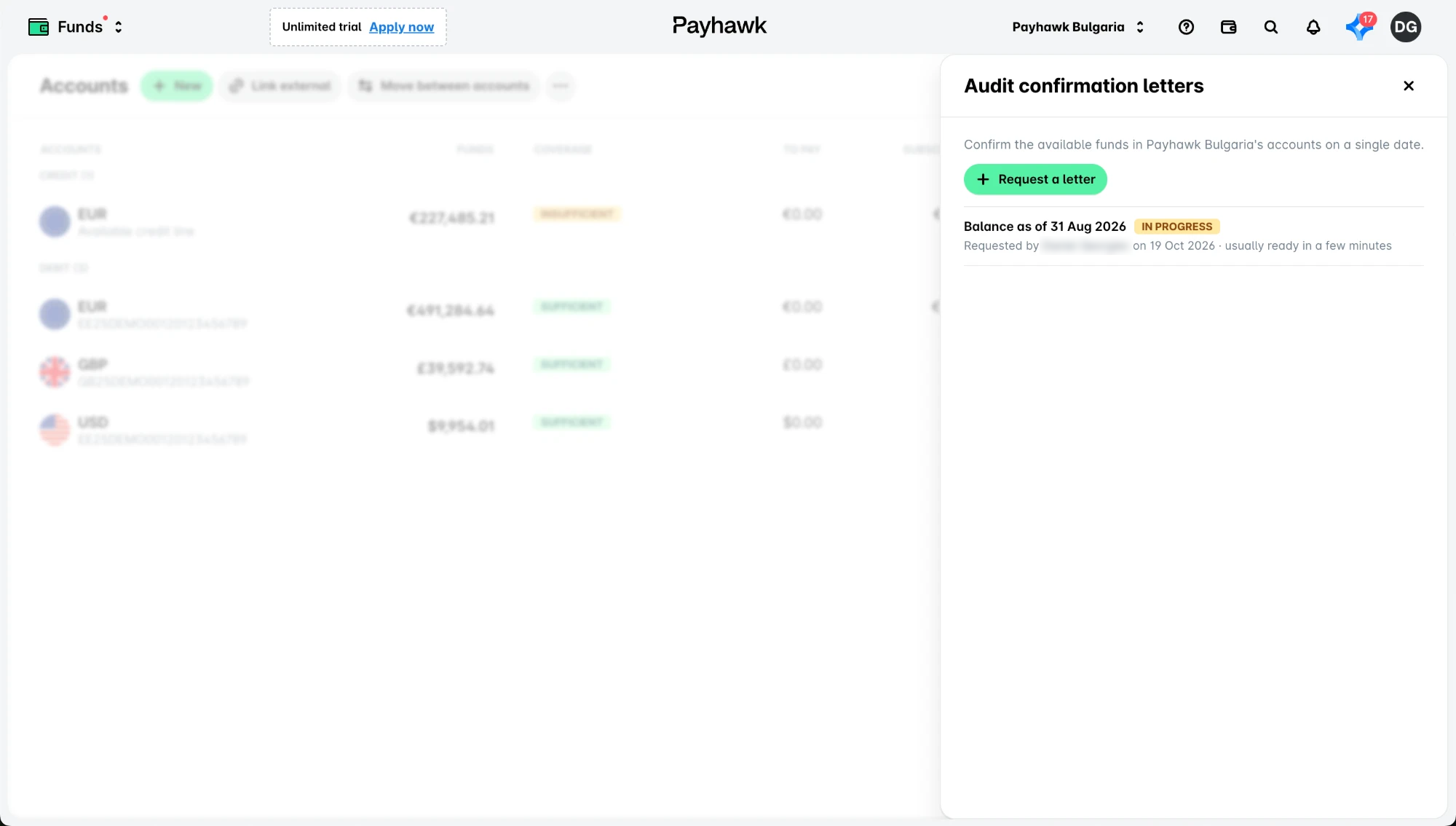
Receiving your letter
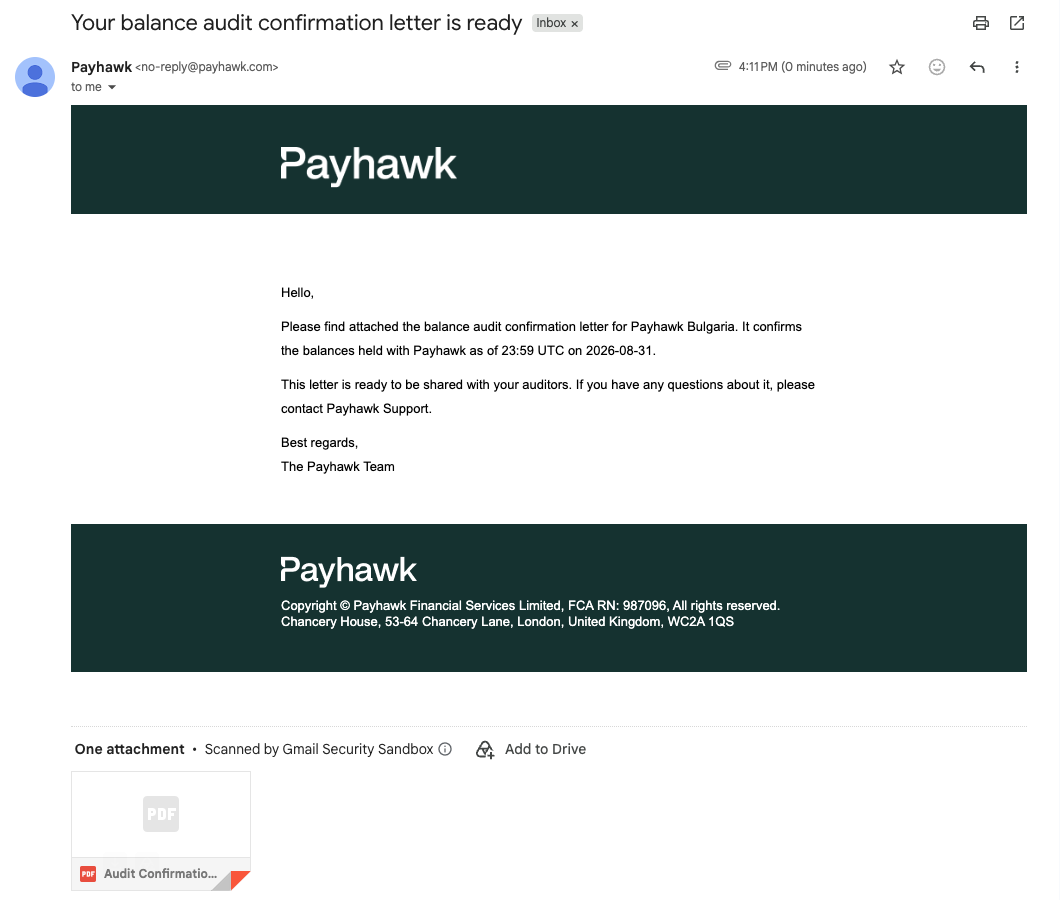
Payhawk sends the letter to the email address of the person who requested it. The email has the subject Your balance audit confirmation letter is ready and the letter attached as a PDF, ready to share with your auditors.
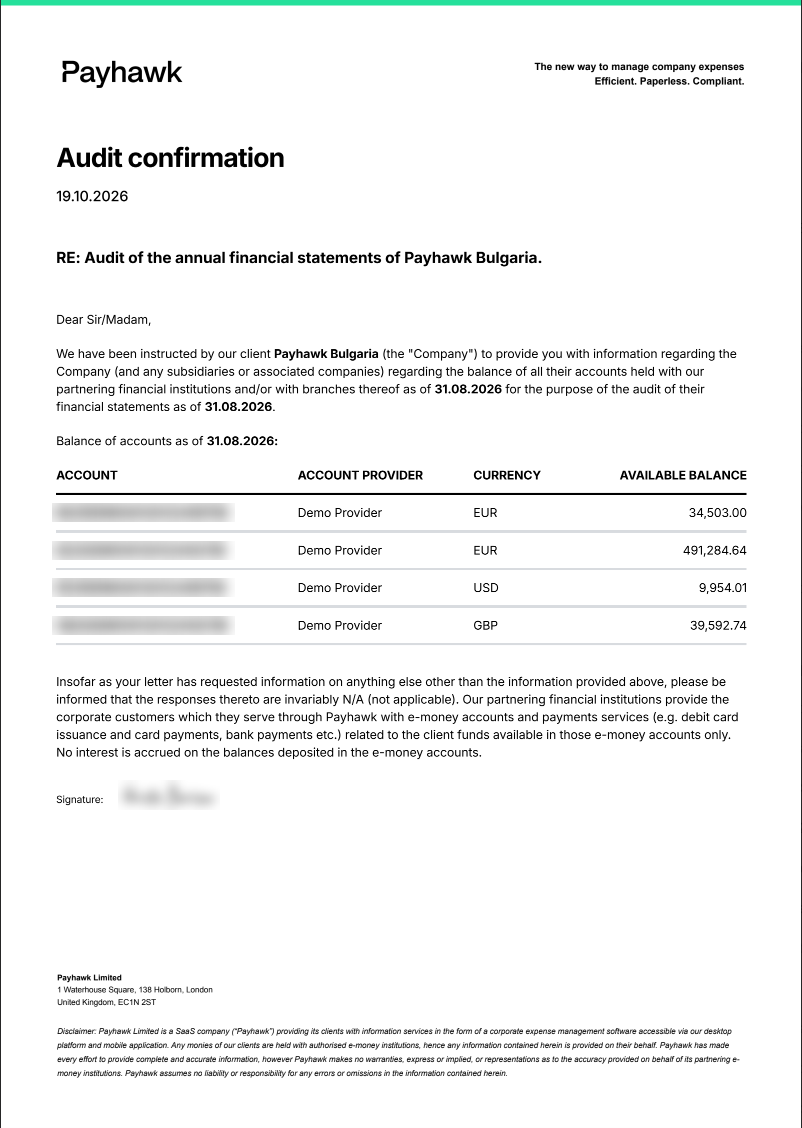
The letter includes:
The date it was issued and the date it confirms.
Every open account of your entity, with its account number, the financial institution that holds it, its currency, and its available balance.
If your entity has a credit line with Payhawk, the approved credit limit, the available balance, and the amount due.
Your accounts can be held by more than one Payhawk partner financial institution. In that case, the letter has a separate page for each institution, signed on its behalf.
Tracking your requests
To see past requests:
Log in to the Payhawk Web Portal.
Open the app switcher in the top-left corner and go to Funds.
Click on the three-dot menu and select Audit confirmation letters. The list shows every letter requested for your entity, newest first, and everyone who can view your company's funds sees the same list.
For each request, you can see the date the letter confirms, who requested it and when, and its status:
In progress - Payhawk is preparing the letter. It's usually ready in a few minutes.
Emailed to - Payhawk sent the letter to the email address shown.
Rejected - Payhawk couldn't issue the letter. Contact Payhawk Support for help.
Notes on audit confirmation letters
Only the person who requested a letter receives it.
Some letters need an extra check by the Payhawk team before they are sent. In that case, the request stays In progress a little longer. You don't need to do anything, and Payhawk emails the letter once it's ready.
The letter shows available balances only. Closed accounts aren't included.
If you can't find the email, check your spam or junk folder.
Useful resources