If you have forgotten your current security code, you can reset it both from the Payhawk Mobile App and the Payhawk Web Portal.
The security code is the 4-digit code that protects your card details (the full card number, the CVV and the PIN). You set it up in the Payhawk Mobile App when you activated your Payhawk account or when your first card was assigned to you. The same code works in the Payhawk Mobile App and the Payhawk Web Portal, and Payhawk asks for it:
In the Payhawk Mobile App, when you go to Cards.
In the Payhawk Web Portal, when you click on View card details.
The security code isn't the password you use to log in to Payhawk, and it isn't your card's PIN - when the Payhawk Mobile App asks for your security code as you open Cards, you are already logged in. Enter your security code to see your cards. If you don't remember it, reset it with the following steps.
Resetting your security code in the Mobile App
To reset your security code in the Payhawk Mobile App:
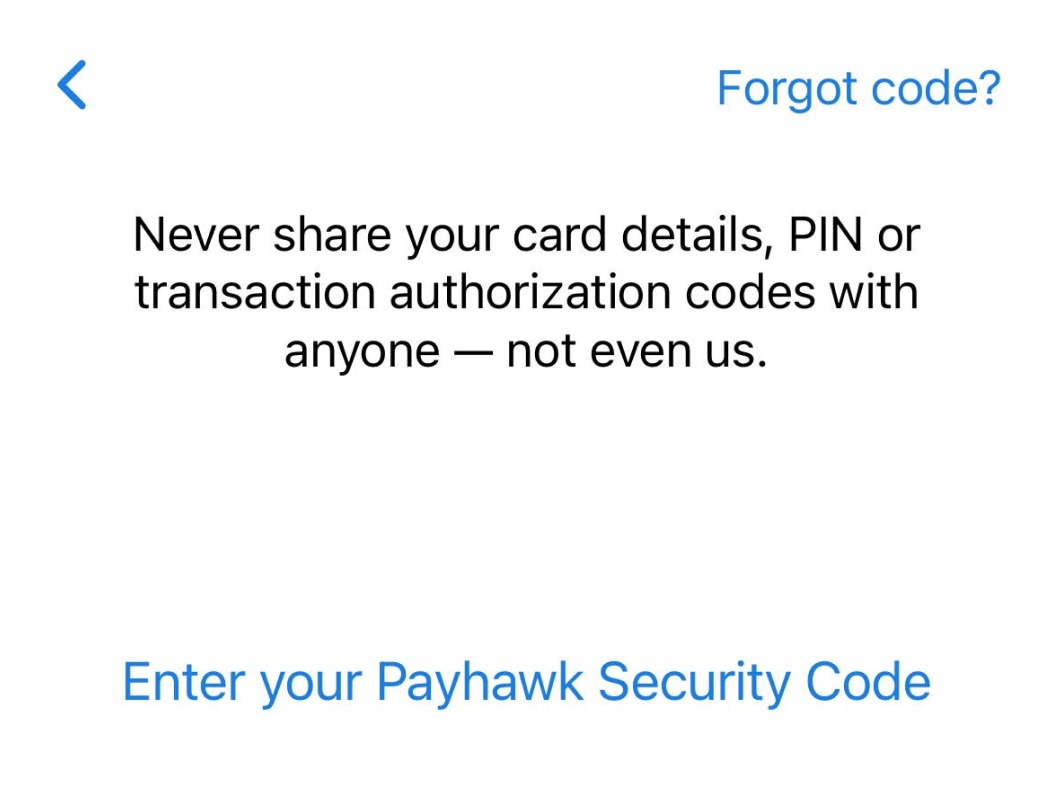
Go to Cards. You'll be required to enter your security code.
Click on Forgot code?.
As a result, you'll receive an email with a 4-digit reset code. Note that this reset code is not your new security code but is used for authentication purposes. Check your email and retrieve the code.
Enter the reset code only on the screen that opens after you tap Forgot code?, not on the usual security code screen. The reset code is valid for 1 hour.
Go back to the Payhawk Mobile App and enter the reset code.
Then, enter a new security code.
Next, confirm the new security code.
Resetting your security code in the Web Portal
To reset your security code in the Payhawk Web Portal:
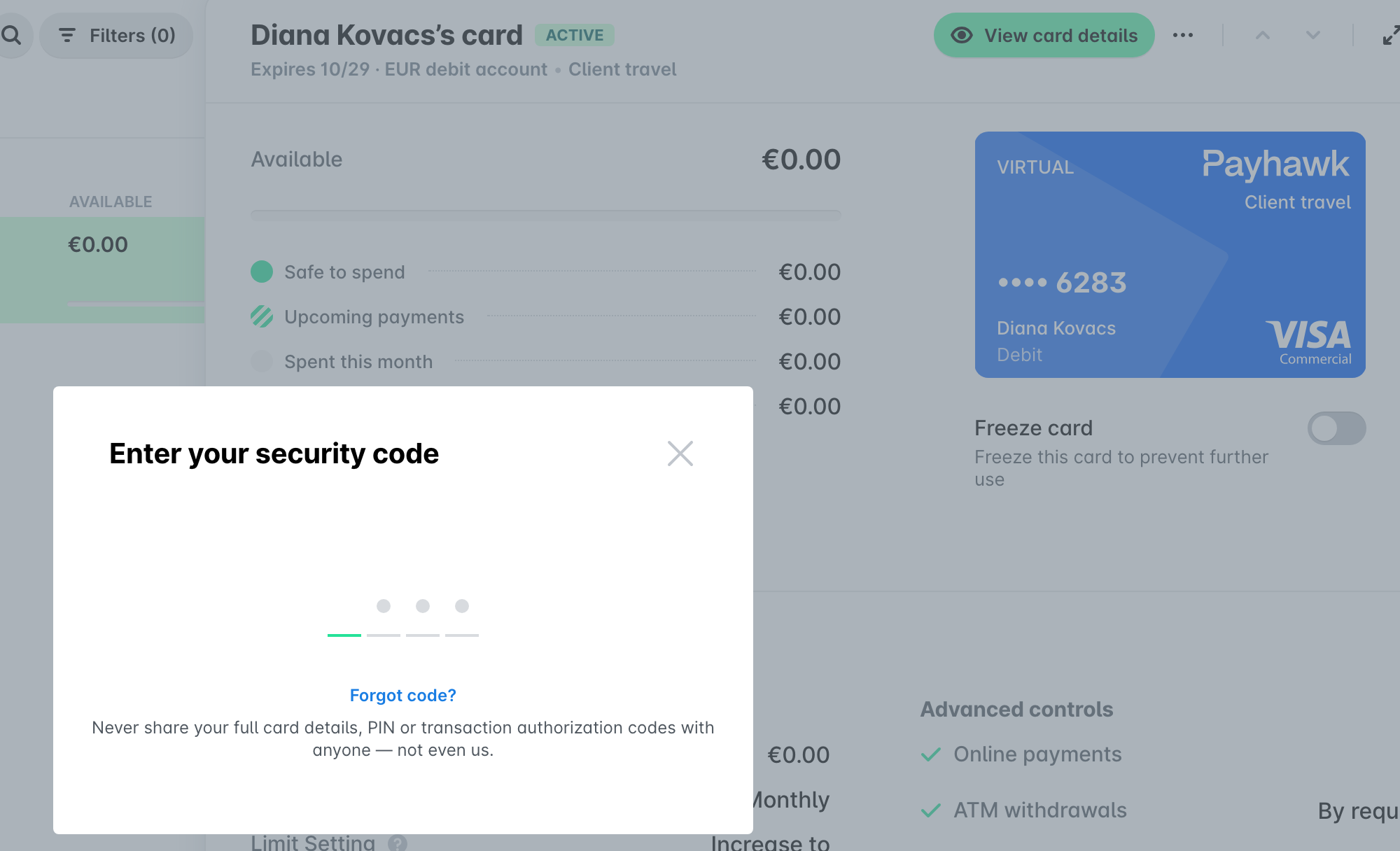
Go to Cards, select the desired card, and click on View card details. In the dialog that opens, click on Forgot code?.
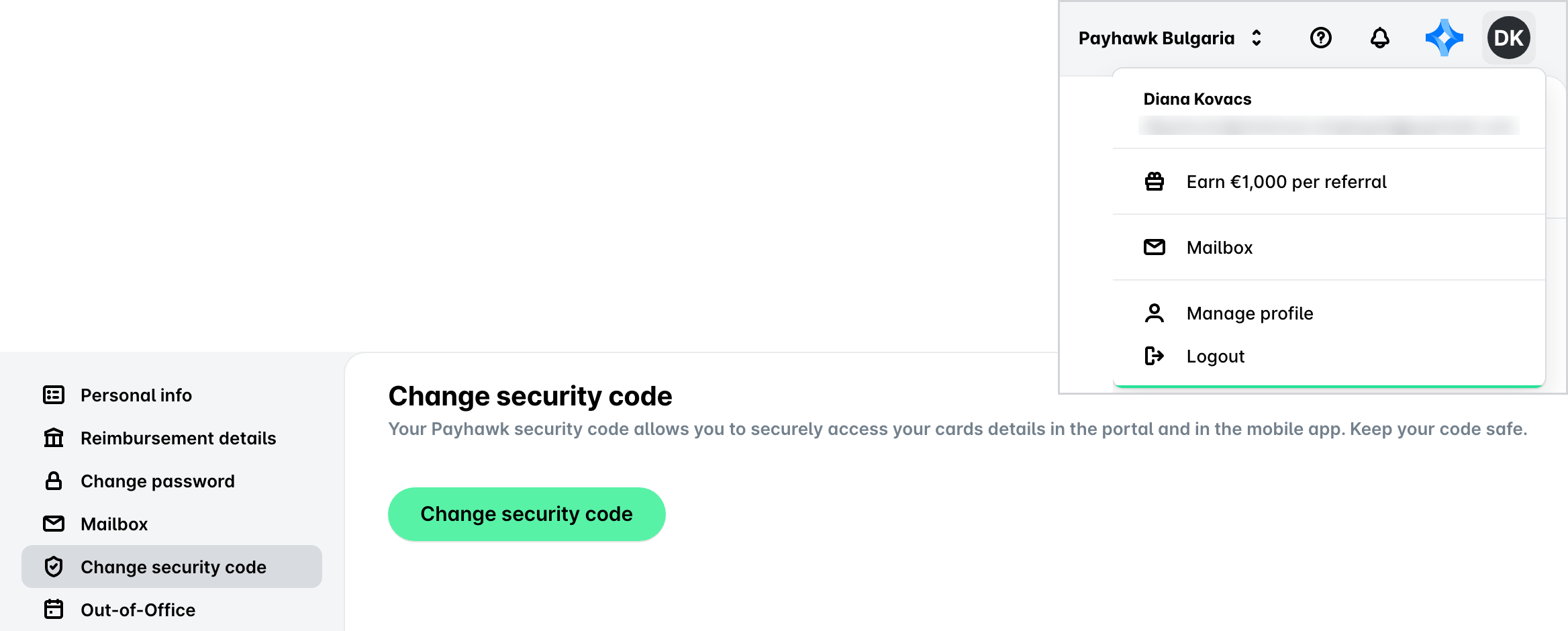
Alternatively, click on your profile icon and select Manage profile, go to Change security code, and click on the Change security code button. In the dialog that opens, click on Forgot code?.
As a result, you'll receive an email with a 4-digit reset code. Note that this reset code is not your new security code but is used for authentication purposes. Check your email and retrieve the code.
Go back to the Payhawk Web Portal, enter the reset code in the dialog, and click on Continue.
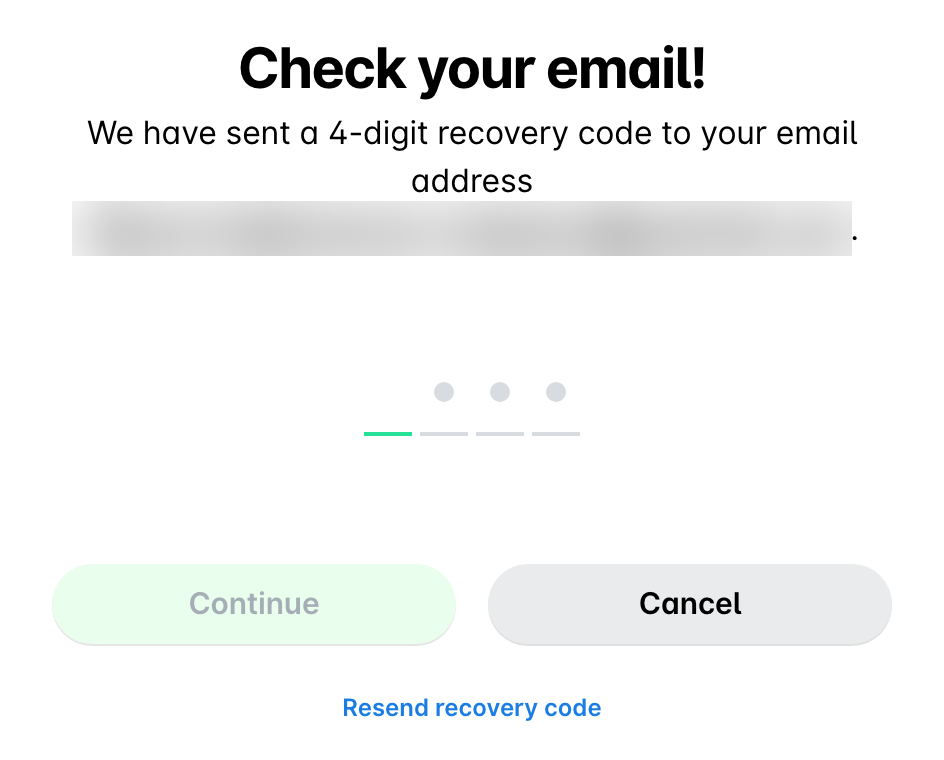
If you haven't received your reset code, click on Resend recovery code.
In the dialog that opens, enter your new security code and click on Continue.
Confirm your new security code and click on Confirm.