If you believe your company's Payhawk account has been compromised, you can lock it down straight away. For example, lock it down if a Payhawk Administrator shared login details with a scam caller. A lockdown signs everyone out, freezes all cards, stops all new payments, and alerts Payhawk's Security team. Only Payhawk can lift it, so use it only in a real emergency.
Who can lock down an account
Payhawk Administrators can lock down an account from the Emergency lockdown tab in Settings > Security. Other users don't see this tab.
What happens when you lock down your account
A lockdown takes effect immediately:
Everyone in the entity, including you, is signed out of the Payhawk Web Portal and the Payhawk Mobile App and suspended. No one can sign in again until Payhawk lifts the lockdown.
All cards in the entity are frozen. Suspended users will also have their cards frozen in every other Payhawk entity they're part of.
Payhawk's Security team is alerted.
All Payhawk Administrators get an email from support@payhawk.com asking why the account was locked down.
All other users get an email from noreply@payhawk.com letting them know their Payhawk account was closed.
While the account is locked down, no new deposits or payments can be initiated. This includes bank transfers and card payments.
You can't undo a lockdown in Payhawk. Only Payhawk can lift it, after verifying with you.
Users with access to more than one entity
A lockdown suspends every user in the locked-down entity, and the suspension applies in every Payhawk entity that user is part of. Their cards are frozen in all of those entities, not only in the one that was locked down. For example, if you're a user in Entity 1 and Entity 2 and a Payhawk Administrator locks down Entity 1, your cards in both Entity 1 and Entity 2 are frozen.
Until Payhawk lifts the lockdown, the user can't sign in to Payhawk at all, including to their other entities.
Locking down your account
Because a lockdown stops access for everyone, Payhawk asks you to confirm it three times: you start the lockdown, select a checkbox, and type a confirmation phrase.
To lock down your account:
Go to the Settings > Security > Emergency lockdown tab.
Click on Lock down account. A dialog opens and lists what happens when you lock down the account.
Select the I understand I will be locked out too and cannot undo this checkbox.
In the Type "Lock me out" to confirm field, enter “Lock me out”.
Click on Lock down account.
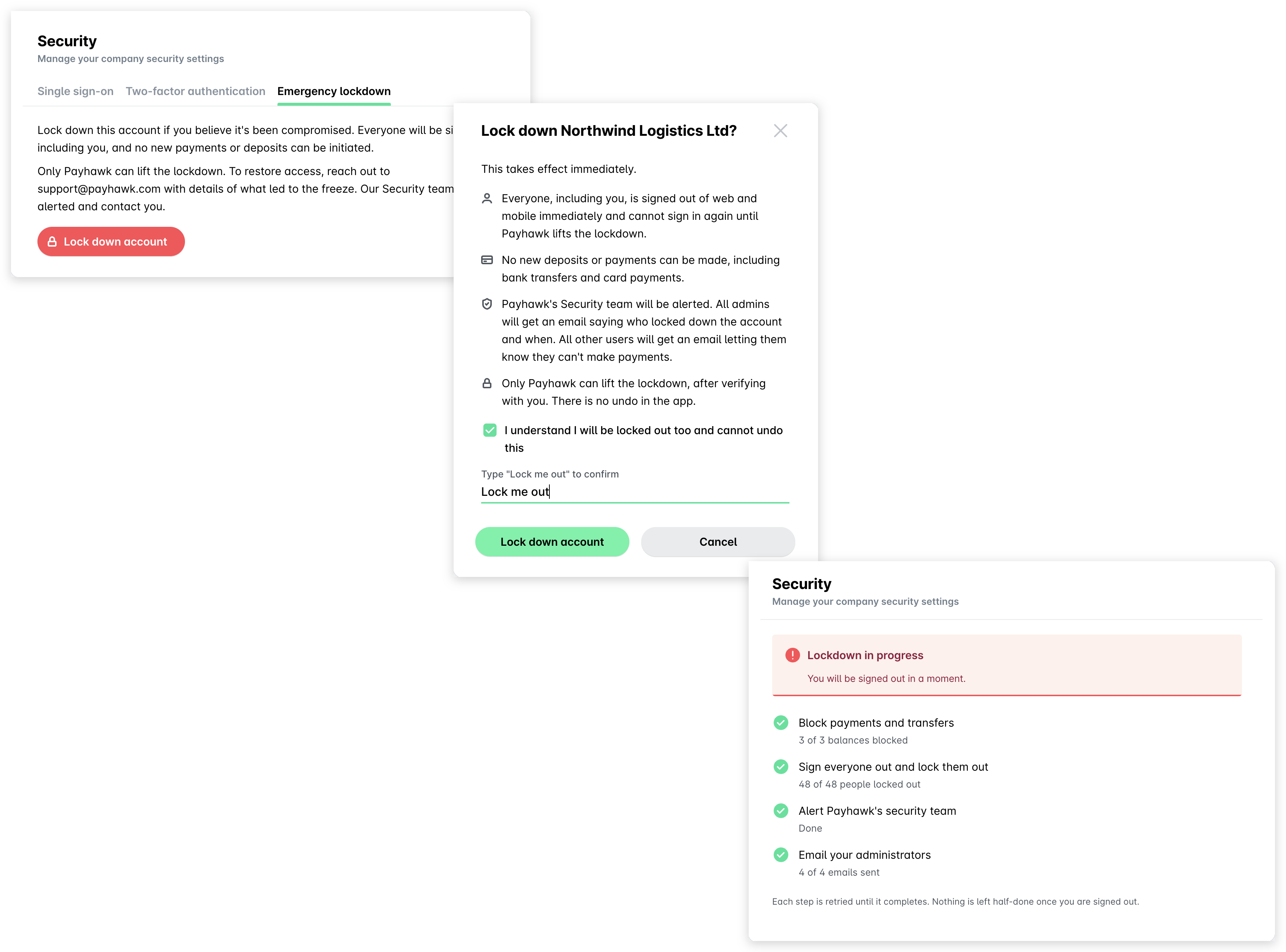
The Security page then shows Lockdown in progress while Payhawk blocks payments and transfers, signs everyone out, alerts Payhawk’s Security team, and emails your company’s Payhawk Administrators. When the lockdown is in place, you are signed out and see the Payhawk sign-in screen.
Restoring access after a lockdown
Only Payhawk can lift a lockdown. To restore access:
Reply to the email from Payhawk’s Support team at support@payhawk.com with details of what led to the lockdown.
Wait for Payhawk's Support team to contact you and verify the details.
When Payhawk lifts the lockdown, everyone can sign in to Payhawk again and their cards are unfrozen.
Useful resources