In Payhawk, you can update, change, and manage account codes directly within the system. Properly managing account codes for expense categories is critical for ensuring accurate financial reporting and a seamless accounting process.
Notes on account codes
To avoid account code duplication, the system prevents assigning the same account code across unrelated expense categories.
Use expense sub-categories to maintain flexibility and avoid duplicate account codes.
Follow integration-specific guidelines to ensure compatibility with systems like DATEV by adhering to predefined mapping conventions.
Perform periodic reviews by regularly validating expense categories and assigned account codes to prevent discrepancies or outdated mappings.
Adding account codes for expense categories
To add an account code for an expense category:
In the Payhawk Web Portal, go to Settings > Fields library.
Click on the desired category, for example, Category.
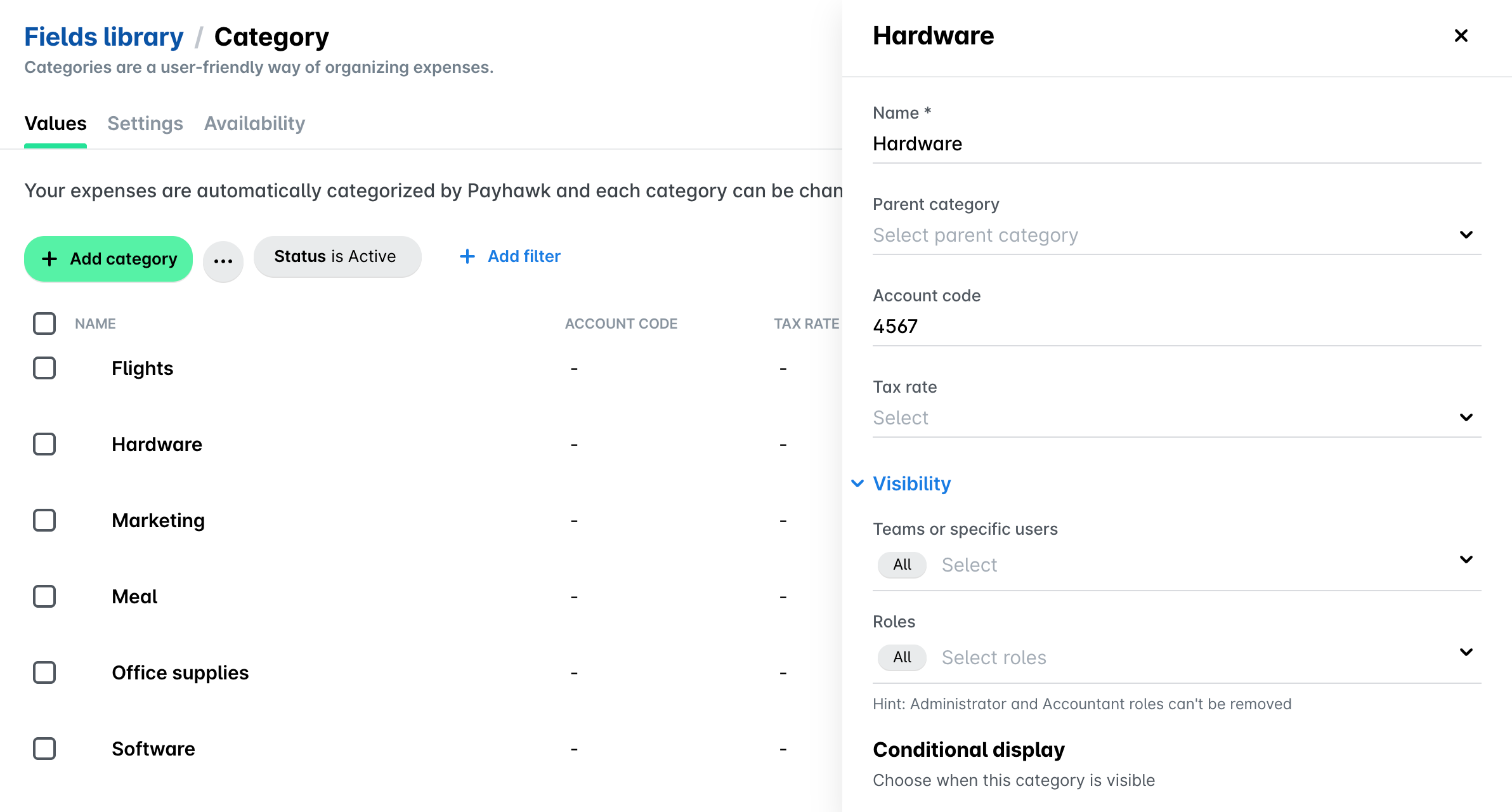
Under the Values tab, click on the desired value, for example, Hardware.
In the panel that opens, enter the account code under Account code.
Click on Save.
Updating account codes for expense categories
To update the account code already assigned to an expense category:
In the Payhawk Web Portal, go to Settings > Fields library.
Click on the desired category, for example, Category.
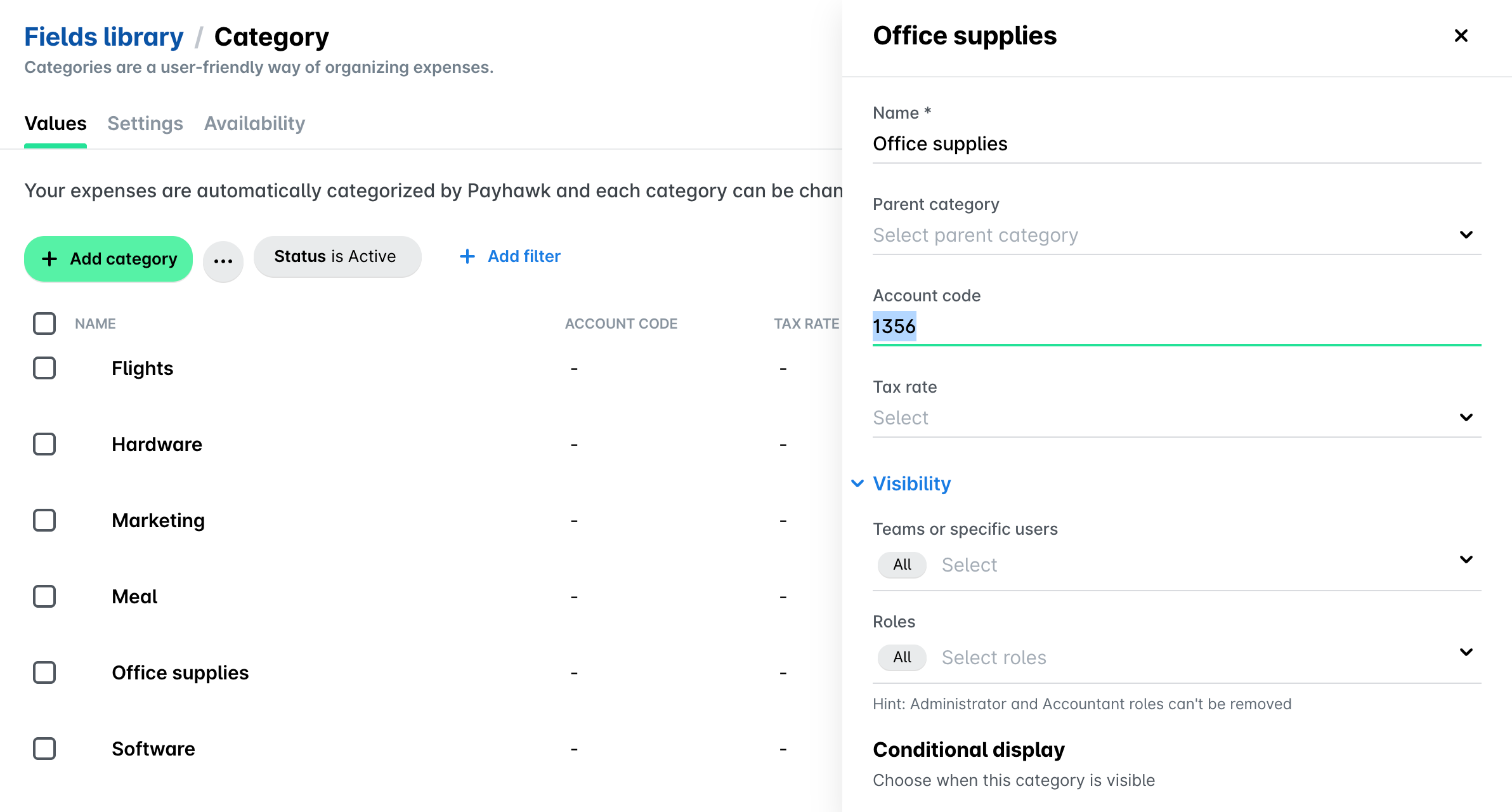
Under the Values tab, click on the desired value, for example, Office suppliers.
In the panel that opens, edit the account code under Account code.
Click on Save.
Useful resources