If you have multiple entities, you can now add and manage all your budgets from one centralized location.
Group budgets are imported by uploading one group template which allows for greater visibility as you'll be able to view all budgets in one place for a clear summary of your finances.
Once the budget is set on the group level, each entity will be utilizing its respective group budget. Group budgets can be accessed from each entity if you are a budget owner or a Group Administrator.
Additionally, you can set up budgets with all necessary dimensions, including group categories, custom fields, and teams, across entities, and even allocate budgets to specific entities by using a new Entity dimension.
Roles and permissions
Budget owners can access Budgets locally from the entities in which they are employed.
Group users with the View all budgets policy can access Budgets everywhere. However, they can manage forecasts only on the group level.
Local users with the View budget data policy don’t have access to Budgets unless they are budget owners.
Group Finance or FP&A teams | Local Finance or FP&A teams | Budget owners | |
Payhawk role | Group administrator | Local Payhawk Administrator | Payhawk Employee/ Budget owner |
View group Budgets on entity level |
|
|
|
Manage group Budgets on entity level |
|
|
|
Access group Budgets |
|
|
|
Manage group forecasts |
|
|
|
See utilization in Inbox |
|
|
|


Before you begin
Uploading your group budgets will override your entity budgets.
You need to first migrate your custom fields, expense categories, and teams to the group if you need to create budgets based on those dimensions.
For now, the Suppliers dimension will not be available for group budgets.
Creating group budgets
To create your group budget:
In the Payhawk Web Portal, switch to the group from the entity switcher in the top header, then open the app switcher in the top-left corner and go to Budgets.
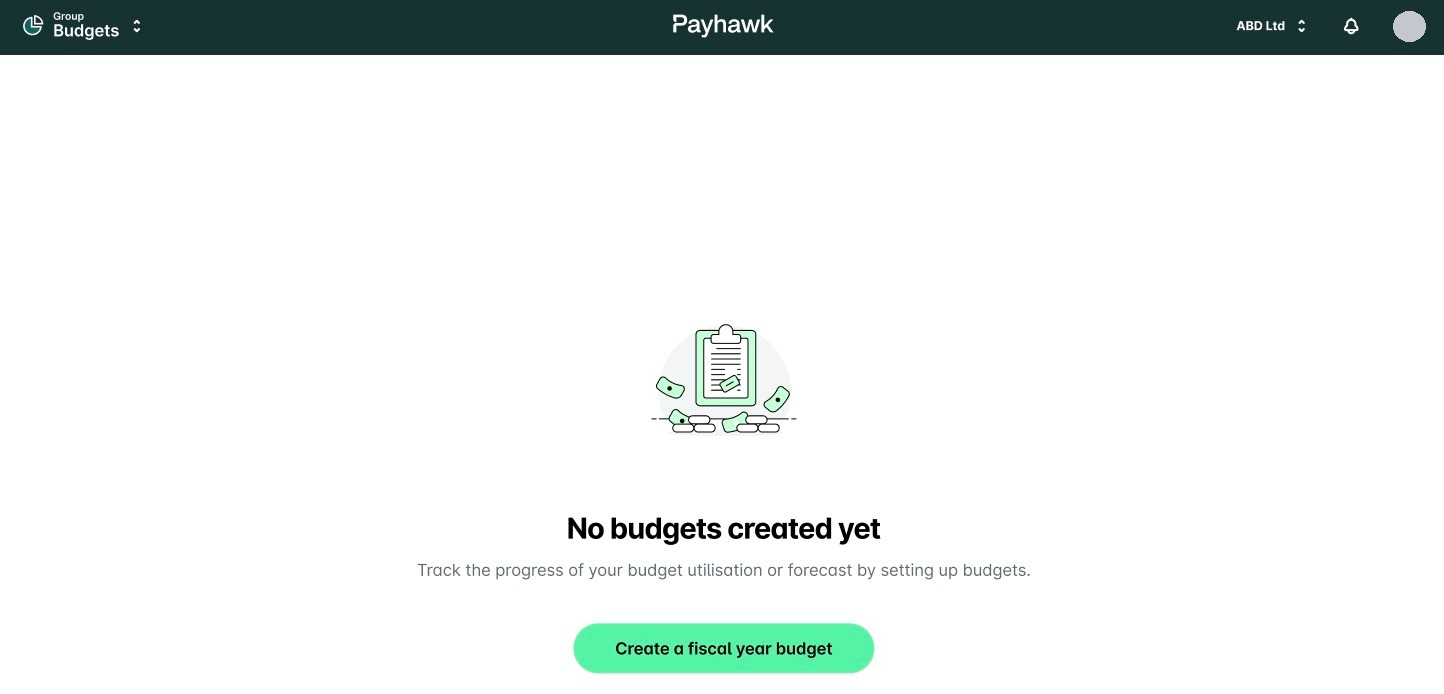
If you don't have existing budgets on the entity level, click on Create a fiscal year budget.
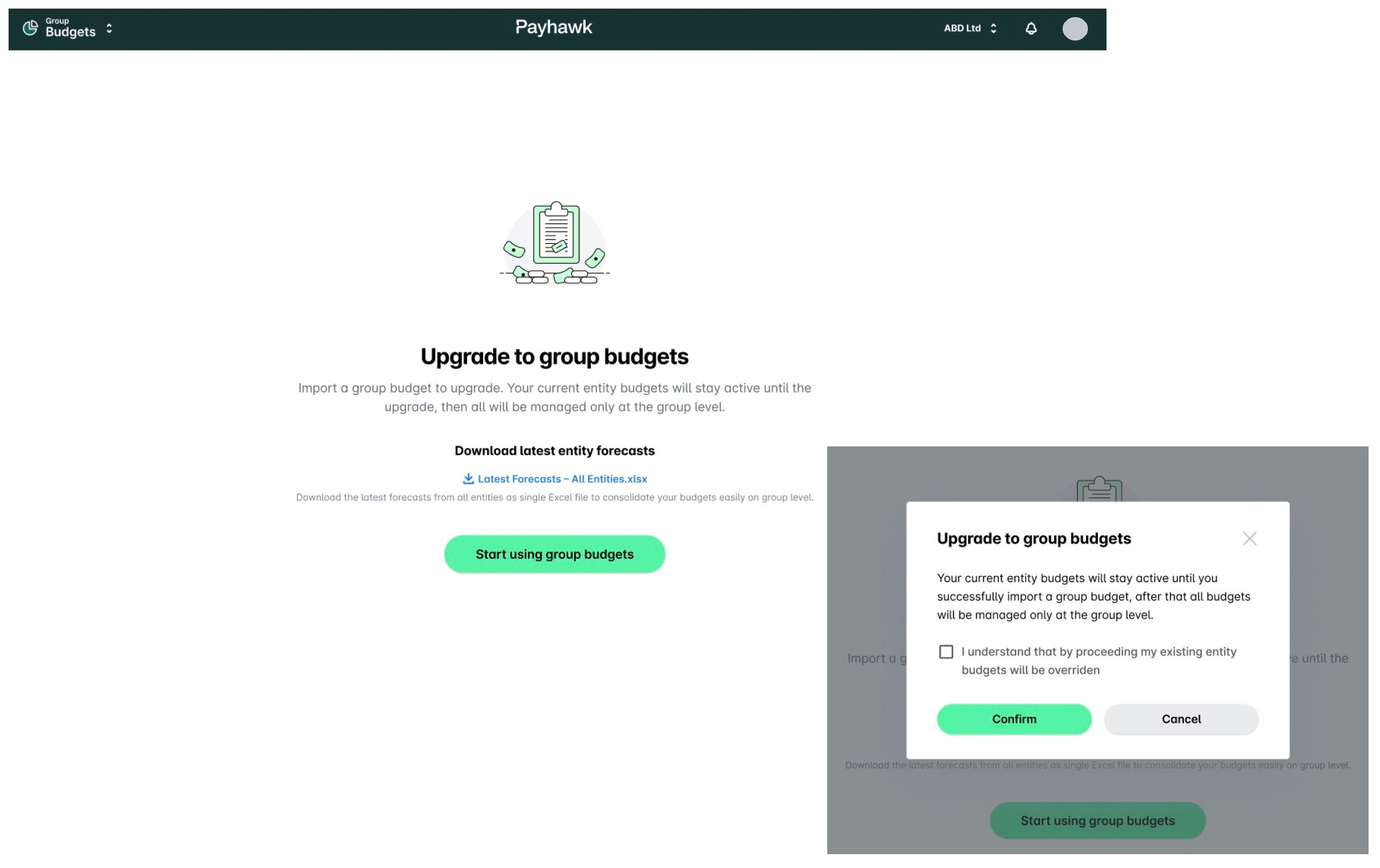
If you already have budgets for an entity, the system will prompt you to upgrade to group budgets. Click on Start using group budgets. In the dialog that opens, select the checkbox and click on Confirm.
In the flyout dialog, select your dimensions, define the start of the fiscal year, download the template, fill it in, and then upload it again.
Dimensions that are not yet managed on the group level will be displayed behind the Unavailable dimensions collapsible toggle. If a dimension can be migrated to the group level, you'll be prompted to do so.
When ready, click on Submit.
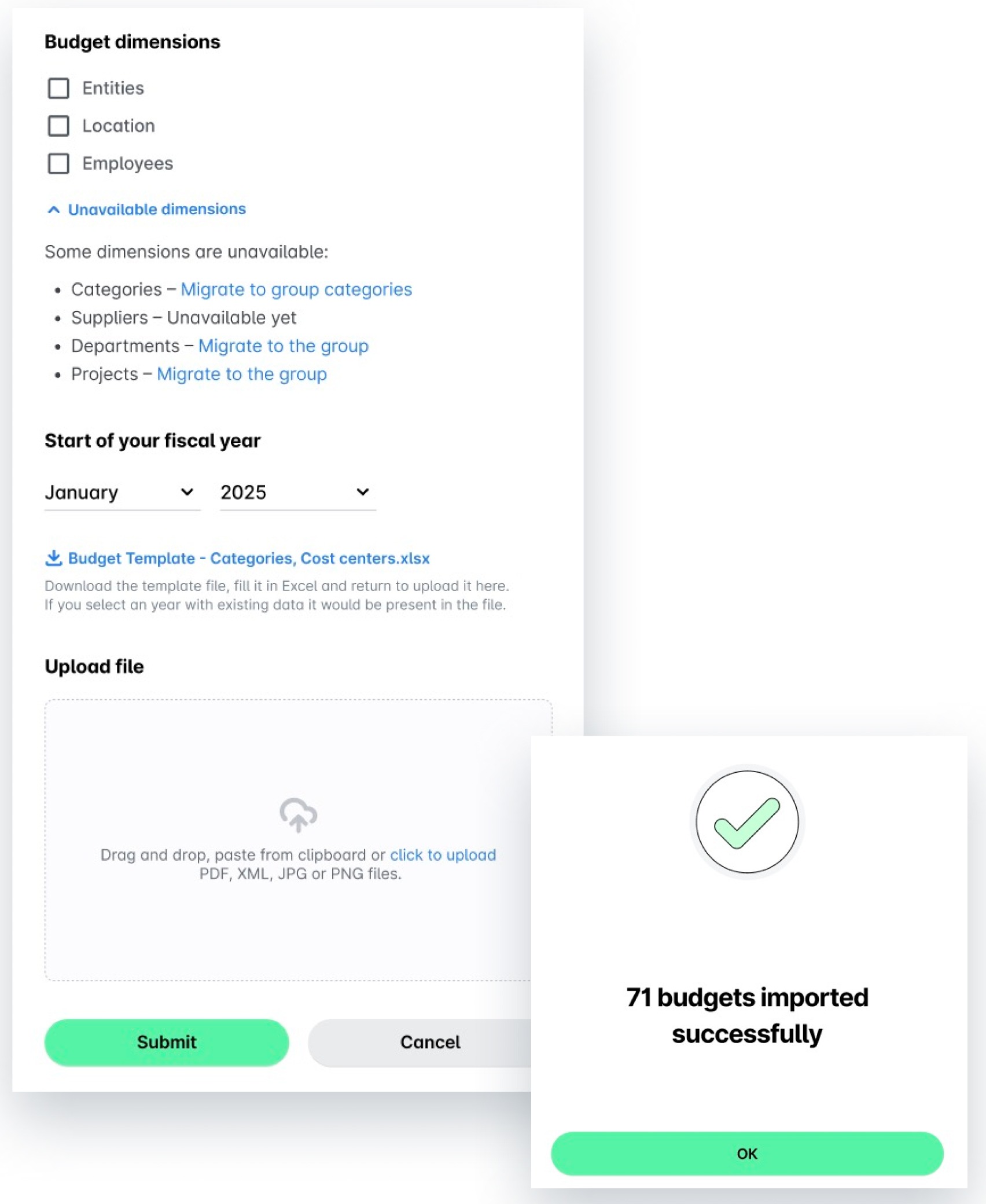
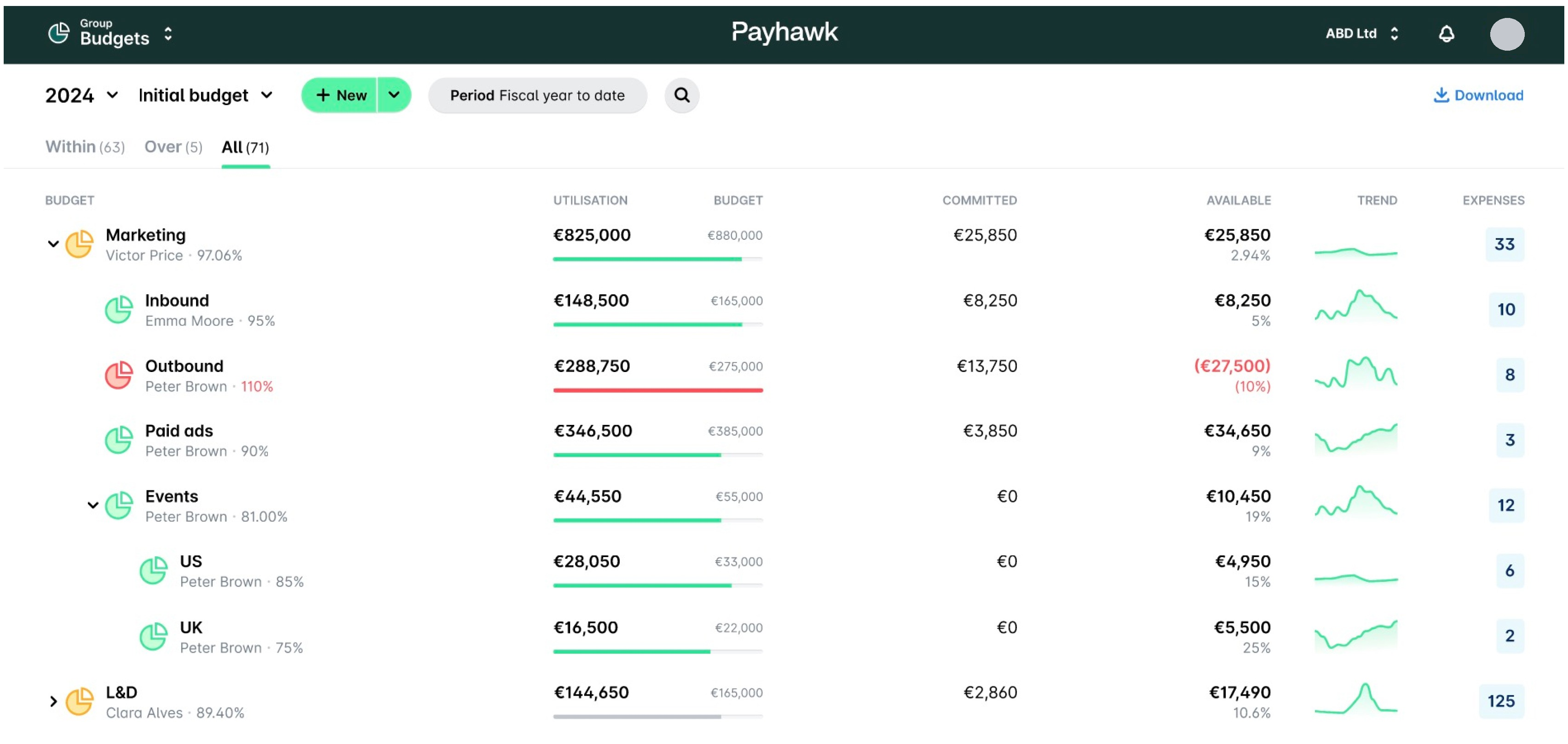
In the success screen, click on OK to close it. As a result, you'll be able to view the group budget from Budgets.
Useful resources