You can set the visibility of each Payhawk field and the step from which it is required, always or only when a condition is met.
Available visibility settings for fields
The available visibility options for the fields differ depending on the field and its function as follows:
Field | Visibility settings |
|---|---|
Category |
|
Note |
The Note field supports template creation based on expense data, automatic population from historical expense data, or both. For more information, see the article on using smart note suggestions and templates. |
Document |
|
Document date |
|
Due date |
|
Document type |
|
Document number |
|
Service period |
|
Supplier |
|
Tax rate |
|
Discount |
|
Amortization |
|
Team |
|
Setting the visibility of fields
By configuring the visibility settings for the fields, you can control which roles at your company can view them.
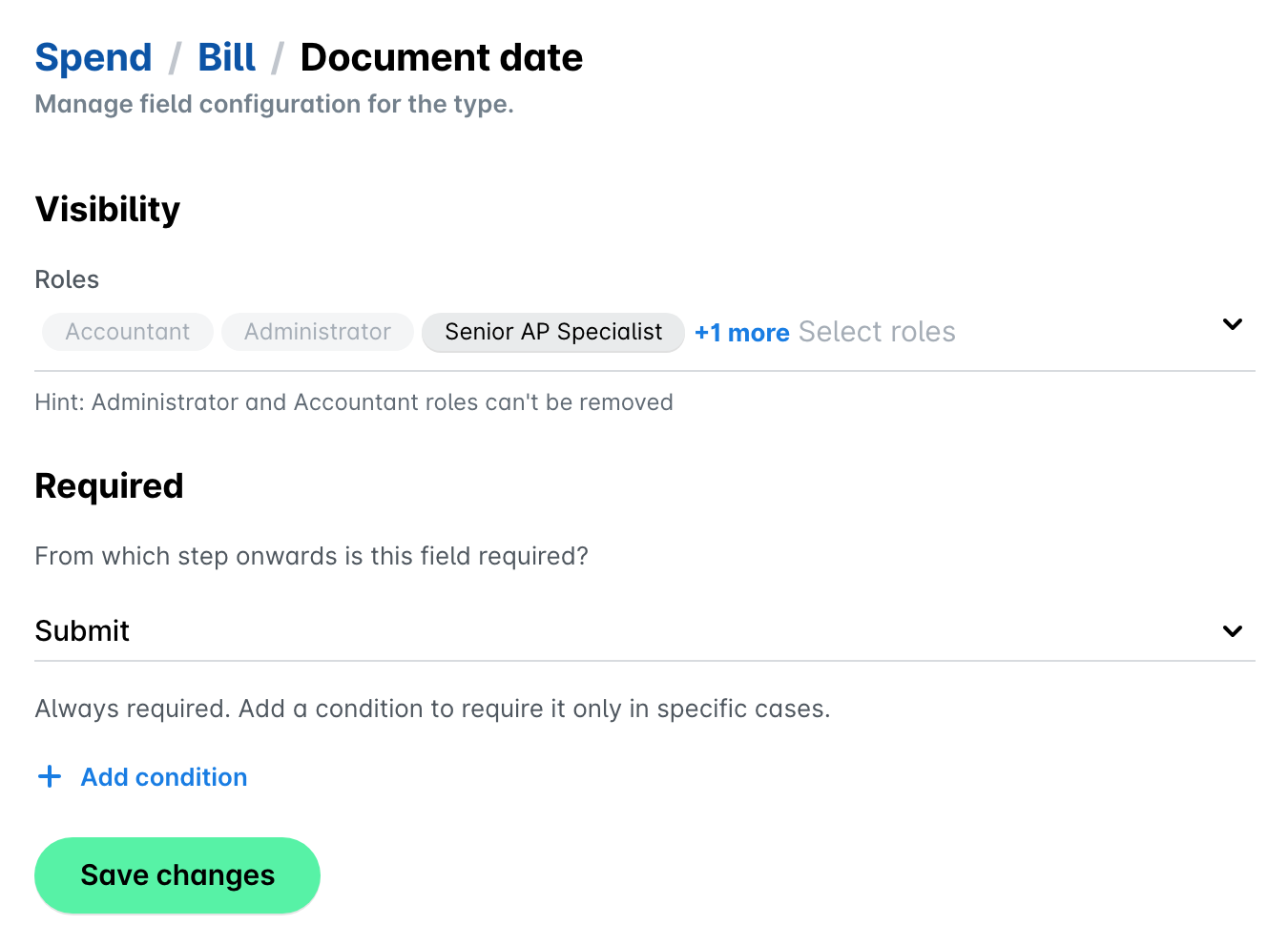
For the purposes of this example, you will change the Document date expense field visibility settings:
In the Payhawk Web Portal, open the app switcher in the top-left corner and go to Settings > Spend > Spend types > [Spend type] > Fields.
Select Document date.
From the Visibility drop-down list, select the roles you want to have access to that field - for example, Senior AP Specialist and Auditor.
Click on Save changes.
Setting from which step fields are required
As a Payhawk Administrator, you can define from which step of the workflow a field is required. If a required field is left blank, the expense cannot move past that step. You can set this, and add conditions, both at group level and for an individual entity.
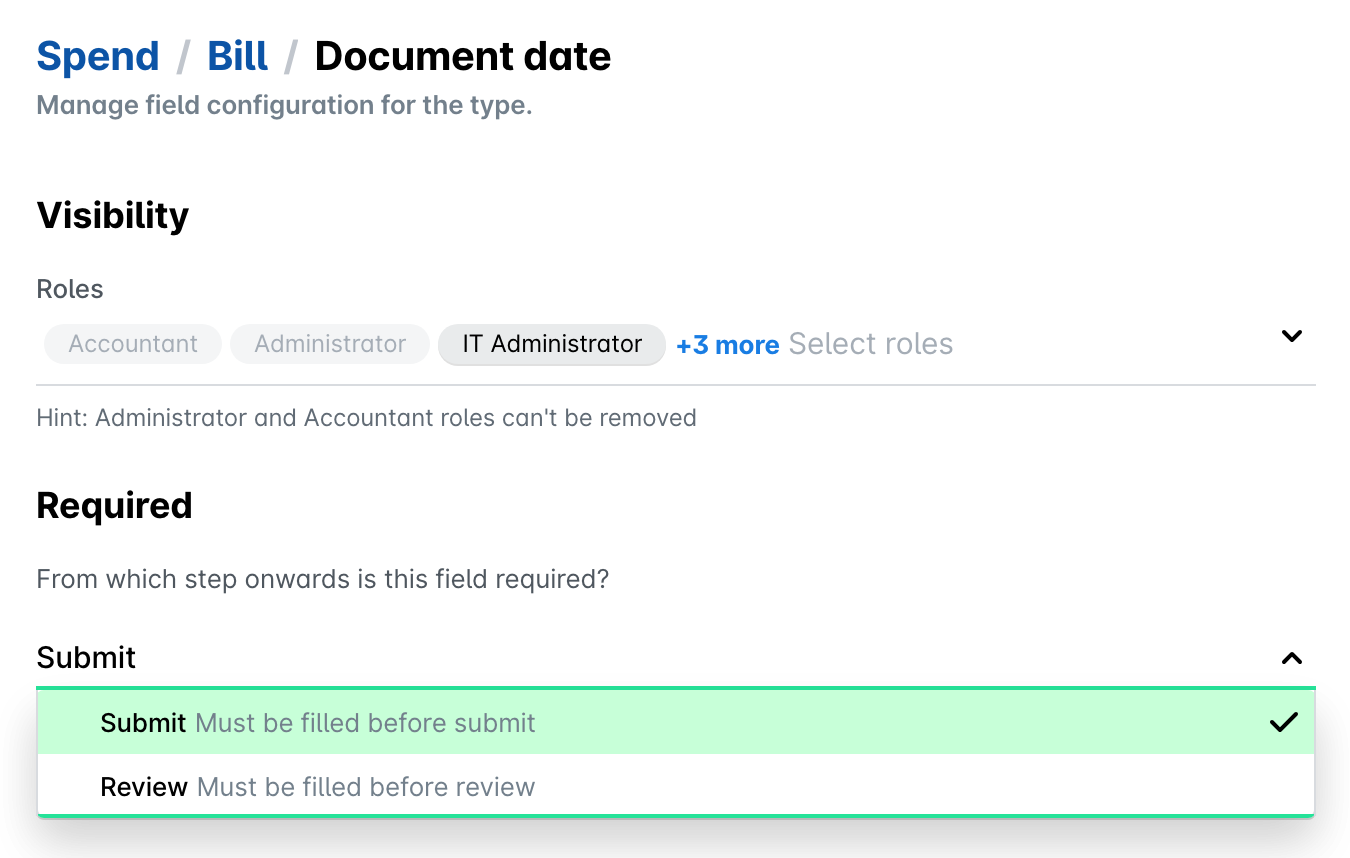
Under Required, select one of the following options:
Optional - The field is not required.
Submit - The field must be filled before the expense is submitted. It stays required at review, so the value cannot be removed later.
Review - The field must be filled before the expense is reviewed. Expense owners can submit the expense without it.
Some fields are always required, so you can select only Submit or Review for them, for example, Document date, and Supplier for bills.
When you select Submit or Review, you can also add a condition, for example, to require the field only for expenses above an amount you set under Threshold amount. For more information, see the next section.
For example, to require expense owners to fill in the document date before they submit an expense:
In the Payhawk Web Portal, open the app switcher in the top-left corner and go to Settings > Spend > Spend types > [Spend type] > Fields.
Select Document date.
Under Required, select Submit from the drop-down list.
Click on Save changes.
Requiring fields only when a condition is met
A required field is always required unless you add a condition. With a condition, the field is required only in specific cases, for example, only for expenses above a certain amount.
You can base the condition on the following parameters:
Threshold amount - The field is required for expenses above the amount you enter.
Document type - The field is required when the document type is one of the values you select.
Another field with a list of values, such as a custom field - The field is required when that field has one of the values you select.
For example, to require a document only for expenses above EUR 50:
In the Payhawk Web Portal, open the app switcher in the top-left corner and go to Settings > Spend > Spend types > [Spend type] > Fields.
Select Document.
Under Required, select Submit from the drop-down list.
Click on Add condition and select Threshold amount.
Enter the amount, for example, 50.
Click on Save changes.
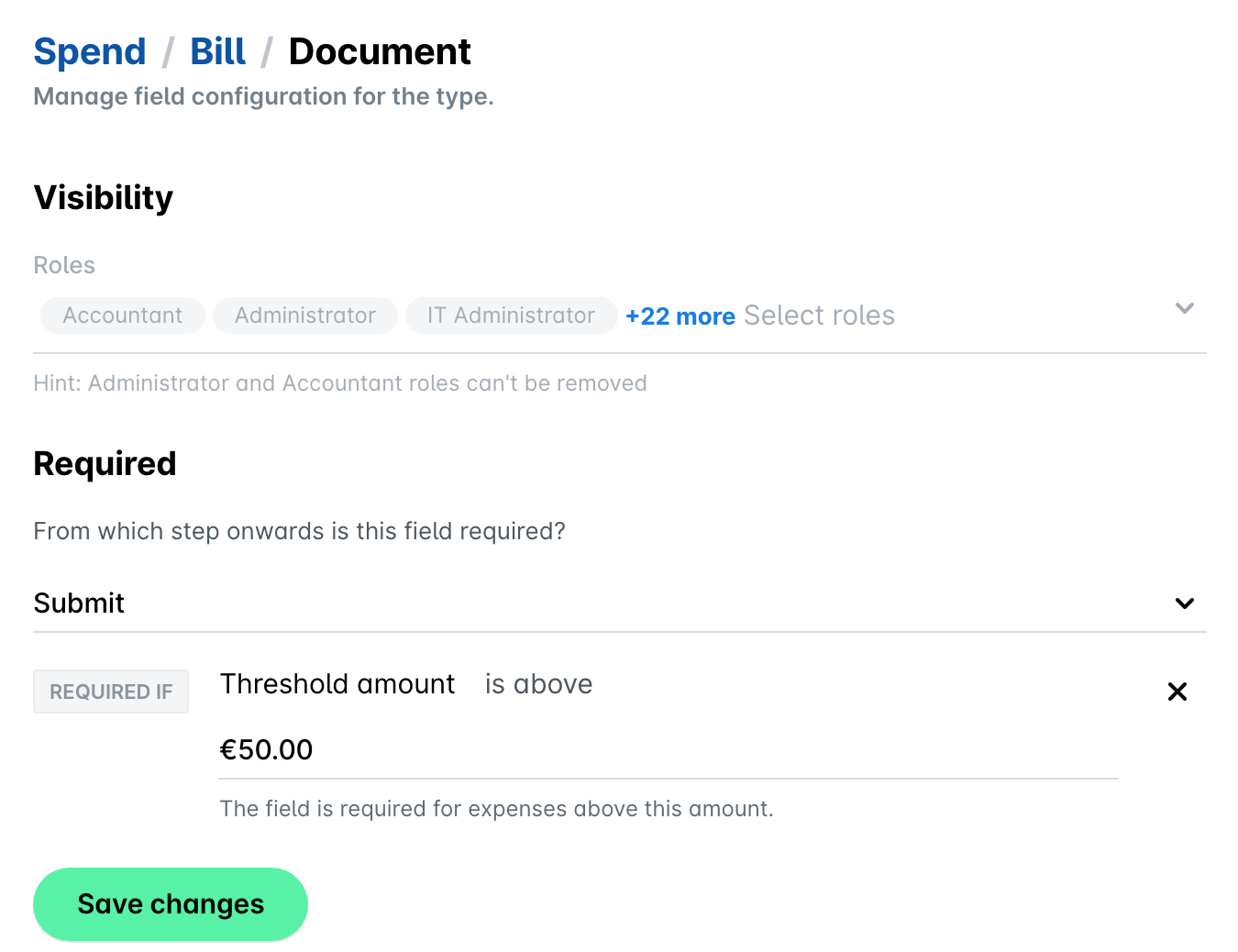
To remove a condition, click on the X next to it and save your changes.
Showing fields only for specific document types
You can show a field only for specific document types, so that users see only the fields that are relevant to the document they upload. You can do this for built-in fields, such as Tax rate or Document number, and for custom fields.
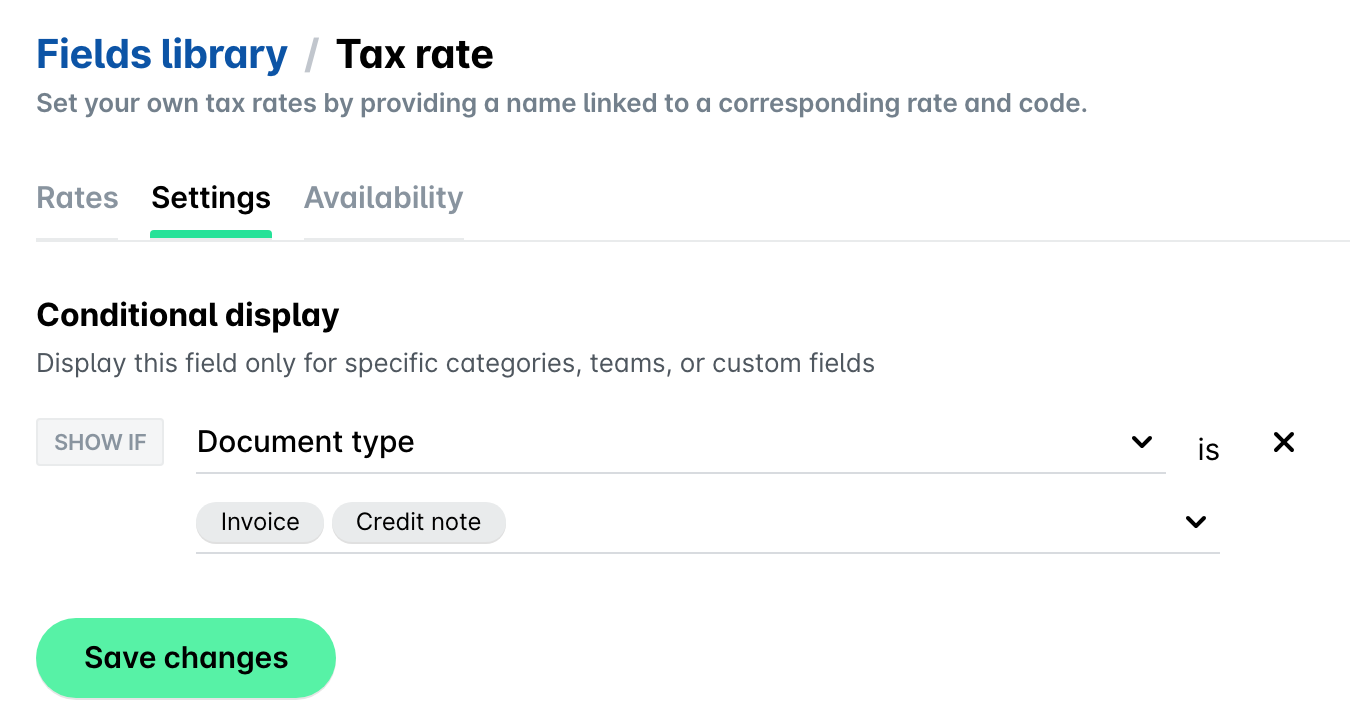
For example, to show the Tax rate field only for invoices and credit notes:
In the Payhawk Web Portal, open the app switcher in the top-left corner and go to Settings > Fields library.
Select Tax rate by clicking on it.
Open the Settings tab.
Under Conditional display, next to Show if, select Document type from the drop-down list.
From the drop-down list below, select Invoice and Credit note.
Click on Save changes.
As a result, the field is hidden from an expense when no document type is selected, or when the document type is not one of the types you selected. Hiding the Tax rate field also hides the Net amount and Tax amount of the expense.
If Payhawk is connected to your ERP system, don't hide fields that the ERP system requires. Otherwise, the export of the expense fails and the ERP system shows an error.
Settings for expense categories
Expense categories provide additional options for suggestion strategies related to the automatic population of expense data into the category field of the expense or request. For more information, see the article about the suggestion strategies for expense categories and fields.
Useful resources