Once budgeted, amounts need to be adjusted with time so that stakeholders can have a real-time, adequate view of utilized, committed, and available spend. In Payhawk, budget iterations can be done by adding, editing, or deleting forecasts for the budgeted fiscal year.
Creating forecasts
To create your forecast:
In the Payhawk Web Portal, open the app switcher in the top-left corner and go to Budgets.
Select the New > New forecast option from the drop-down button.
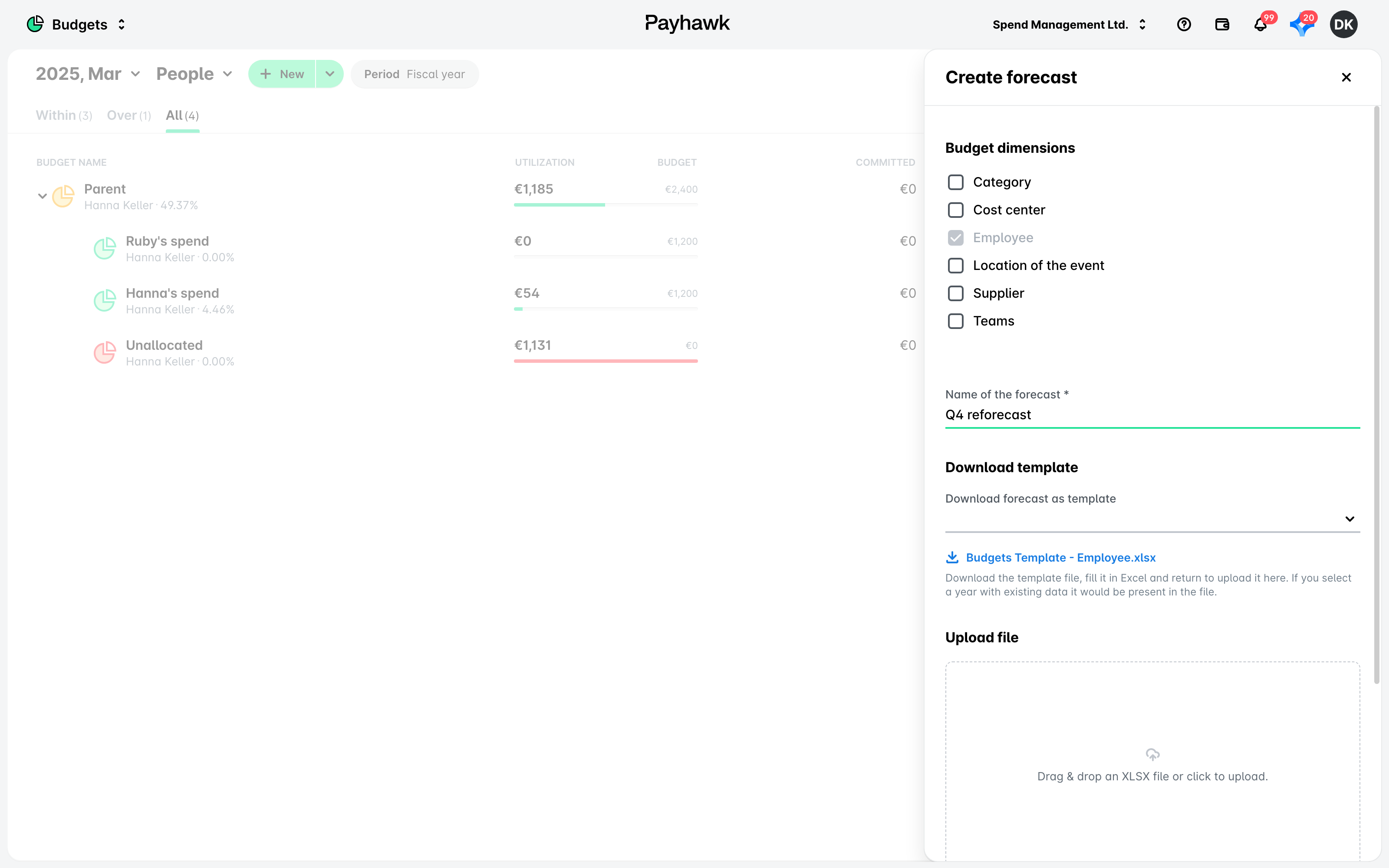
In the dialog that opens, select the desired budget dimensions and enter a name for your forecast.
The budget dimensions specified in the respective fiscal-year budget will be preselected and locked for editing.
Download the template file, fill in the required data, and upload it back to the system.
Click on Submit.
Reusing templates for new forecasts
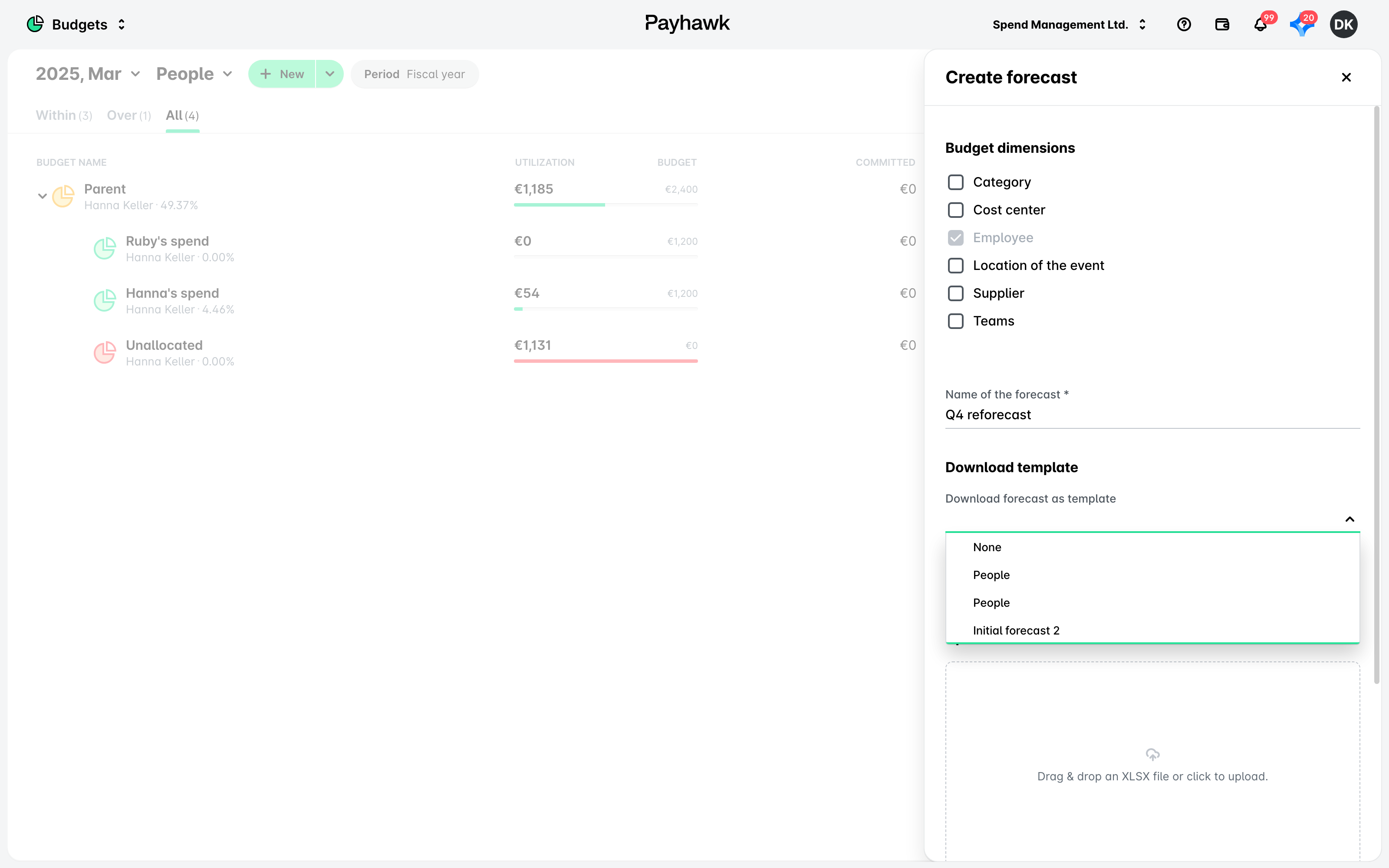
You can also create your forecast by choosing a previous template thus reusing its data and only adjusting what's needed:
Click on the New button.
In the dialog that opens, from the Download template drop-down, select the existing template.
Click on Submit.
Renaming forecasts
You can rename your forecast in the following way:
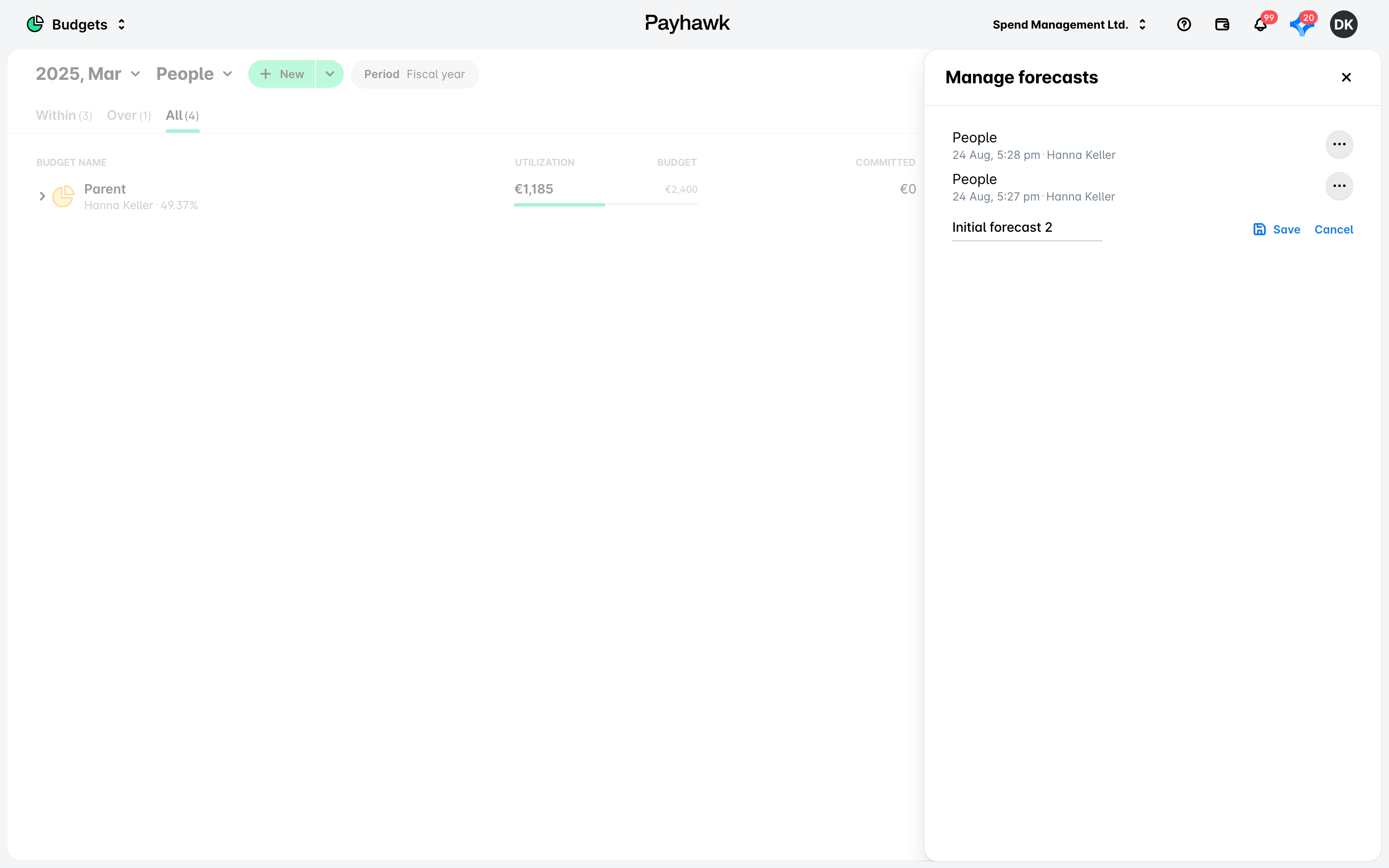
Open the app switcher in the top-left corner and go to Budgets > Manage forecasts.
Select the desired forecast, click on its three-dot menu, and select Edit.
On the next screen, update the name of the forecast and click on Save. Alternatively, discard your changes by clicking on Cancel.
Updating forecasts
To modify an existing forecast in Payhawk, download the template file, enter the updated data, and upload it back into the system. This process allows you to adjust your financial projections as needed.
Deleting forecasts
You can delete your forecast in the following way:
Open the app switcher in the top-left corner and go to Budgets.
From the budget drop-down menu, select Manage forecasts.
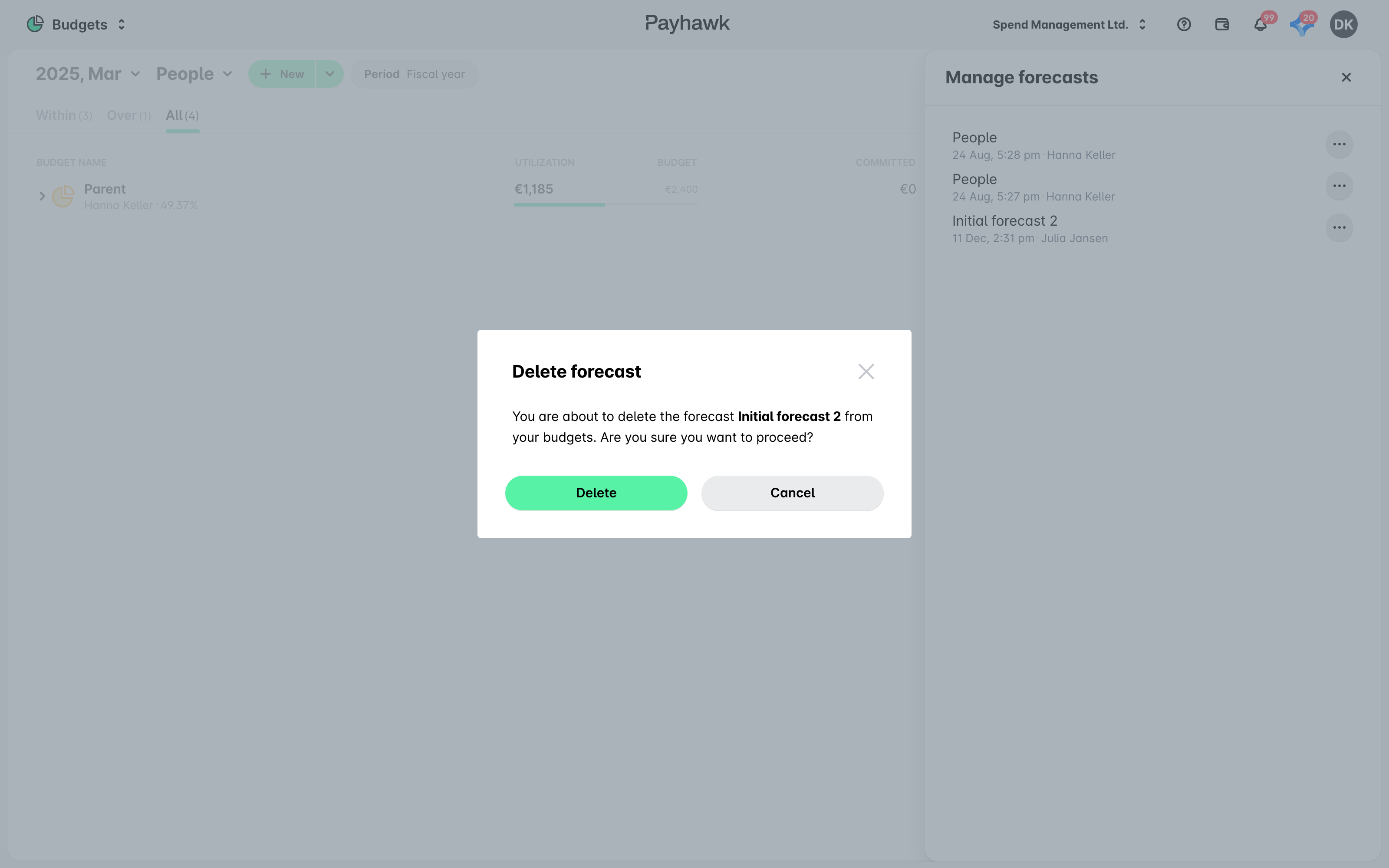
In the dialog that opens, hover over the desired forecast, click on its three-dot menu, and select Delete.
On the next screen, click on Delete to confirm your choice.
Useful resources