Your company may receive an invoice containing expenses related to different pre-defined expense categories, teams, tax rates, or custom fields such as Cost center or Project.
In such cases, you can split expenses that are not yet reviewed into multiple line items, so that you can maintain the correct expense categorization data on each line.
In Payhawk, employees can split expenses into line items too. If your workflows are configured to require approval by a Team Manager or a Custom Field Manager, Payhawk will send expense requests to all relevant approvers based on the data in all line items. For more information, see the article about defining custom approval workflows.
Pro tip
To save time and effort, you can assign a category to the expense before splitting so that it automatically applies to all line items.
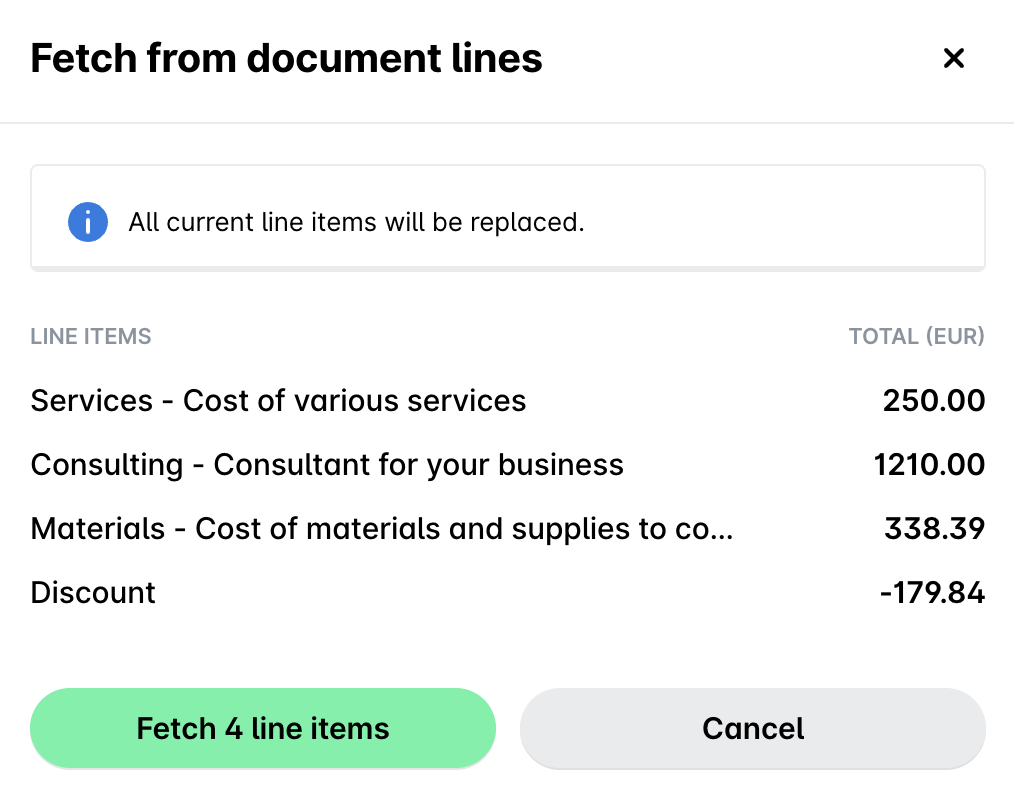
Fetching line items from document lines
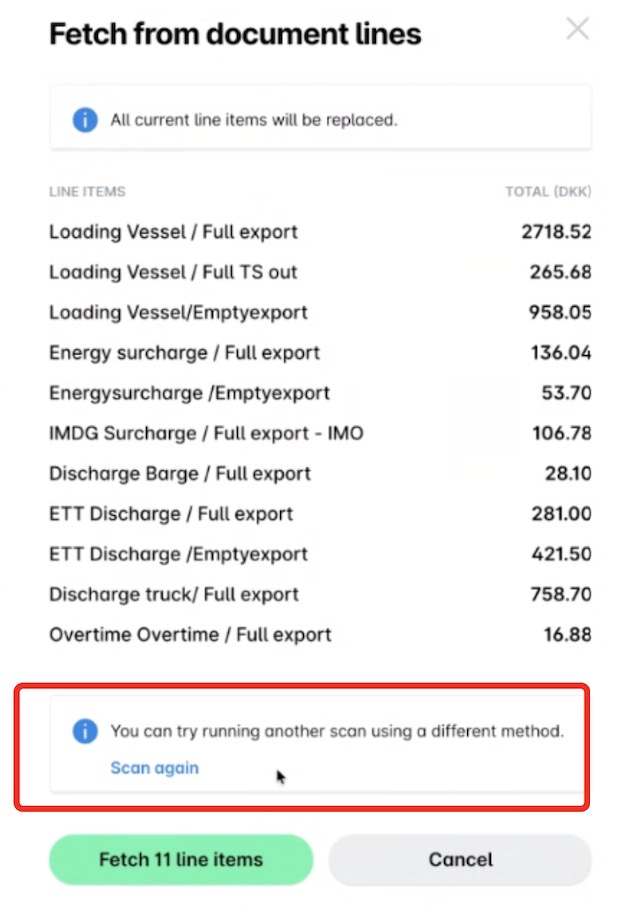
You can split an expense into line items by fetching the line items from the attached expense document. If you have already split the expense into line items, the new fetch will replace them.
In the Payhawk Web Portal, go to Spend and select the desired expense.
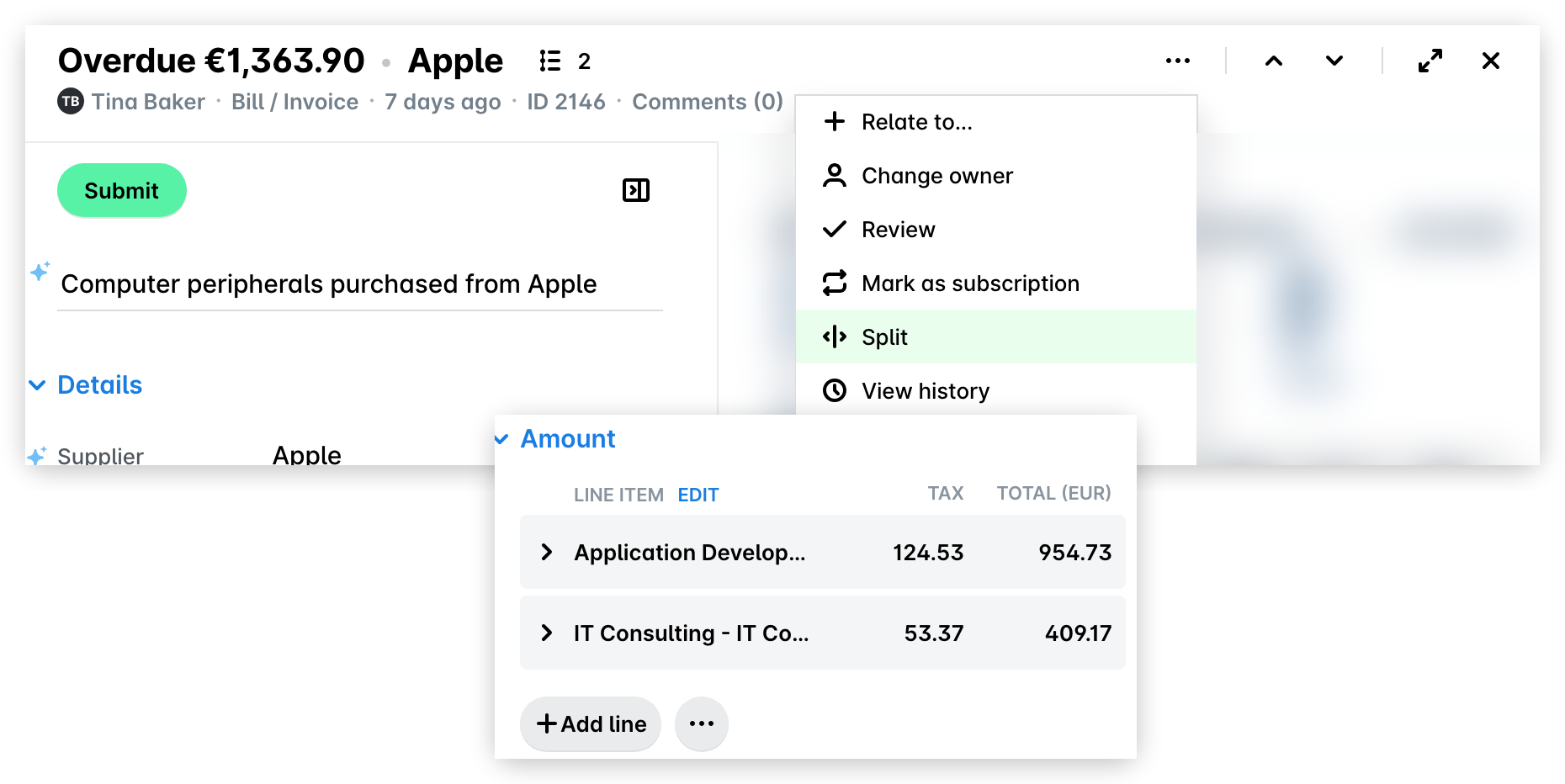
Click on its three-dot menu and select Split.
In the side panel that opens, select the Document lines option.
When ready, click on the Fetch [number] line items to confirm the split.
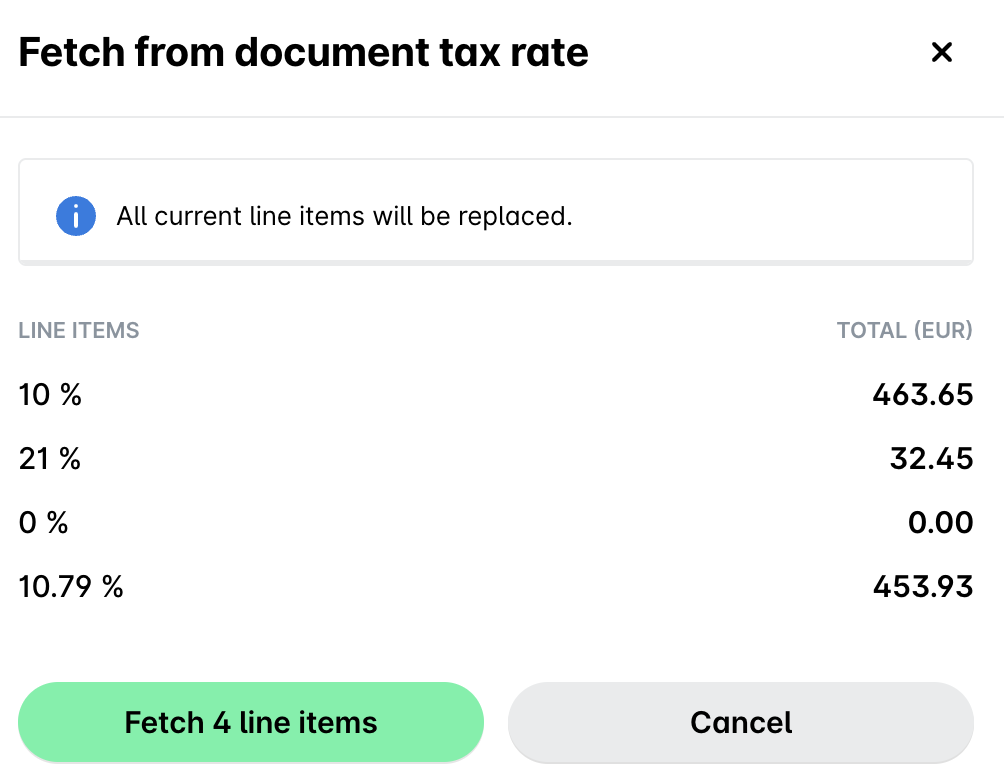
Fetching line items from document tax rates
You can also split an expense based on the tax rate of the document line items in the invoice attached to that expense.
In the Payhawk Web Portal, go to Spend and select the desired expense.
Click on its three-dot menu and select Split.
In the side panel that opens, select the Tax rate option.
When ready, click on the Fetch [number] line items to confirm the split.
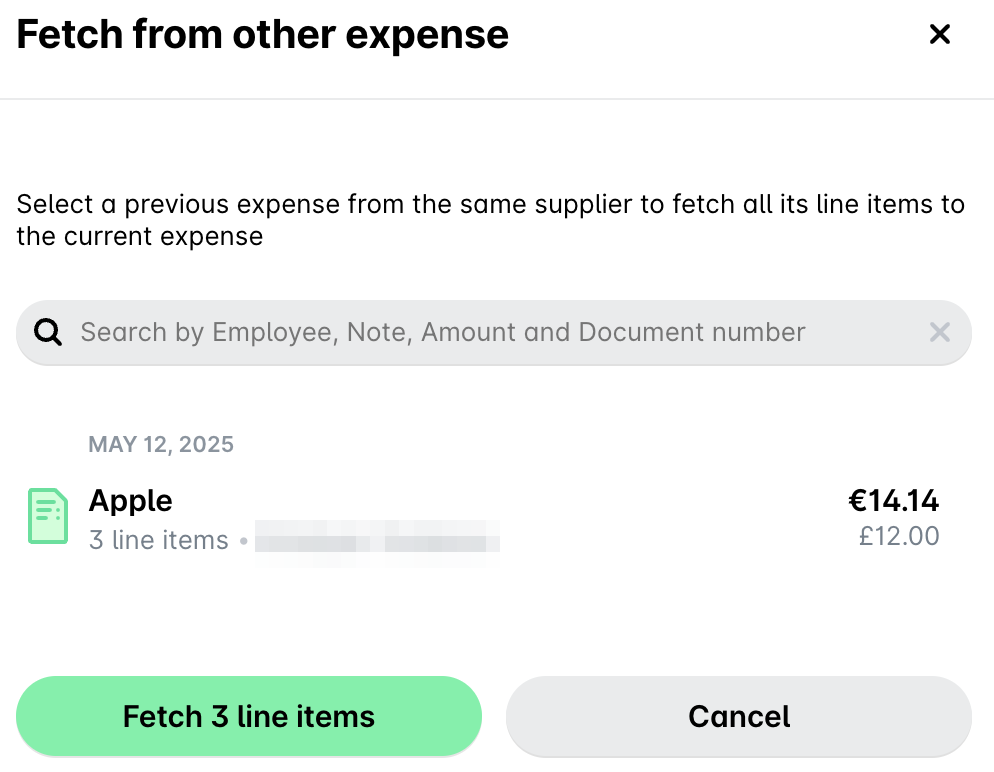
Fetching from previous expenses
You can also apply a previous line split to an expense as long as you have an expense from the same supplier that has been previously split into line items.
In the Payhawk Web Portal, go to Spend and select the desired expense.
Click on its three-dot menu and select Split.
In the side panel that opens, select the Previous expense option.
When ready, click on the Fetch [number] line items to confirm the split.
Splitting into equal parts
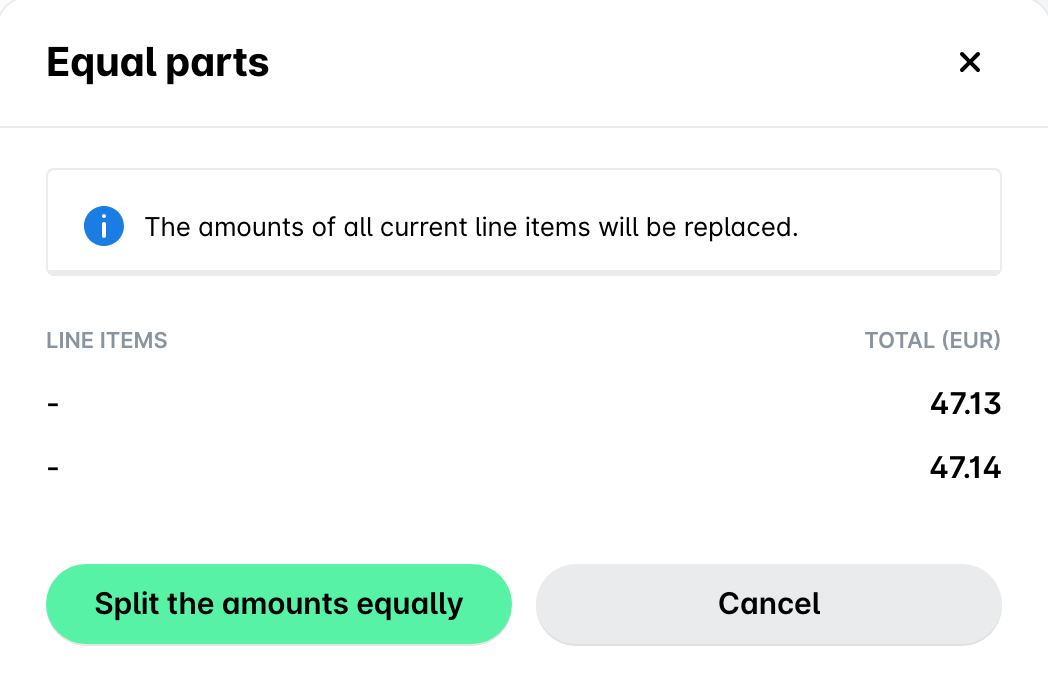
You can split an expense into equal parts.
For example, if the expense amount is EUR 100 and you’ve selected to split it in equal parts, Payhawk will split the expense into 2 line items and distribute the amount equally between the two, resulting in each line item’s amount of EUR 50.
Alternatively, if you have already split the expense into, for example, 4 line items, the system will distribute the total into 4 equal parts resulting in 4 line items each amounting to EUR 25.
To split an expense into equal parts:
In the Payhawk Web Portal, go to Spend and select the desired expense.
Click on its three-dot menu and select Split.
In the side panel that opens, select the Equal parts option.
When ready, click on Save.
Making your own custom line item split
Some allocations aren't printed on the invoice - for example, sharing a cost across two teams, cost centers, projects, or grants, or applying a fixed ratio such as 70/30. In these cases, you can describe the split in your own words and let Payhawk’s Financial Controller AI Agent propose the line items for you.
Custom splits with the Payhawk AI Agent are available in the Payhawk Web Portal only, and only for expenses that haven't been reviewed yet.
To split an expense by using the AI Agent:
In the Payhawk Web Portal, go to Spend and select the desired expense.
Click its three-dot menu and select Split and the line-item split options will open in a side panel.
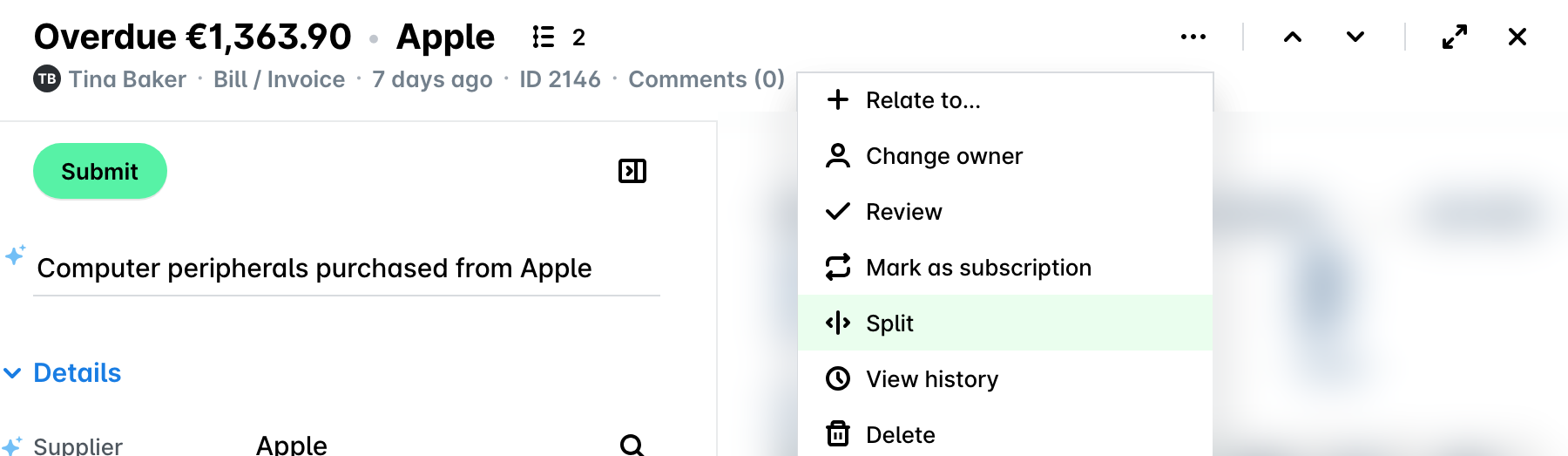
Select Describe the split. The Payhawk AI Office dialog loads, and the Financial AI Controller Agent starts the conversation.
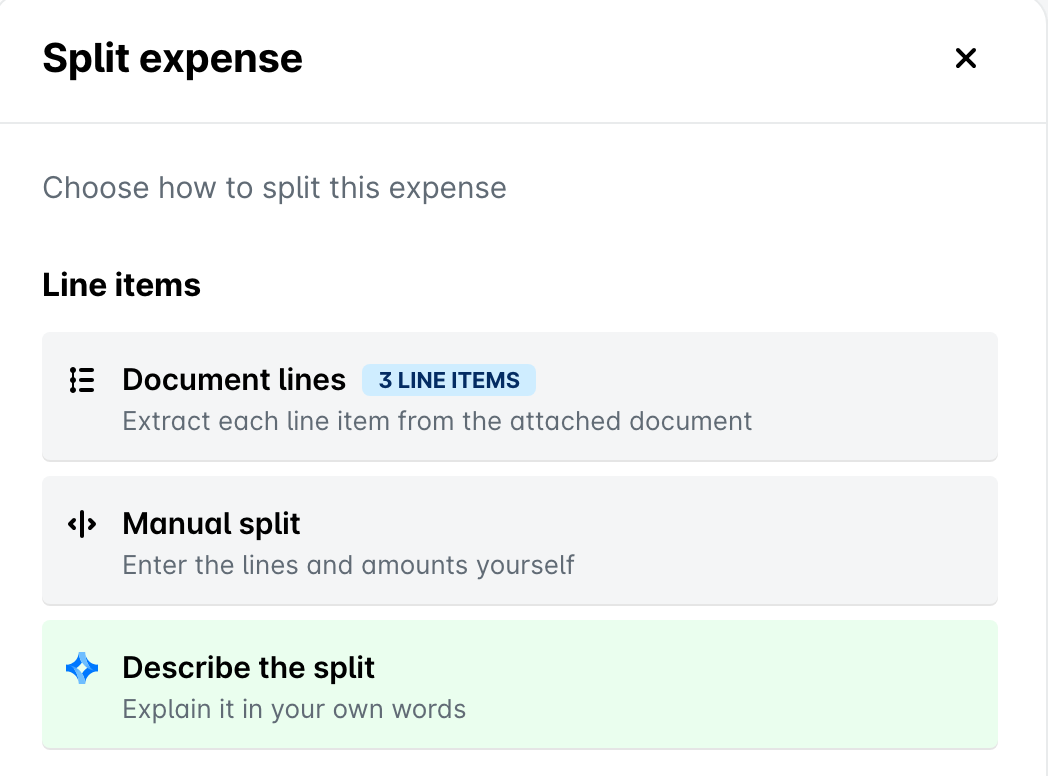
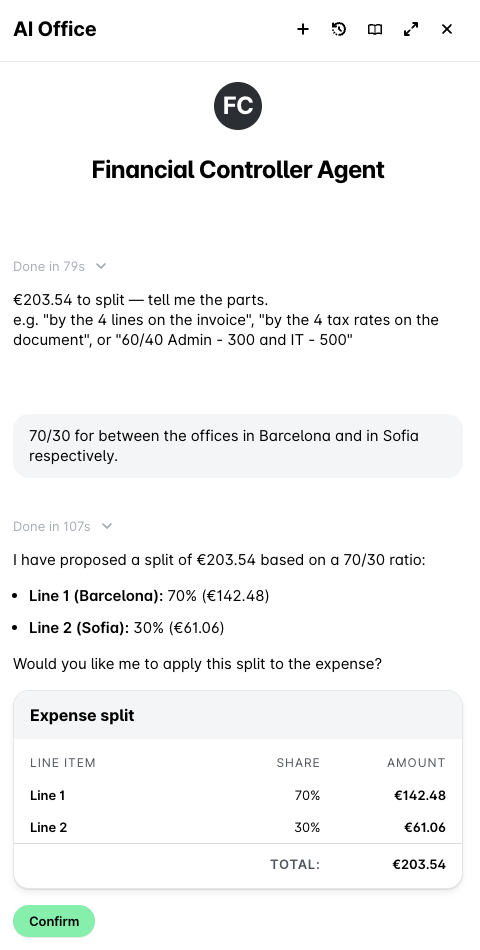
Describe how you want the expense split - for example, "Allocate 70% to Project A and 30% to Project B." The AI Agent proposes a split as line items, each with category, tax rate, cost center, and other fields filled in, with amounts adding up to the invoice total.
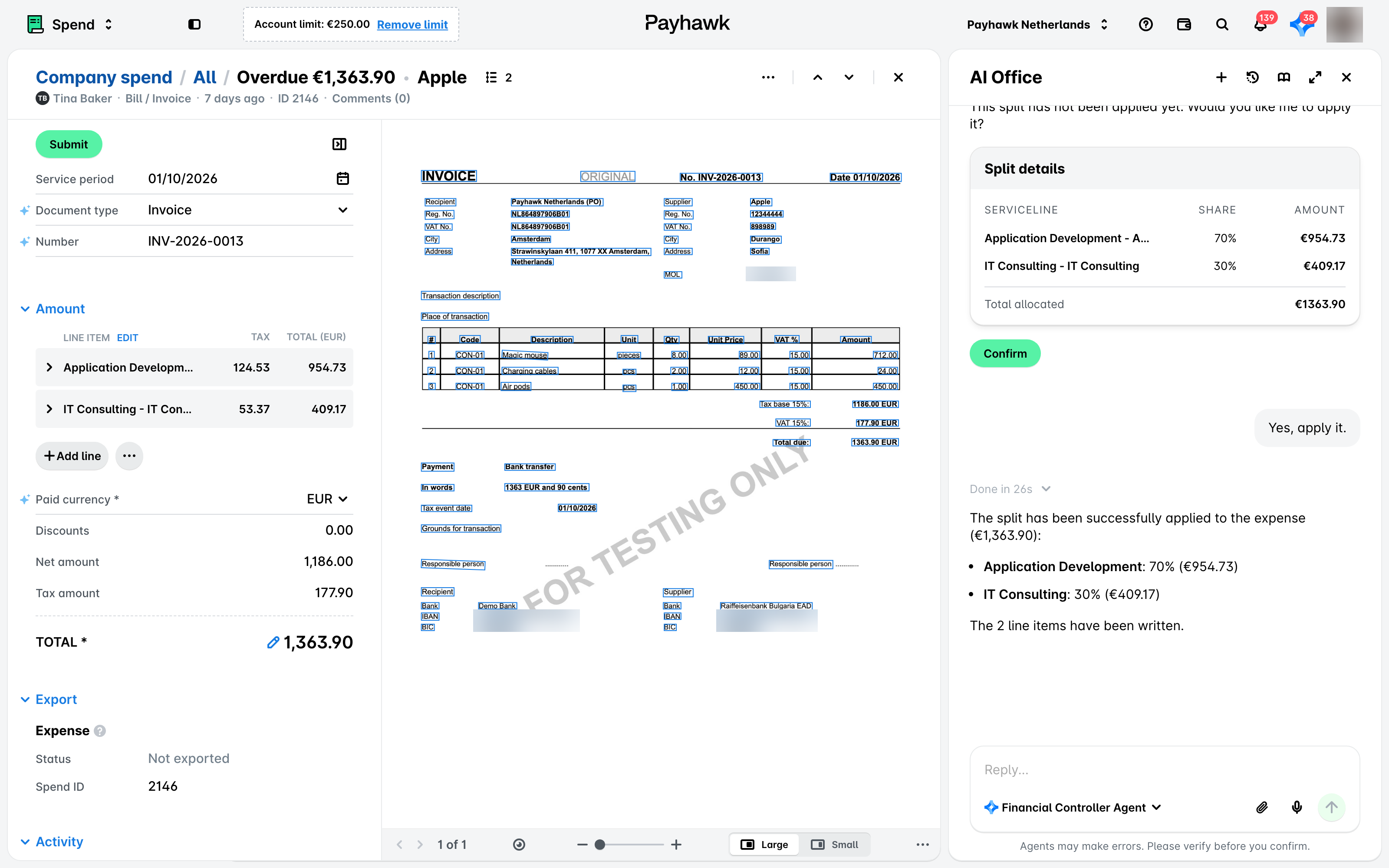
Review the proposal and, if needed, tell the agent what to adjust - for example, move an amount to another team or add a line. It'll recalculate so everything still adds up to the invoice total. Once you're happy with it, confirm in the chat to add the line items to the expense.
Adjust any line if needed and click on Save.
Manually splitting an expense into line items
To split an expense into multiple line items:
In the Payhawk Web Portal, go to Spend.
Select the desired expense by clicking on it.
Click on the three-dot menu and select the Split option.
In the Split expense panel that opens, select Manual split. Payhawk splits the expense into two line items in the Amount section: the first one holds the full amount and the second one is empty. To add more line items, click on Add line.
Part of the line item data will be filled in automatically by Payhawk. Review it and manually enter the rest of the required data for each line item, for example:
Category.
Custom fields such as Cost center and Project.
The amount for each line item. Make sure that the amounts add up to the correct total.
Pro tip
Instead of entering the exact amount, you can input the percentage that the line item's cost represents of the expense total - for example, go to the line item, select Total amount, and type 50%. The system will then automatically calculate the amount and subtract it from the total.
Tax rate, and more.
Click on Save to confirm your changes.
LLM-based line item extraction
If the standard data extraction mechanism for line item extraction was not able to match the data as expected, you can run the LLM-based data fetch method. To retry, click on the Scan again button.
Splitting expenses into line items from a linked request
When an expense is linked to a request whose invoice has two or more line items, you can split the expense into the respective line items too.
Select the expense.
In the Details section, go to the Matching request line item field and click on Split into [number] line items.
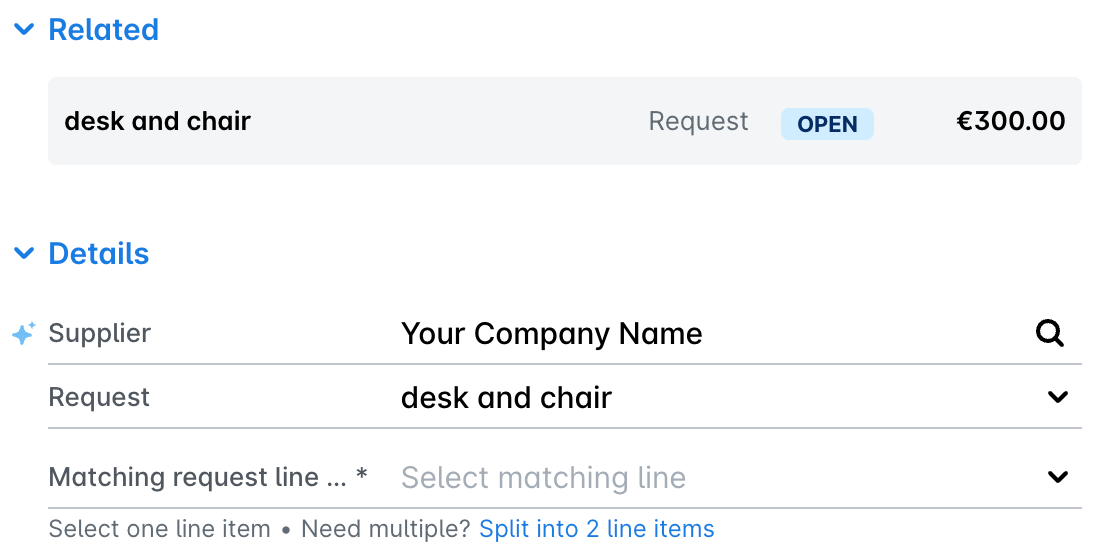
If the Split into [number] line items option is selected, it will lead to the following actions:
The number of line items that will be added to the expense will be the same as the number of line items in the request.
The line item notes of the expense will be populated with the descriptions of the request items.
The line item categorization fields of the expense will be populated with the request item fields - category, team, amortization, and custom fields.
If the net amount of the expense matches the amount of the request, the splitting will populate the net amounts of the expense line items by using the item amounts of the request.
Once the expense is split, each line item has its own Request and Matching request line item fields in the Amount section, so you can change the request line item that each expense line item matches. For more information, see the article about the Request selector.
Viewing line items
To view an expense line item:
In the Payhawk Web Portal, go to Spend and select the desired expense.
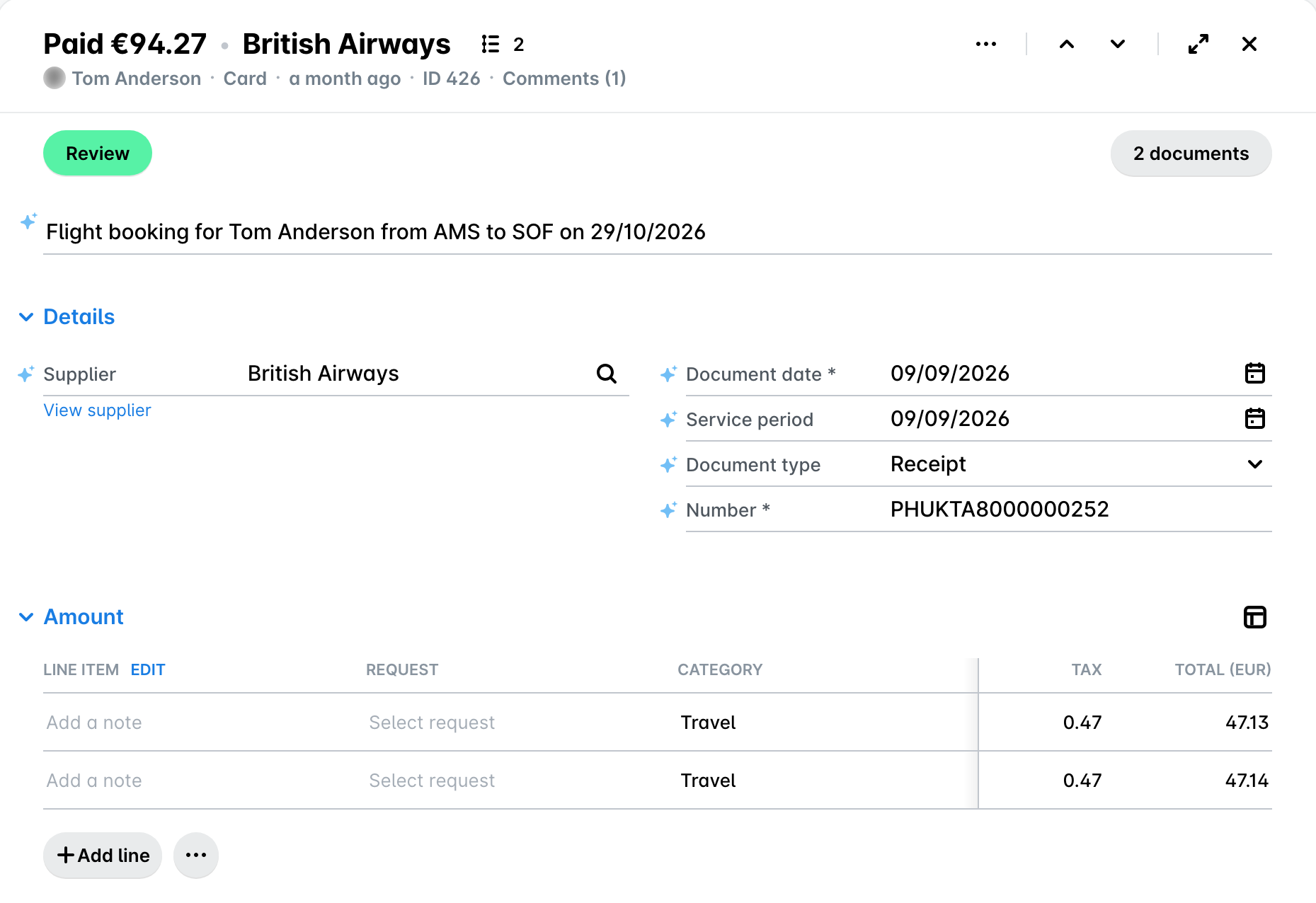
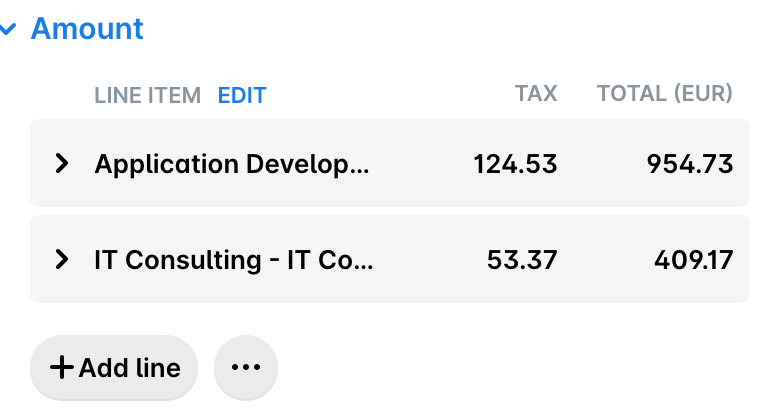
Go to the Amount section. The line items are listed there, each with its tax and total amount.
Merging line items
You can also merge some of the expense line items:
In Spend, select the desired expense.
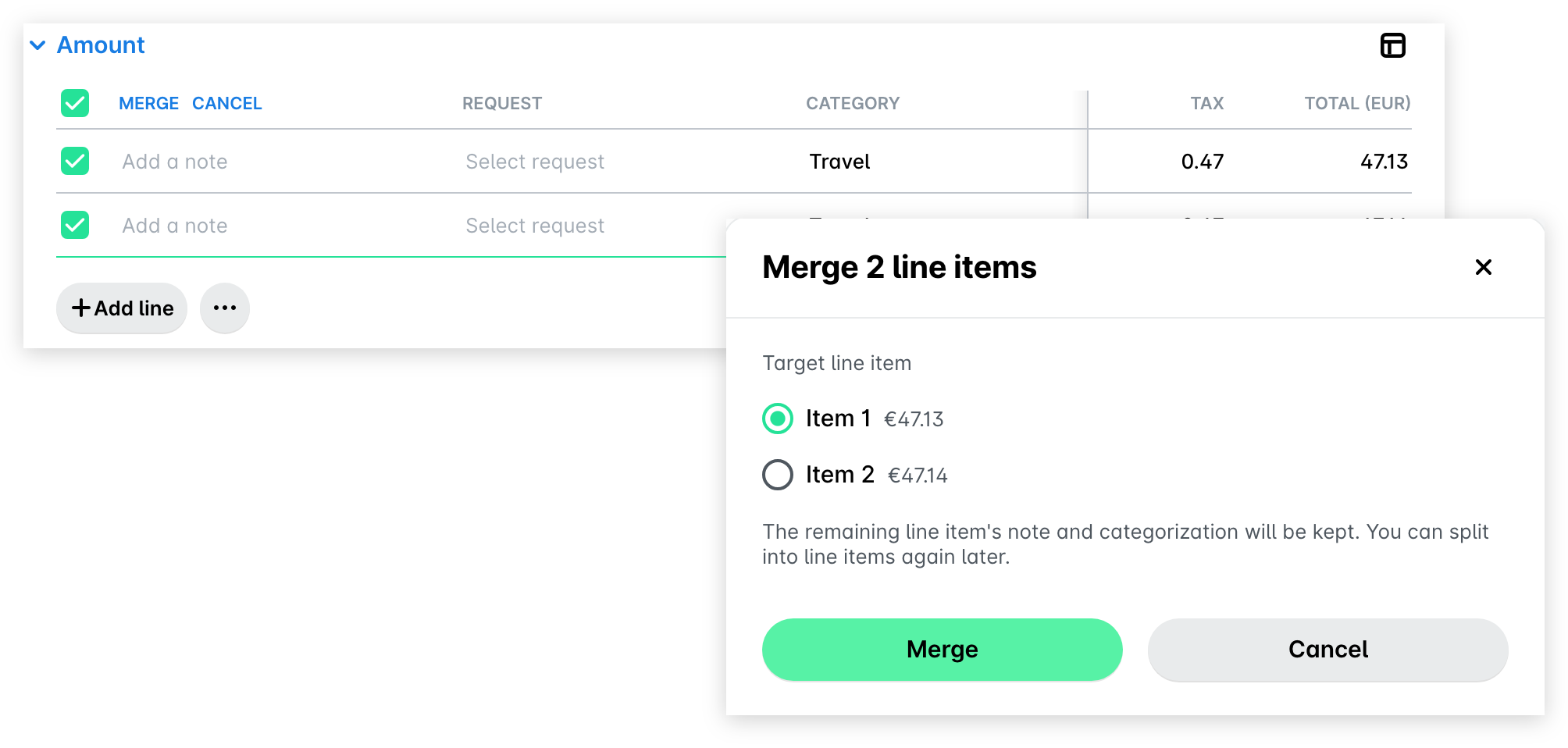
In the Amount section, click on EDIT next to LINE ITEM.
Select the checkboxes of the line items you want to merge and click on MERGE.
Alternatively, to cancel the line item merge, click on CANCEL.
In the flyout dialog, select the target line item from the drop-down list where you want to merge the selected line items.
Click on Merge.
When back to the expense, click on Save.
Editing line items
To edit an expense line item, including splitting the expense in another way, removing a line item, and so on:
In the Payhawk Web Portal, go to Spend and select the desired expense.
Go to the Amount section of the expense, where the line items are listed.
Deleting line items
To remove an expense line item:
In the Payhawk Web Portal, go to Spend and select the desired expense.
Go to the Amount section of the expense, where the line items are listed.
Hover over the line item and click on the x icon against the line item you want to remove.
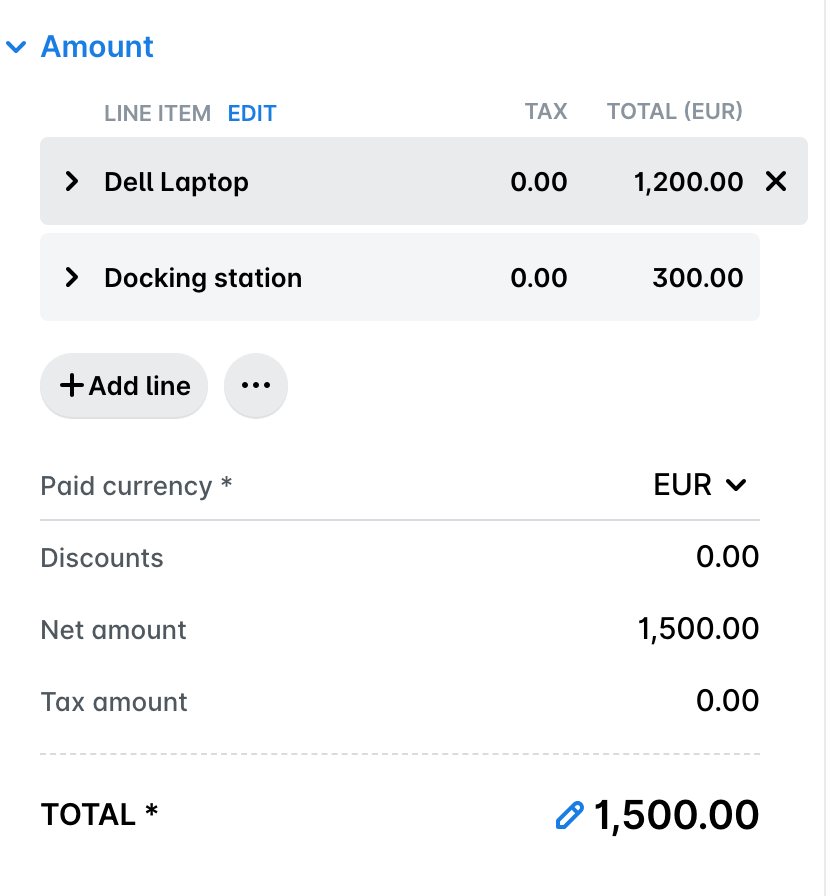
You can delete line items only before the expense has been reviewed.
To be able to remove all existing line items of an expense, make sure you’ve updated the amount of the last one to the amount of the whole expense. When you click on save, the only line item won’t be visible any more.
Useful resources