Depending on your company's approval workflows, each spend type can be assigned to one or more people or roles for approval. As a Payhawk administrator, you can manually verify if an expense was sent to the correct approver.
The following steps for resolving this issue depend on whether the approver is a Team manager, Category manager, Custom field manager, another approver role, or a specific person.
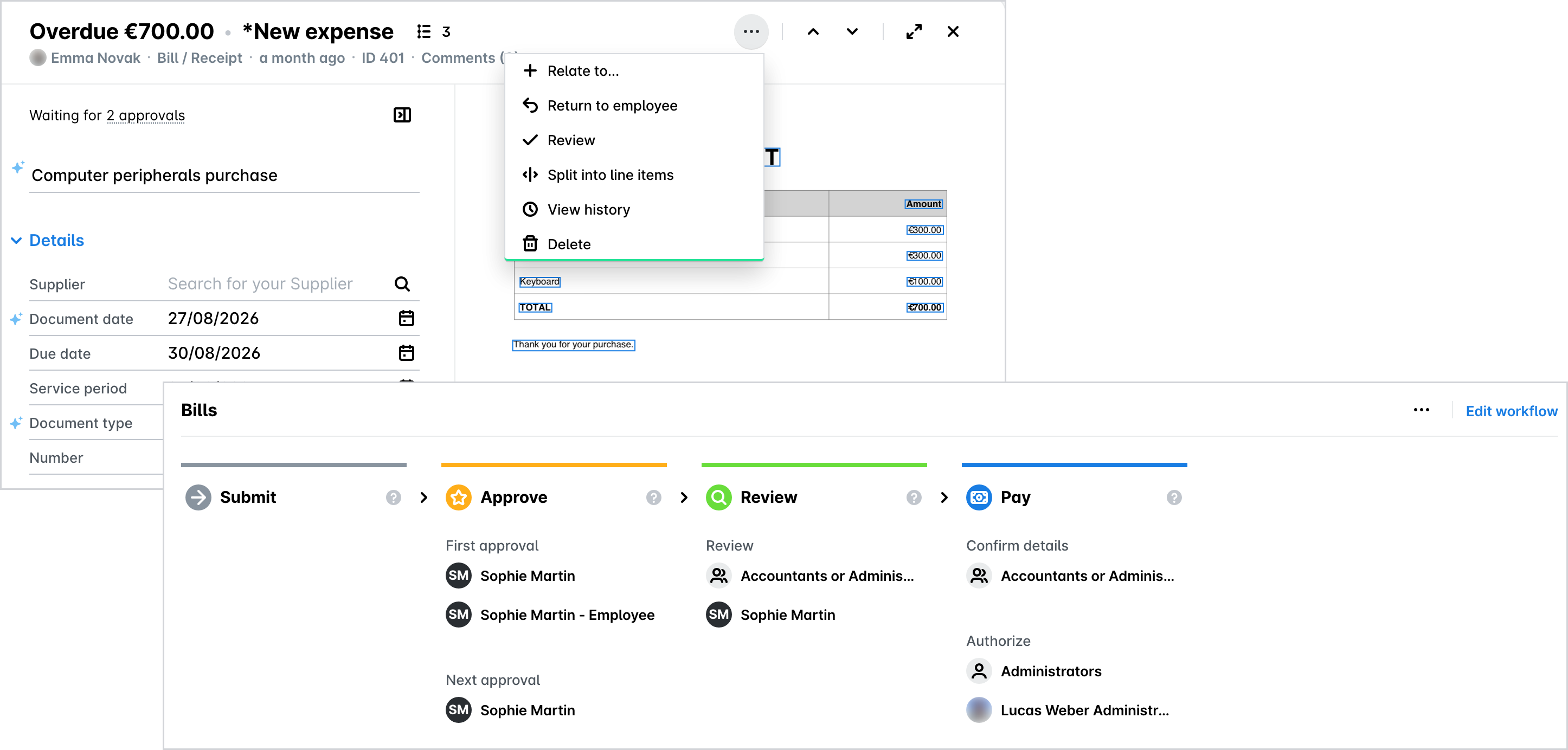
Checking the defined approval workflows for the specific spend type:
Select the desired expense to view its type.
Go to Settings > Workflows > Spend types and check the defined workflow for this spend type.
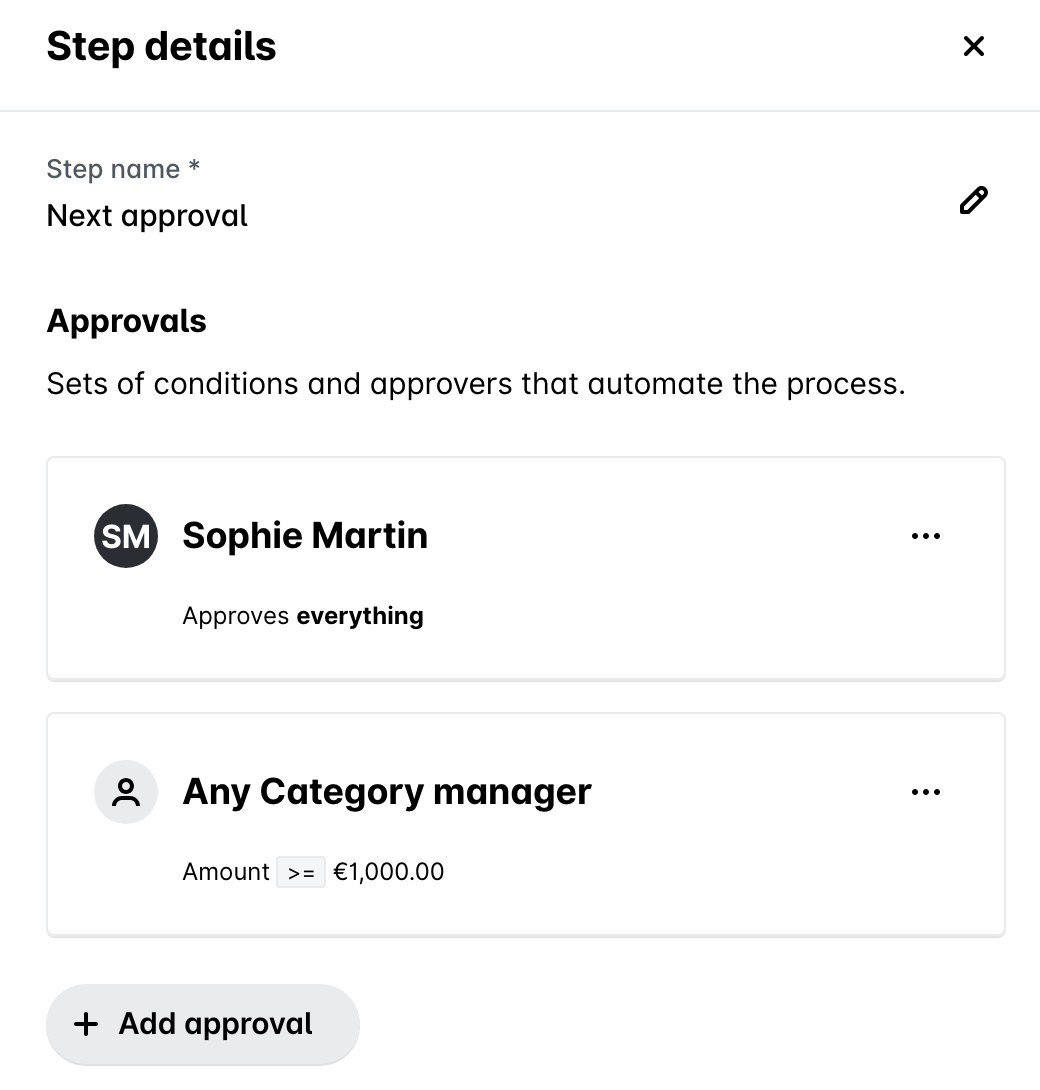
Checking whether the expense amount falls into a defined threshold:
Select the desired expense and view its amount.
Check if a threshold approval has been defined as part of the approval workflow for that spend type.
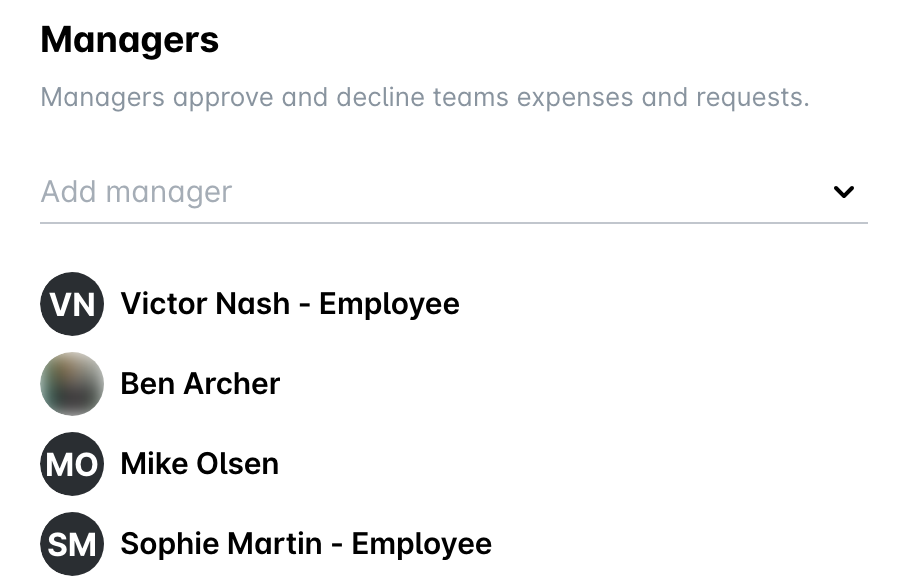
Checking who the Team manager is:
Select the desired expense and check the team of the submitter.
Go to Employees > Teams > [Team] > Managers and check the submitter's team manager or respective custom field manager.
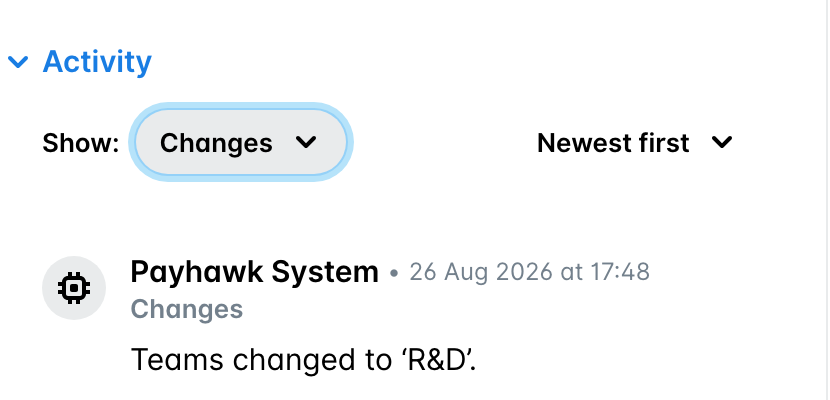
Checking whether the team, custom field or category are defined as approval conditions:
Select the desired expense and cross-check its expense history to see what value has been selected for the Team or another specific custom field or category, and check if this matches the expected value.
Check the team or the specific custom field approval workflow structure.
If there's no one defined for the team field or custom field, this will trigger a fallback workflow. Check the advanced workflow settings to see what fallbacks have been selected for the specific rule. To send the expense to the correct approver, such as Team manager, instead of any administrator, fill out the team or custom field.
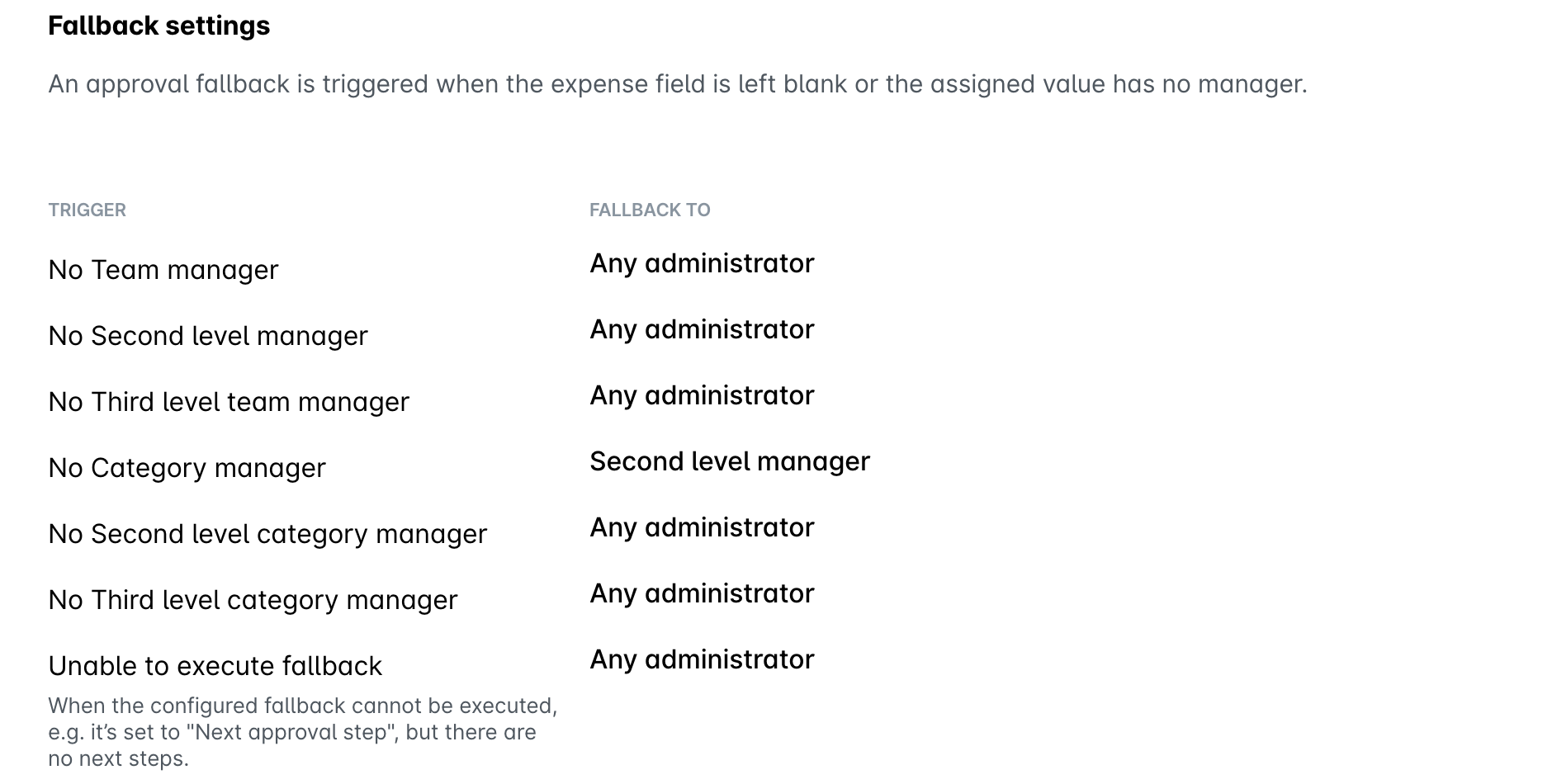
If the defined person or role doesn't match the one that the expense request has gone to, check if the expected approver has the out-of-office mode enabled.
Check whether the submitter's team is set on the expense before it was submitted.
If the submitter is part of a team and the approval workflow states that the expense must be approved by the team manager, but the Team field on the expense is left empty, the expense follows the fallback process. Payhawk auto-populates the Team field only when an employee belongs to a single team, so an employee who belongs to more than one team, or who was added to a team after the expense was created, has to select the team manually. To prevent empty team values, make the Team field required for submission in Settings > Fields library.
If the employee moves to another team after an expense or request was created, the expense or request keeps the old team and goes to the manager of the old team. If the old team was removed, no team manager can be found and the expense or request follows the fallback process. To send it to the new team manager, change the Team field on the expense or request.