Payhawk has rebuilt how you connect your HR system and bring your people into your account. Now, you can choose exactly which employees to sync, map your HR fields and values to Payhawk, and pick up the setup where you left off.
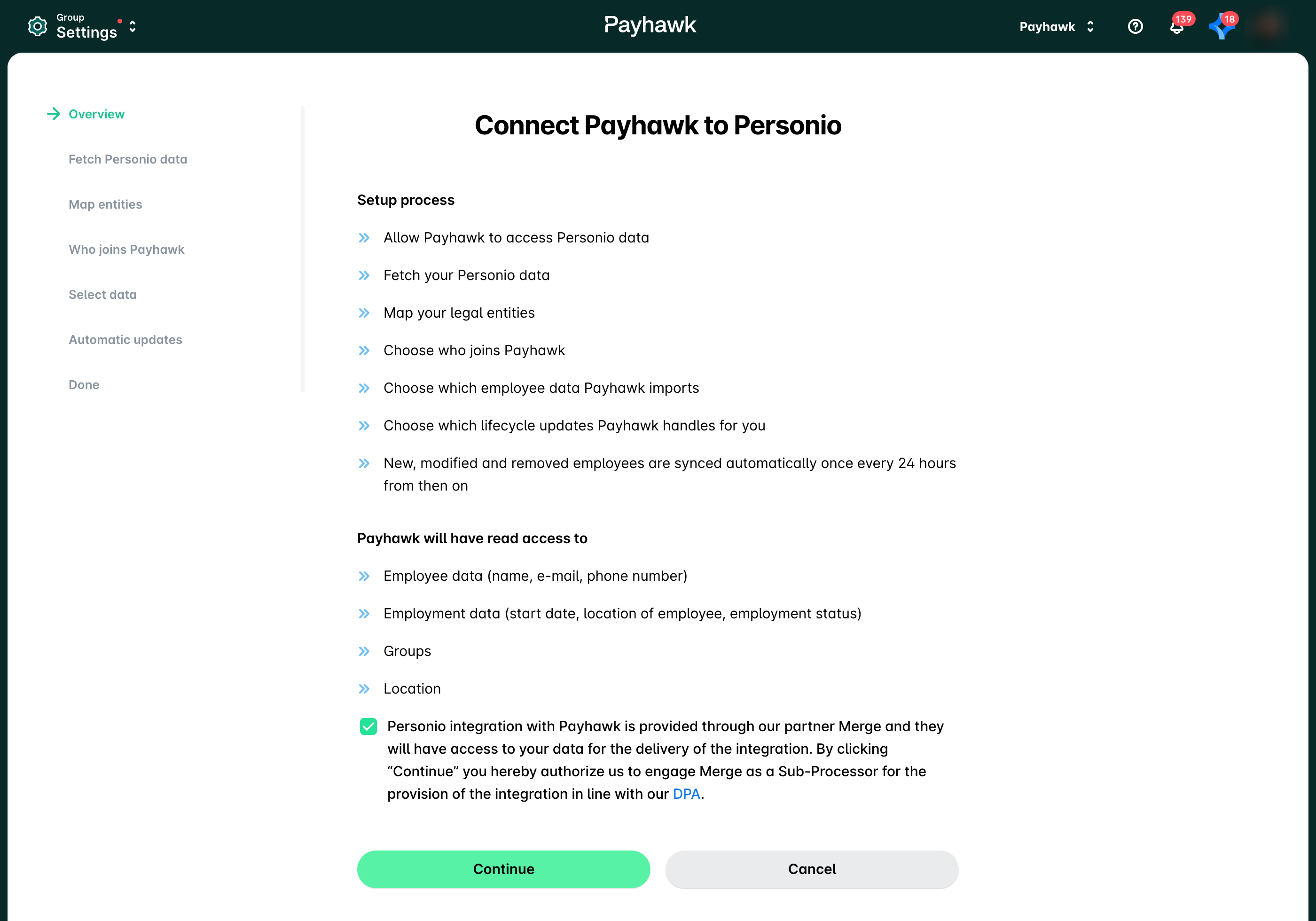
The new setup wizard is available in Payhawk Labs. Until it is released for everyone, the classic connection flow still applies to your account when the new experience is turned off.
Watch the walkthrough
This 3-minute video walks you through the new setup from start to finish.
Jump to any of the following steps:
0:14 – Turn on the new setup
0:22 – Connect your HR system (BambooHR in this example)
0:53 – Map additional fields
1:13 – Fetch employee data
1:18 – Map entities
1:35 – Choose who joins Payhawk
2:05 – Preview employee data
2:24 – Automatic updates
2:35 – Line Managers and the Org chart
3:10 – Line Managers in approvals
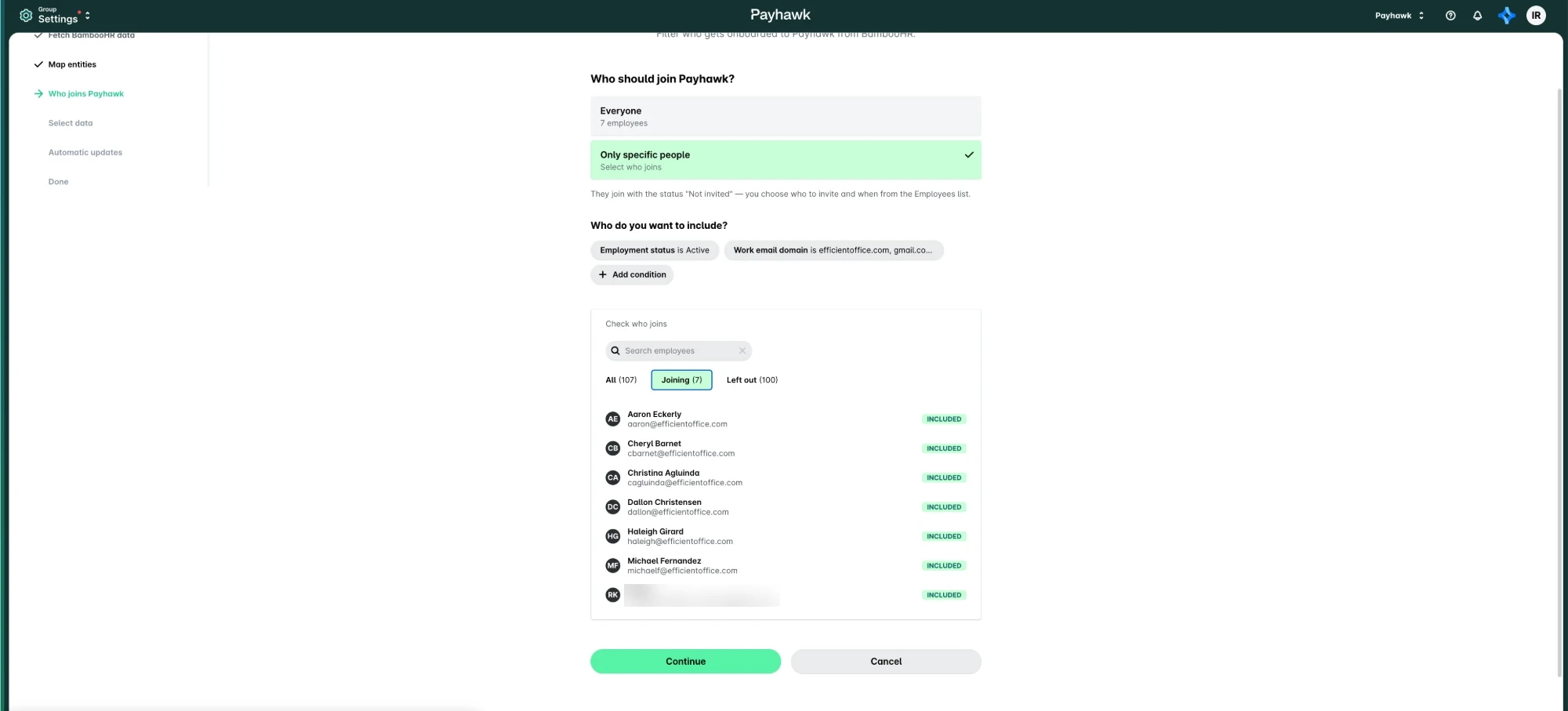
Employee syncing
Now, you can decide which employees are brought into Payhawk during the connection process, instead of syncing everyone by default.
Everyone who joins Payhawk starts in the Not invited status. They won't receive an invitation until you select them and send one.
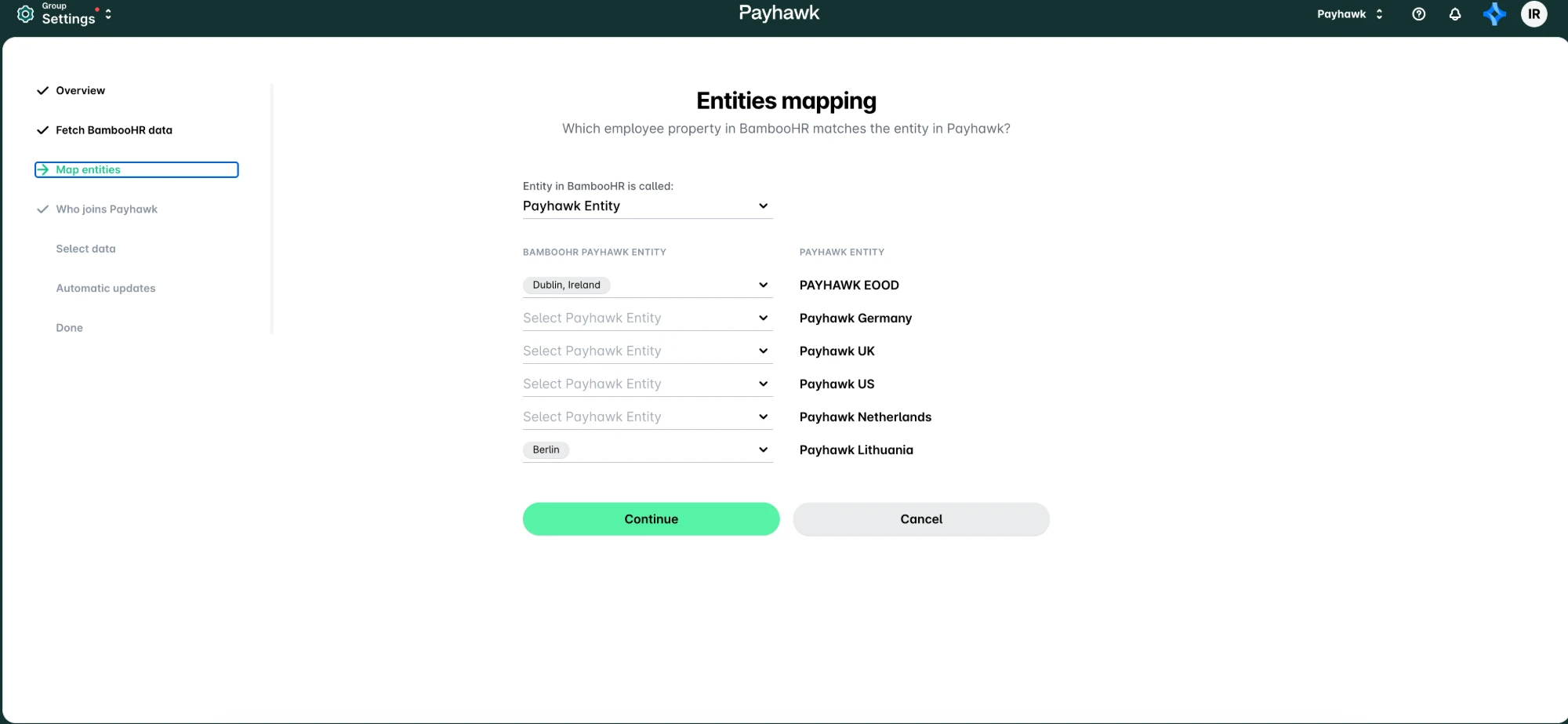
Entity mapping
Now, Payhawk detects the information it already has collected so far about your entities and automatically suggests the matched entities between the two systems.
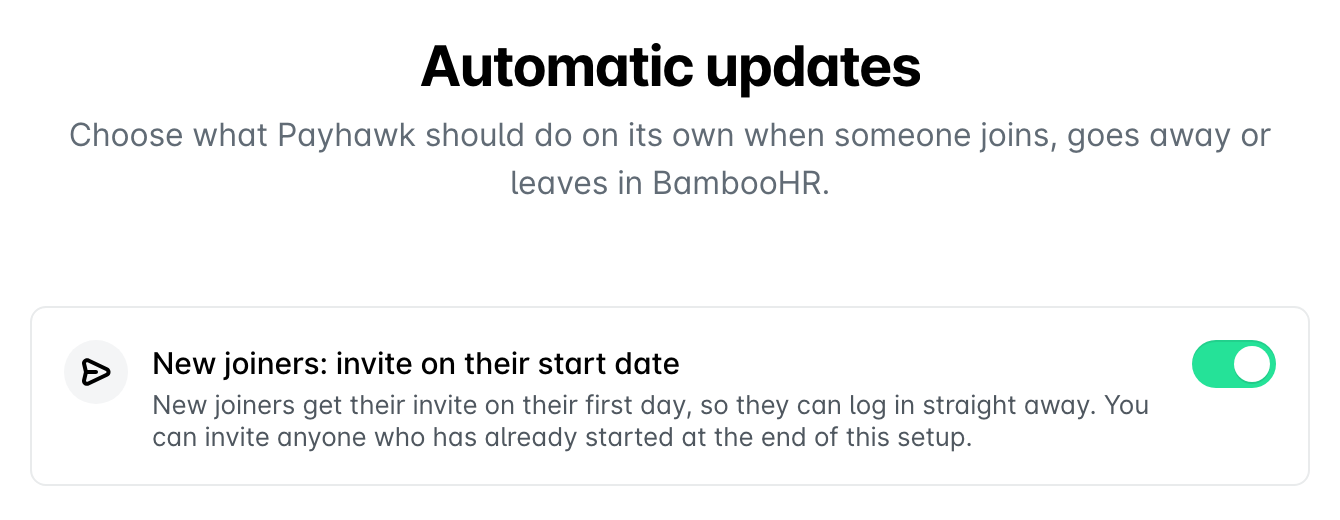
Automations
During the connection process and based on the extensive integration between your HR system and Payhawk, you can now automatically invite new employees who have been synced to Payhawk on their start date.
Resuming and finishing the setup
You can leave the setup at any point and finish it later. Payhawk will save your progress and return you to the step where you left off.
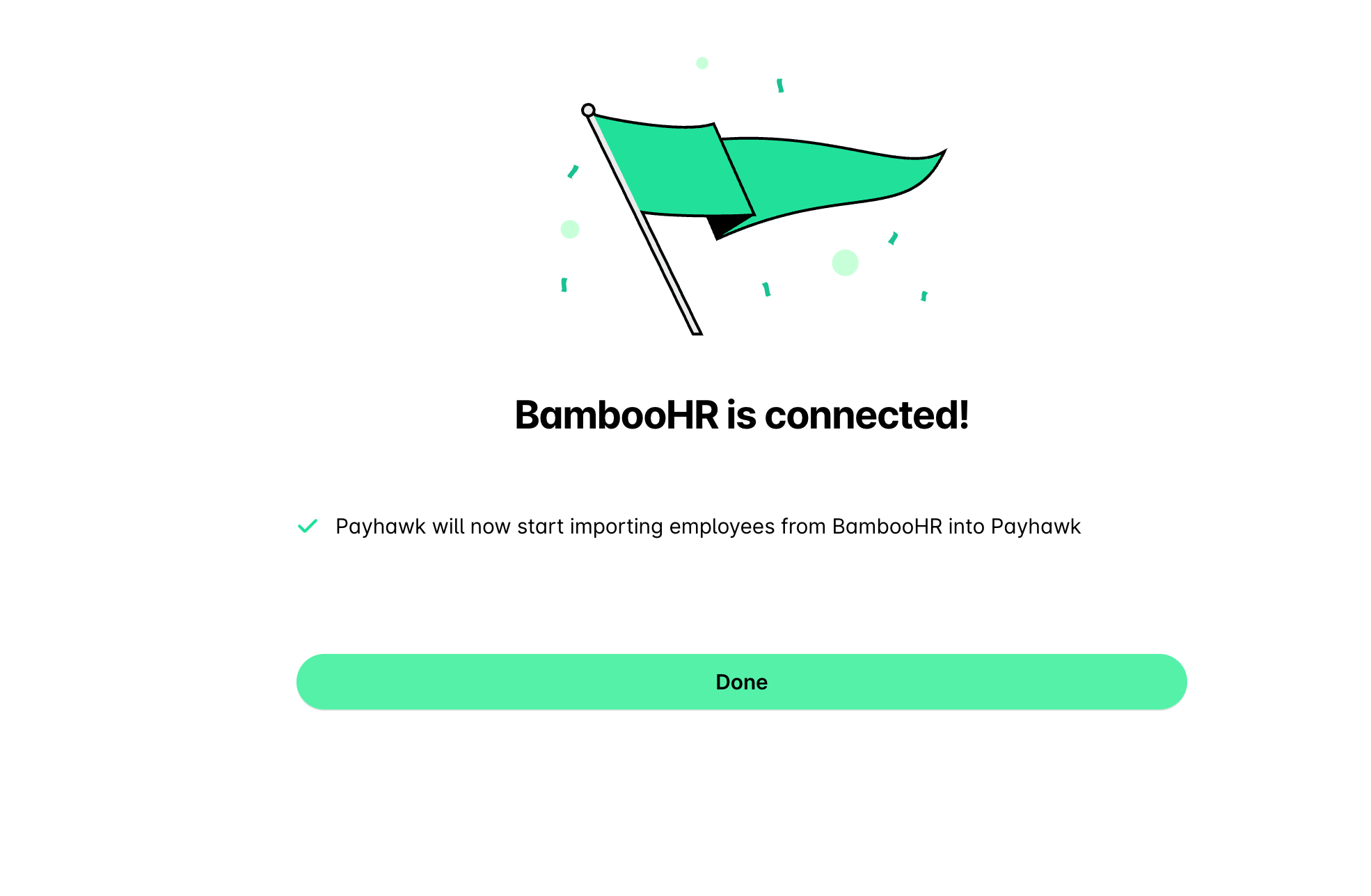
At the end of the connection process, Payhawk will let you know once your HR system is connected. You will be forwarded to the employee page when you click “Done”.
As a result, the Employees app will load and you can now review the synced employees and invite them.
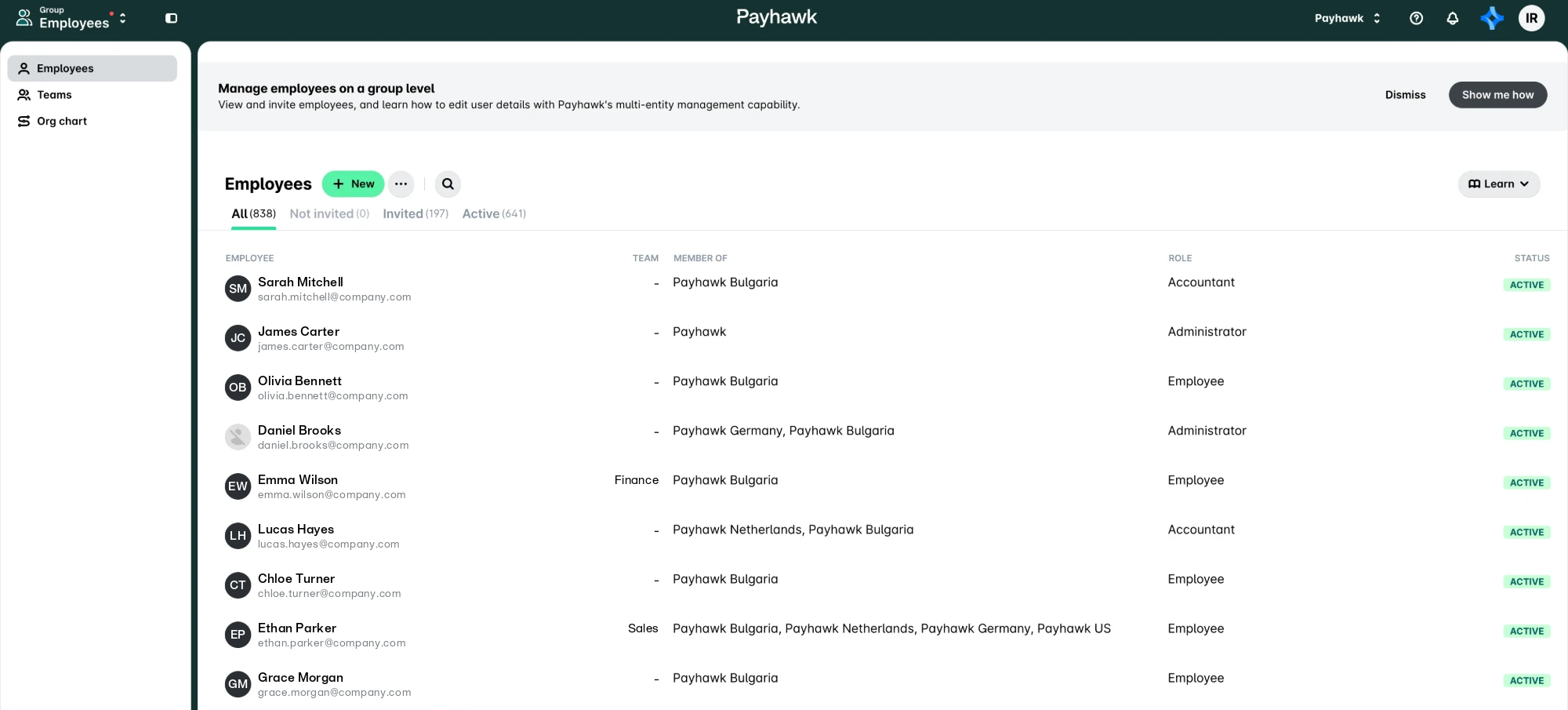
Employee statuses
Because employees come in before they are invited, the Employees page shows the individual invite status for each:
Not invited - The employee is in Payhawk as a record and has not been invited yet. They have no access to the system.
To be invited - The employee is scheduled to be invited automatically on their start date.
Invited - The employee has received an invitation and has not activated their account yet.
Active - The employee has been invited, has activated their account, and can use Payhawk.
Line Managers
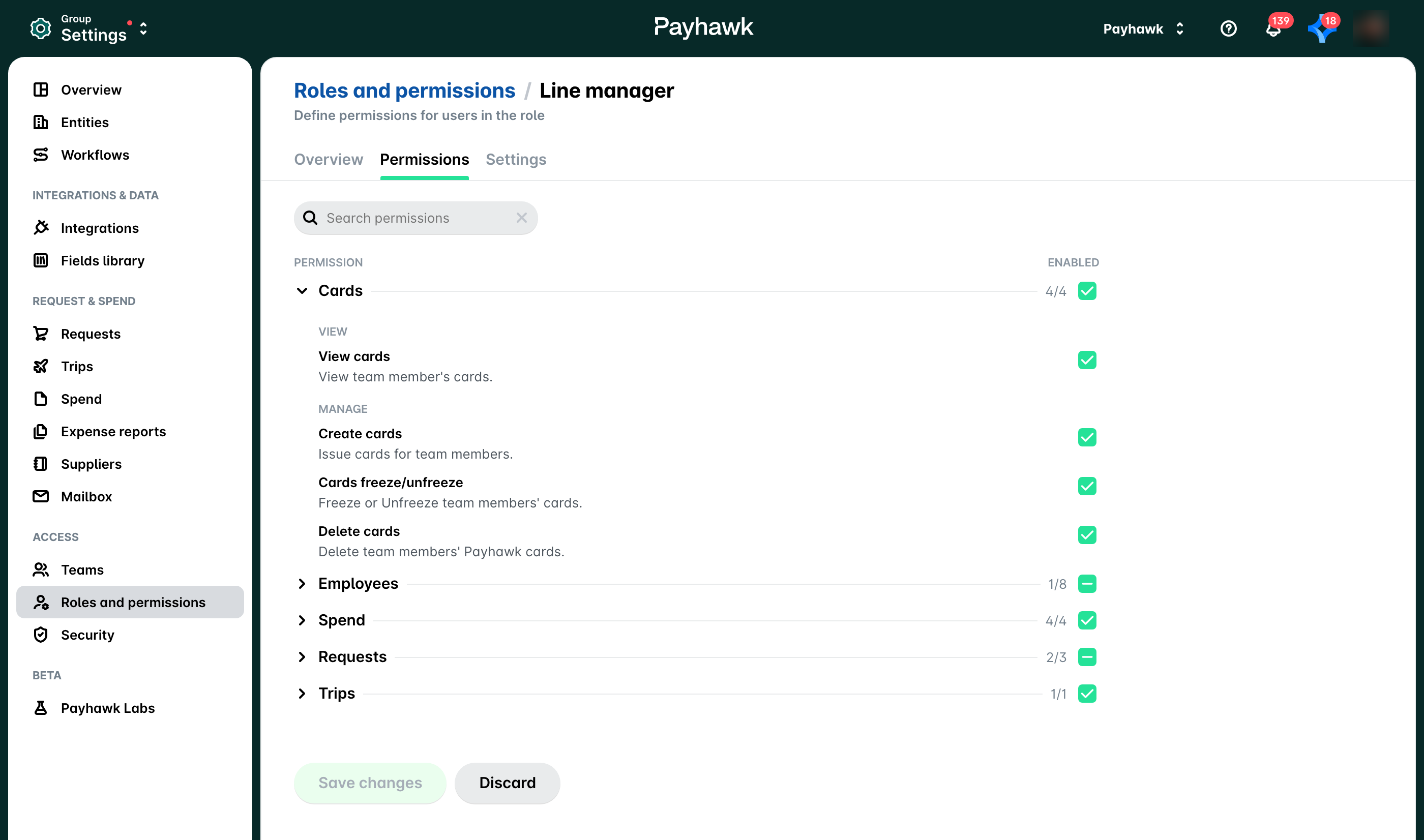
Payhawk introduces Line Managers, a way to link each employee directly to their manager. Each person can have one Line Manager, and a manager can have multiple direct reports. You can use Line Managers in workflows, and they have the same permissions as a Team Manager.
If you connect your HR system, Line Managers sync from it automatically. You can also assign them manually if you prefer a manual setup.
Org chart
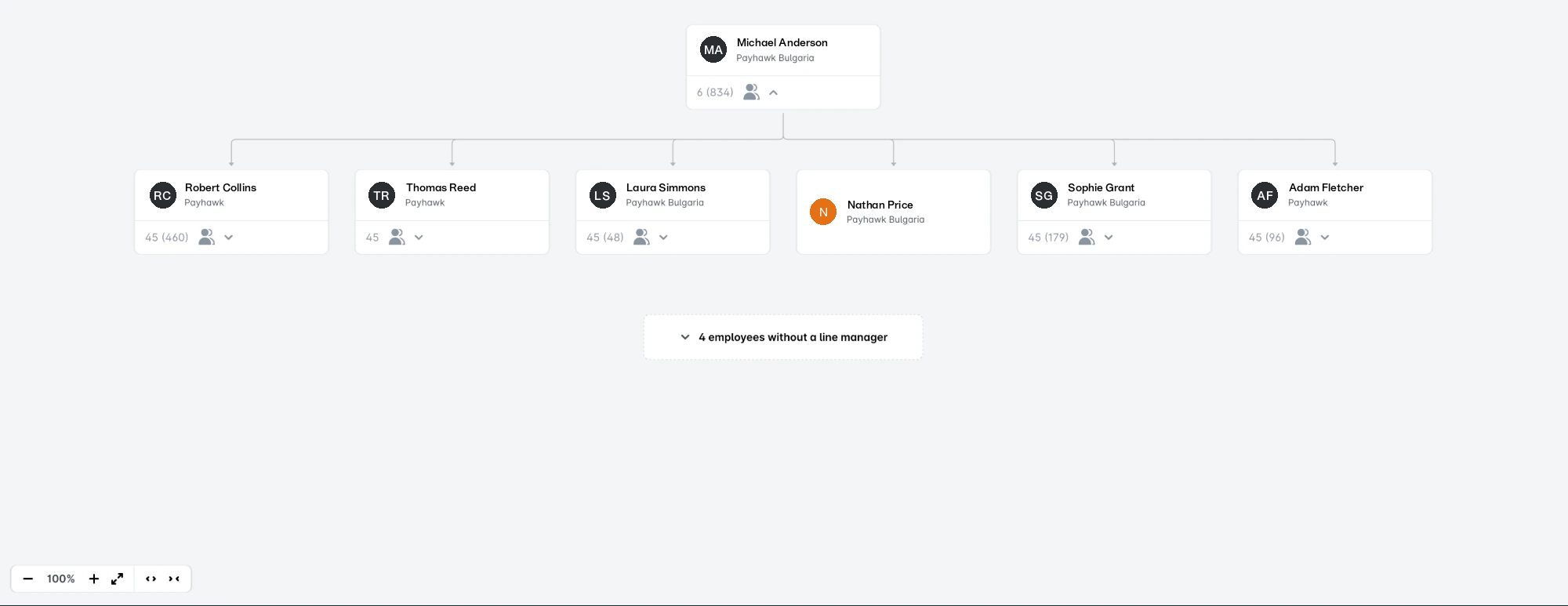
The Org chart is a new view in the Employees app, next to Teams, that shows how employees relate to their Line Managers.
Teams and the Org chart are independent. You can use either or both to build more complex approval structures.
Turning on and off the feature in Labs
If you turn off the Line Managers and Org chart features in Payhawk Labs:
Line Managers and the Org chart will be disabled.
You'll need to change your workflows back to their previous setup.
Employee filtering and automations will no longer be available.