Based on the defined workflows at your company, you may be designated as a reviewer and/or approver for trip requests submitted by your teammates.
In these cases, you will be able to review and approve employees’ trip requests in the Payhawk Web Portal, Payhawk Mobile App, and Trips app.
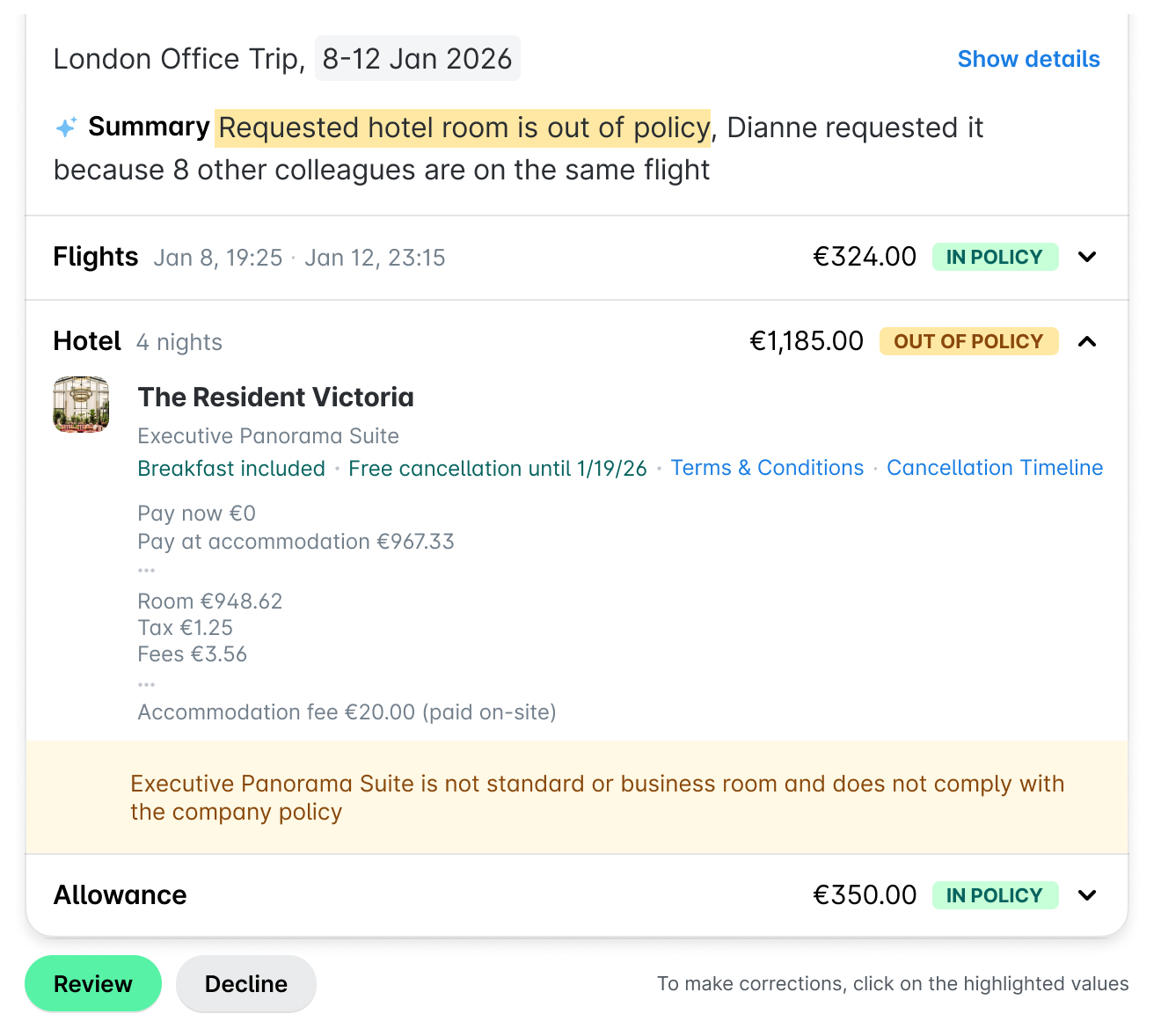
Reviewing trip requests in the Web Portal
To review a trip request from the Payhawk Web Portal:
In the Payhawk Web Portal, go to AI Office.
Under Chats, open the Travel AI Agent chat about the trip request.
Click on Review.
Reviewing trip requests in the Mobile App
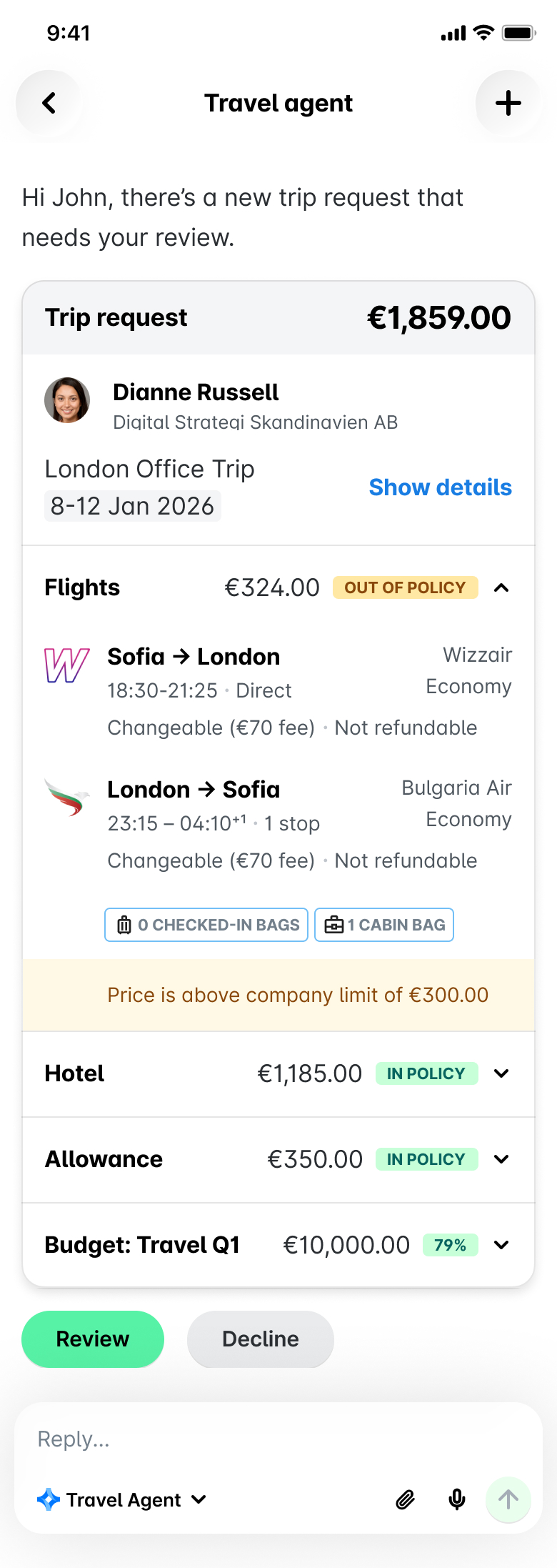
To review a trip request from the Payhawk Mobile App:
In the Payhawk Mobile App, tap AI Office.
Under Trips, select the desired trip request by tapping it.
Tap Review.
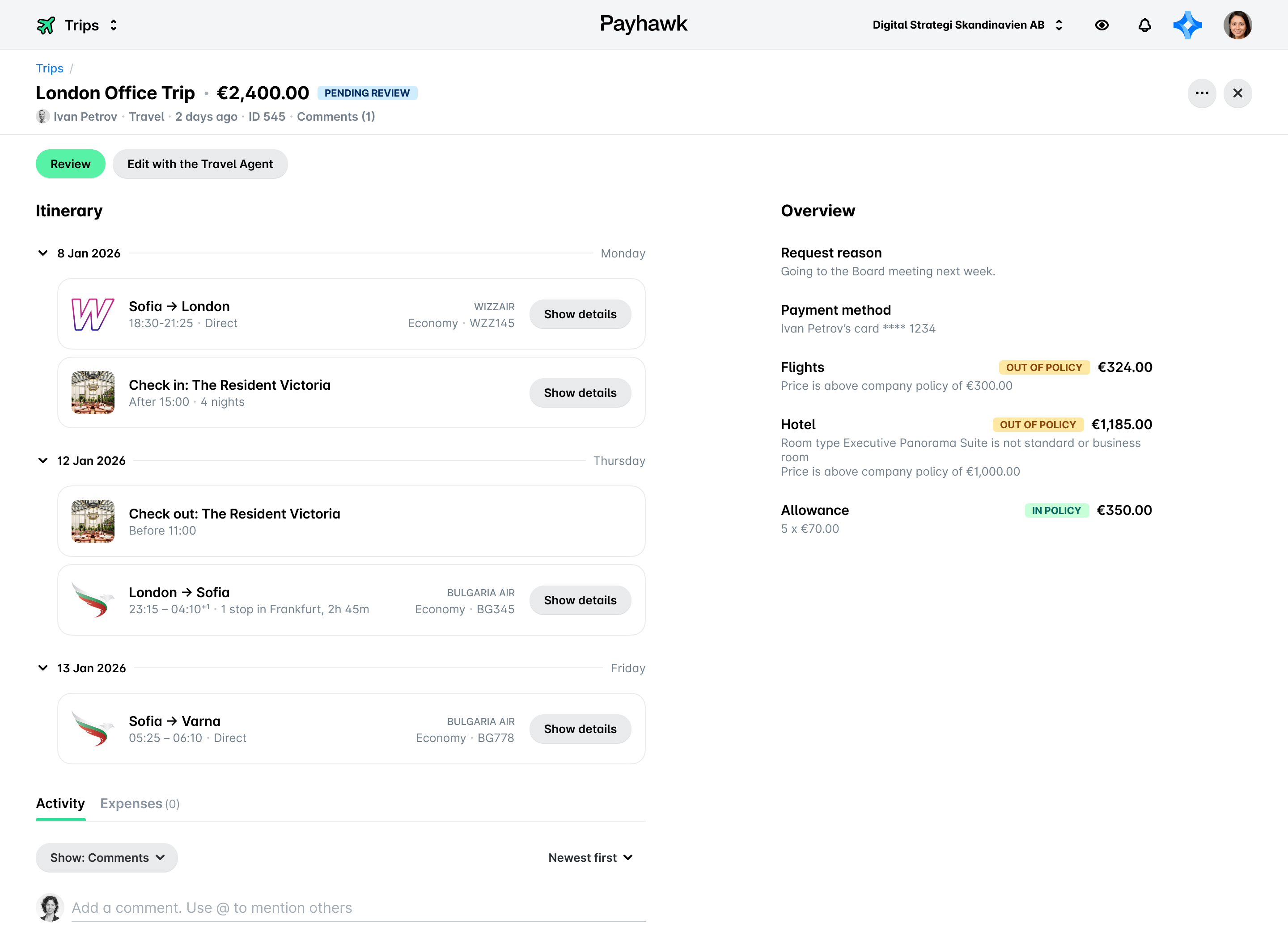
Reviewing trip requests in the Trips app
As a reviewer in your company's workflows, you can review and return trip requests to their owners in the Payhawk Web Portal from the Trips app.
In the Payhawk Web Portal, go to the Trips app.
Navigate to the Review tab.
Select the desired trip request by clicking on it.
Click on the Review button. As a result, the trip request will move to the Approve tab.
Approving trip requests in the Web Portal
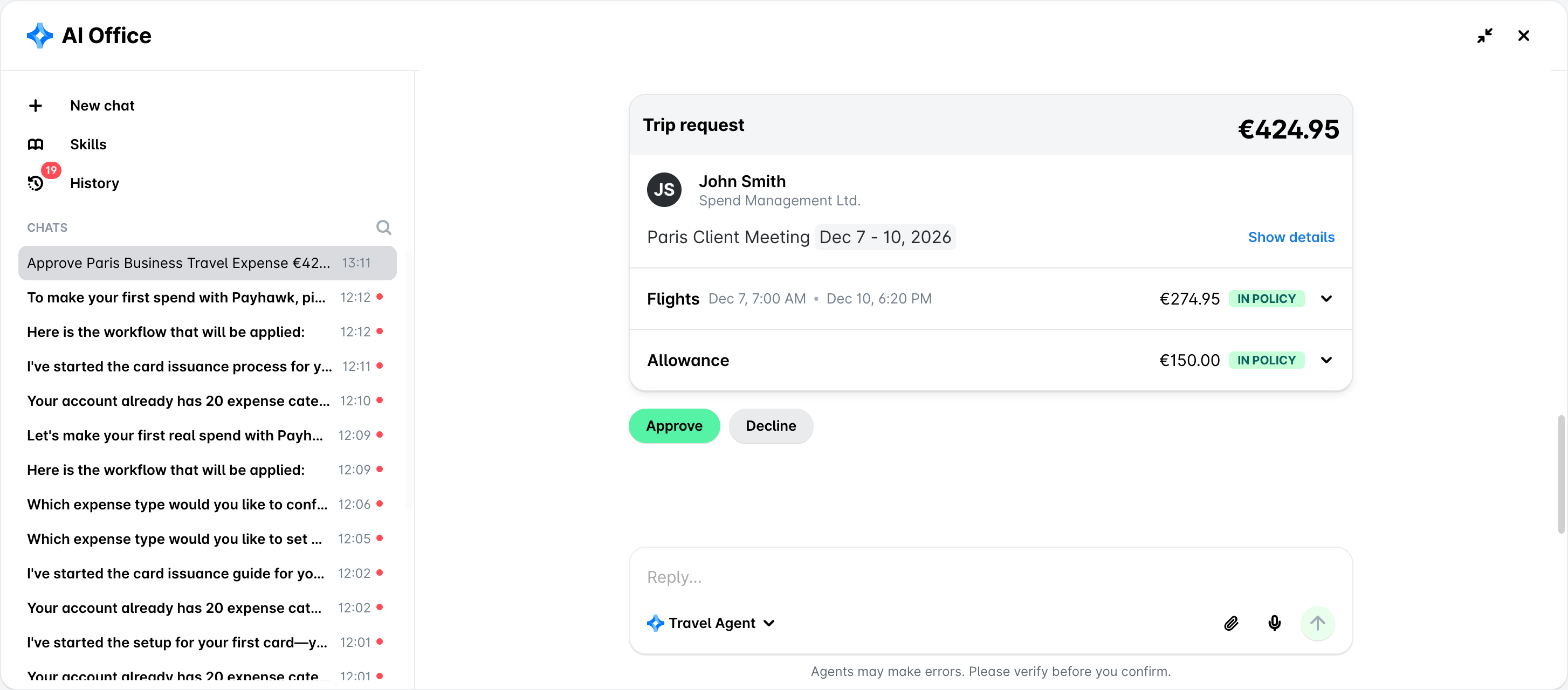
To approve a trip request from the Payhawk Web Portal:
In the Payhawk Web Portal, go to AI Office.
Under Chats, open the Travel Agent chat about the trip request.
Click on Approve.
Approving trip requests in the Mobile App
To approve a trip request from the Payhawk Mobile App:
In the Payhawk Mobile App, tap AI Office.
Under Trips, select the desired trip request by tapping it.
Tap Approve.
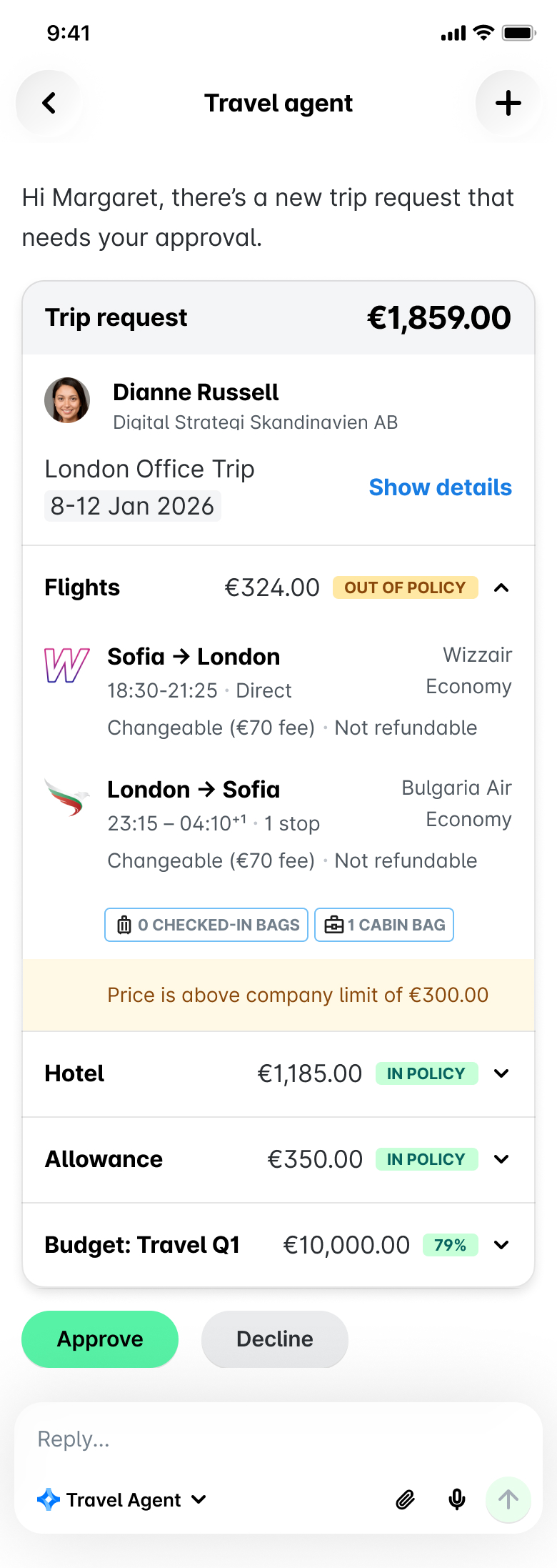
Approving trip requests in the Trips app
As an approver in your company's workflows, you can approve and return trip requests to their owners in the Payhawk Web Portal from the Trips app.
In the Payhawk Web Portal, go to the Trips app.
Navigate to the Approve tab.
Select the desired trip request by clicking on it.
Click on the Approve button. As a result, the trip request will be approved.
If you’re an approver who covers several travelers on the same group trip, you can approve them together from the Trips app using the team filter.
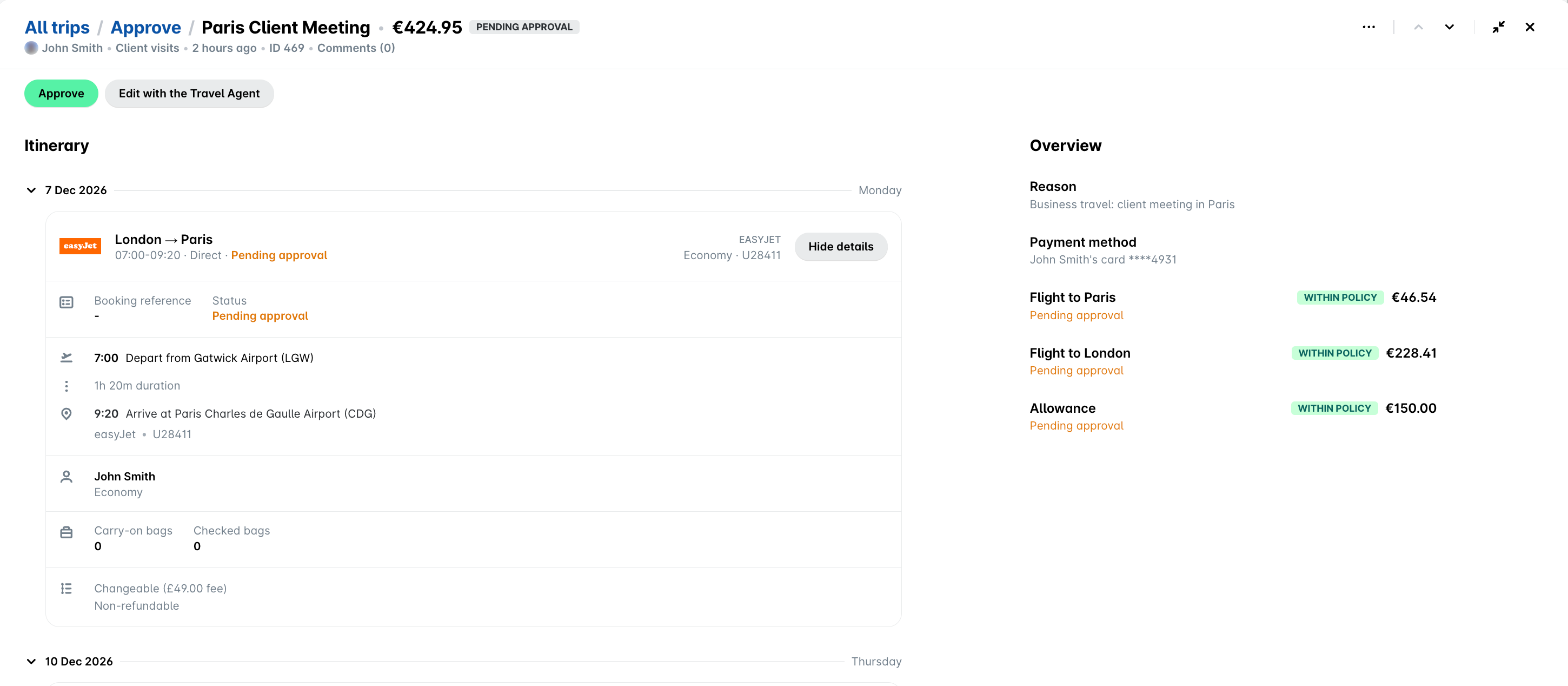
When a trip uses per diem mode, the trip request shows a per diem line next to the flight and hotel amounts, in place of an allowance. The per diem itself is not flagged as in or out of policy. Approving the trip creates a draft per diem expense for the traveler. If the traveler later submits a per diem above the approved amount, a separate per diem discrepancy approval comes to you before payout.
Useful resources