Depending on the defined workflow at your company, you may be assigned as an approver for card requests submitted by your team members.
Notes on approving and declining card requests
Based on the type of defined approval workflow, after you approve a card request, all relevant approvers along the approval workflow will be duly notified.
Once you've declined a card request, the submitter of the request will be notified with a push notification on their phone and an email. They will also be able to view the reason for your rejecting the card request.
You will be able to approve requests for new virtual American Express Cards only if your company is based in the US and a connection between the American Express and Payhawk systems has been established.
Depending on the type of requested card, you'll see different fields in the request.
Only users included in the approval workflow can see the card request in their Inbox, and even Payhawk Administrators will not have access to that card request unless they are part of its approval workflow.
Accessing submitted card requests
You can access a card request from your phone or computer from the email request notification you have received.
Alternatively, open the Payhawk Mobile App on your phone or log in to the Payhawk Web Portal on your browser, and access the request from your Payhawk Inbox.
Approving card requests in the Mobile App
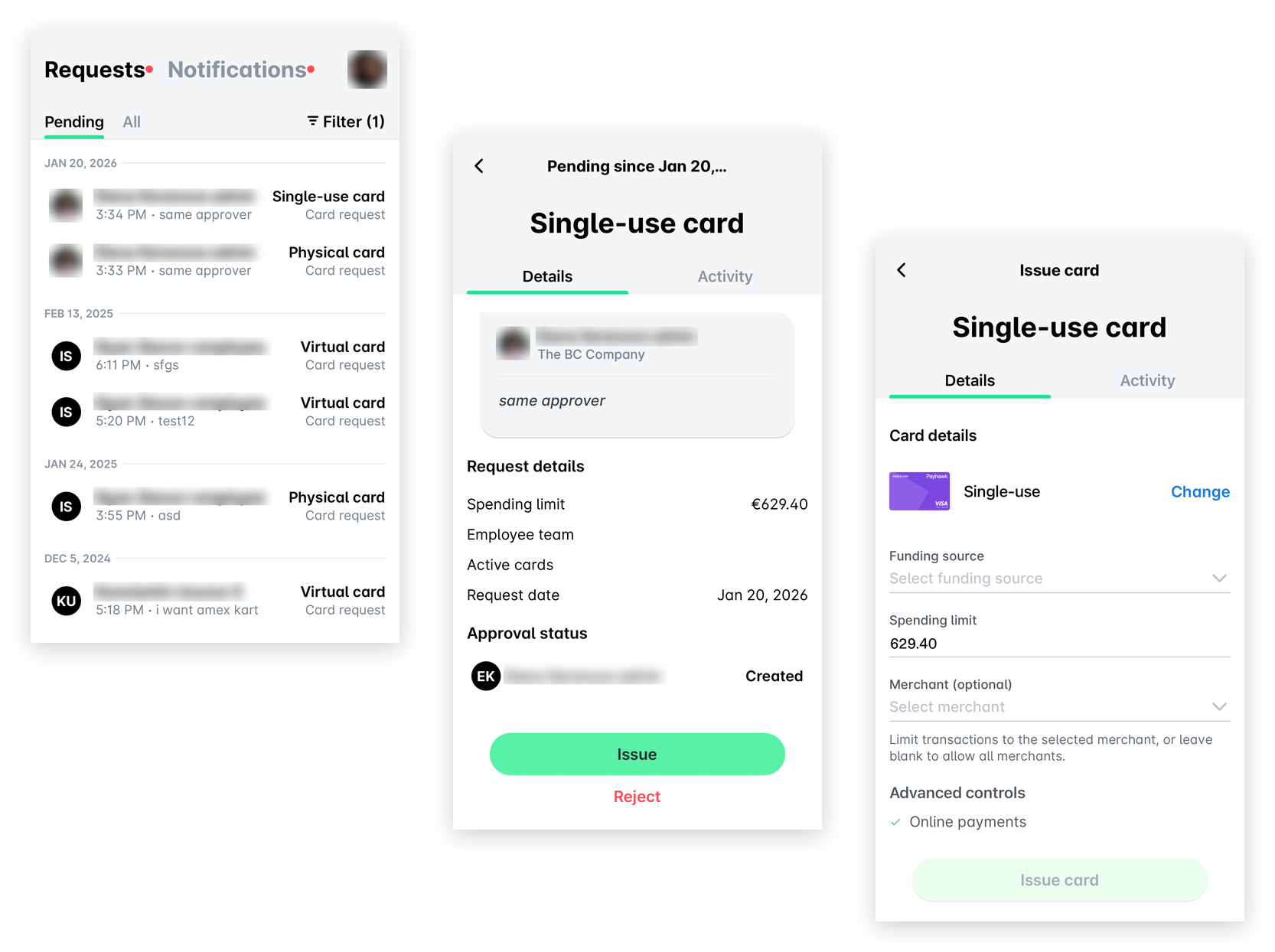
To approve a submitted card request from the Payhawk Mobile App:
In the Payhawk Mobile App, tap Inbox. Alternatively, click on the push notification on your mobile phone.
Under Pending, select the desired card request by tapping it.
Tap Issue. Fill in the required data for issuing the Payhawk card.
If the card request is for a virtual American Express Card, see the article about issuing virtual American Express Cards.
When finished, tap Issue card.
Declining card requests in the Mobile App
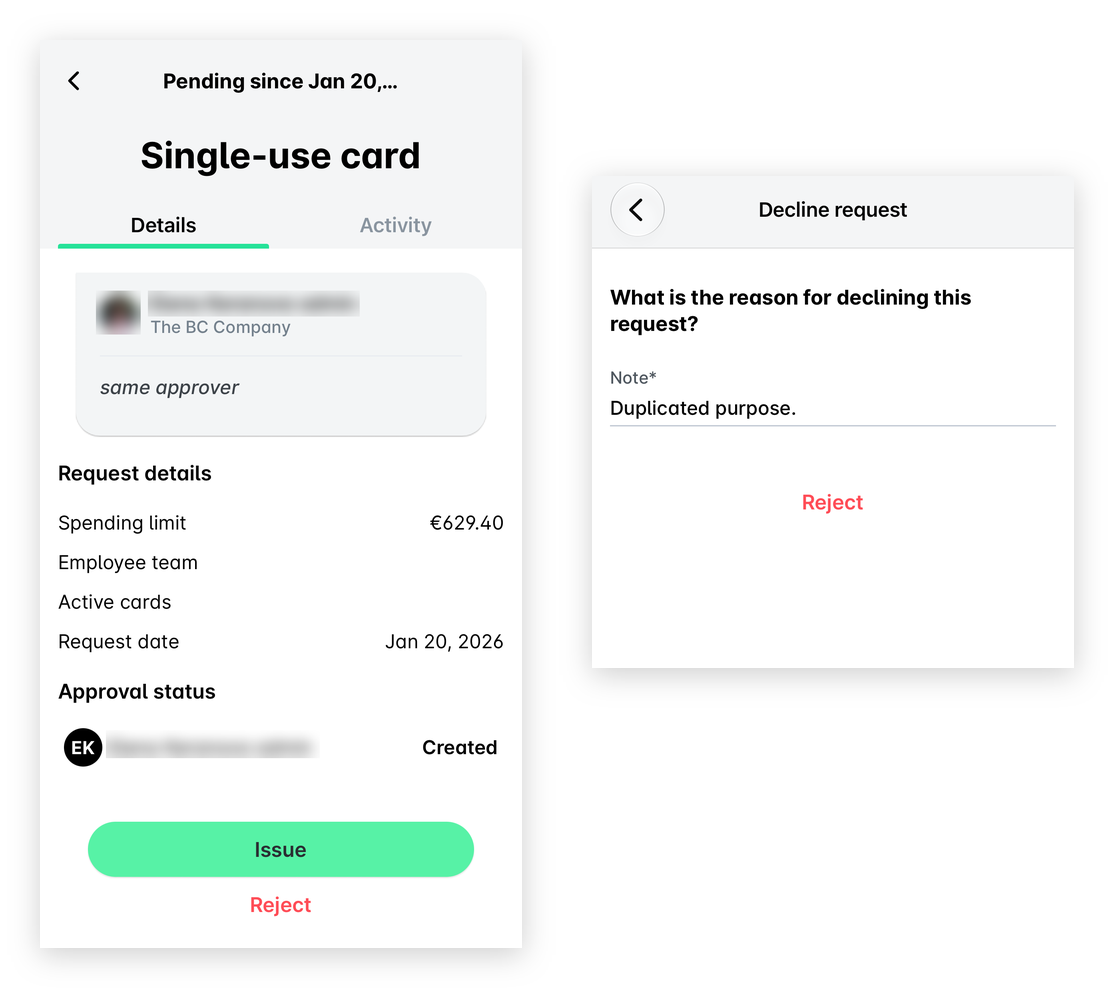
To decline a card request from the Payhawk Mobile App:
In the Payhawk Mobile App, go to Inbox. Alternatively, click on the push notification on your mobile phone.
Select the desired card request and tap Reject.
In the dialog that opens, under Note, enter the reason for declining the request.
Tap Reject.
Approving card requests in the Web Portal
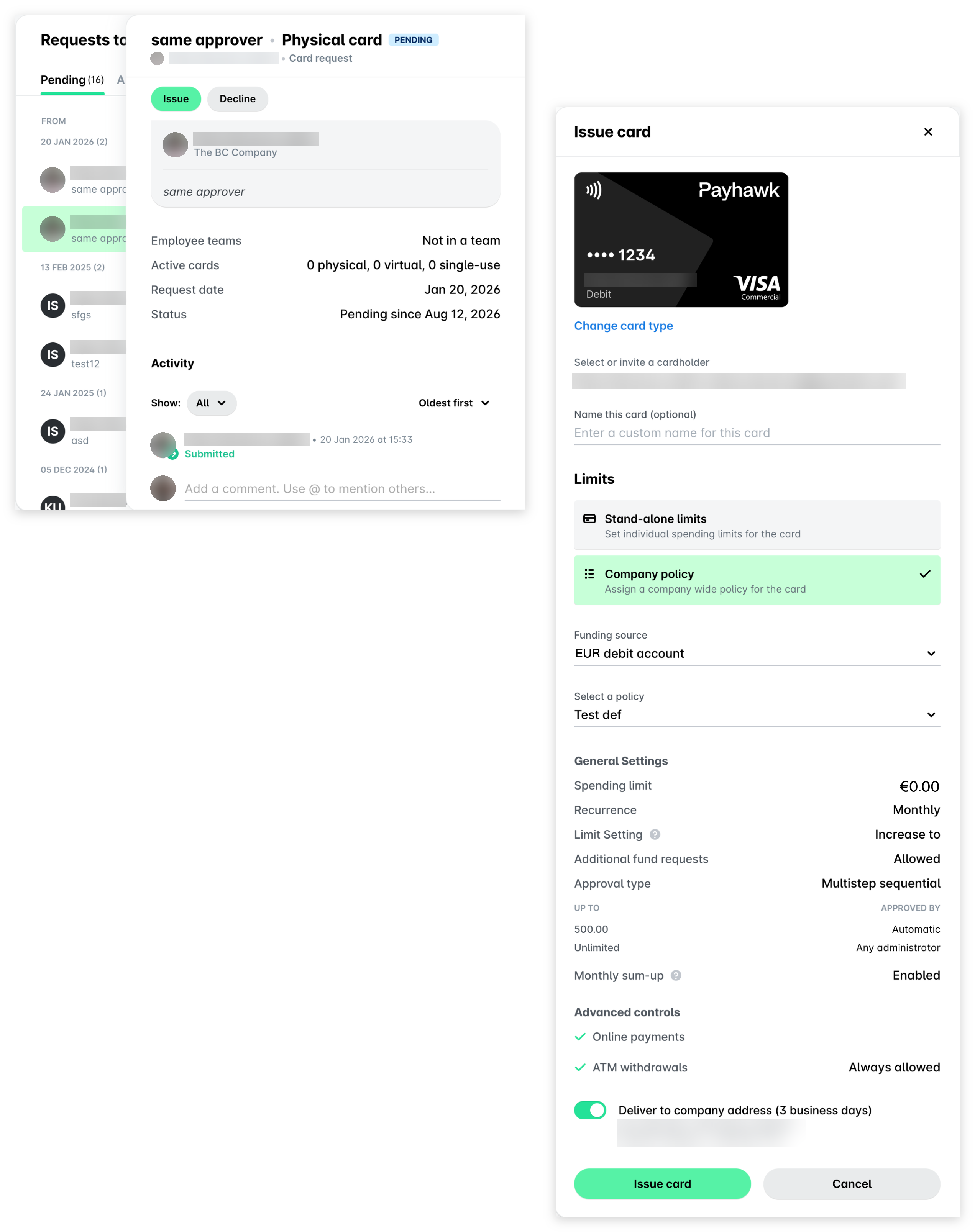
To approve a card request from the Payhawk Web Portal:
In the Payhawk Web Portal, go to Inbox > Requests to me.
Select the desired request by clicking on it.
Click on Issue. Fill in the required data for issuing the Payhawk card.
If the card request is for a virtual American Express Card, see the article about issuing virtual American Express Cards.
When finished, click on Issue card.
Declining card requests in the Web Portal
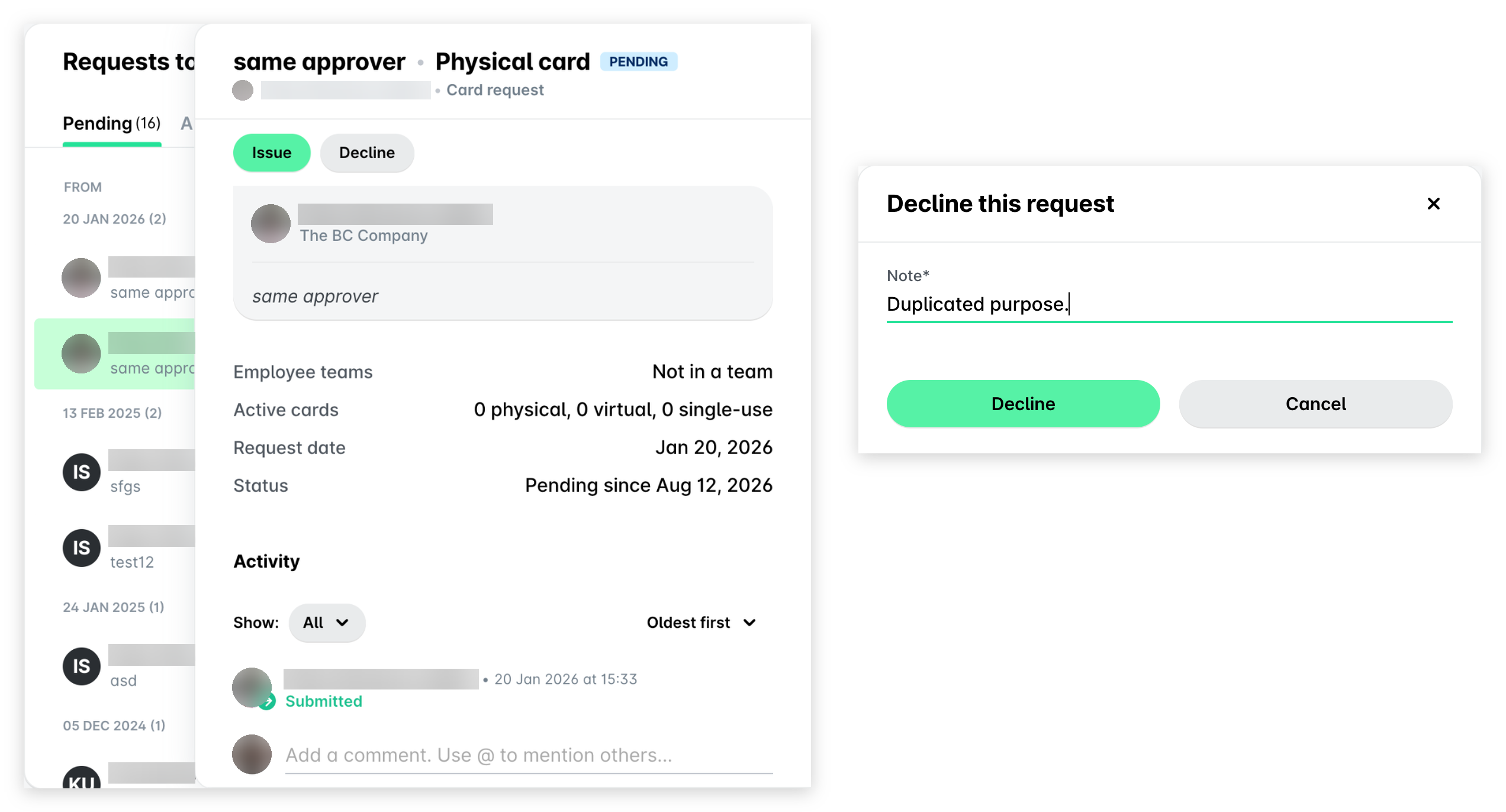
To decline a card request from the Payhawk Web Portal:
In the Payhawk Web Portal, go to Inbox > Requests to me.
Select the desired card request and click on Decline.
In the dialog that opens, under Note, enter the reason for declining the request.
Click on Decline.
Useful resources