Based on the defined approval workflows at your company, you may be designated as an approver for expenses submitted by your teammates.
Whenever an expense requiring your approval is submitted, you will receive an expense request in your Payhawk Inbox and a notification via email.
From your Payhawk Inbox, you can take the following actions related to unpaid expenses:
Approve expense requests
Return expense requests to the respective employees for update
Reject expense requests and delete the expenses
Specifics
For accounting purposes:
Expenses can only be returned to employees before they are reviewed.
Reviewed expenses can be returned for further review only if they have not been paid.
Paid expenses cannot be deleted.
Once you approve an expense, all relevant approvers based along the defined workflow for that spend type will be notified.
If you return or delete an expense, the requester will receive a push notification on their phone and an email.
They can also view the reason for the action in the notification.
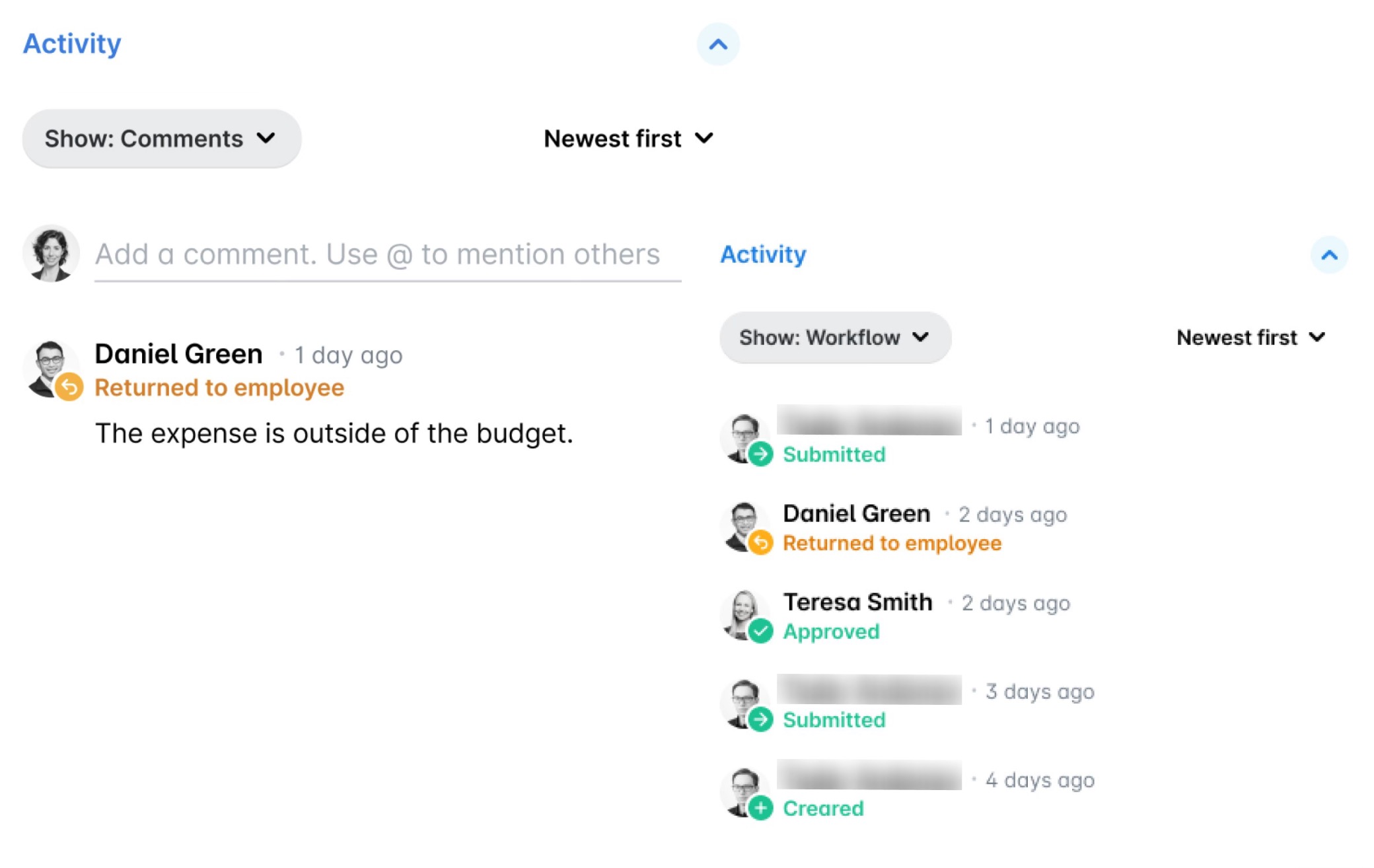
The reason for your action is logged in the Activity section of the expense. It shows as a comment when Comments is selected in the Show filter, and as a workflow entry when Workflow is selected.
The Spend > Approve tab will be visible only if a Payhawk Administrator has enabled employees to submit expenses. You will be able to approve expenses if a Payhawk Administrator has assigned you an approval role within the company’s workflows.
For split line-item expenses, approvers will receive requests simultaneously for their assigned amounts, following your company’s predefined approval workflows. Each approver can also view details of the other line items and their respective approvers.
In Spend, both approvers and authorized users without approval rights can return an expense to its owner (submitting employee).
Accessing expense requests for approval
You can access an expense request in your Payhawk Inbox by clicking the link provided in the email notification you received.
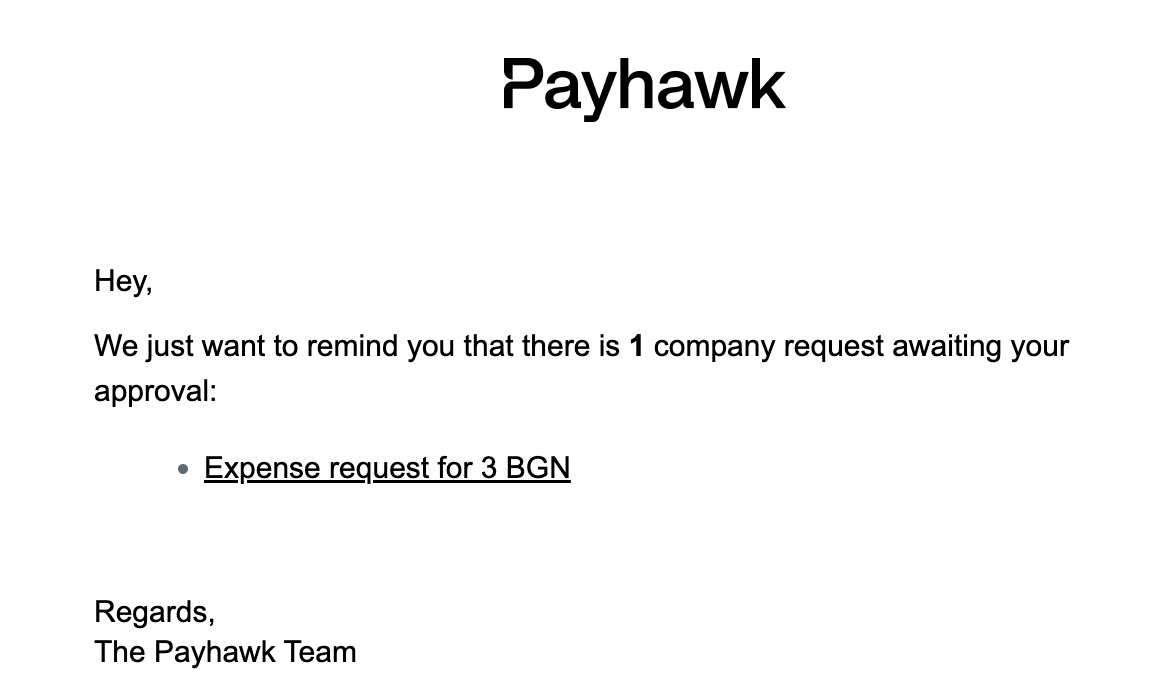
Alternatively, you can open the app switcher in the top-left corner and go to Inbox, then go to Requests to me > Pending.
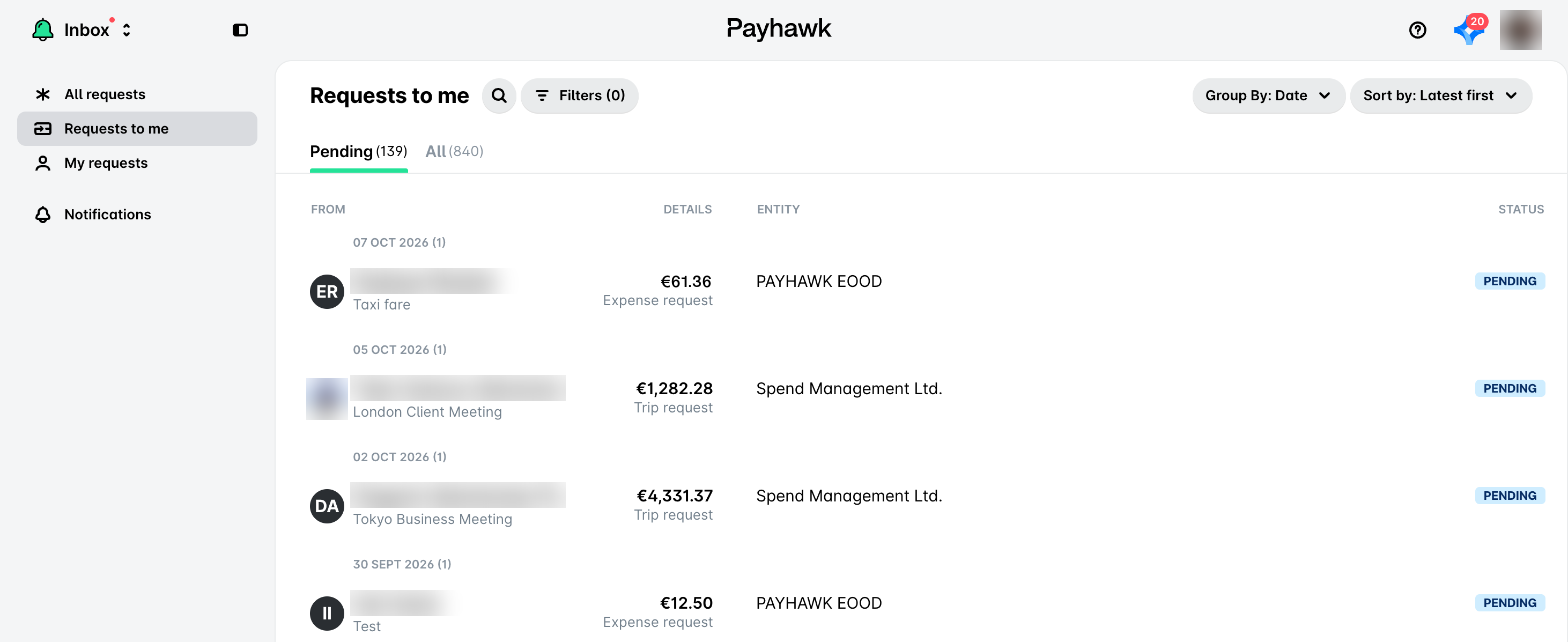
Payhawk notification emails come from
no-reply@payhawk.com. Before you click on a link in an email, check the full email address of the sender, not only the sender name.If you don't see the request from the email under Inbox > Requests to me > Pending, don't click on any links in the email and don’t reply to it. Contact Payhawk Support through the chat.
Approving expense requests associated with purchases
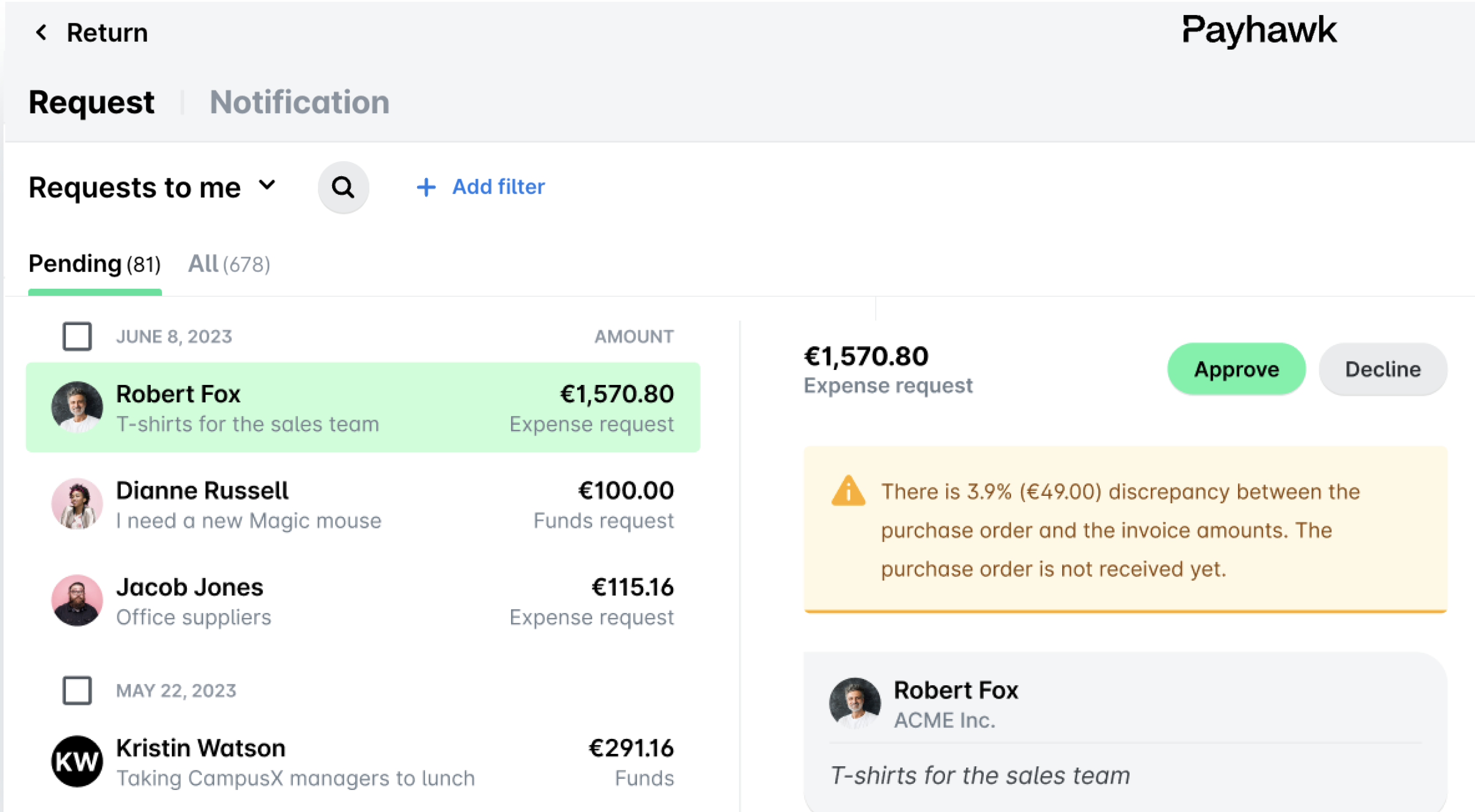
When approving a bill payment for a supplier invoice linked to a purchase, you may receive a warning about amount discrepancies. This is based on Payhawk’s two- or three-way matching process and your company’s predefined discrepancy rules. The message content may vary accordingly.
Approving expense requests associated with budgets
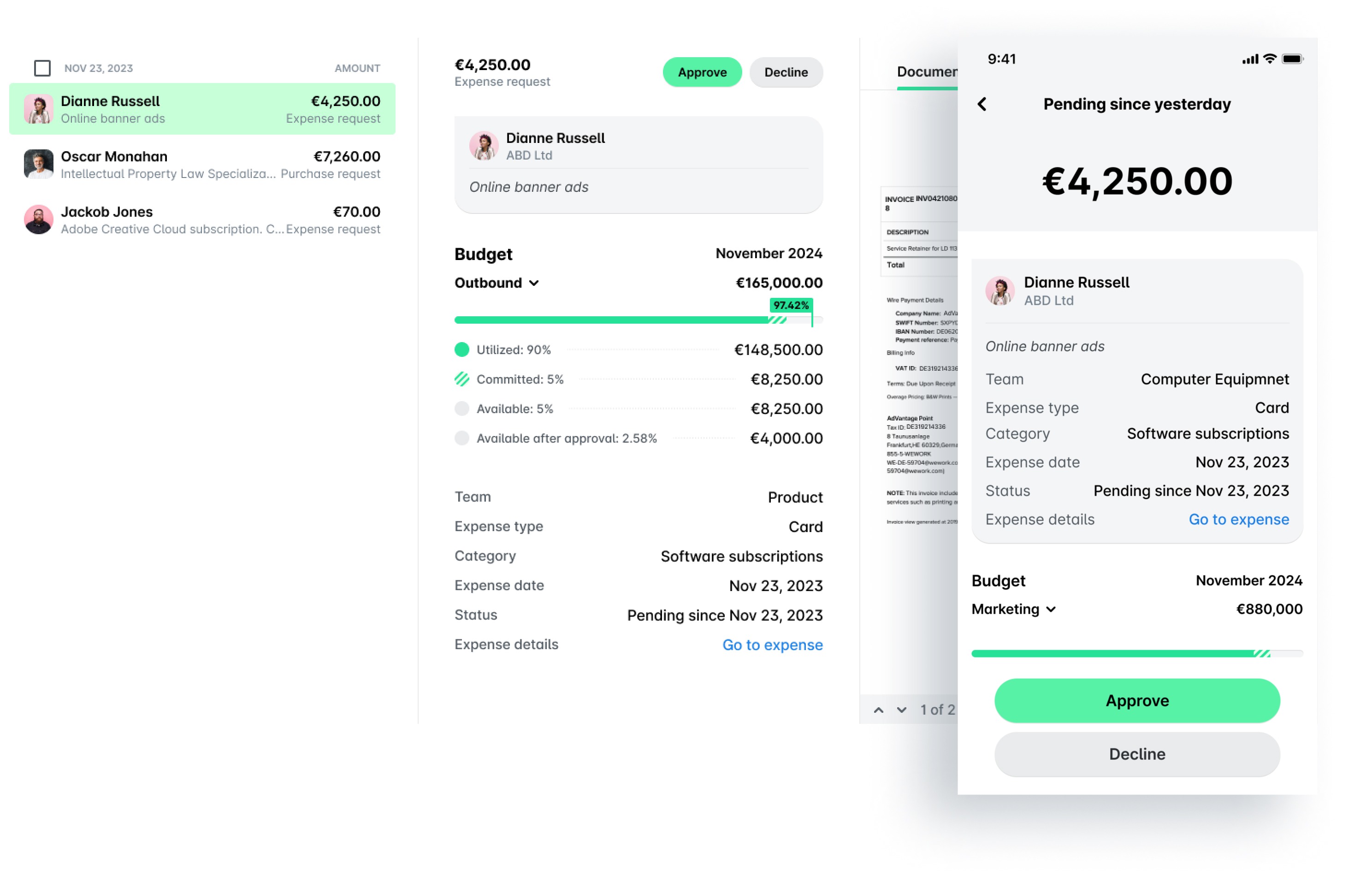
If you are a Budget Owner in your company, you can view budget details in the expense request and, from there, navigate to both the budget and the expense for more information.
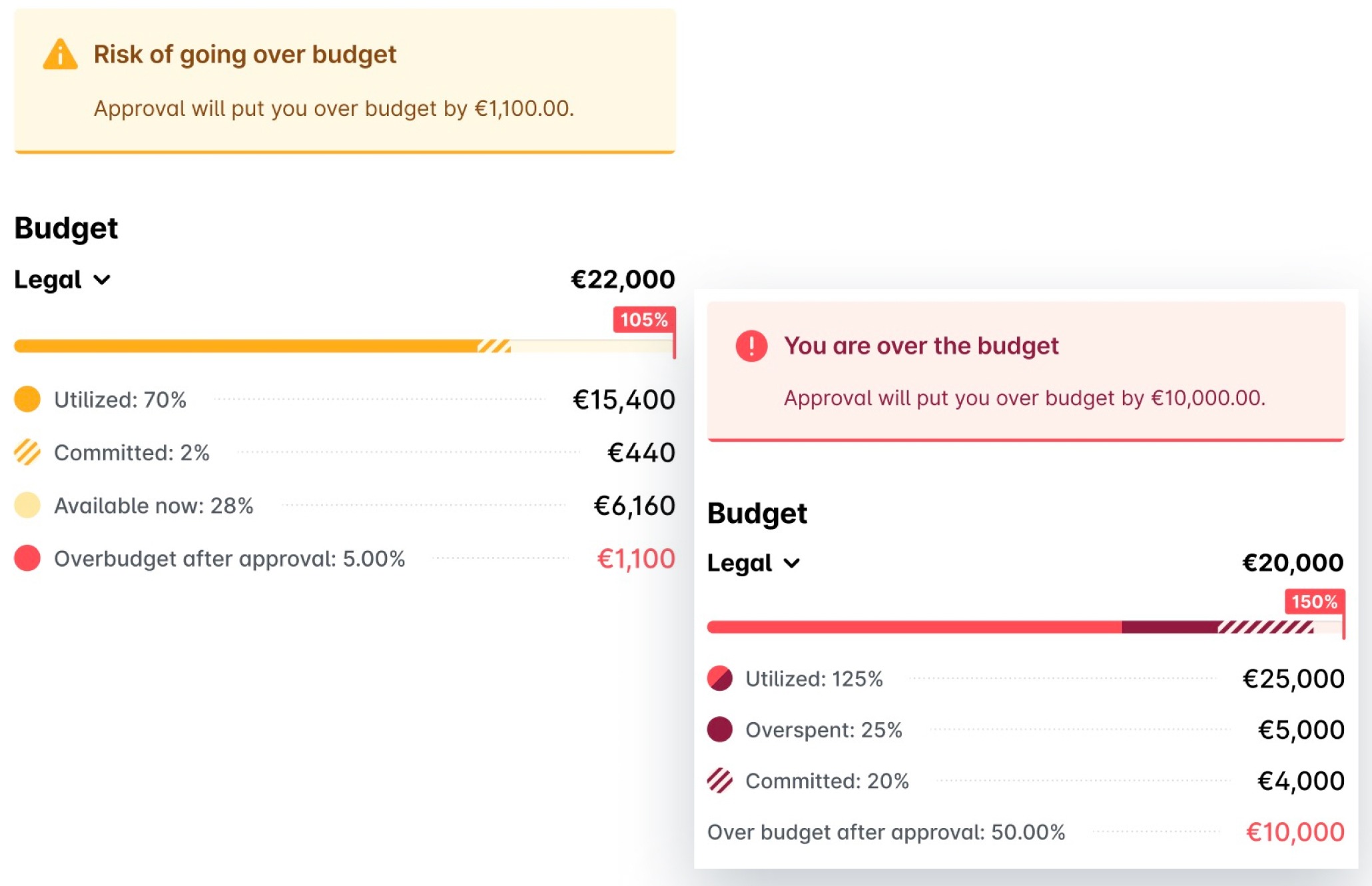
If you risk going over the budget or have already done so, the system will display a warning for you to note.
Approving expense requests
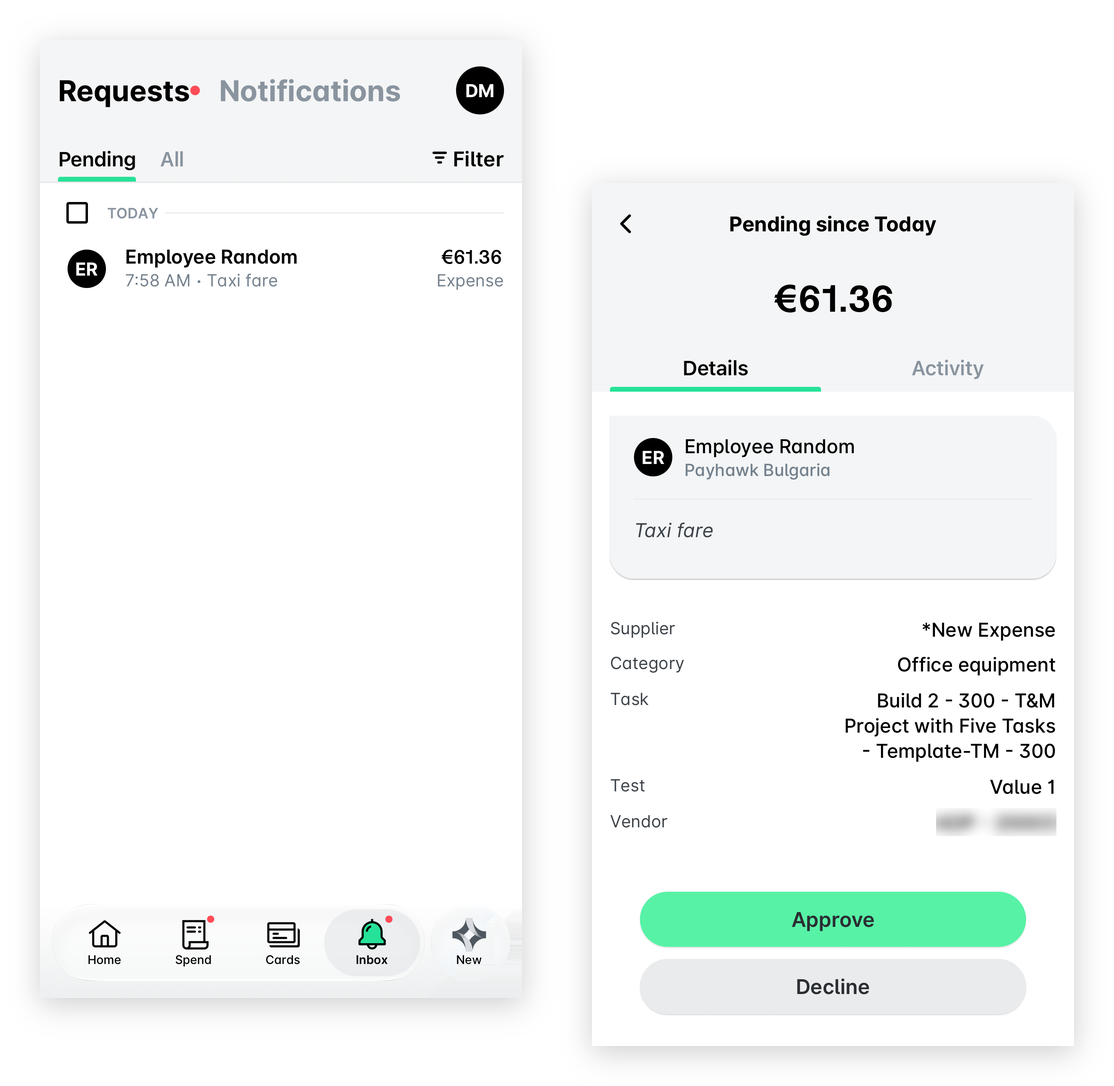
To approve an expense request from your Payhawk Inbox in the Payhawk Mobile App:
Go to Inbox > Requests > Pending.
Select the desired expense request.
Tap Approve.
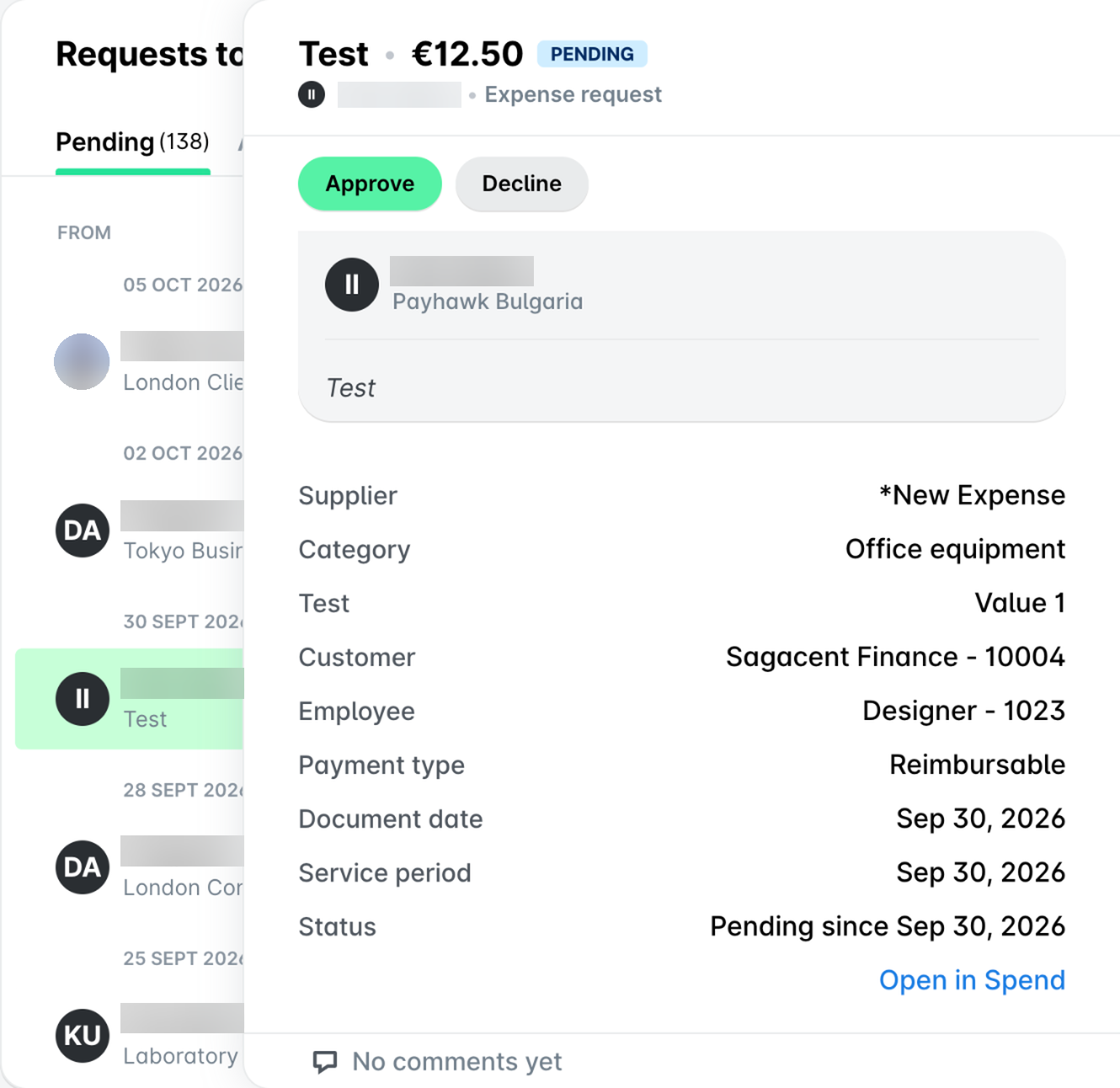
To approve an expense request from your Payhawk Inbox in the Payhawk Web Portal:
Go to Inbox > Requests to me > Pending.
Select the desired expense.
Click on Approve.
Returning expense requests to the employee
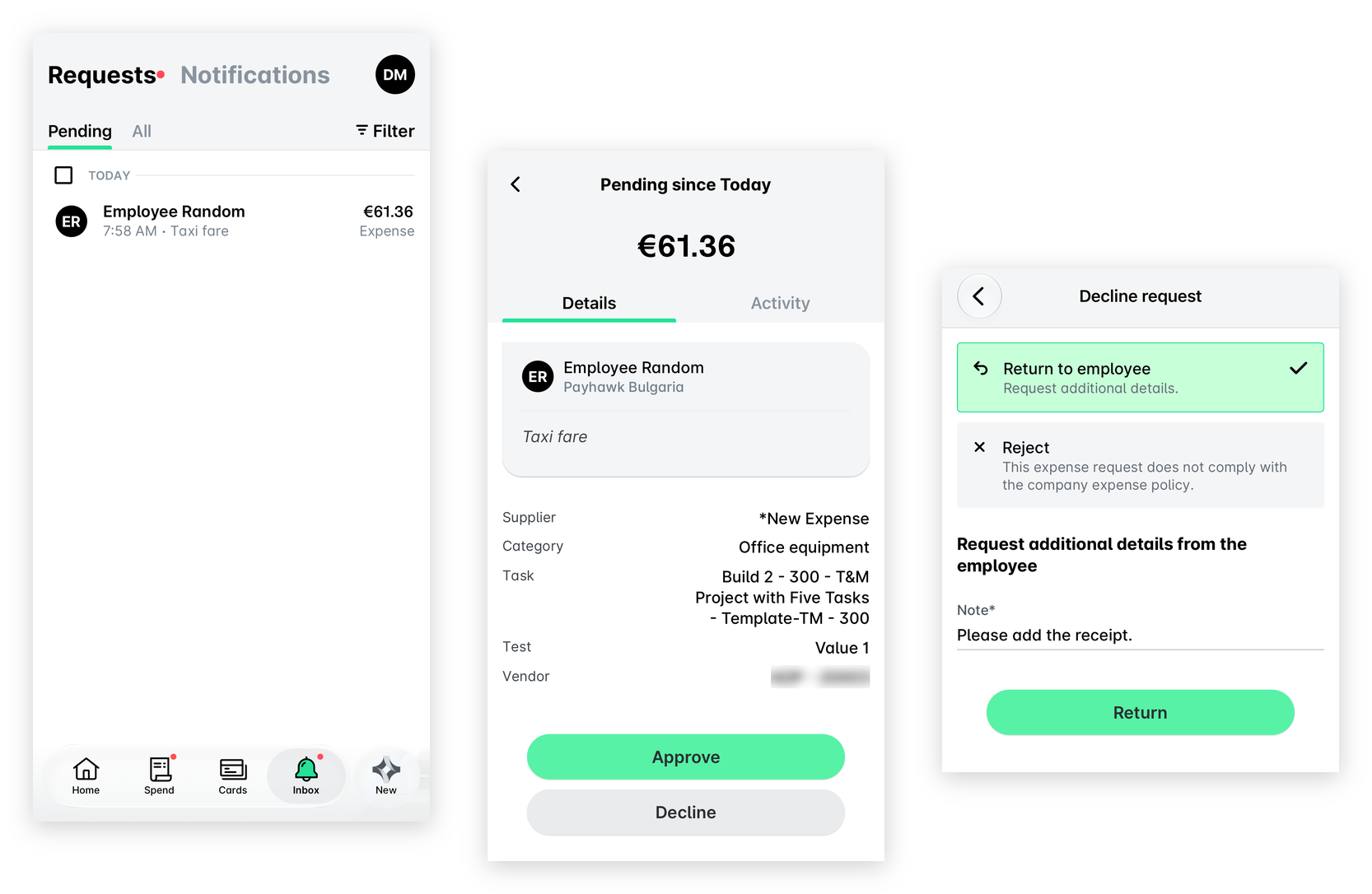
To return an unpaid expense to the requester from your Payhawk Inbox in the Payhawk Mobile App:
Go to Inbox > Requests > Pending.
Select the desired expense request and tap Decline.
On the screen that opens:
Select Return to employee.
Under Note, enter the reason for your action and any details you expect the employee to provide before re-submitting the expense.
Tap Return.
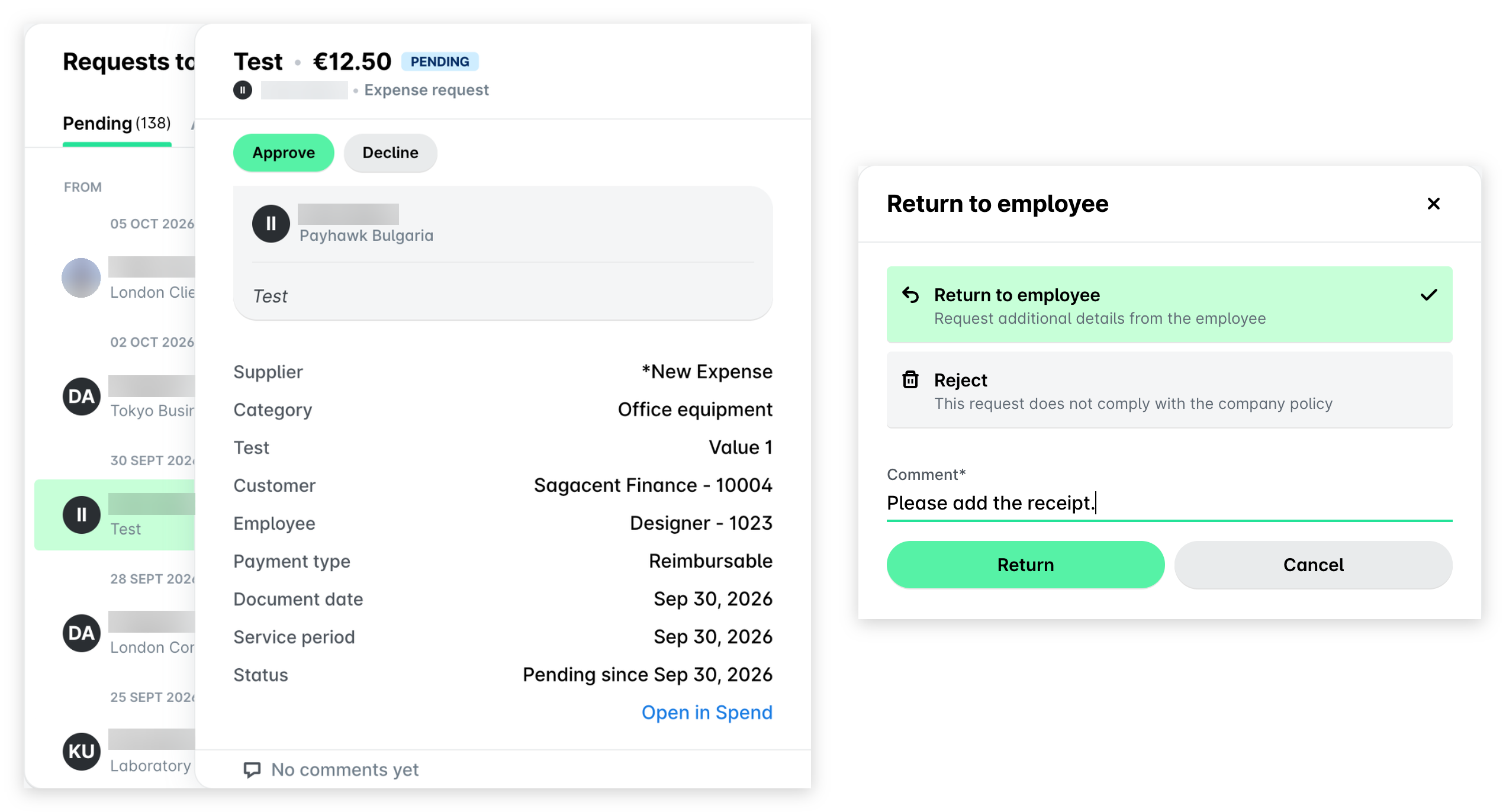
To return an unpaid expense to the requester from your Payhawk Inbox in the Payhawk Web Portal:
Go to Inbox > Requests to me > Pending.
Select the desired expense request and click on Decline.
On the screen that opens:
Select Return to employee.
Under Comment, enter the reason for your action and any details you expect the employee to provide before re-submitting the expense.
Click on Return.
Rejecting expense requests and deleting unpaid expenses
Selecting Reject will reject the request and remove the expense with the following specifics:
When you reject a request for a card expense, this will not delete the expense but will display the reason for your action to the Payhawk Accountant to see.
When you reject a request for other types of expenses, this will reject the request and delete the expense unless it's been paid already without approval.
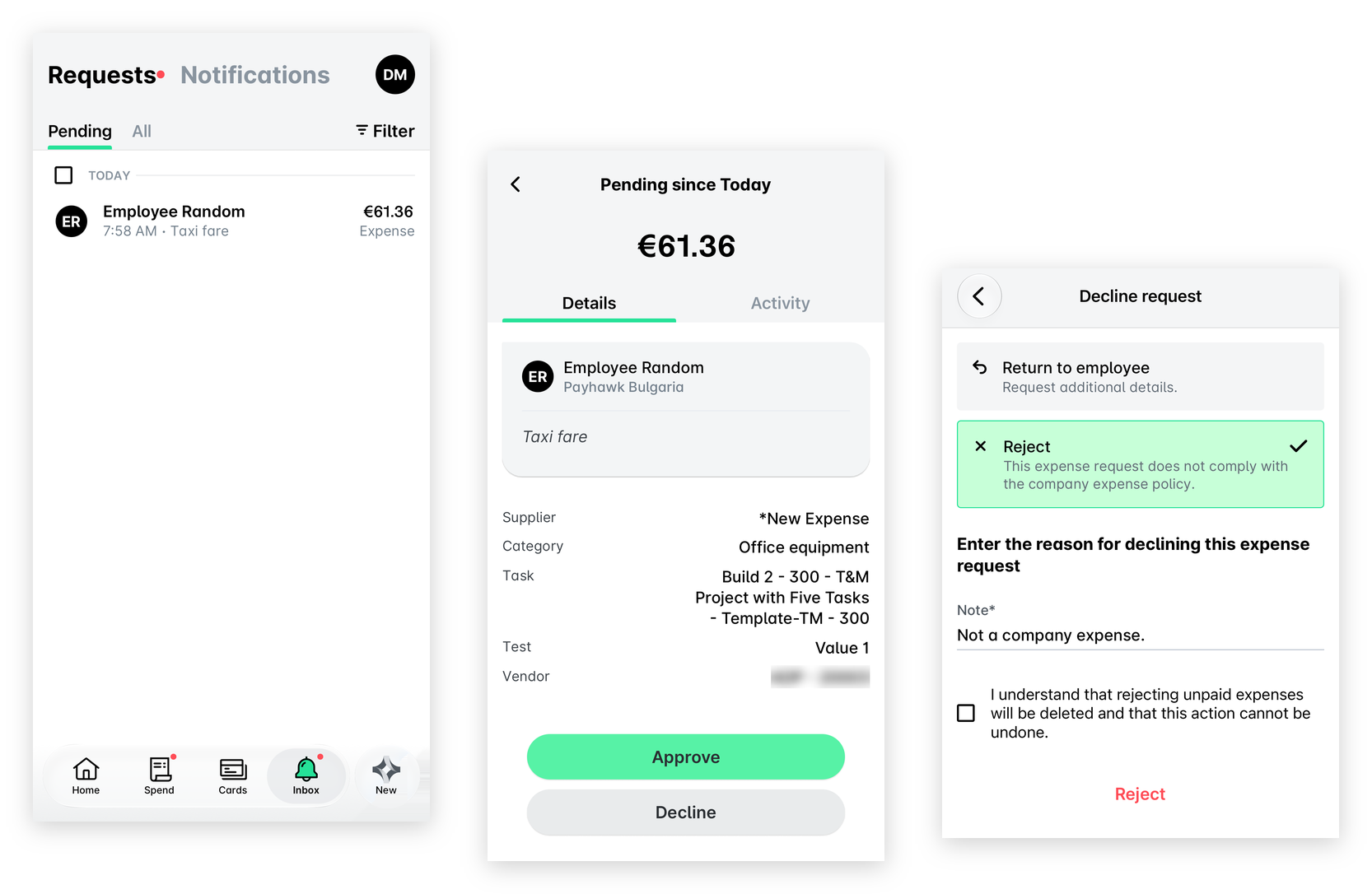
To reject an expense request and delete an unpaid expense from your Payhawk Inbox in the Payhawk Mobile App:
Go to Inbox > Requests > Pending.
Select the desired expense request and tap Decline.
In the dialog that opens:
Tap Reject.
Under Note, enter the reason for your action.
Select the checkbox to confirm that you understand the unpaid expense will be deleted and that this action cannot be undone.
Tap Reject.
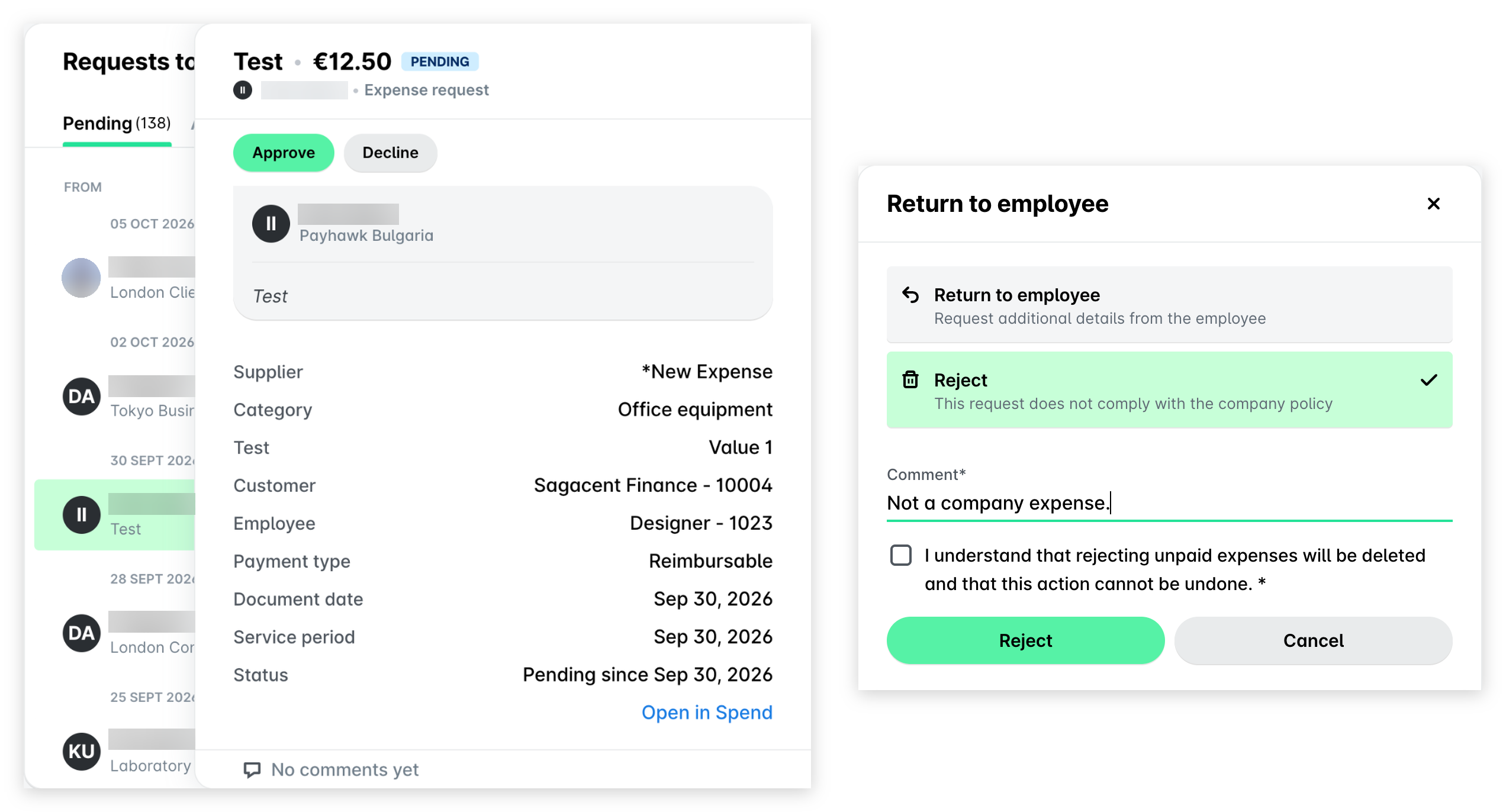
To reject an expense request and delete an unpaid expense from your Payhawk Inbox in the Payhawk Web Portal:
Go to Inbox > Requests to me > Pending.
Select the desired expense request and click on Decline.
In the dialog that opens:
Select Reject.
Under Comment, enter the reason for your action.
Select the checkbox to confirm that you understand the unpaid expense will be deleted and that this action cannot be undone.
Click on Reject.
Useful resources