Based on the defined approval workflows at your company, you might be designated as an approver for expenses submitted by your teammates.
Whenever an expense requiring your approval is submitted, you will receive an expense request in your Payhawk Inbox and an email notification.
From Spend in the Payhawk Web Portal, you can:
Approve expenses individually
Approve expenses in bulk
Delete unpaid expenses
Return unpaid expenses to the respective employees for update
Return paid expenses for review
Specifics
For details, see the article on approving and declining expense requests from the Payhawk Inbox.
Accessing expenses for approval
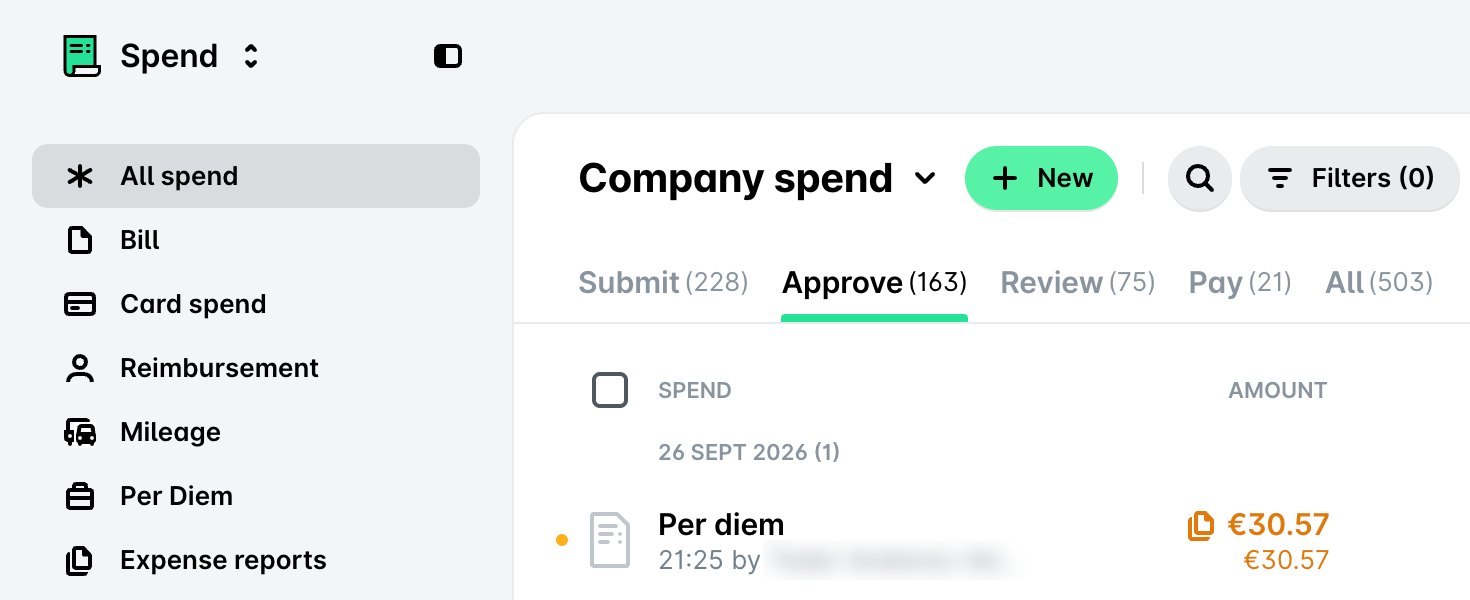
You can approve, return, and delete expenses from the Spend > Approve tab in the Payhawk Web Portal.
Approving expenses associated with budgets
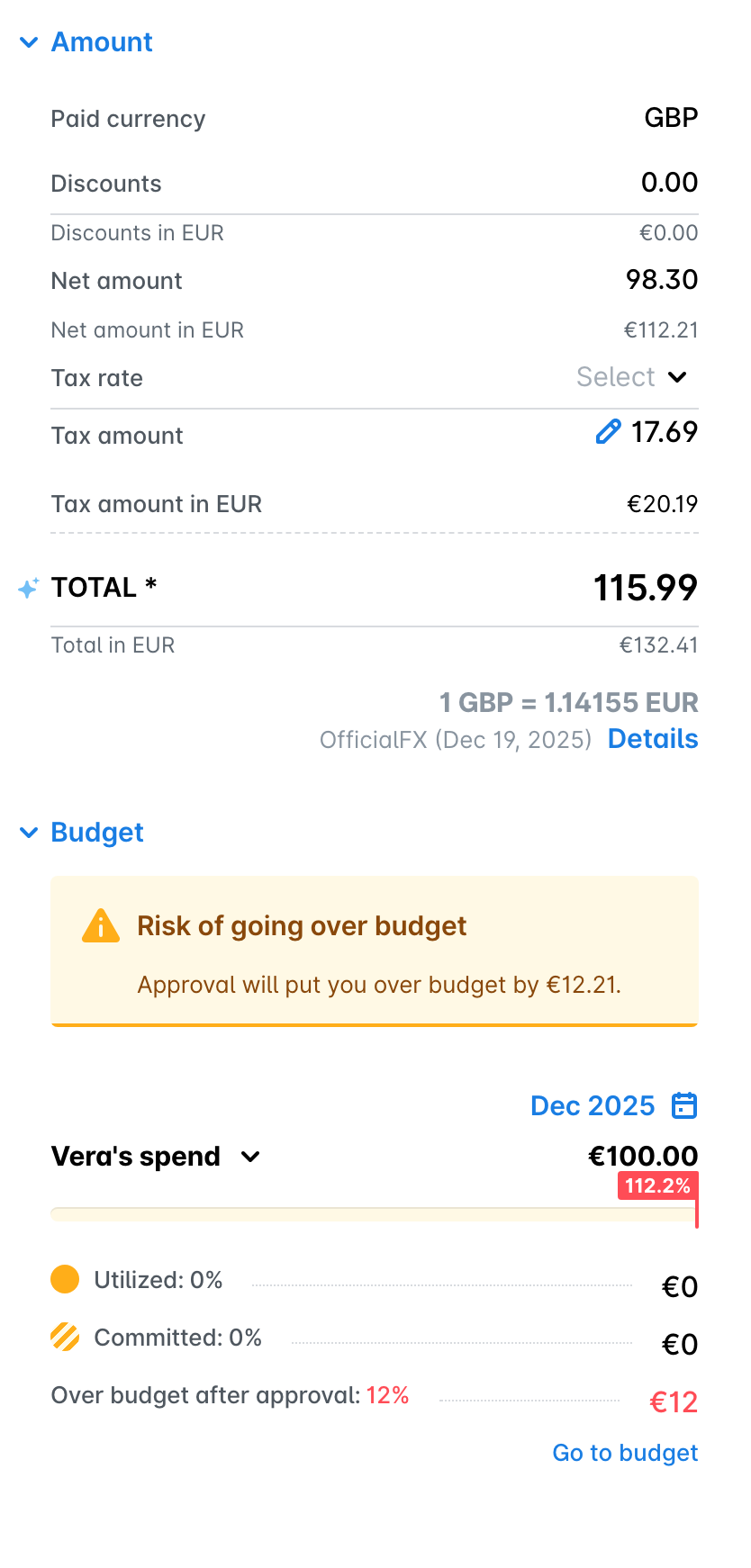
If you are a Budget Owner, you can view budget details from the expense Budget section and, from there, navigate to both the budget for more information.
Approving expenses individually
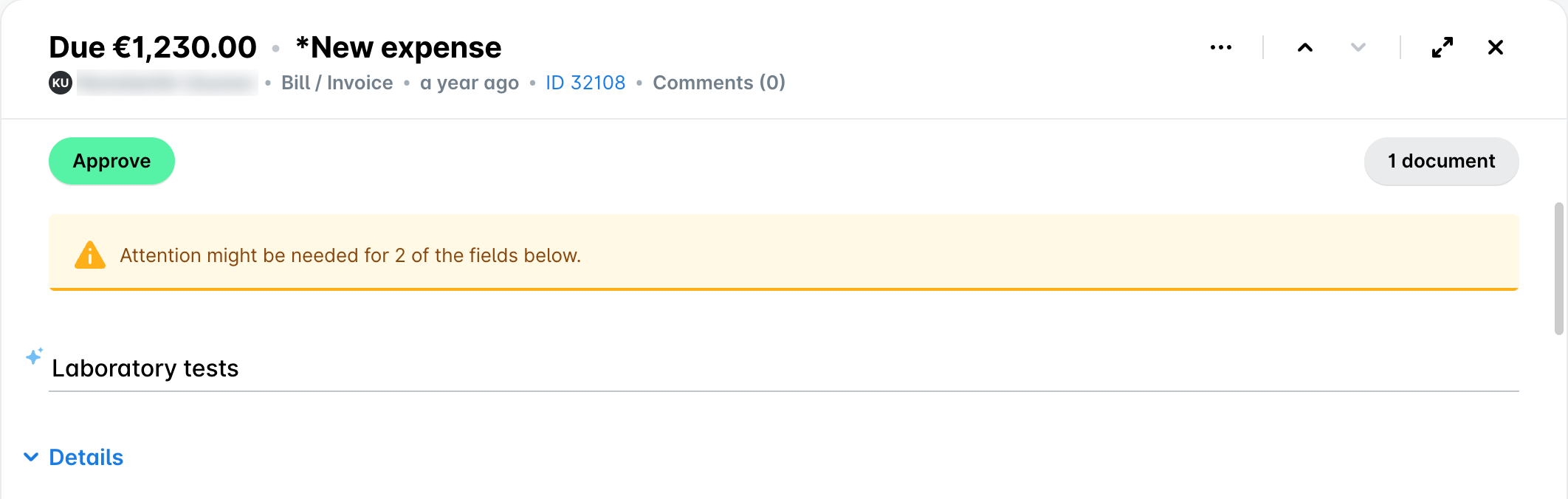
To approve expenses one by one from Spend in the Payhawk Web Portal:
Go to Spend.
Select the desired expense.
Click on Approve.
Approving expenses in bulk
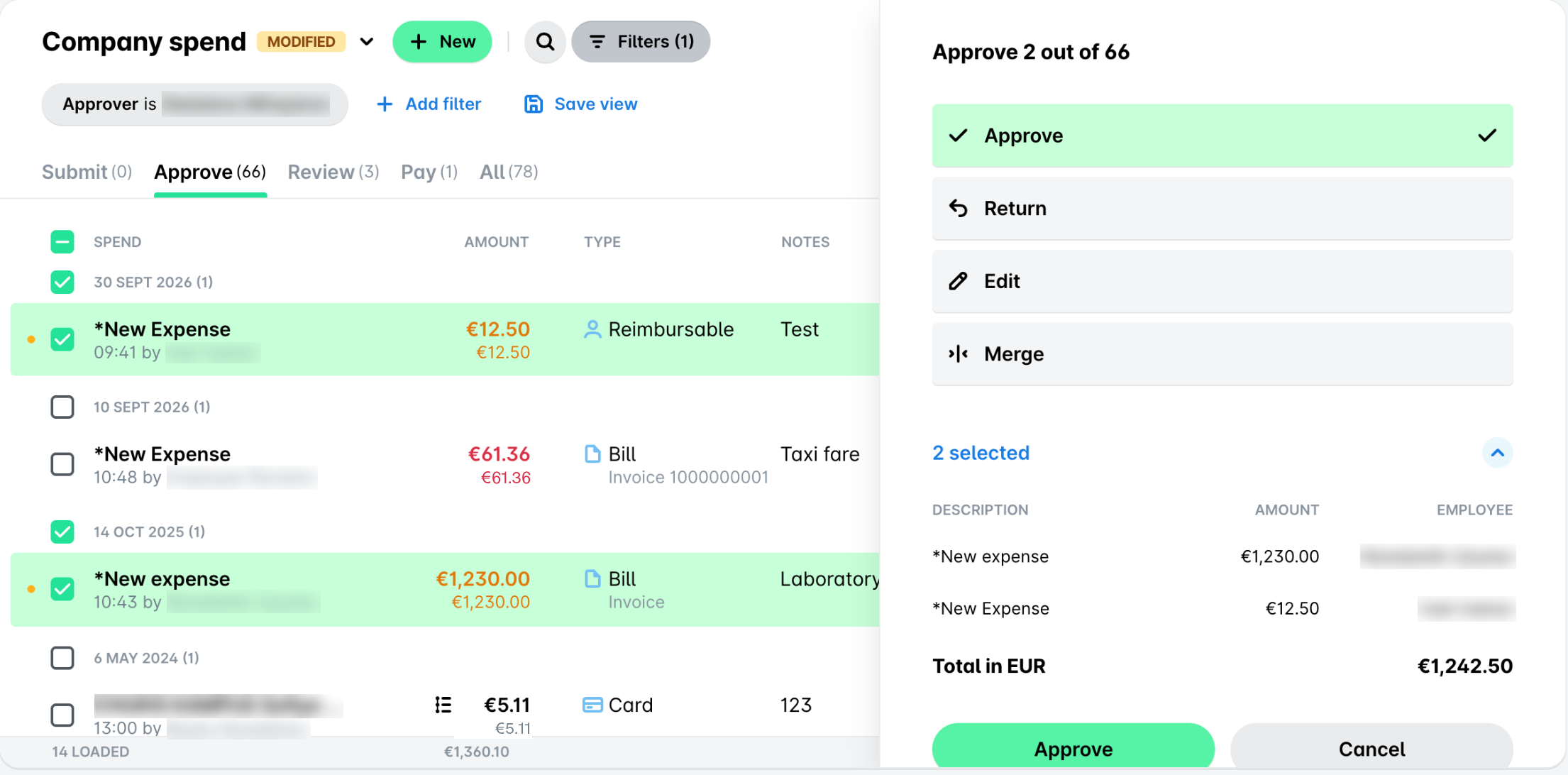
To approve multiple expenses in bulk from Spend in the Payhawk Web Portal:
Go to Spend.
To select multiple expenses for bulk approval, check the SPEND checkbox. Selecting the SPEND checkbox marks only the visible expenses on the screen. To select more expenses, scroll down the page. Alternatively, hover over a specific expense and select its checkbox.
Either way, a flyout dialog will appear, displaying a summary of all selected expenses.
Click on Approve.
Returning unpaid expenses to employees
To return an expense to the employee from Spend in the Payhawk Web Portal:
Go to Spend.
Select the desired expense.
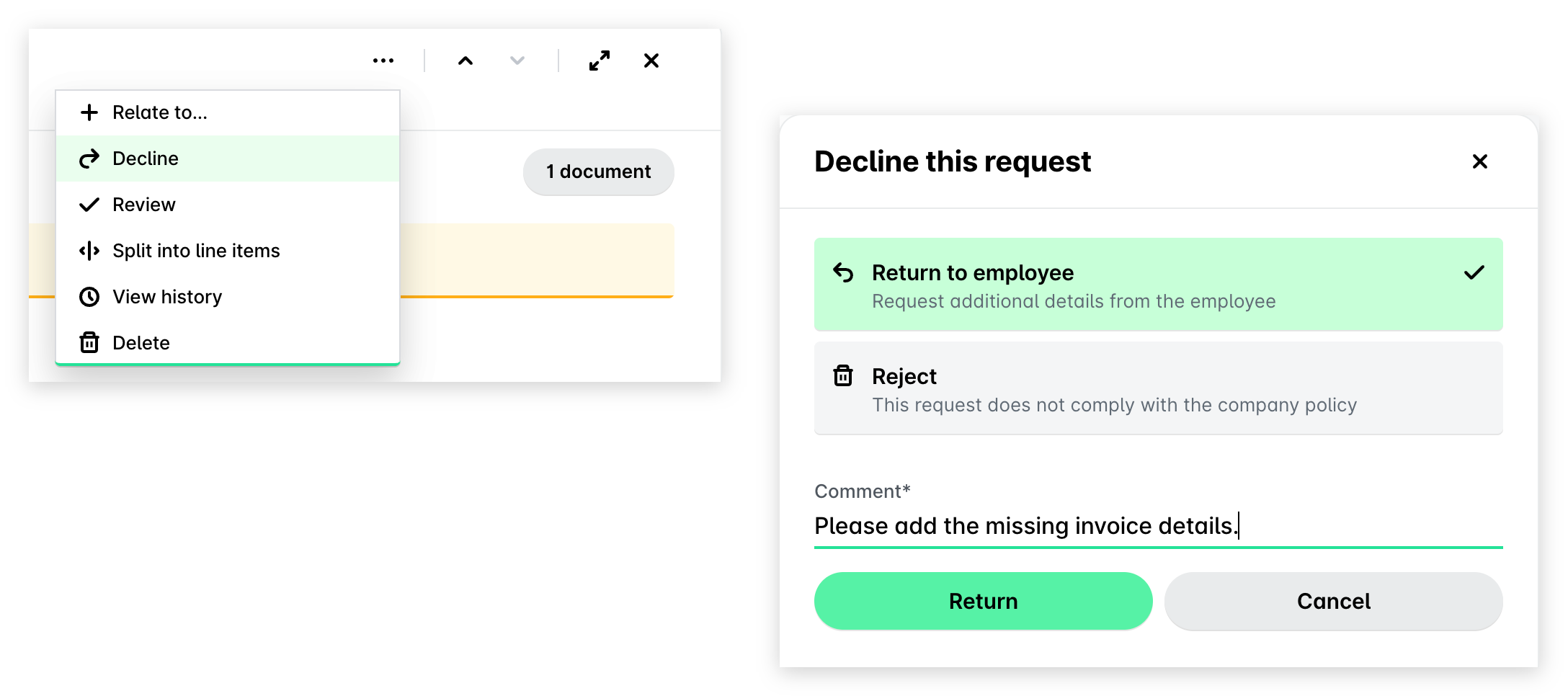
Click on its three-dot menu:
If an approver, select Decline and, then, Return to employee.
If an authorized person, select Return to employee.
Under Comment, enter the reason for declining with the additional details the employee needs to provide.
Click on Return.
Deleting unpaid expenses
Selecting Reject will remove the expense with the following specifics:
For card expenses, the action will not delete the expense but will display the reason for your action to the Payhawk Accountant.
For other types of expenses, the action will delete the expense unless it's been paid already without approval.
To delete an unpaid expense from Spend in the Payhawk Web Portal:
Go to Spend and select the desired expense.
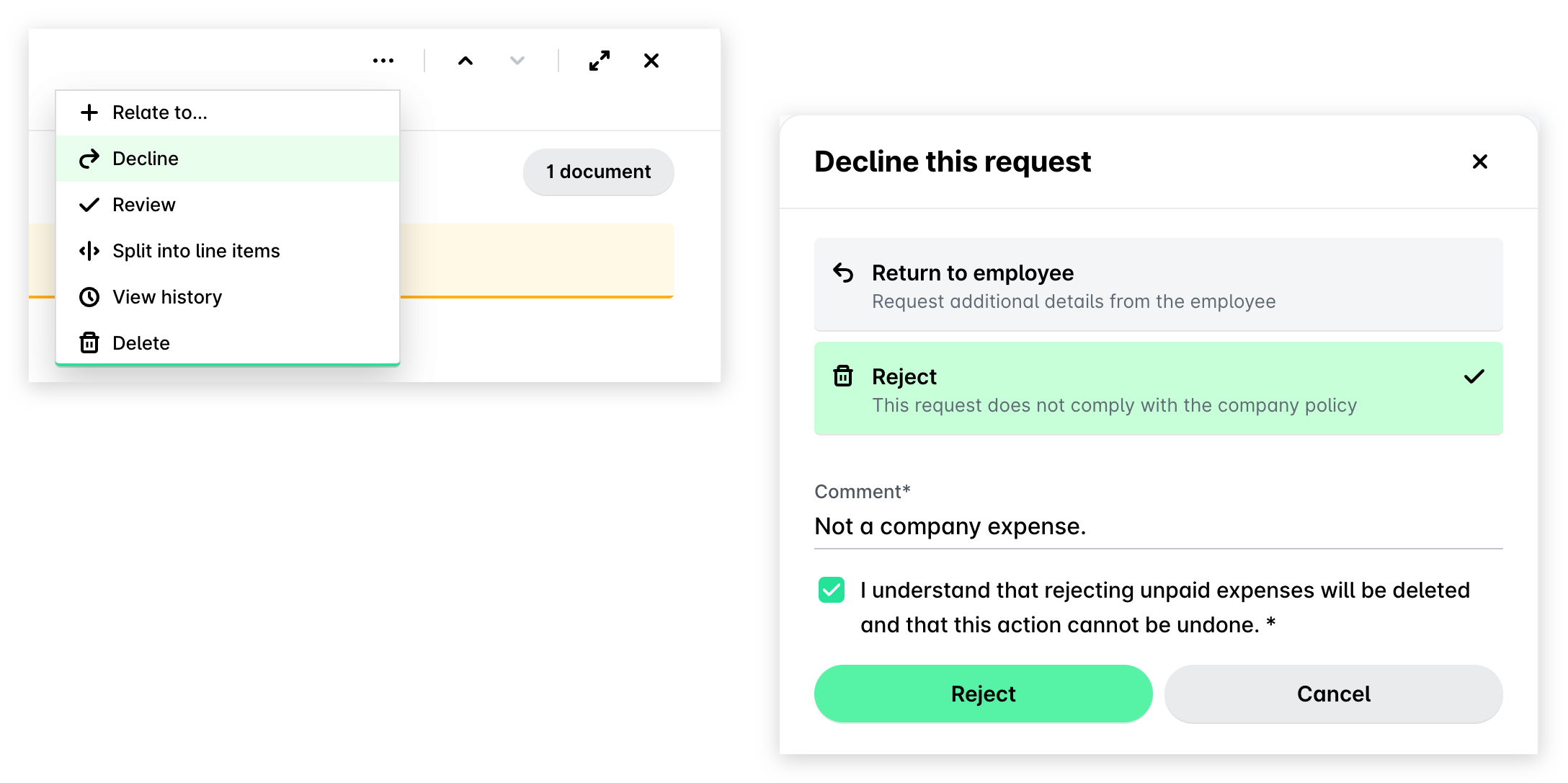
Click on its three-dot menu and select Decline.
In the dialog that opens:
Click on Reject.
Under Comment, enter the reason for your action.
Select the checkbox to confirm your choice.
Click on Reject.
Returning paid expenses for review
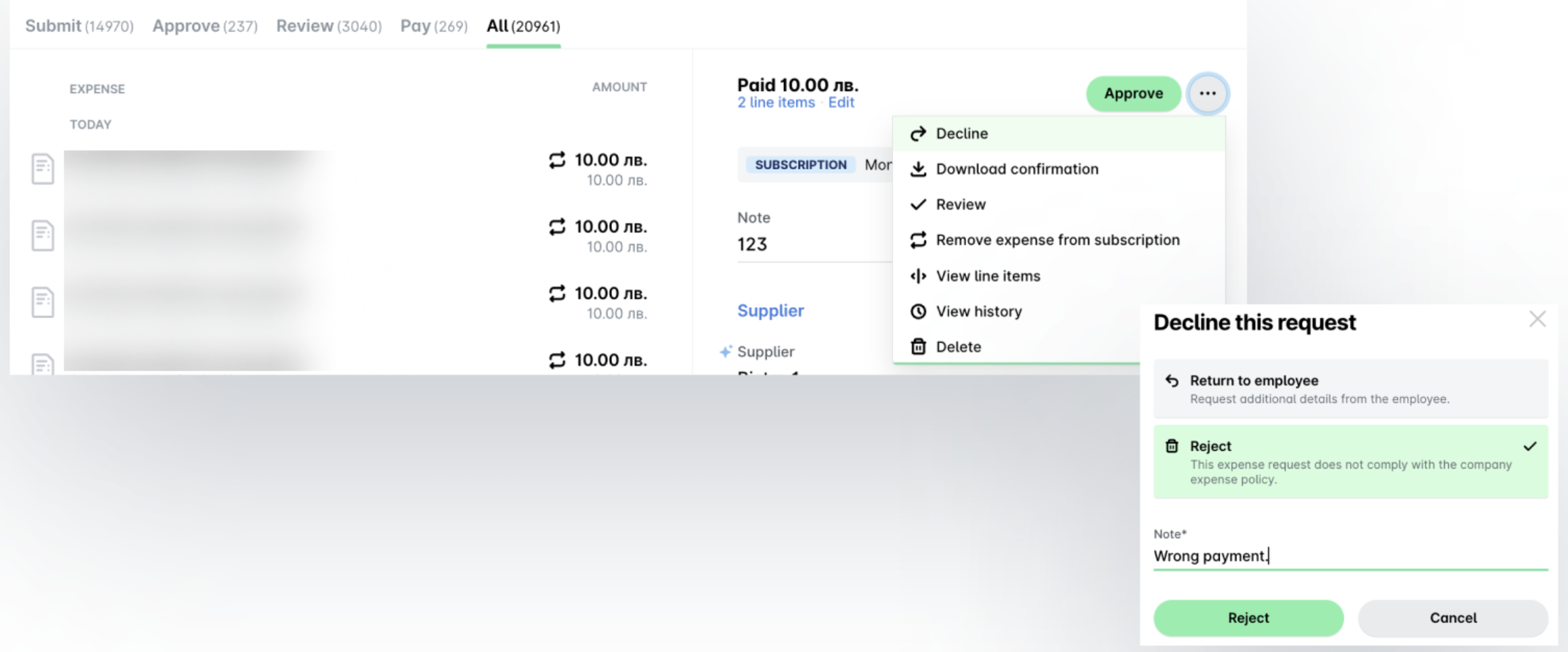
Although paid expenses cannot be deleted in Payhawk, they can be returned for review. This ensures that, despite the payment being processed, the Finance team can take the necessary actions - such as deducting the amount from the employee's payroll or arranging a reimbursement by bank transfer to the company account.
To return a paid expense for review in the Payhawk Web Portal:
Go to Spend and select the desired expense.
Click on its three-dot menu and select Decline.
In the dialog that opens:
Select Reject.
Under Comment, enter the reason for your action.
Click on Reject.
Useful resources