Once you have created a team in Payhawk, you can add the required employees as Team Managers and team members.
Specifics
An employee can be assigned as a Team Manager to multiple teams.
A single team can have multiple Team Managers.
Assigning Team Managers to your teams and sub-teams
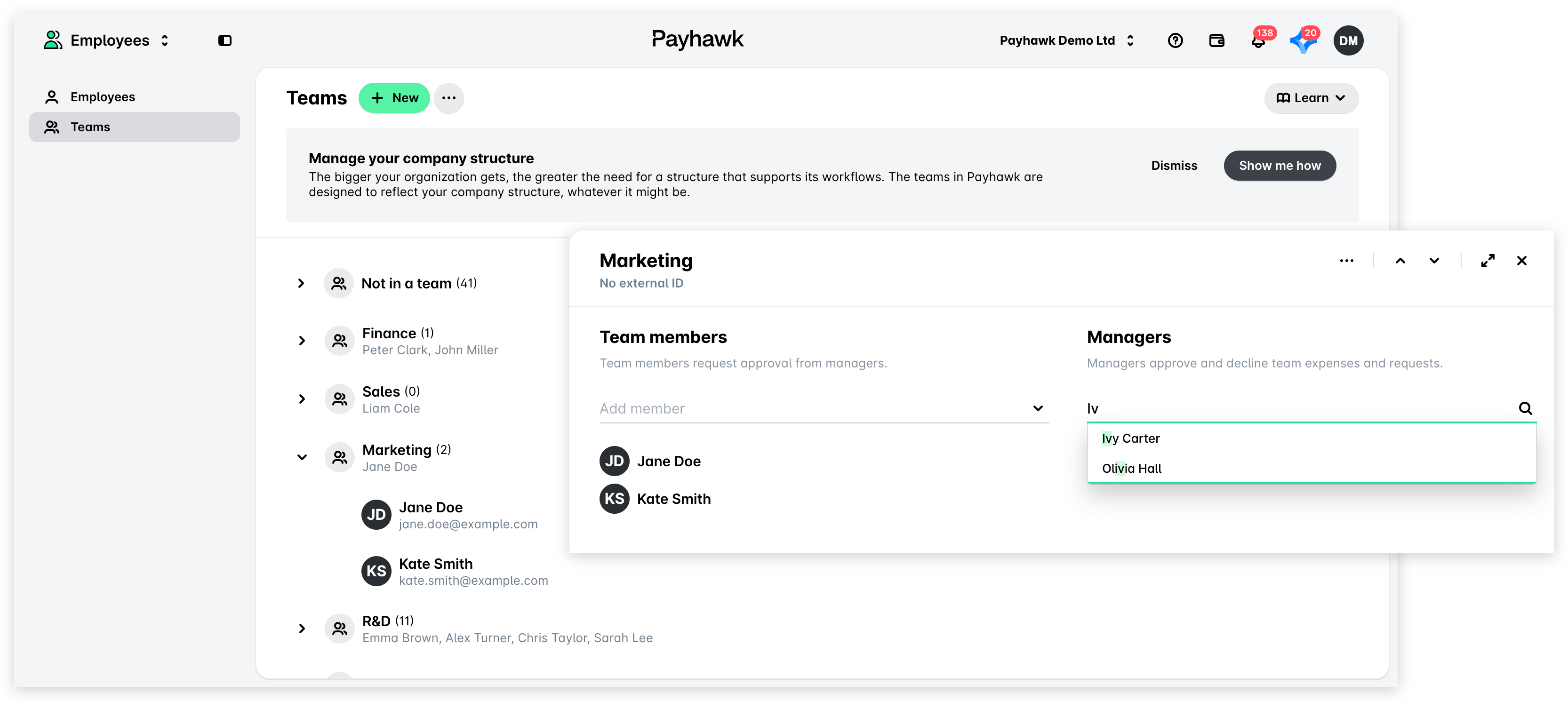
To assign a Team Manager to an existing team:
In the Payhawk Web Portal, open the app switcher in the top-left corner and go to Employees > Teams.
Select the desired team by clicking on it.
From the Managers drop-down menu, select the employees you want to add as Team Managers to your team or sub-team.
Deleting Team Managers
To remove a Team Manager from a team:
Open the app switcher in the top-left corner and go to Employees > Teams.
Select the desired team.
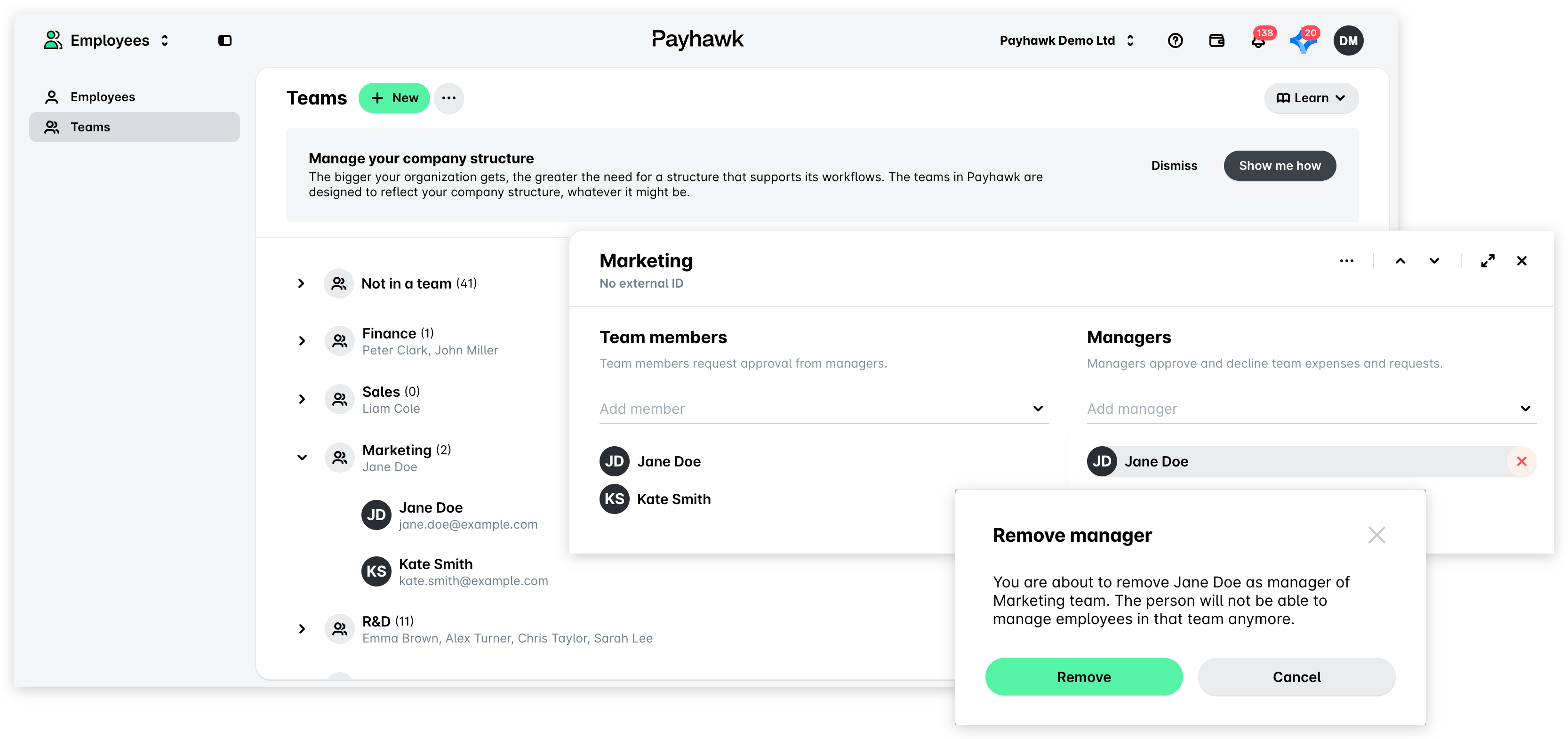
Under Managers, hover over the name of the Team Manager you want to remove and click on X.
In the dialog that opens, click on Remove to confirm your choice.
Assigning team members to your teams and sub-teams
To assign a team member to your team:
Open the app switcher in the top-left corner and go to Employees > Teams.
Select the desired team.
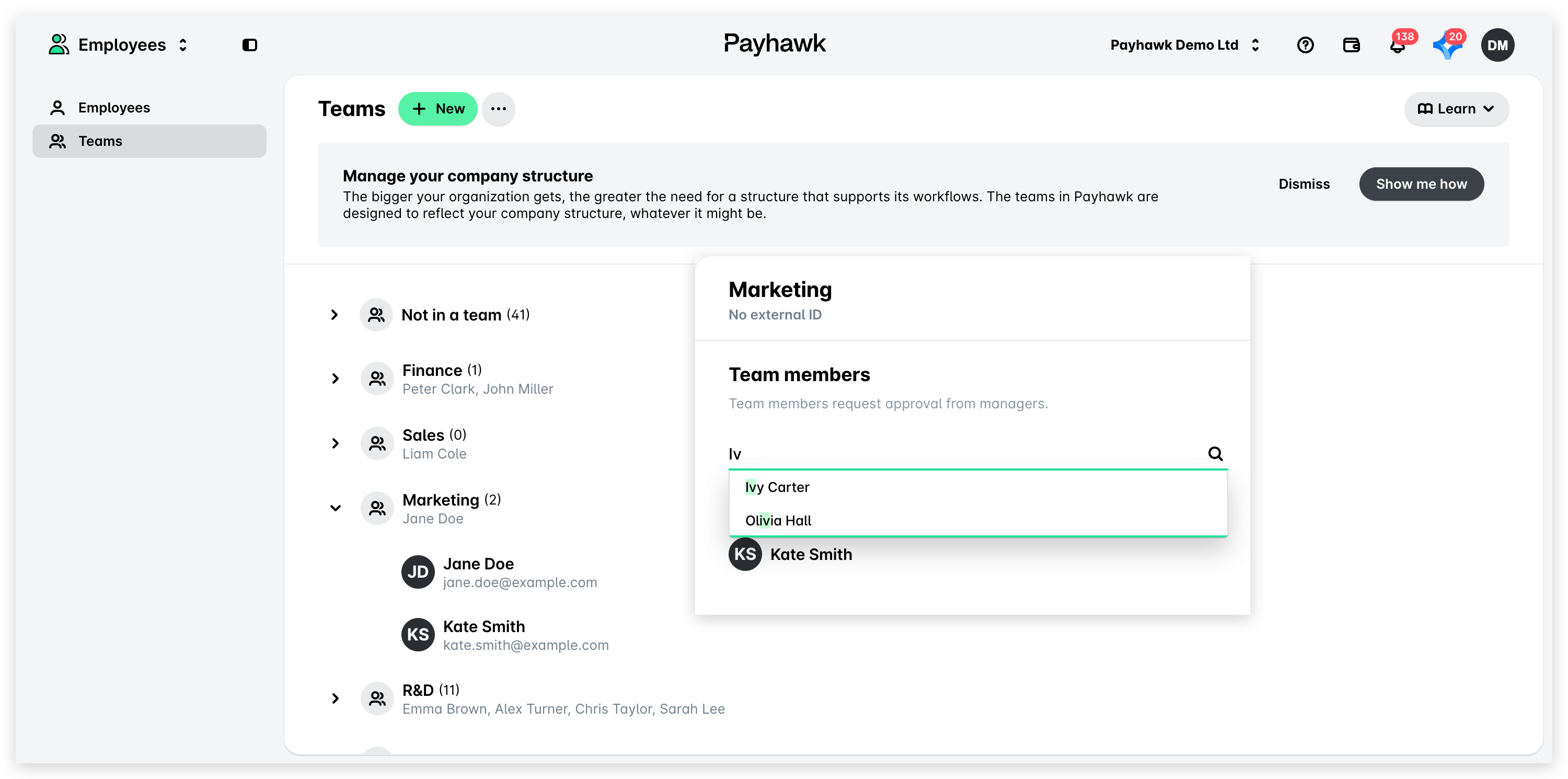
From the Team members drop-down menu, select the employees you want to add as team members to your team or sub-team.
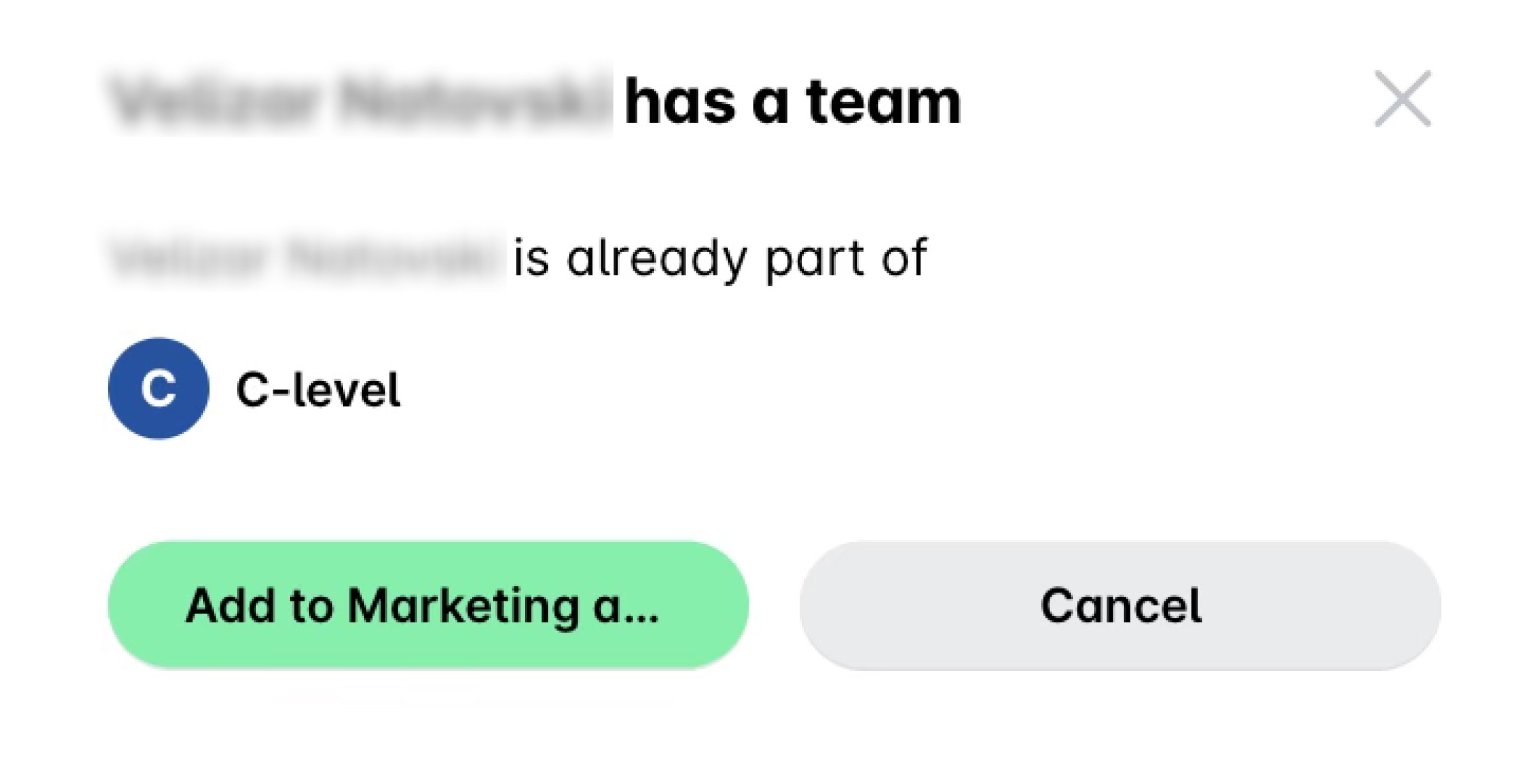
Note that if an employee is already a member of another team, Payhawk will notify you by showing a message. Click on the Add to [team name] also button to confirm your choice.
Deleting team members
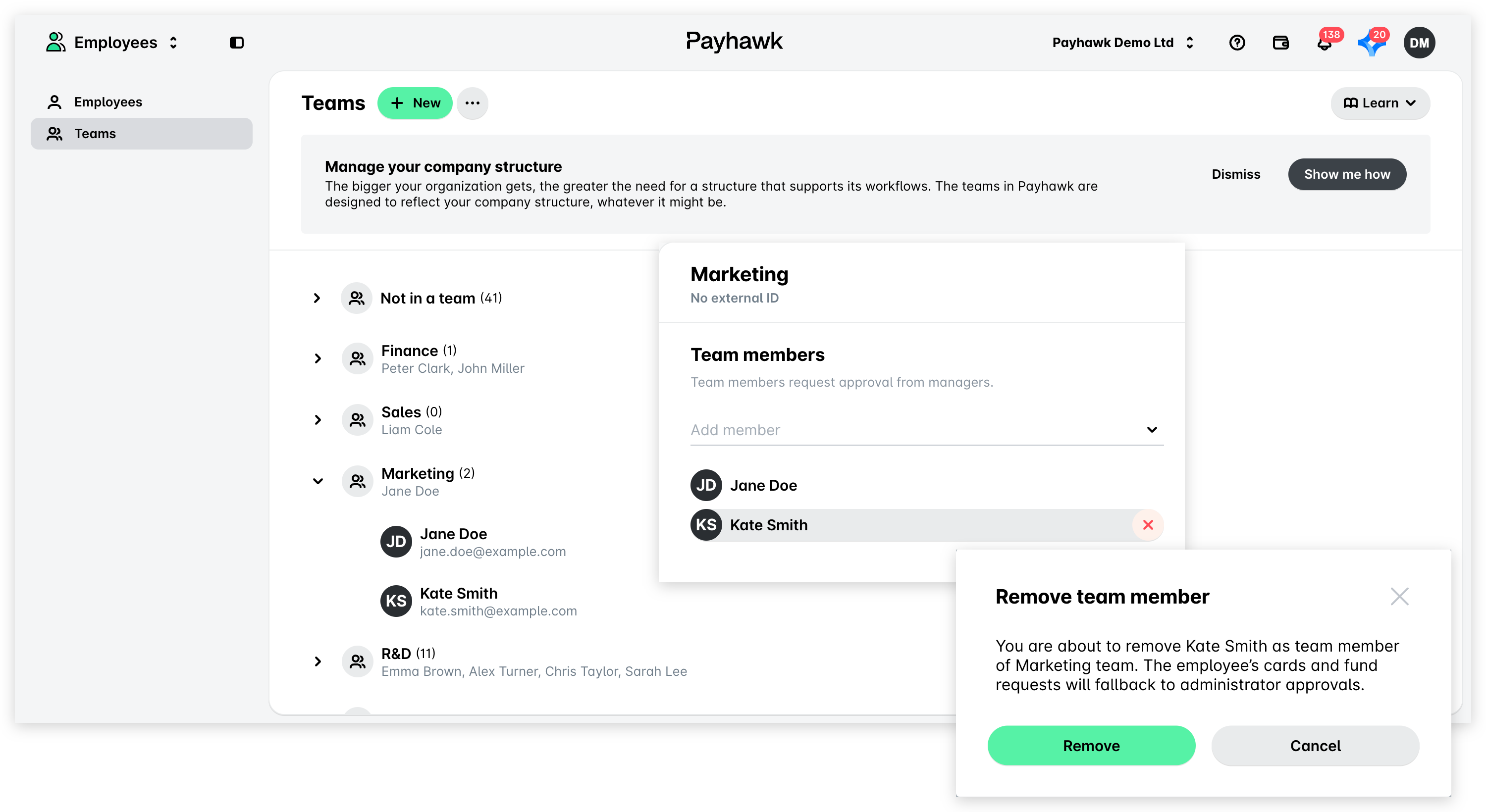
To delete team members from your team or sub-team:
Open the app switcher in the top-left corner and go to Employees > Teams.
Select the desired team.
Under Team members, hover over the name of the team member you want to remove and click on X.
In the dialog that opens, click on Remove to confirm your choice.
Useful resources