The bigger your organization gets, the greater the need for a structure that supports its workflows. The teams in Payhawk are designed to reflect your company structure, whatever it might be.
Creating teams
To create a team in Payhawk:
Log in to the Payhawk Web Portal.
Open the app switcher in the top-left corner and go to Employees > Teams tab.
Click on the + New button.
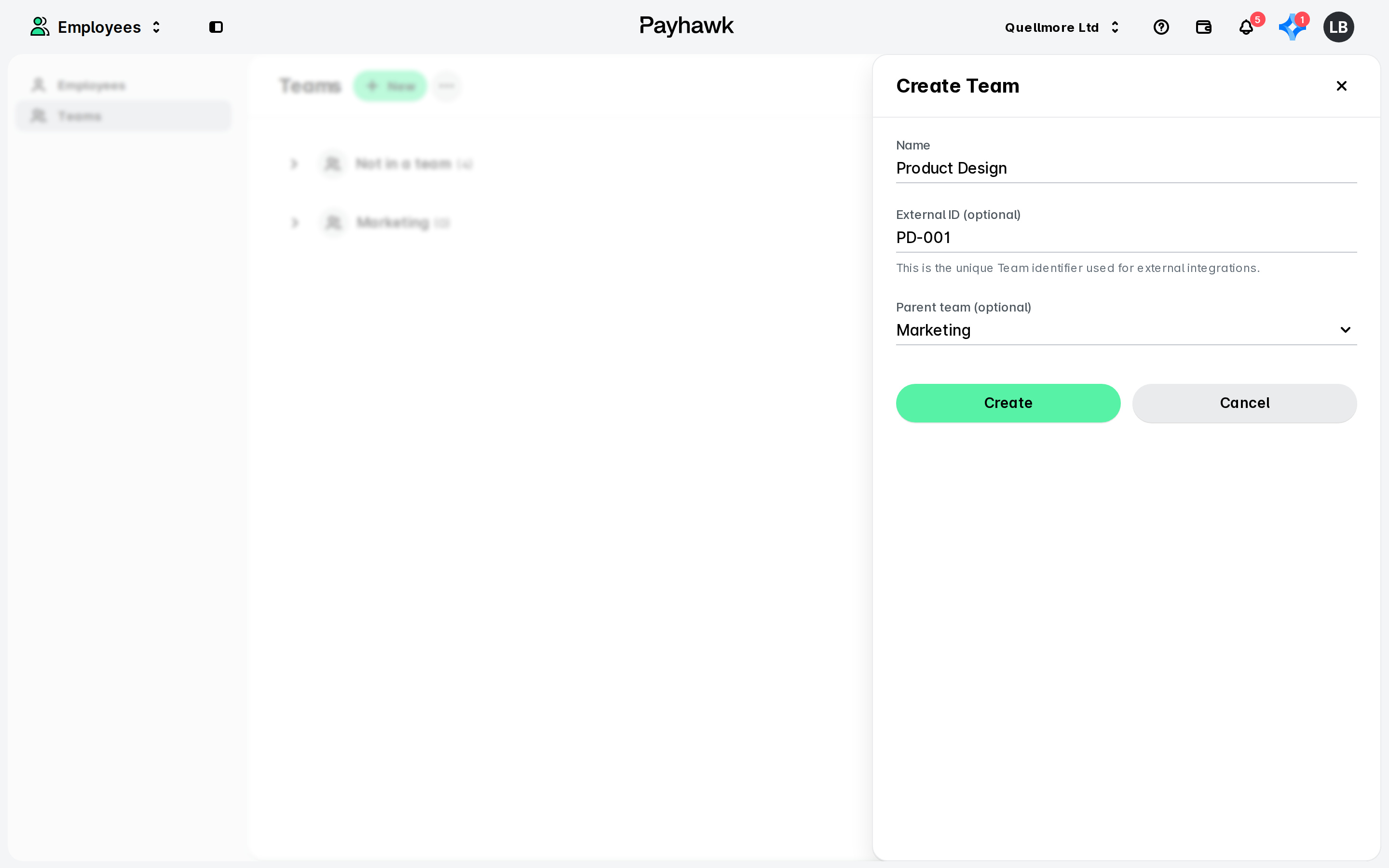
In the dialog that opens:
Name your team.
If you need to export the team data, add its external ID.
If applicable, from the drop-down menu, select a parent team.
Click on Create.
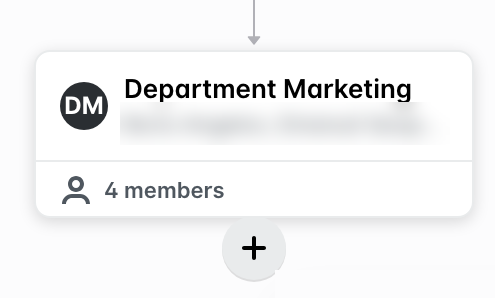
Alternatively, to create a hierarchy between teams and create a team within a parent team (sub-team):
Hover over the parent team and click on the + icon.
Then, again, fill in the information and click on Create.
To assign team members and Team Managers, see the article about managing your teams in Payhawk.
Editing teams
To edit your team in Payhawk:
Open the app switcher in the top-left corner and go to Employees > Teams tab.
Select the desired team by clicking on it.
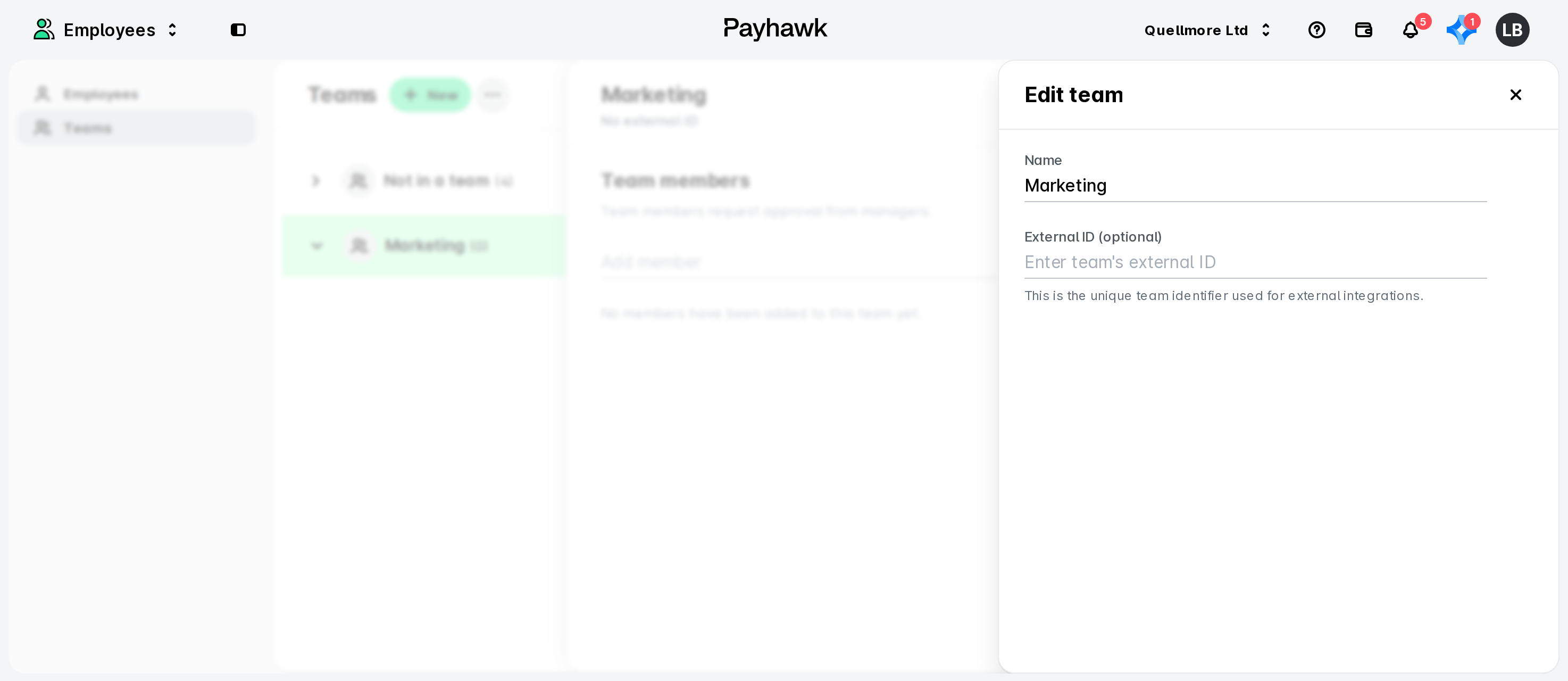
Click on the three dots menu and select the Edit option.
In the dialog that opens, update its name or external ID.
Click on X to save your changes.
Deleting teams
To delete your team in Payhawk:
Open the app switcher in the top-left corner and go to Employees > Teams tab.
Select the desired team by clicking on it.
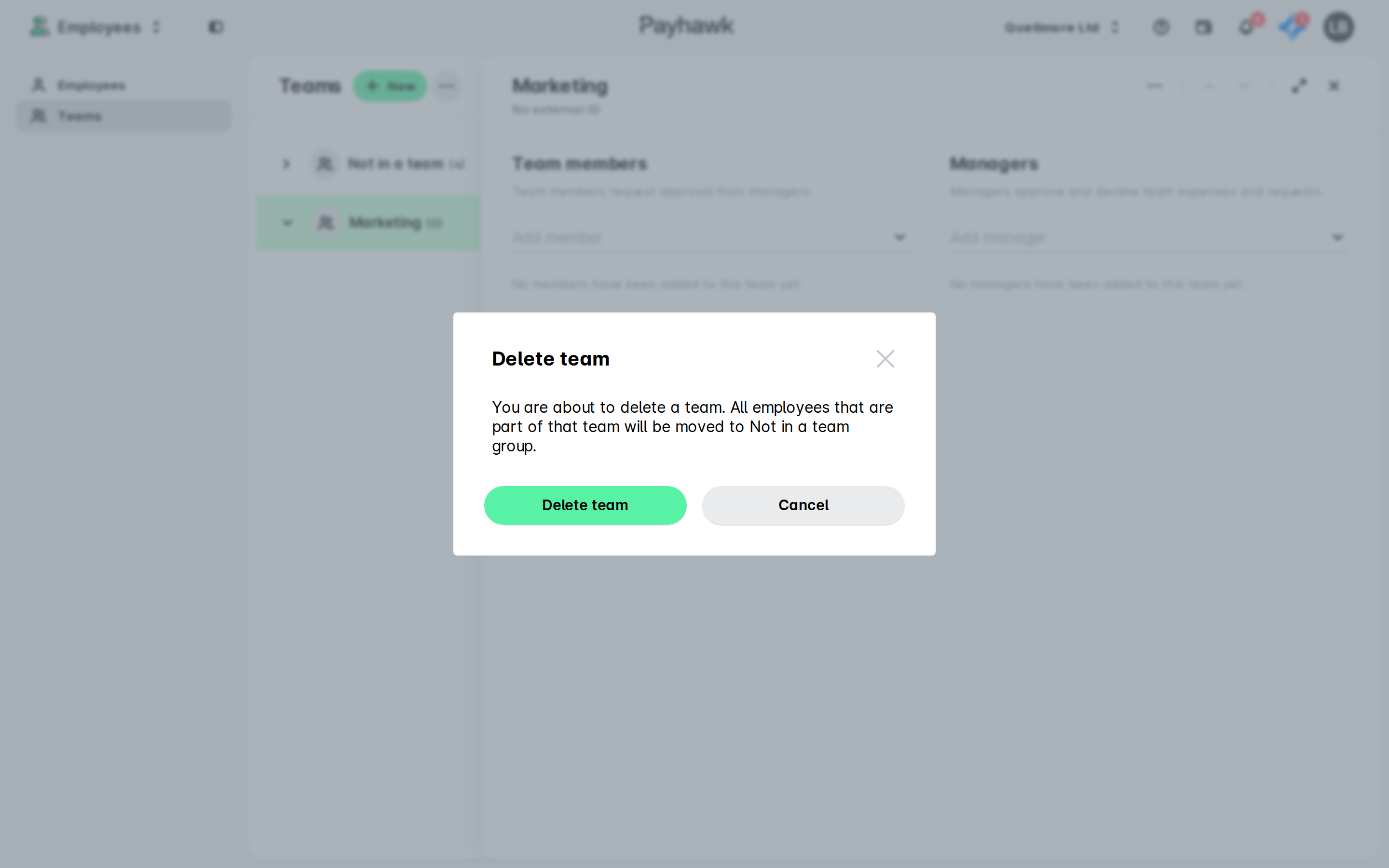
Click on the three dots menu and select the Remove team option.
In the dialog that opens, click on Delete team to confirm your choice.
Useful resources