You can add context to a request by posting a comment and tagging the relevant people so that they get notified.
The following information about comments to expenses and expense requests applies to comments for requests:
Commenting on requests in the Web Portal
To add a comment for a request for which you have received a notification:
Open the app switcher in the top-left corner and go to Inbox > Notifications, then select the desired notification. If you have direct access to that request, you can open it by clicking on the notification.
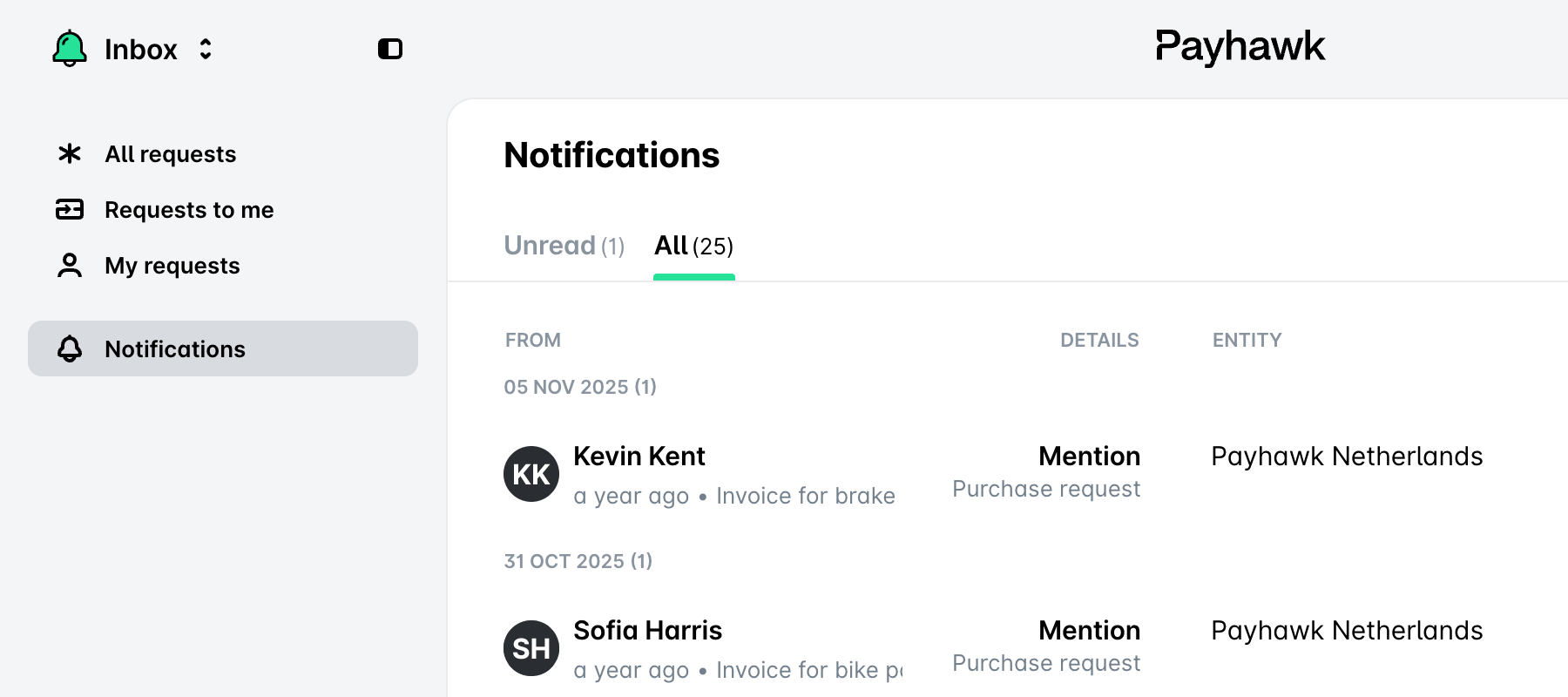
Type your comment, tag any relevant employees within your entity or within the Payhawk group of entities, and click on Send or press Enter to post and notify them accordingly. If you want to add a new line, press Shift+Enter.
If you receive a notification for a request comment but don't have direct access to it, open the app switcher in the top-left corner and go to Inbox > Notifications to find it.
Commenting on requests in the Mobile App
Commenting on requests without you having received notifications can be done from the Payhawk Web Portal only.
To reply to a request comment in the Payhawk Mobile App, open your Inbox > Notifications and tap on the desired notification. Alternatively, tap on the push notification you've received on your phone.
Deleting request comments in the Web Portal
The deletion of a comment will be displayed in the Activity section, with all four Show filter options ticked.
To delete a request comment in the Payhawk Web Portal, go to the desired request, select the desired comment, click on Delete, and then on Confirm.
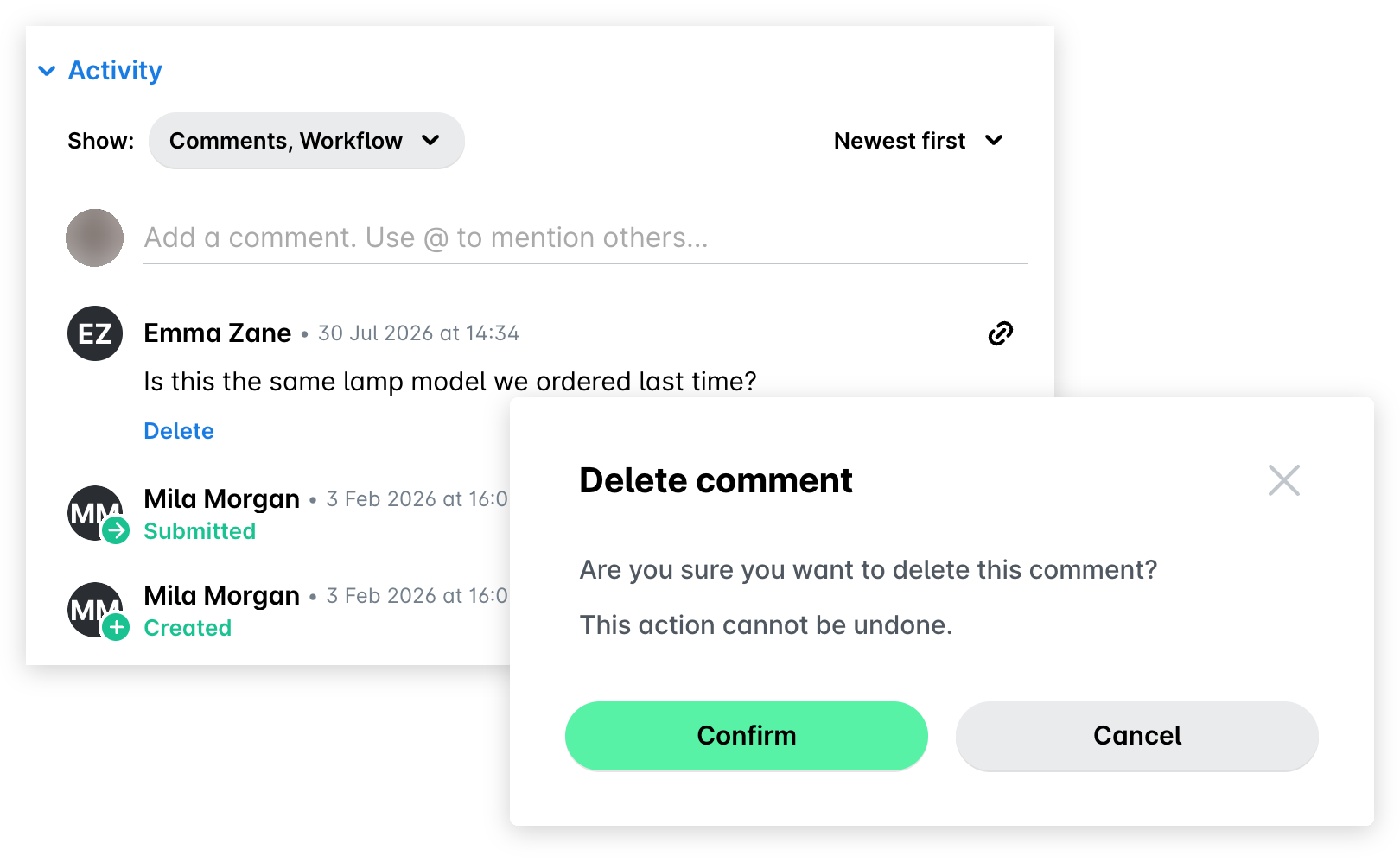
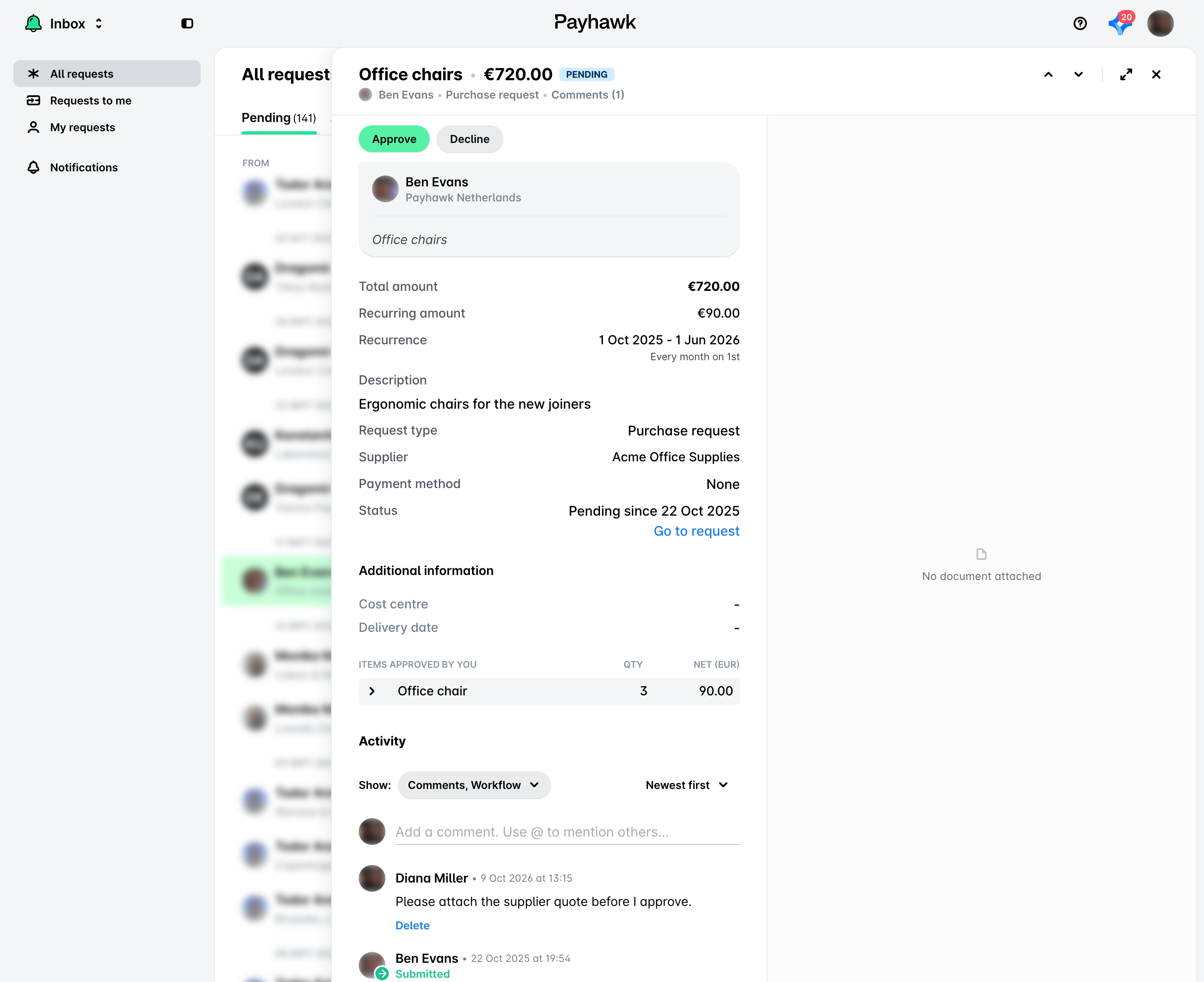
To delete a comment for a request from your Inbox in the Payhawk Web Portal, open the app switcher in the top-left corner and go to Inbox > All requests, select the desired request, and click on Delete for the desired comment.
Deleting request comments in the Mobile App
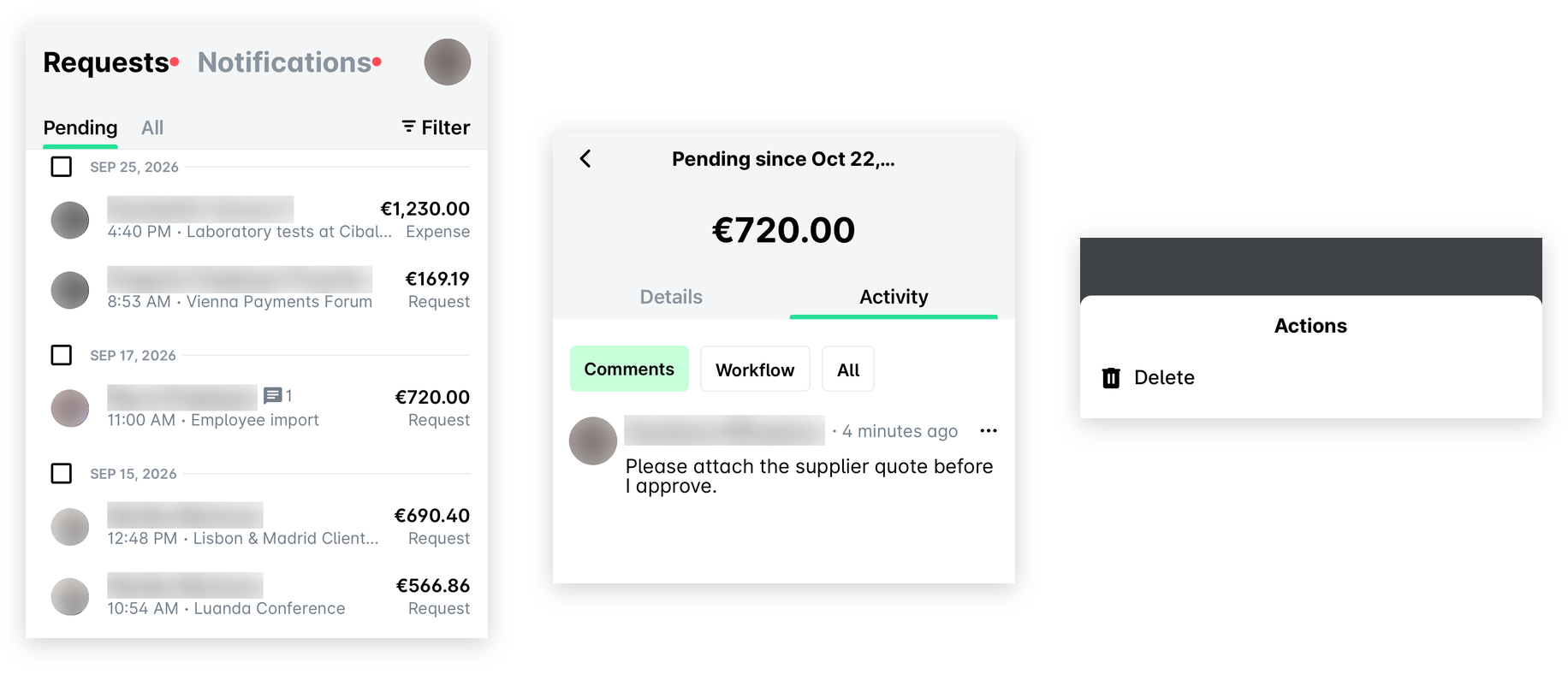
To delete a comment for a request from your Inbox in the Payhawk Mobile App:
Go to Inbox > Requests.
Select the desired request and navigate to its Activity > Comments tab.
Tap its three-dot menu, and then, Delete.
Viewing request activity
In addition to the comments, the Activity section contains information about the workflow of the request and an audit log of its updates. For more details, see the article about viewing request activity.
Useful resources