You can communicate with your team and relevant stakeholders right within Payhawk to quickly gather context and speed up the approval and review process for expenses.
You can also gather additional context or ask a question about an expense or an invoice by posting a comment and tagging the relevant people so that they get notified. In the same way, you can also reply to comments other employees have posted.
Use cases and benefits
Comments come in handy in many and various use cases such as:
Employee - (Team/Category/Custom field) Manager collaboration when gathering context and opening discussions during the approval process of the expense.
Employee - Finance team collaboration when there is no approval process for an expense.
Manager - Finance team collaboration when the Manager provides context to the Finance team on why a given expense has been approved.
Finance team - Finance team collaboration for intra-finance discussions on how to handle a specific case or expense.
Comments provide users with the following benefits:
Improved collaboration, streamlined approval process, and enhanced transparency. Commenting and tagging employees:
Facilitates collaboration and reduces the likelihood of misunderstandings or missed deadlines.
Reduces the need for back-and-forth communication, and minimizes delays.
Helps in maintaining compliance with policies and regulations, as well as ensuring that all stakeholders are aware of the status of expenses and invoices.
Quick, all-in-one overview of expense lifecycle, export history, and change log of the expense:
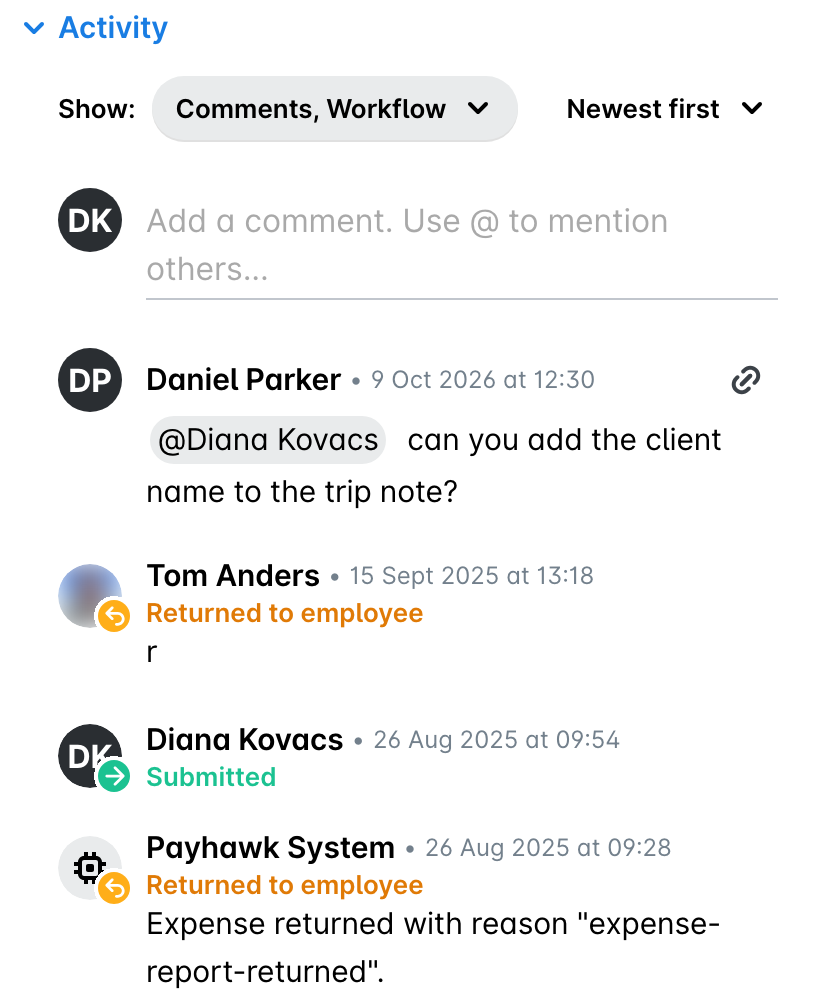
The Activity section of the expense, with Workflow ticked in the Show filter, displays all steps that were taken so far in line with the defined approval workflows at your company.
The Activity section, with Export ticked in the Show filter, keeps track of the export actions for the expense.
The Activity section, with Changes ticked in the Show filter, holds the log with all changes related to that expense such as creating it or adding a document.
Viewing expense history from the Activity section with all Show options ticked is especially important for businesses based in Germany as the functionality follows the German Directive on Electronic Bookkeeping and Accounting (GoBD) and enables Finance teams to do paperless accounting.
Accessing comments
If you have been tagged in a comment for an expense or an expense request, you'll receive a notification in your Inbox, a push notification on your phone, and a notification email. To access the comment, use any of the following ways:
Go to your Inbox > Notifications, and select the desired notification.
Follow the link in the notification email you have received.
Tap the push notification on your phone.
You can also directly go to the expense and select the desired comment in its Activity section, with Comments ticked in the Show filter.
If you want to comment on an expense with no previous comments, select the expense in the Spend app and start the thread.
If you want to comment on an expense request with no previous comments, go to your Inbox > All requests, select the desired expense request, and start the thread.
Commenting on expenses in the portal
To add a comment for an expense for which you have received a notification:
Open the app switcher in the top-left corner, go to Inbox > Notifications, and select the desired notification. If you have direct access to that expense, you can open it by clicking on the notification.
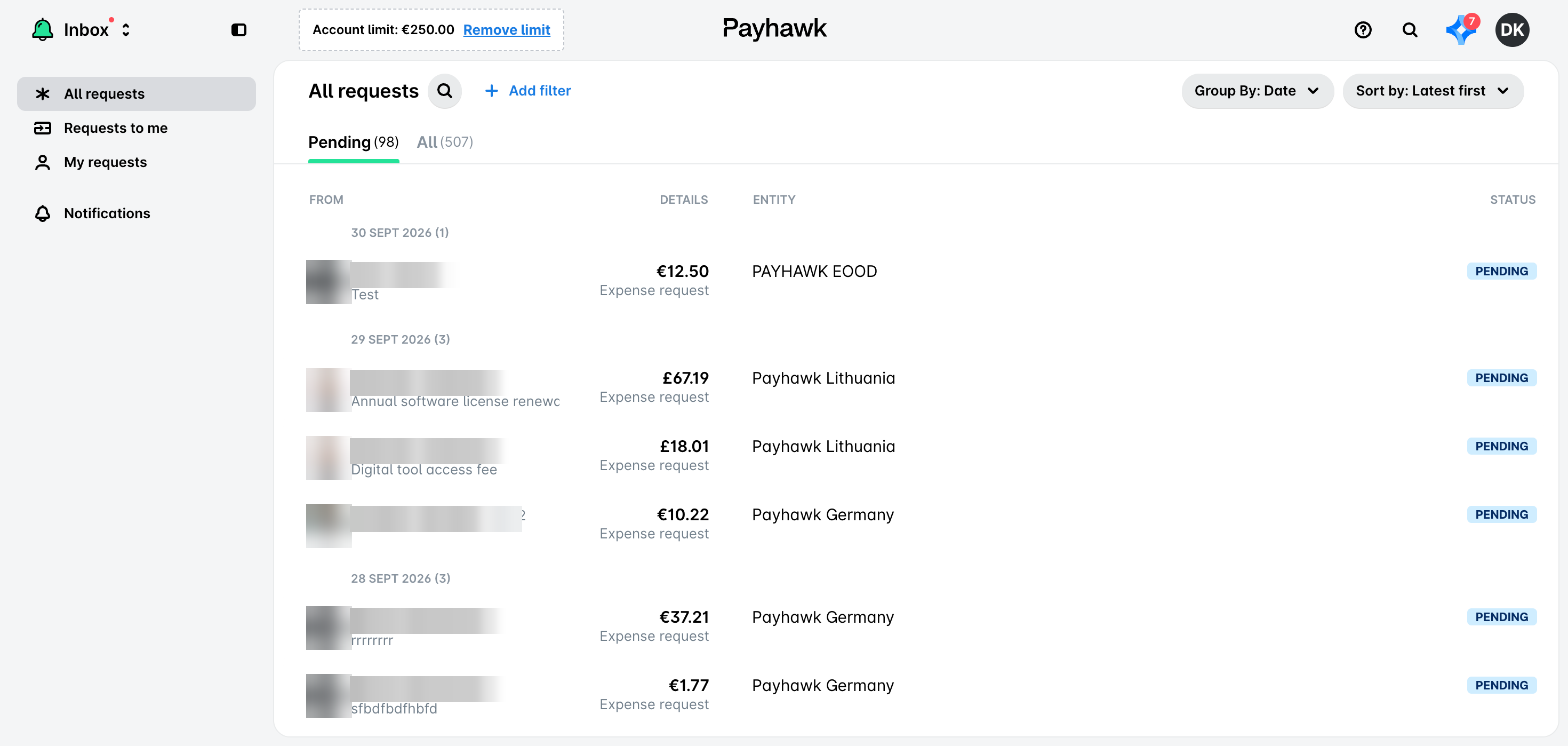
Type your comment, tag any relevant employees, and click on Send or press Enter to post and notify them accordingly. If you want to add a new line, press Shift+Enter.
If you receive a notification for an expense comment but don't have direct access to it, open the app switcher in the top-left corner, go to Inbox > Notifications, and select the desired notification.
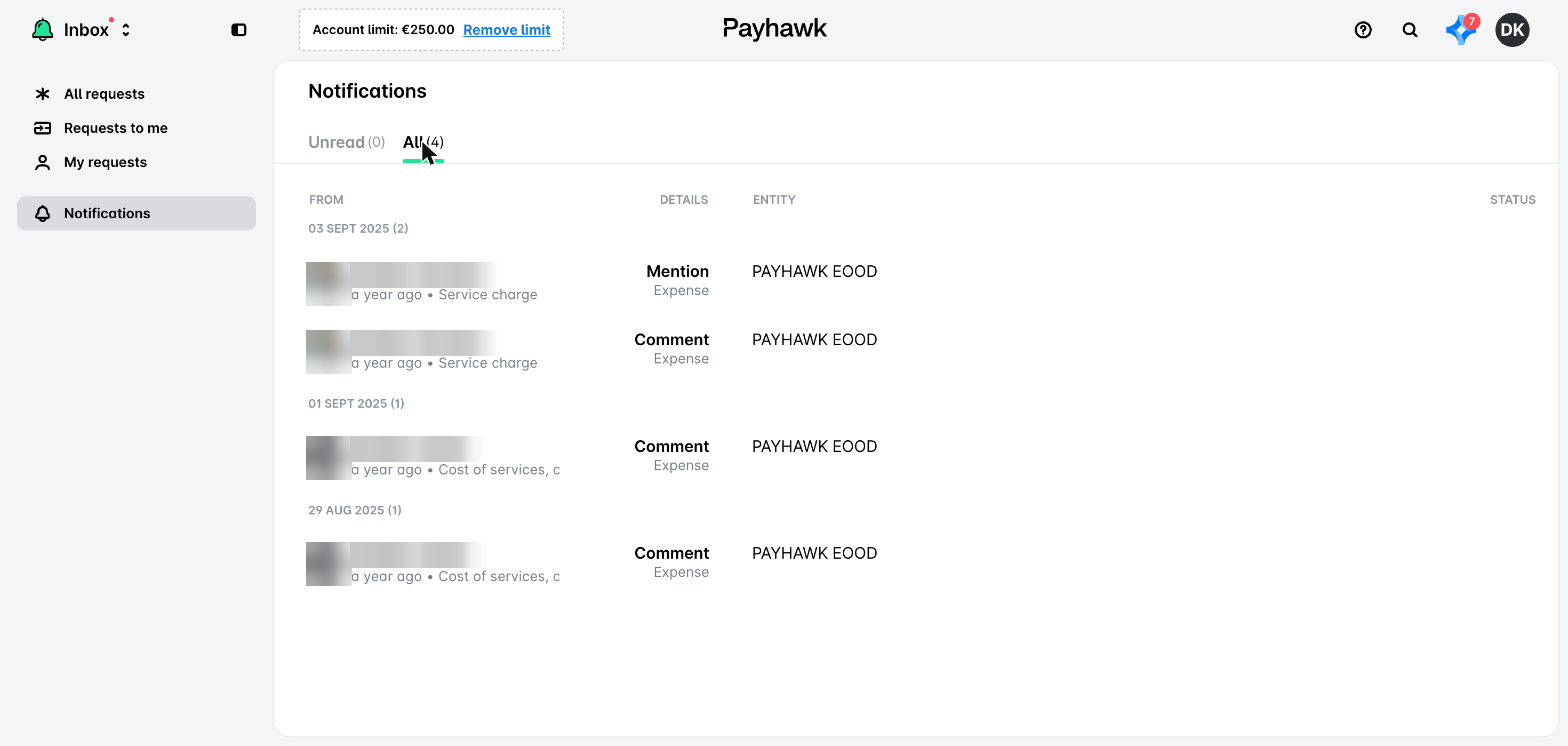
Commenting on expenses in the app
To comment on expenses from your Inbox, open the Inbox > Notifications tab and select the desired notification. Alternatively, tap the push notification you've received on your phone.
If you've been mentioned on an expense somebody else submitted, you'll be directed to it.
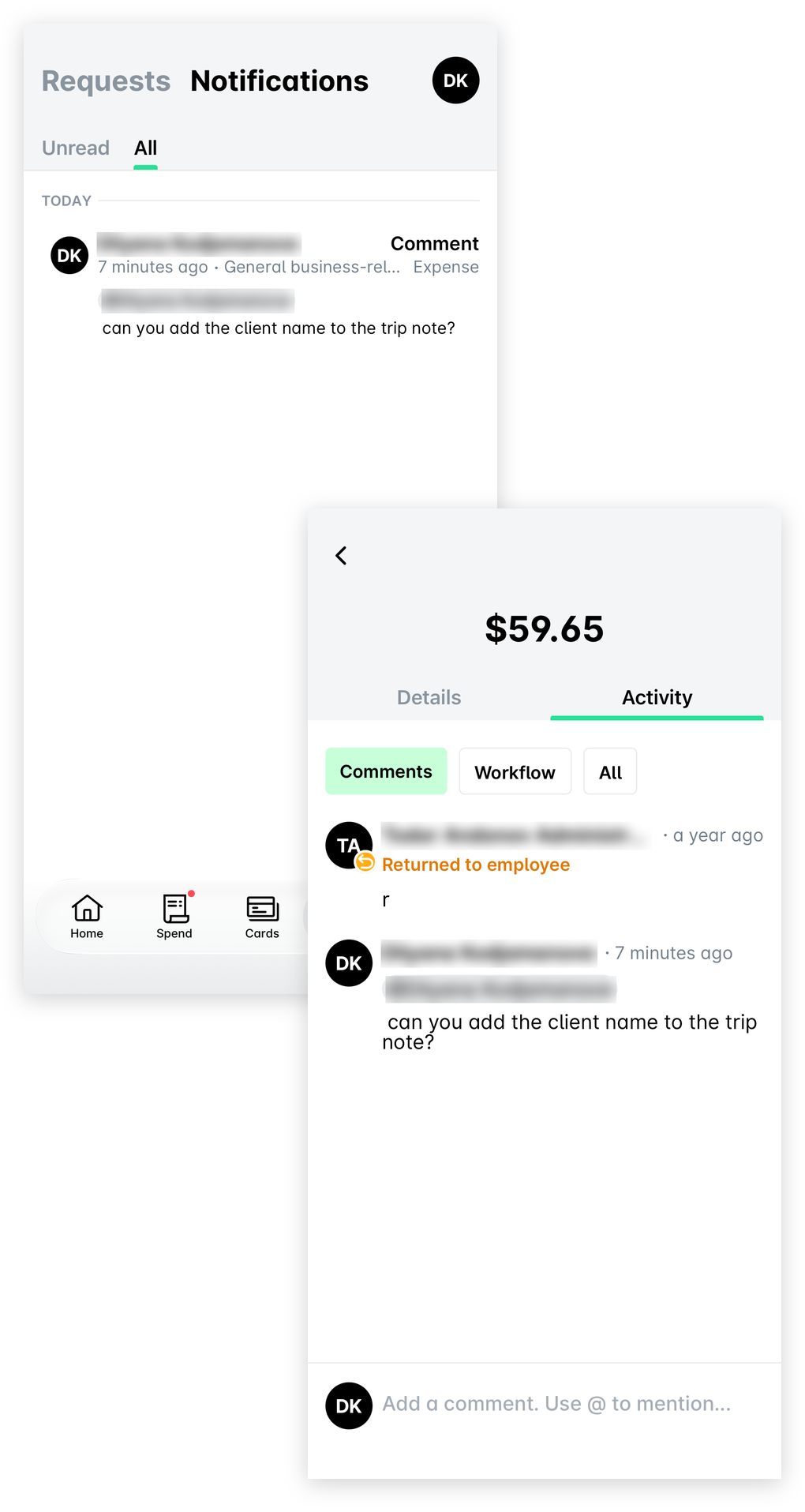
If you've been mentioned concerning an expense a teammate has submitted, you'll be directed to your Inbox.
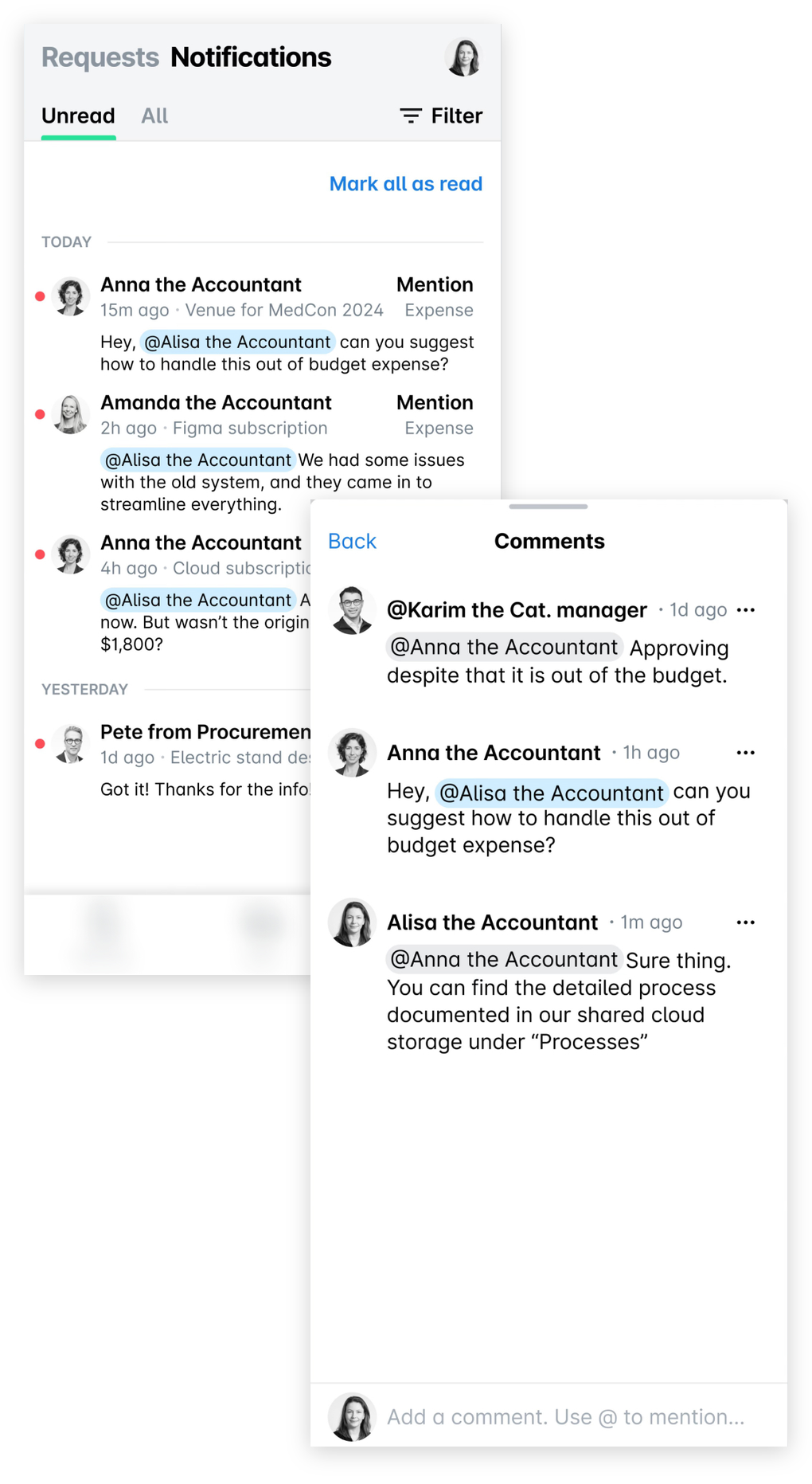
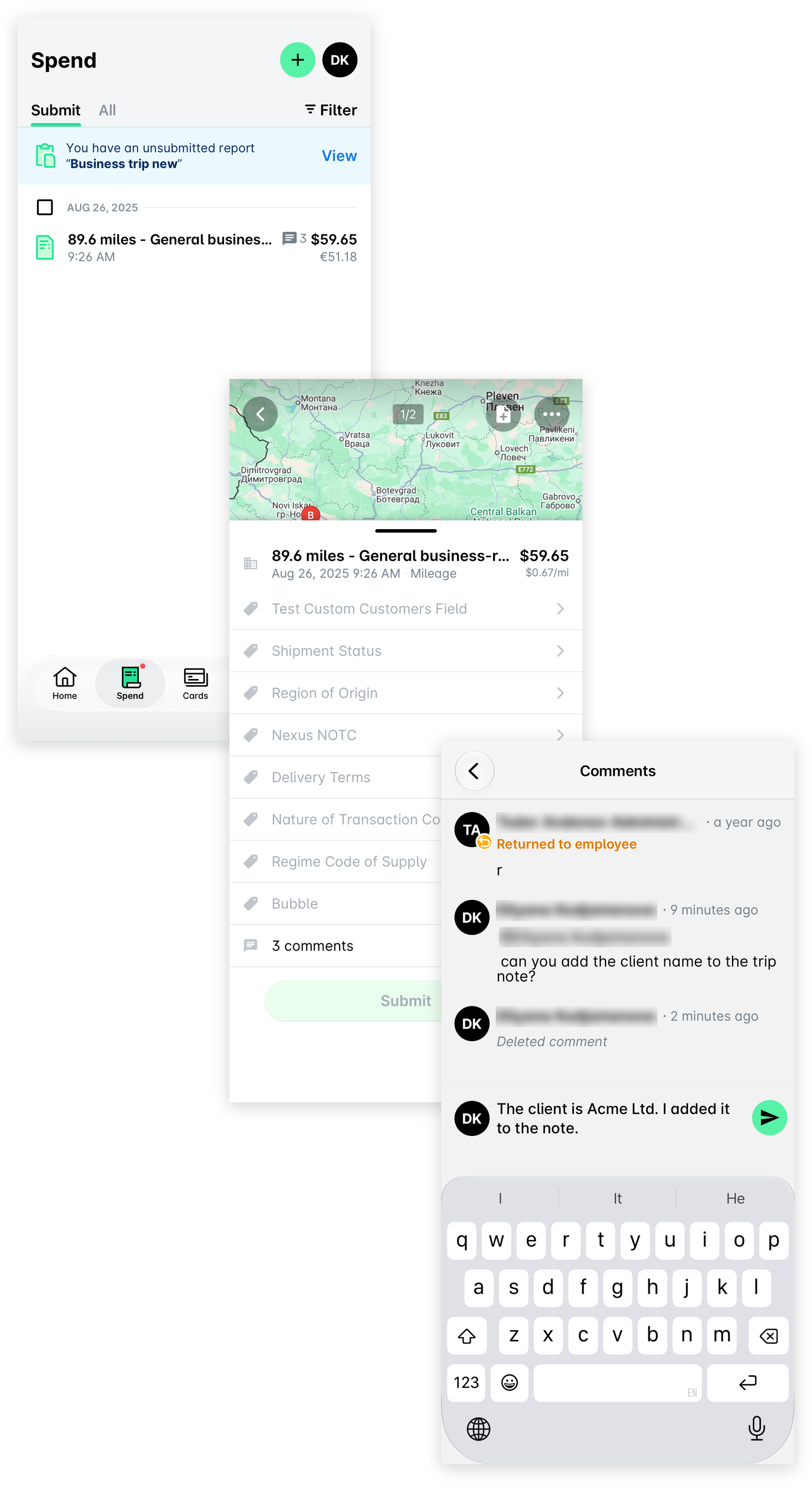
To reply to a comment from the expense, go to Spend, select the desired expense, and tap the View [number] comments link. Enter your comment and tap the Send icon to post it.
Deleting comments
You can delete a comment you might have posted unintentionally. Once the comment is deleted, the action will be displayed in the Activity section of the expense when all Show options are ticked.
Deleting expense comments in the portal
To delete an expense comment in the Payhawk web portal, go to the desired expense, select the desired comment, and click on Delete.
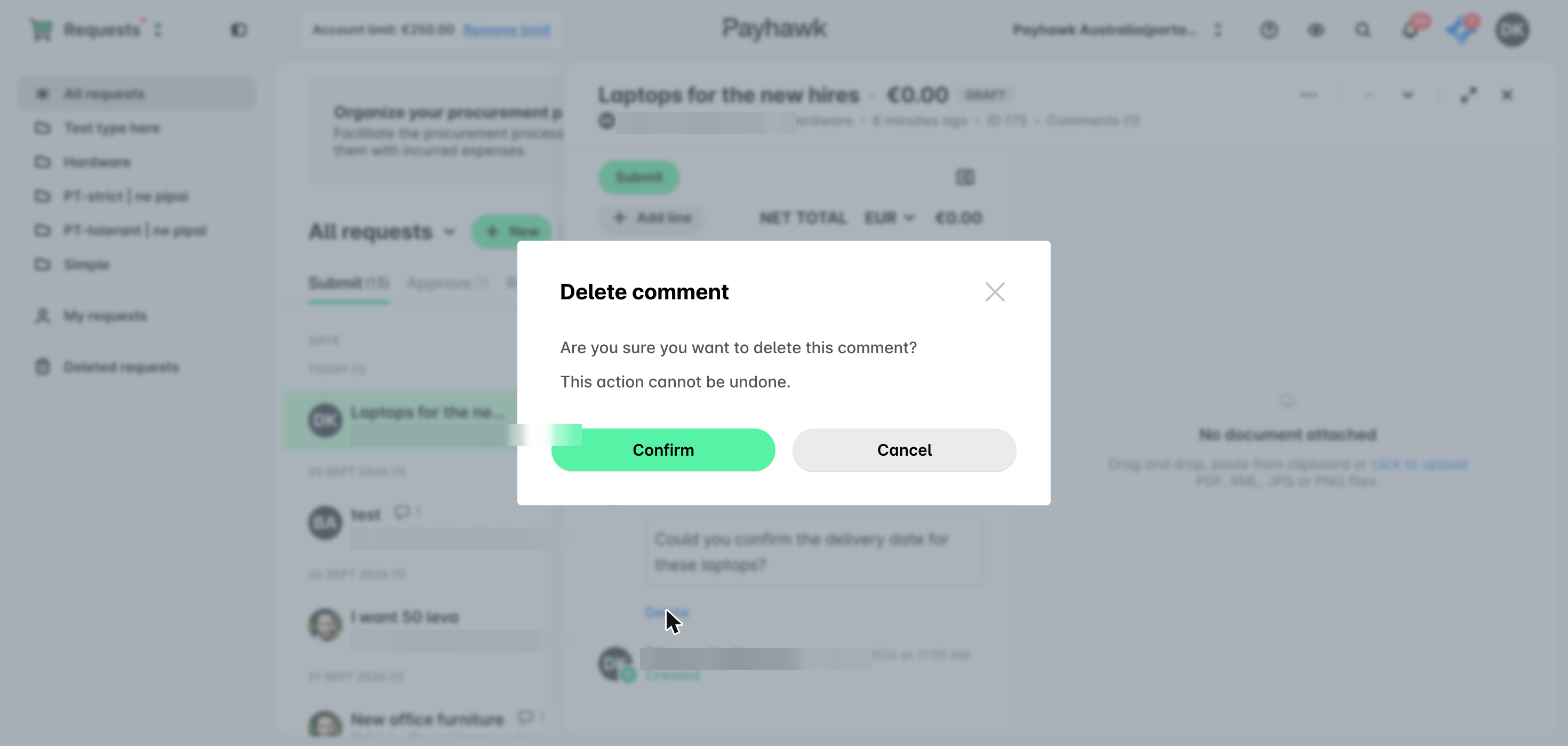
To delete a comment for an expense request, go to Inbox > All requests, select the desired request, and click on Delete for the desired comment.
Deleting expense comments in the app
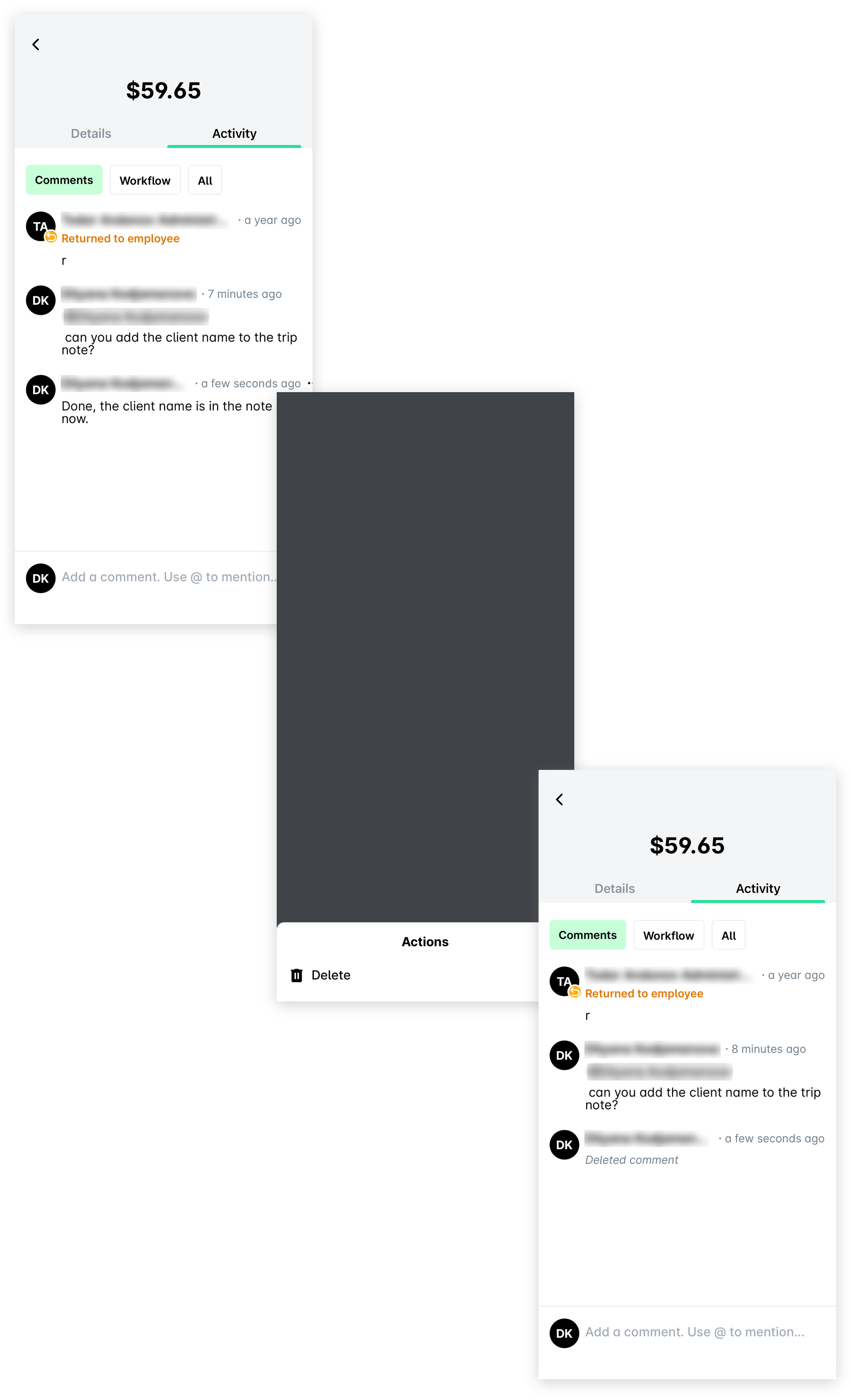
To delete an expense comment in the Payhawk mobile app, go to your Inbox > Notifications and select the desired comment. Tap its three-dot menu and, then, Delete.
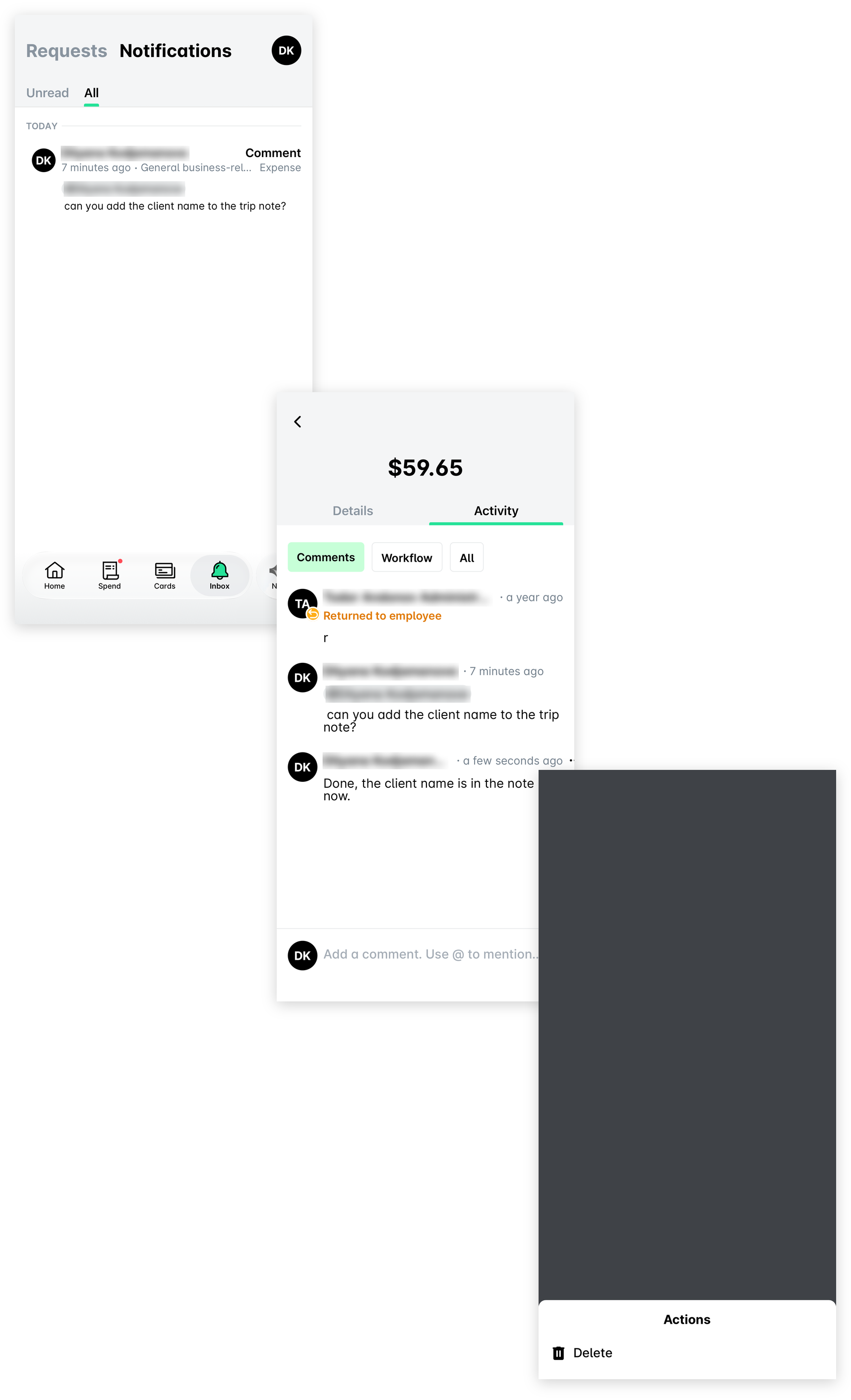
To delete a comment for an expense request in the app, go to Inbox > Requests and select the desired request. Go to its Activity > Comments tab, tap its three-dot menu, and, then, Delete.
Notifications for comments
Whenever you are tagged in a comment, you will receive:
A notification email.
A push notification on your mobile phone.
An in-app notification in your Inbox.
Apart from the case someone has tagged you, in-app notifications within the Inbox will be sent in the following cases:
When someone has replied to your comment.
When someone commented on your expense.
In-app notifications will automatically resolve once the comment is opened, either through the Inbox or from the Spend app.
For additional information, see the submission and approval notifications.
The comment icon
Each commented expense or expense request displays the comment icon in the Spend app or Inbox, respectively, both in the Payhawk portal and mobile app. The icon shows the number of comments that have been posted to that expense or expense request. A red dot means you have unread comments that were intended for you to see.

Tagging employees in comments
You can tag employees associated with your entity and those from any other entities that are part of a Payhawk group account.
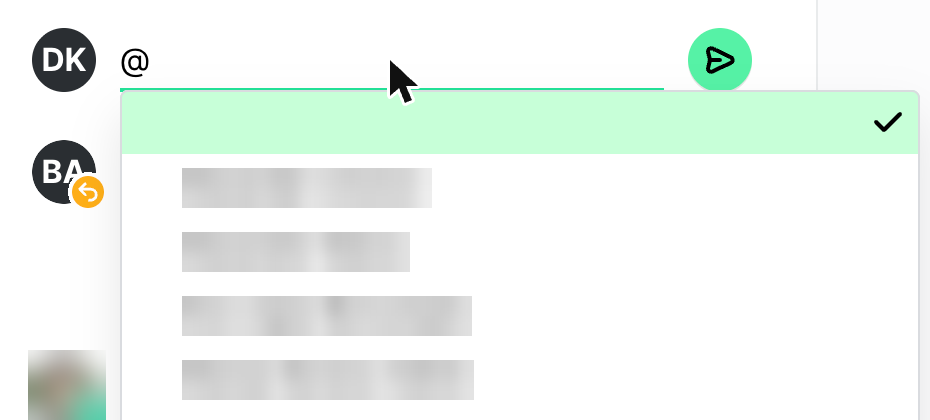
To mention an employee in a comment, type @ (at sign). By default, the system will suggest the employees who have direct access to that expense or are part of the approval process and can therefore be tagged.
Copy-pasting links to comments
Copying links to comments is available from the Payhawk web portal only.
You can share a comment with a teammate by copying and sending over the link to that comment:
In the Payhawk web portal, open the app switcher in the top-left corner, go to Spend, and select the desired expense.
In the Activity section, tick Comments in the Show filter, hover over the comment and click on the icon that appears. This will copy the comment link to the clipboard.
Paste the link for your teammate to view the comment.
Viewing expense activity
In addition to the comments, the Activity section contains information about the approval status of an expense, its export history, and its change log with the respective updates. For more details, see the article about viewing expense activity.
Useful resources