You can configure the settings for the bill spend type in Payhawk according to the requirements of your company.
You can also manage the bill spend type and define its payment execution method on a group level.
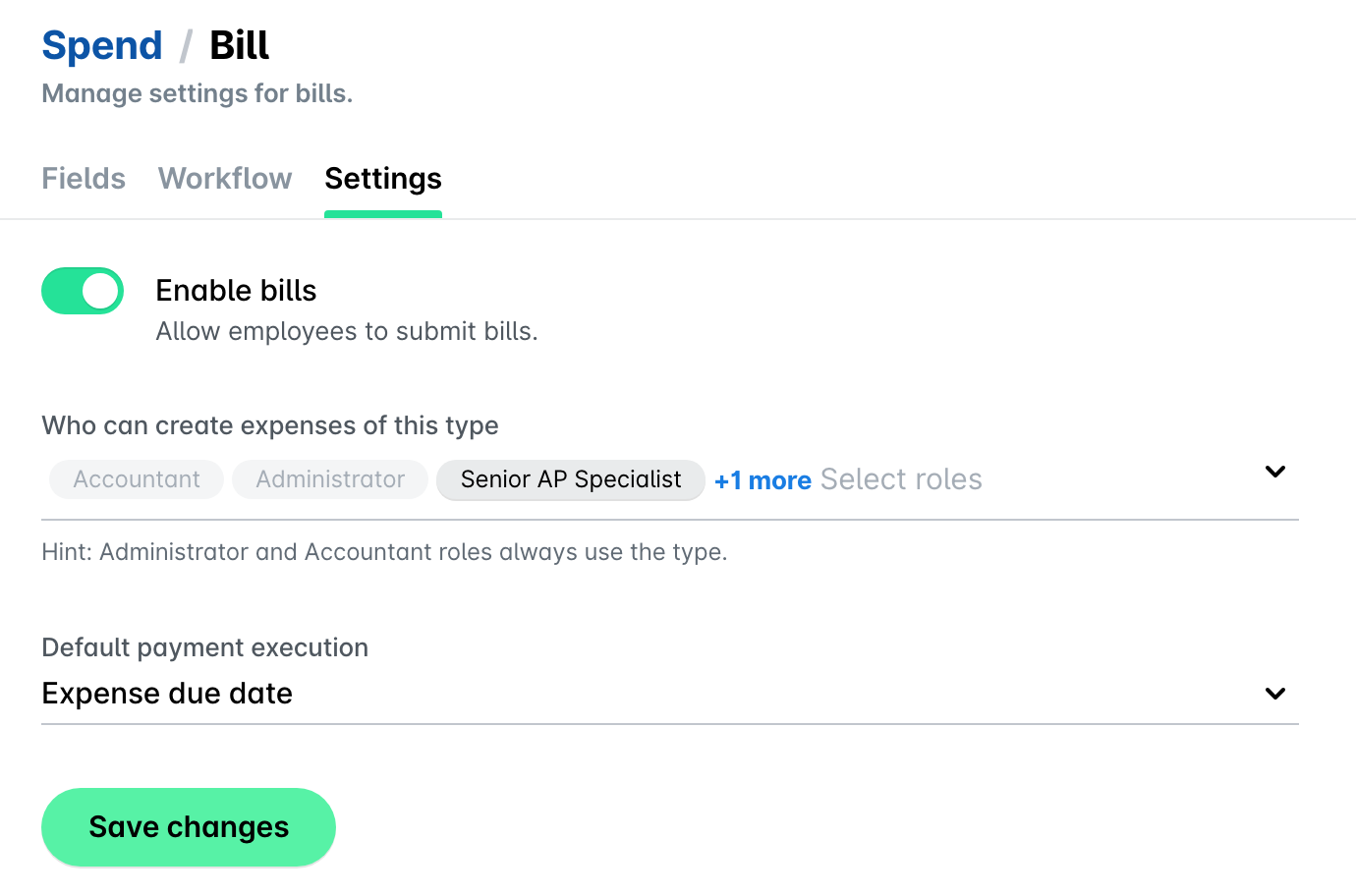
Enabling bills and setting their default payment schedules
You can enable employees at your company to submit expense requests for bills in the following way:
In the Payhawk Web Portal, open the app switcher in the top-left corner and go to Settings > Spend > Spend types > Bill.
Navigate to the Settings tab.
Switch on the toggle.
From the drop-down lists, define the following settings by selecting the corresponding options:
The Payhawk roles that will be able to submit expense requests for bill payments.
The default payment execution method for bills at your company.
Immediately - Defaults the payment execution of bills to immediate payment and is seen by employees in Spend > Pay > Confirm details field.
Expense due date - Defaults the payment execution of bills to the due date of the expense based on the extracted data by Payhawk's data extraction tool and is seen by employees in Spend > Pay > Confirm details field.
When done, click on Save changes.
Disabling bills
You can disable bills for your company in the following way:
Open the app switcher in the top-left corner and go to Settings > Spend > Spend types > Bill.
Navigate to the Settings tab.
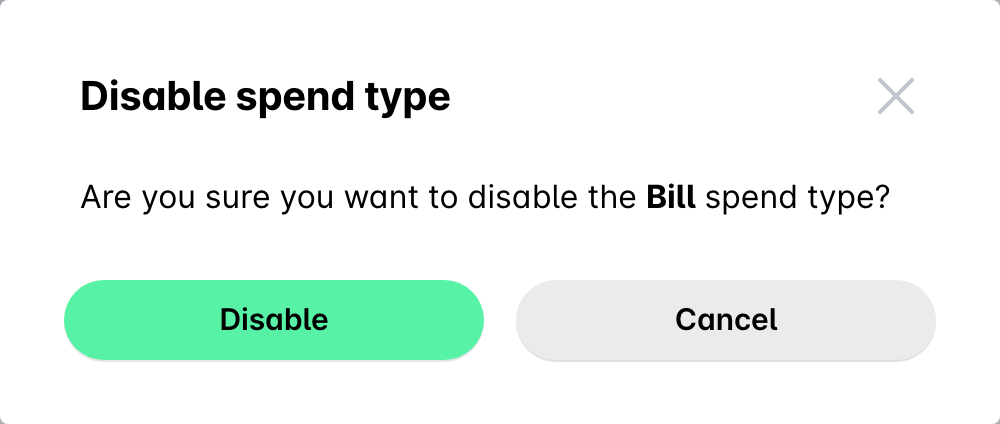
Switch off the toggle.
In the dialog that opens, confirm your choice and click on Disable.
Changing bills owners
To change a bill owner:
Open the app switcher in the top-left corner and go to Spend.
Select the desired bill by clicking on it.
Click on its three-dot menu and select the Change owner option.
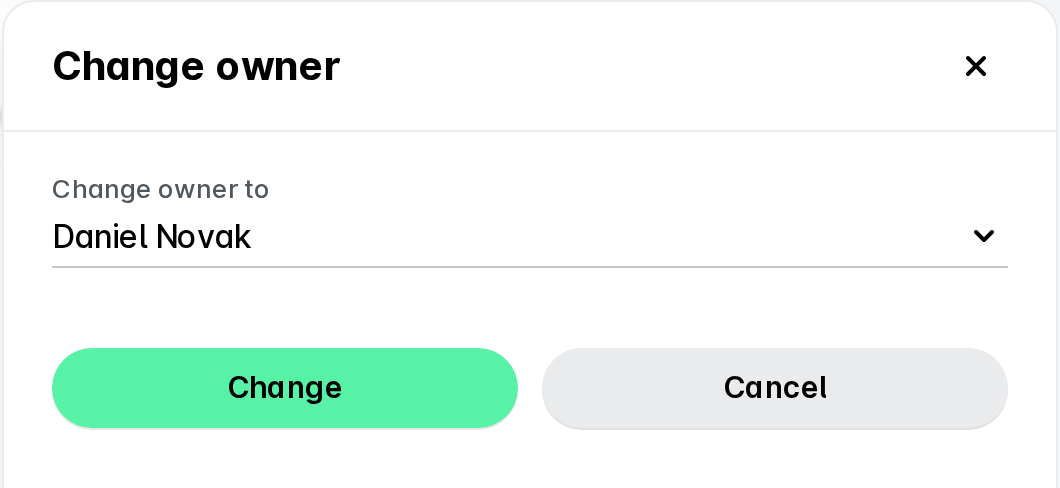
In the dialog that opens, select the new bill owner from the drop-down list. Note that the system will display only users who have permissions to modify company expenses.
Click on Assign.
Useful resources