The Group dashboard and multi-entity management capabilities in Payhawk allow you to manage your spend types on a group level for all your entities within the group. In this way, you will avoid the need to specify identical settings for each entity.
Specifics
Applying group settings to the spend types cannot be reverted.
Spend types can be enabled per entity directly in the group settings.
Applying group settings for spend types
You can define whether the default payment execution for spend types will be immediate or scheduled for the expense due dates.
To apply group settings to the bill spend type, for example:
Log in to the Payhawk Web Portal.
Open the app switcher in the top-left corner and go to Settings > Spend types > Bill.
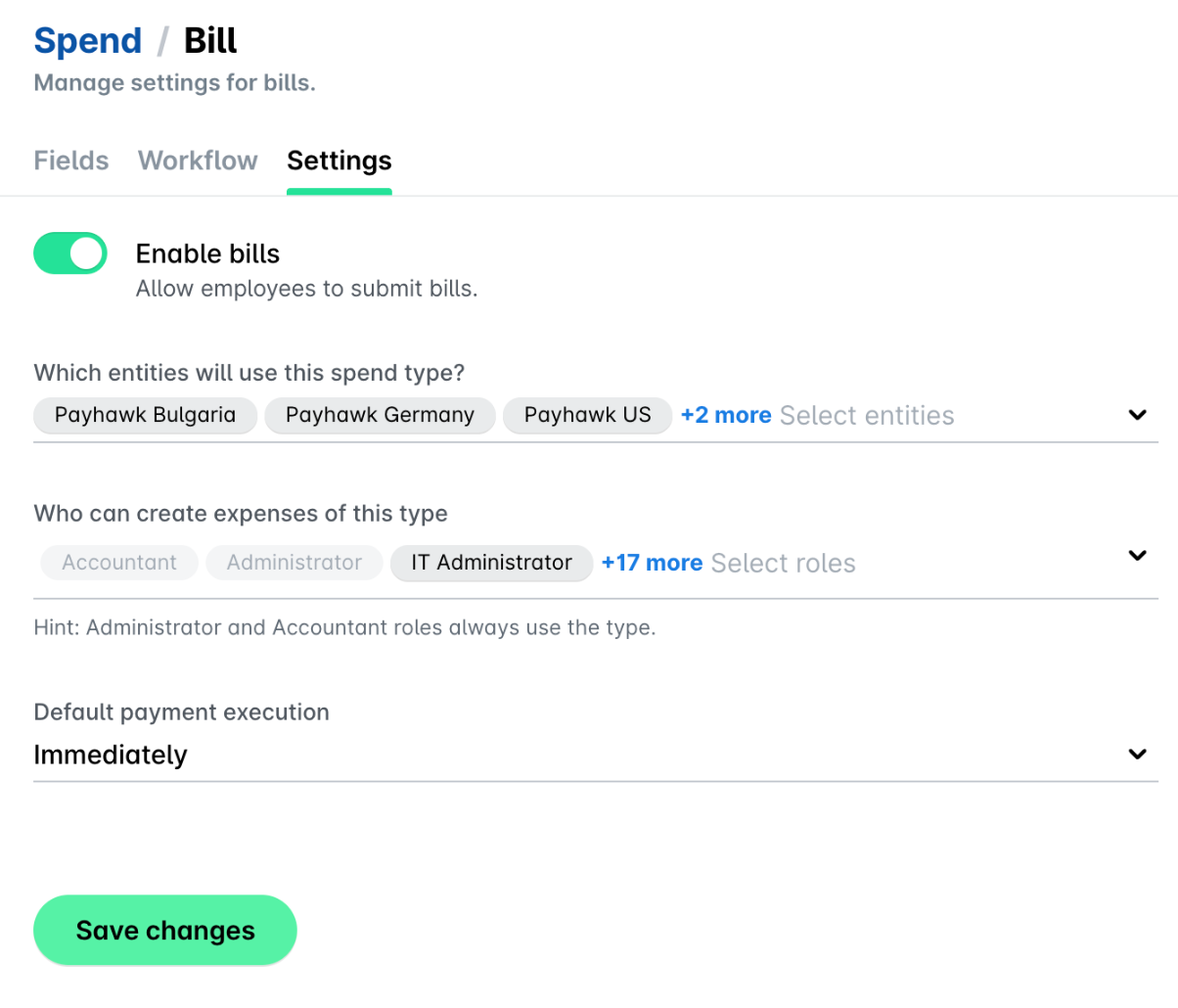
Under the Settings tab, switch on the Enable bills toggle button to enable the bill payments for your group.
From the drop-down menus, select:
The specific entities that will use bills, or select All to apply the spend type to every entity in the group.
The Payhawk roles that will be able to submit expense requests for bills.
The default payment execution method for bills at your company.
The Immediately option defaults the Payment execution field in Pay > Confirm details to Immediate.
The Expense due date option defaults the Payment execution field in Pay > Confirm details to the due date of the expense as extracted by Payhawk's data extraction tool.
Click on Save changes. In the dialog that opens, click on Apply.
Applying default group settings for spend types to entities
You can apply the already defined group settings for spend types to other entities:
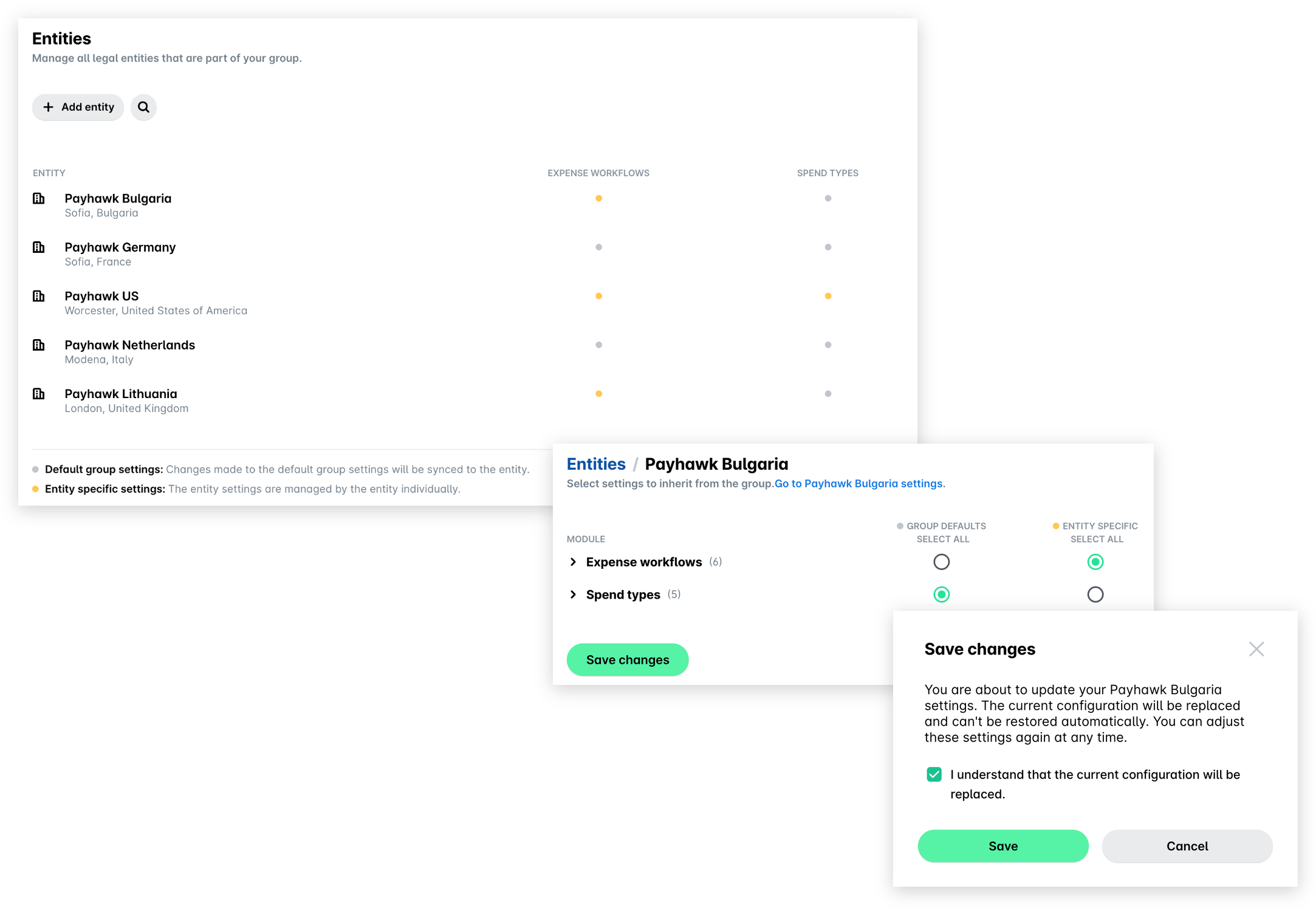
Open the app switcher in the top-left corner and go to Settings > Entities and select the desired entity.
On the next screen, check the GROUP DEFAULTS radio button for Spend types and click on Save changes.
In the dialog that opens, mark the checkbox and click on Save to confirm your choice.
If an entity inherits group spend types, the local Payhawk Administrator will not be able to modify them as they will be displayed as read-only.
Pulling spend type settings from an entity
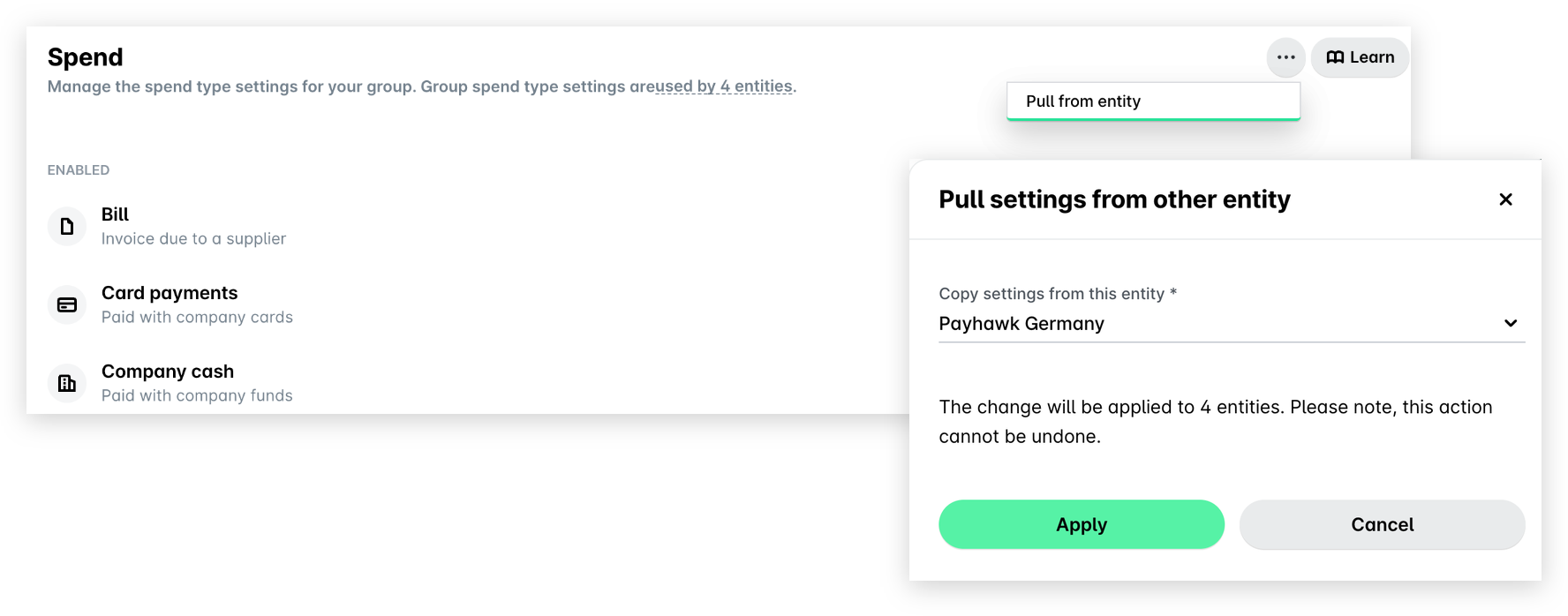
You can copy spend types from an entity and apply them to the group by pulling the relevant settings.
Open the app switcher in the top-left corner and go to Settings > Spend types.
Click on the three-dot menu and select Pull from entity.
In the dialog that opens, select the desired entity from the drop-down list and click on Apply.
Useful resources