You can configure the visibility for the company cash spend type in Payhawk according to the requirements of your company.
For more information on defining spend types for your Group of entities, see the article about managing spend types on a group level.
Enabling company cash
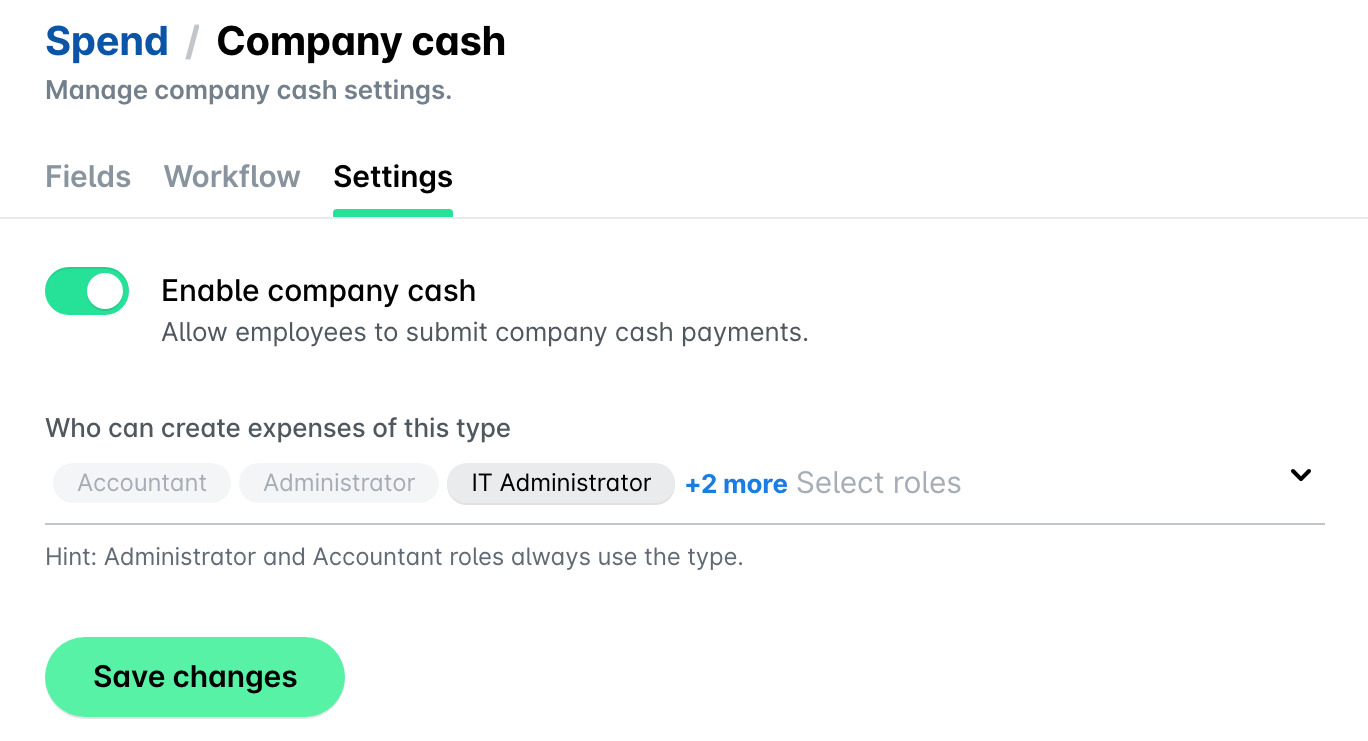
You can enable employees at your company to submit expense requests for company cash in the following way:
In the Payhawk Web Portal, open the app switcher in the top-left corner and go to Settings > Spend > Spend types > Company cash.
Navigate to the Settings tab.
Switch on the toggle.
From the drop-down lists, define the Payhawk roles that will be able to submit expense requests for company cash.
When done, click on Save changes.
Disabling company cash
You can disable company cash for your company in the following way:
Open the app switcher in the top-left corner and go to Settings > Spend > Spend types > Company cash.
Navigate to the Settings tab.
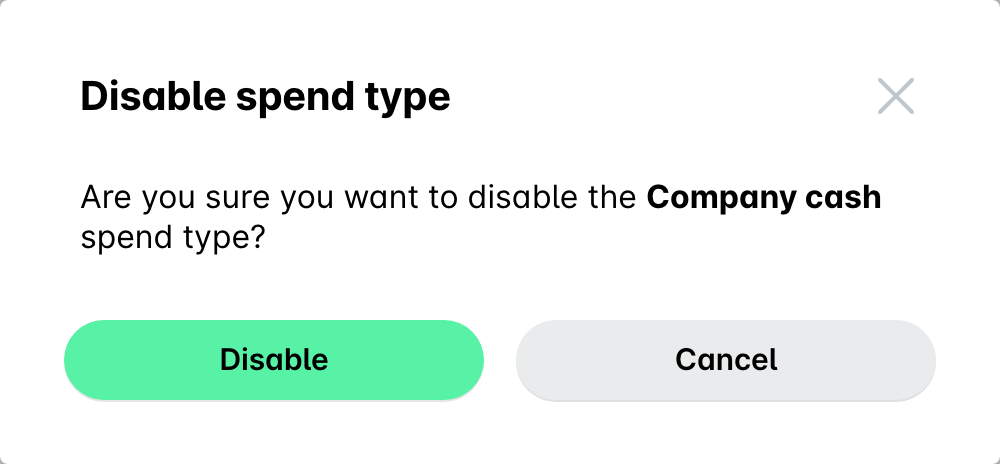
Switch off the toggle.
In the dialog that opens, confirm your choice and click on Disable.
Useful resources