The Mailbox works on a group level and provides one unique centralized email address for receiving forwarded invoices. By default, the group Mailbox covers every entity in the group, and Group Administrators can take entities out of it so that they use their own Mailbox.
Benefits
Save time and effort by fast-forwarding the process for expense approval over a couple of clicks.
Avoid the weary and burdensome manual download of payment documents and their upload to your personal Payhawk account, attaching them to the expense that's been made.
Configuring the Mailbox for the group
To configure the Mailbox:
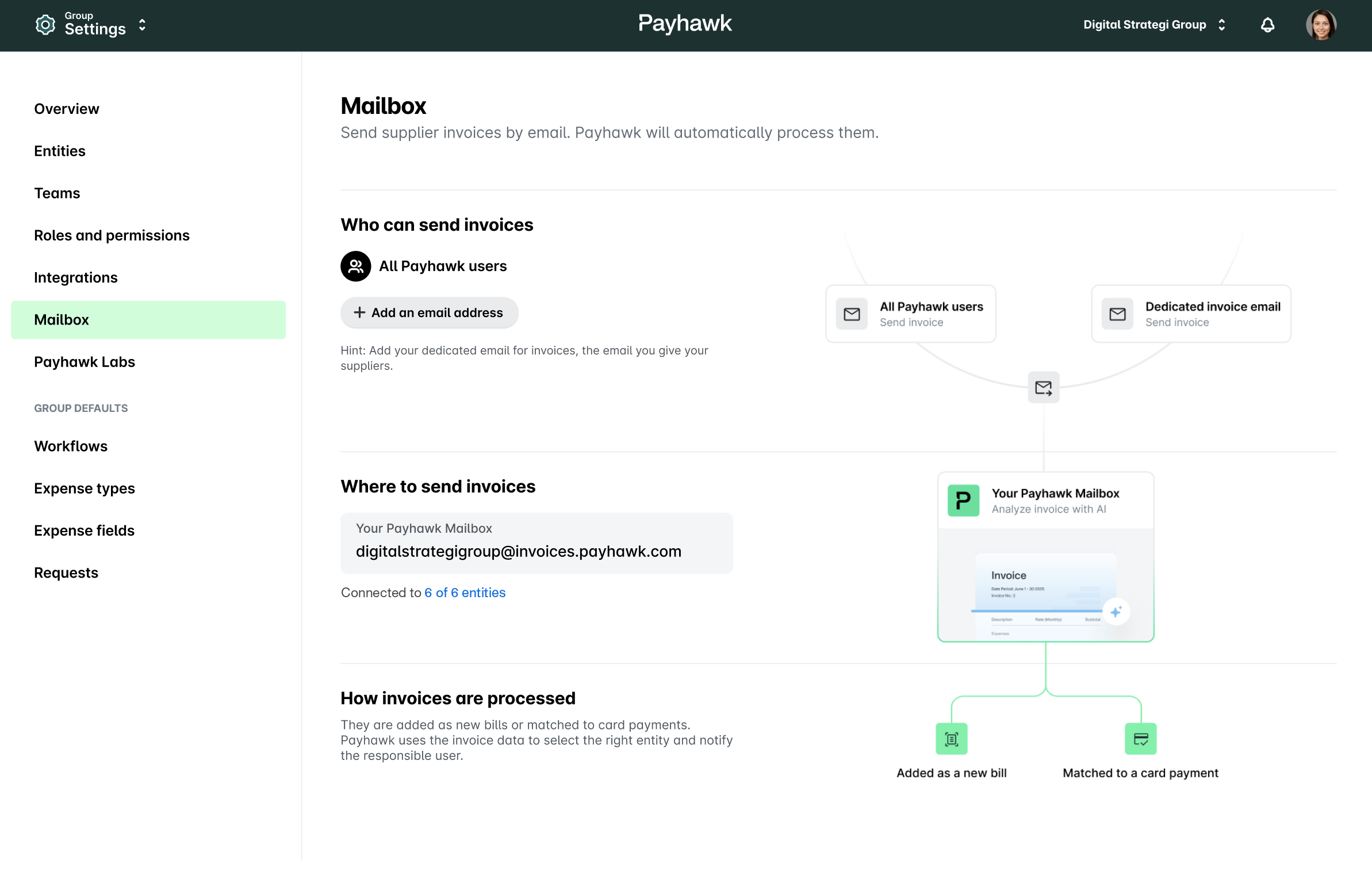
In the Payhawk Web Portal, on the Group dashboard, go to Settings > Mailbox.
Click on + Add an email address and enter the email address from which you’ll forward documents, for example, invoices@yourcompany.com.
The addresses you add here are your approved (whitelisted) senders: Payhawk accepts forwarded documents only from these addresses.
Payhawk has automatically generated a unique email address for your company to which documents will be forwarded to.
To set up automatic forwarding, follow the instructions described in forwarding invoices from Gmail and forwarding invoices from Outlook. Other configurations aren’t recommended and can cause unexpected issues.
Mailbox notifications
For every email address you add to the Mailbox, you also select who handles the invoices sent to it. You can select individual users, a role, or a combination of both.
If you select a role, every user with that role is notified about every invoice that arrives at that address, not only the invoices they forwarded themselves. For example, if you select Employee, all employees in the group receive a notification for each invoice sent to the address. During configuration, Payhawk will show a warning and ask you to confirm before saving.
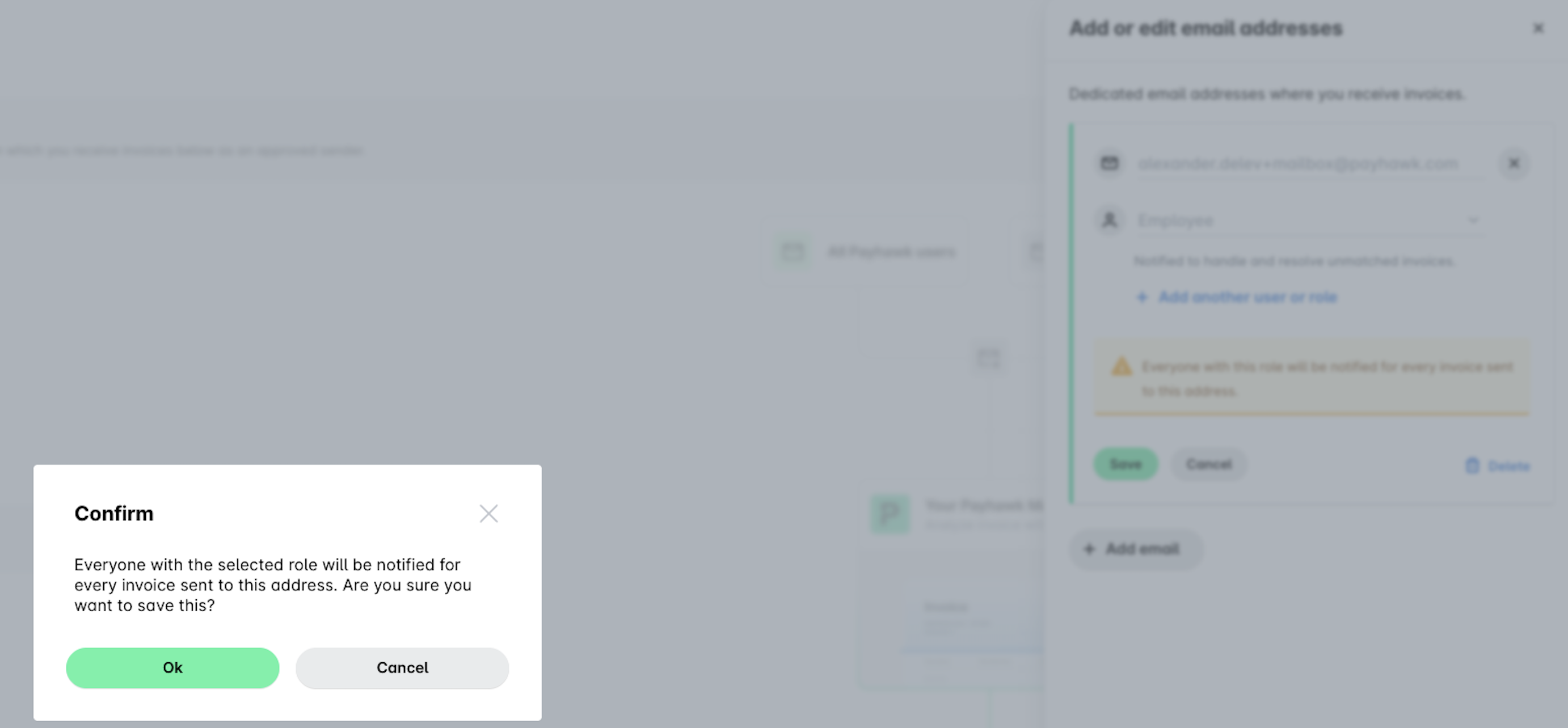
To keep the volume of notifications down, select only the users who need to handle these invoices, or select a role with few members.
Giving an entity its own Mailbox
By default, the group Mailbox covers every entity in the group. As a Group Administrator, you can take entities out of the group Mailbox. Each excluded entity gets its own Mailbox address and approved senders, and invoices sent to the group address stop going to this entity’s Mailbox.
To give entities their own Mailbox:
In the Payhawk Web Portal, on the Group dashboard, go to Settings > Mailbox.
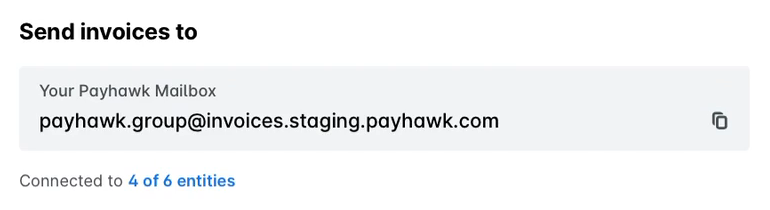
Under the Mailbox address, click on Connected to X of Y entities.
In the Entities using this mailbox panel, clear the checkbox of each entity that needs its own Mailbox. All entities are selected by default.
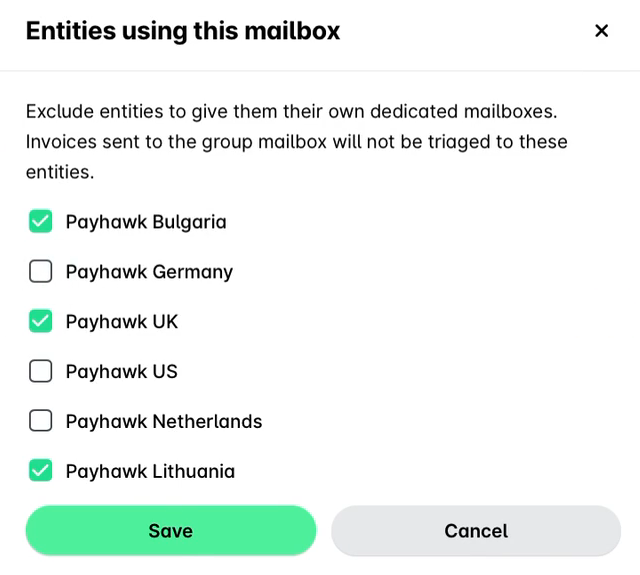
Click on Save.
As a result, each excluded entity gets its own Mailbox address. You can see it in the entity's Settings > Mailbox, together with the note This entity has its own mailbox.
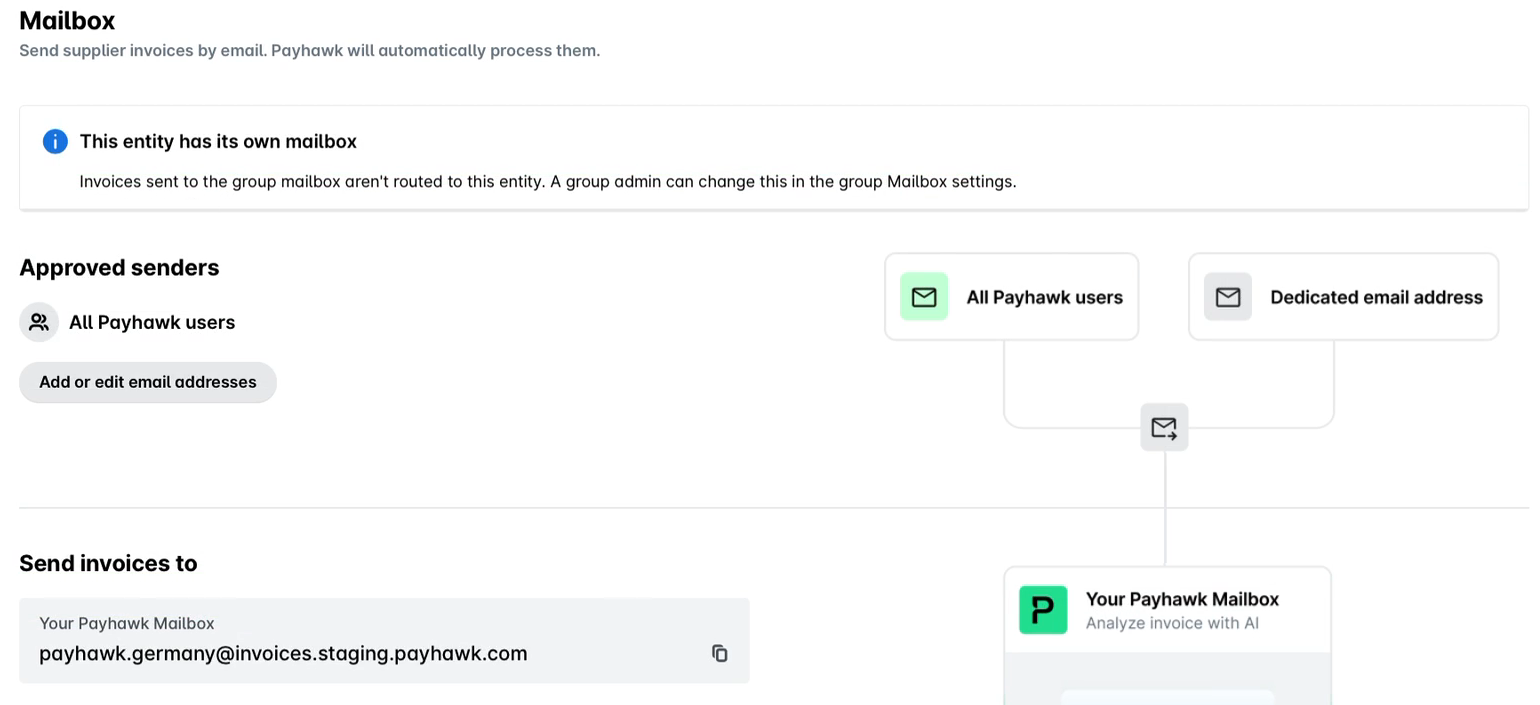
To return an entity to the group Mailbox, select its checkbox again in the Entities using this mailbox panel and click on Save. The entity's own address is switched off but kept, and any email sent to it bounces until you exclude the entity again.
Useful resources