In the Payhawk Web Portal, you can configure the general settings for your employees' trip requests, including the request name and description. The trip request fields are built-in, and you can view them and adjust a set of options, such as choosing from which step onwards a field is required.
You can create more than one trip type and configure these settings separately for each trip type.
Configuring the trip request
You can configure the general settings for the trip requests of your employees.
To configure settings:
Go to Settings > Trips.
Open the desired trip type by clicking on it.
Navigate to the Settings tab.
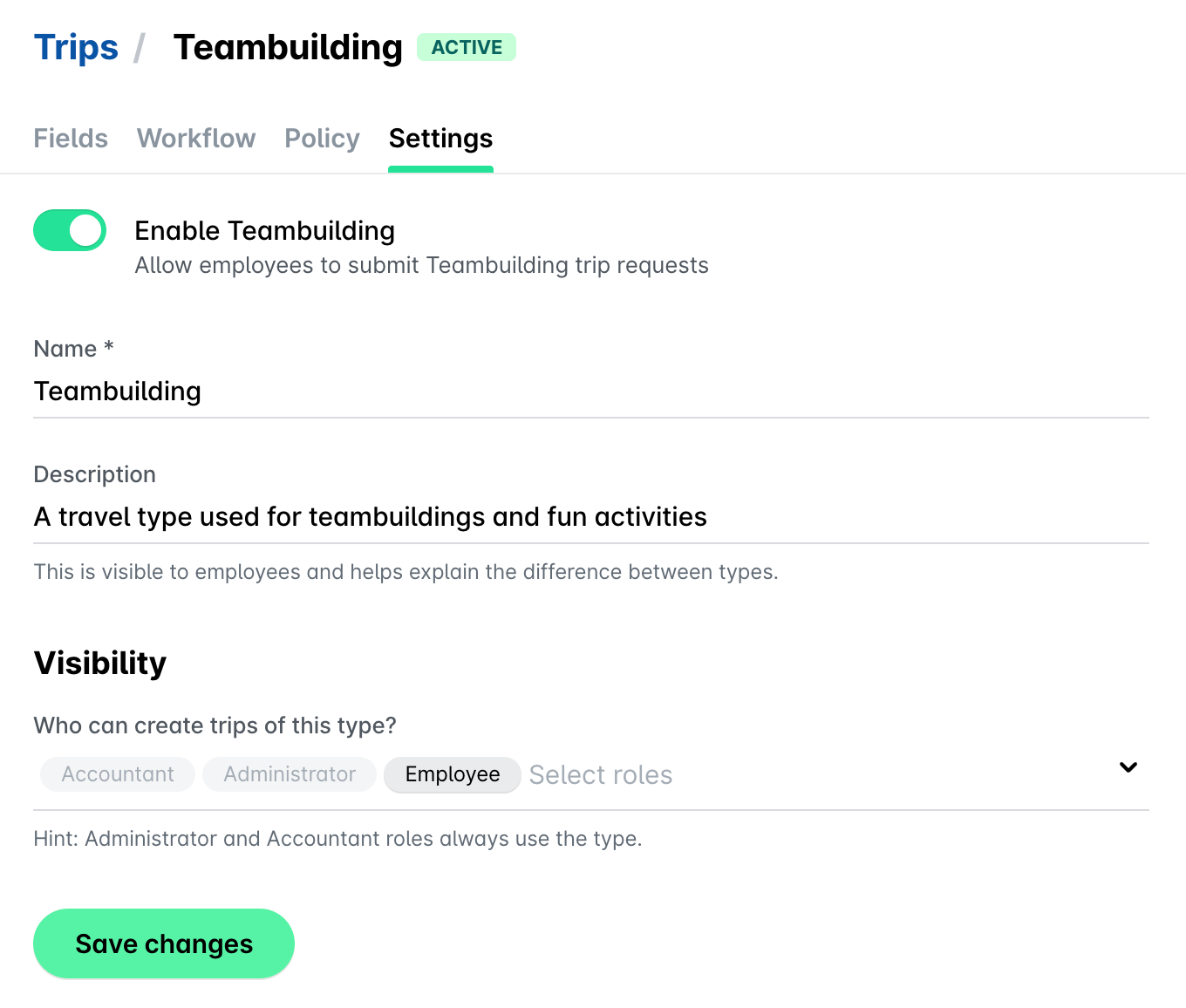
Turn on the Enable [Type] toggle to allow employees to submit trip requests of this type. Turn it off to stop new requests of this type.
Under Name, enter the name of the trip request in free text, for example, Travel.
Under Description, enter the trip request description to help explain the difference between types to employees.
Under Visibility, select who can create trip requests of this type from the drop-down menu. Note that Payhawk Administrators and Payhawk Accountants can always use every trip type.
Click on Save changes.
Configuring the trip request fields
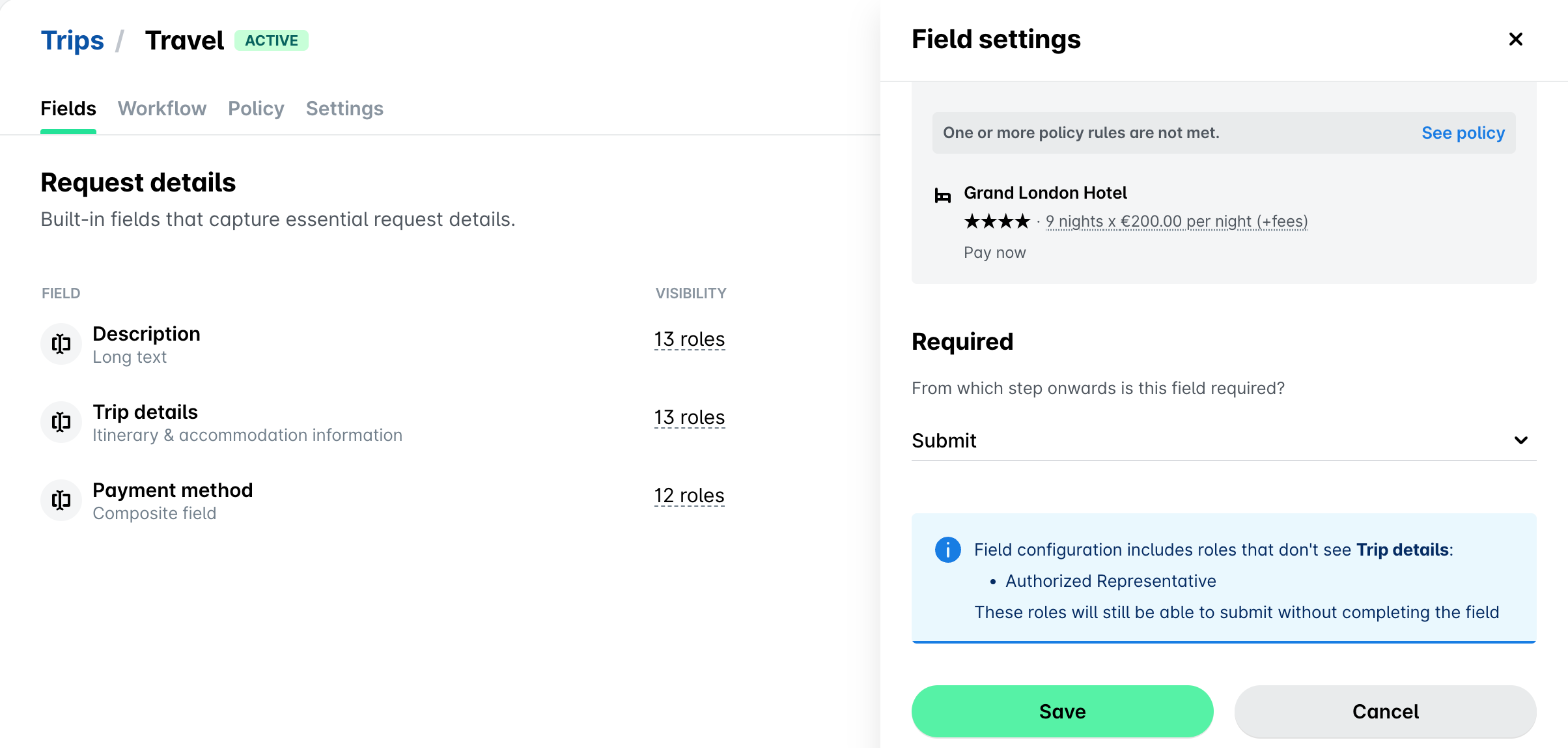
The field settings for trip requests are built-in and can be viewed from the Settings > Trips > [Type] > Fields tab under Request details.
They include the following information:
Description - The settings of the Description field for trip requests cannot be modified. The Description field will always be displayed in the trip requests and employees will be expected to provide a reason for submitting the trip request.
Trip details - The Trip details field will always be displayed in the trip requests. Under Required, you can choose from which step onwards it’s required: Optional, Submit (required before the trip request is submitted and at review), or Review (required before the review is complete). None of its other settings are modifiable. The Trip details field will always be displayed in trip requests and employees will be expected to provide their desired trip details, such as, inbound and outbound dates and destination.
Payment method - Employees will be expected to provide information about which Payhawk card the Travel AI Agent must use for the booking. If the employee doesn't have an active Payhawk card, the Travel AI Agent will automatically issue them a new virtual card that will be used for the specific trip request. On a group trip, each traveler books on their own default Payhawk card. If a traveler has no active card, the Agent issues the traveler a new virtual card for the trip and closes it when the trip ends.
Useful resources