Payhawk lets you offer more than one type of trip, such as business travel, conferences and events, or team building. Each trip type has its own request fields, travel policy, approval workflow, and visibility settings, so every kind of trip follows the rules that fit it. As a Payhawk Administrator, you can create and manage trip types in the Payhawk Web Portal.
Creating trip types
To create a new trip type:
In the Payhawk Web Portal, go to Settings > Trips > Types.
Click on New.
Enter a Name for the type, for example, Conference and Events.
Enter a Description that helps employees tell the types apart.
Under Visibility, choose which roles can create trips of this type.
Click on Add type.
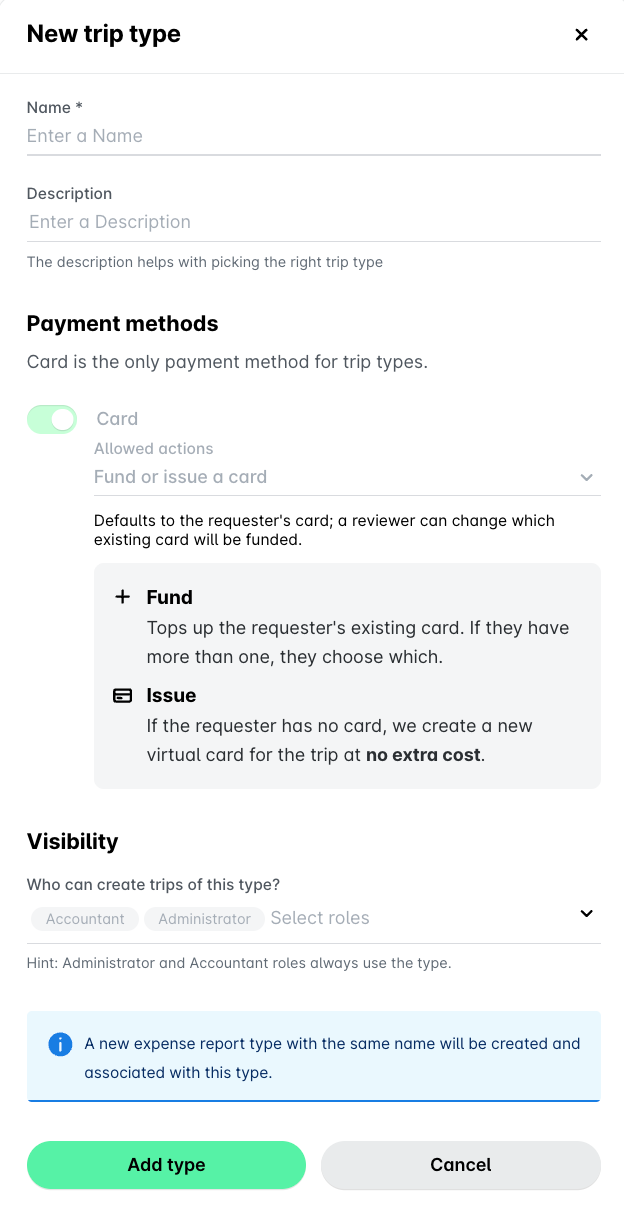
When you create a new trip type, the system automatically creates a new expense report type with the same name and associates it with the trip type. You can change the report type later from the Create expense report step in the trip type's workflow.
Defining who can create trip types
To define who can create a trip type:
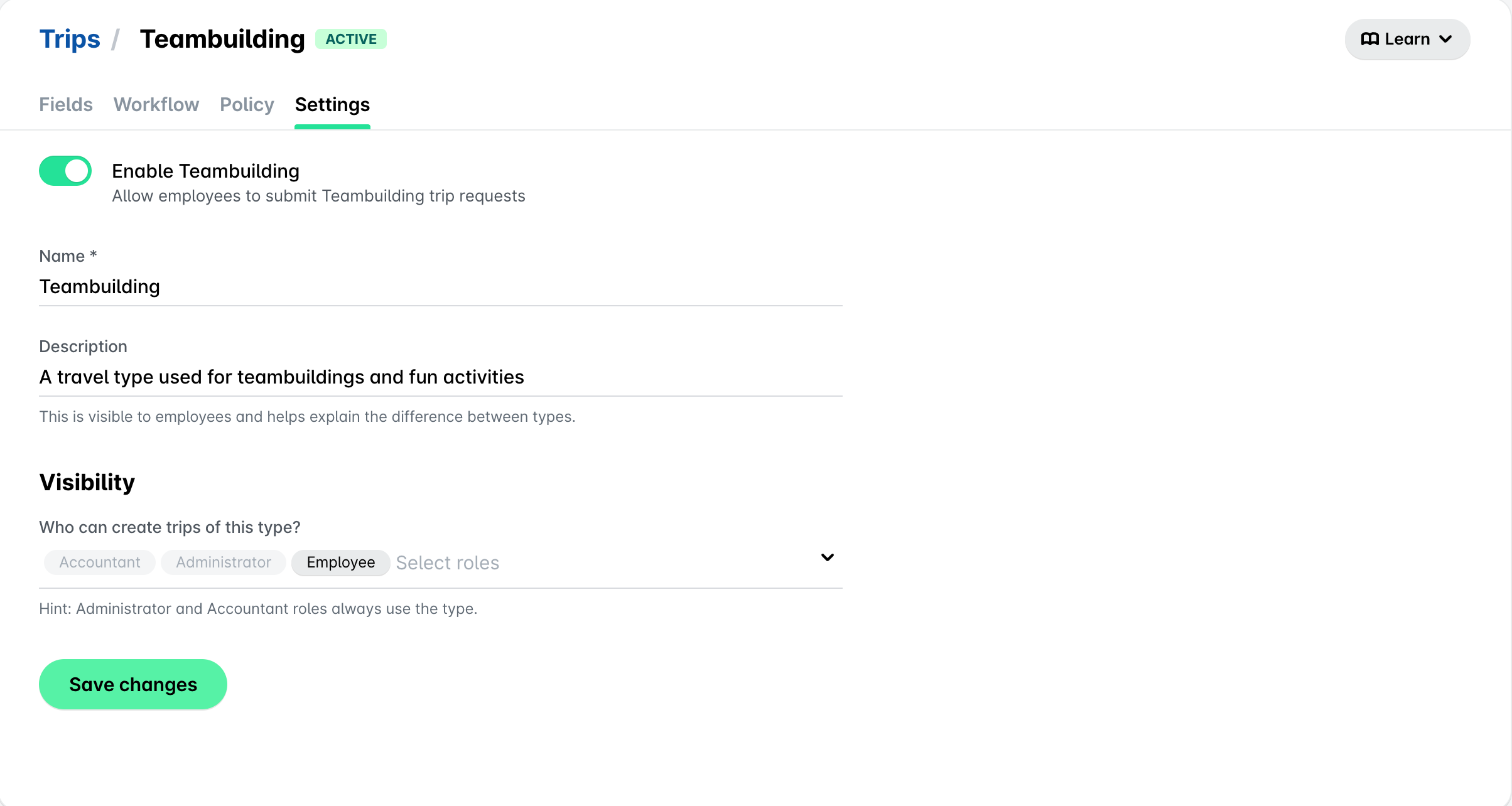
In the Payhawk Web Portal, go to Settings > Trips > Types > [Type].
Navigate to the Settings tab of the selected trip type.
Turn on the Enable [Type] toggle to allow employees to submit trip requests of this type. Turn it off to stop new requests of this type.
Under Visibility, choose which roles can create trips of this type. Note that Payhawk Administrators and Payhawk Accountants can always use every type.
Viewing trip types
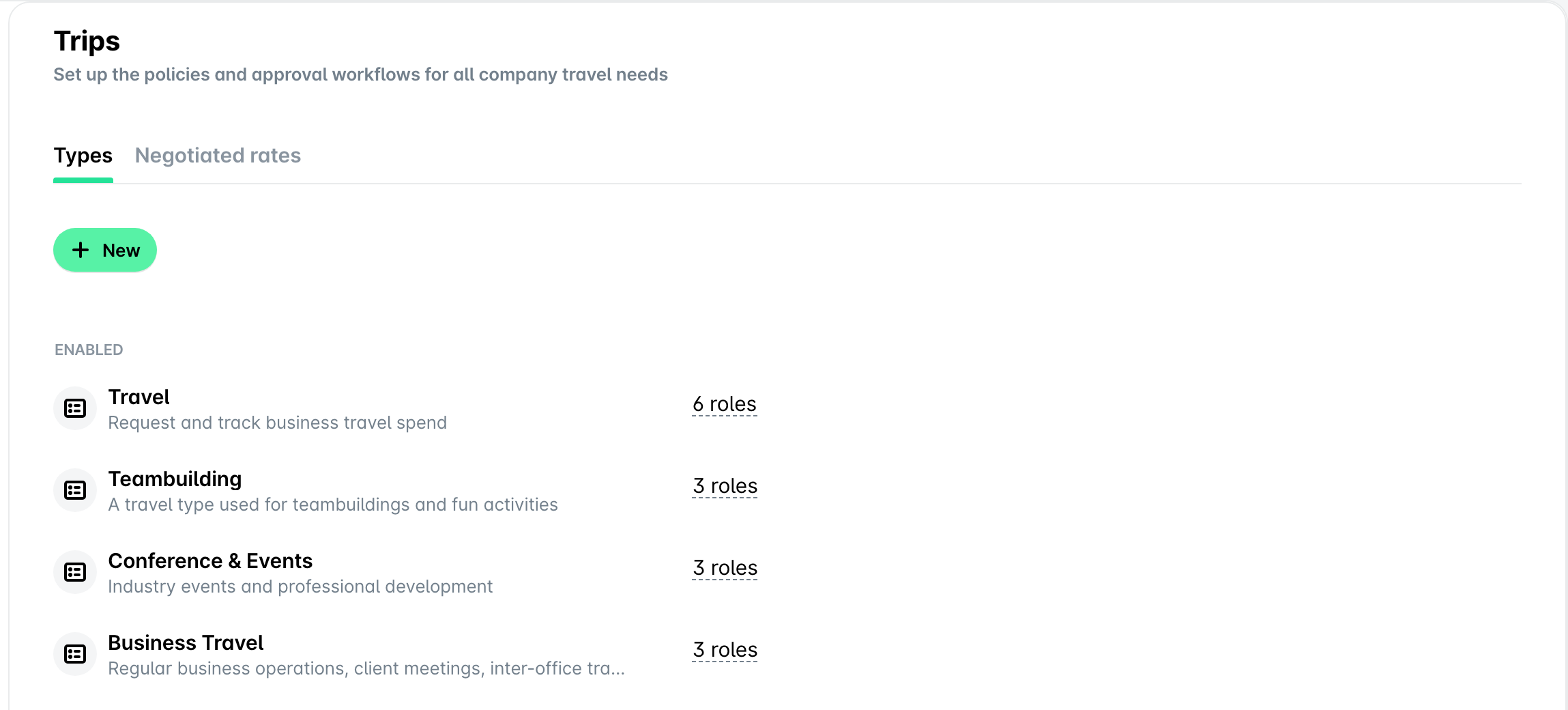
To view the trip types set up for your company, go to Settings > Trips > Types. For each type, you can see its name, description, and the roles that can use it.
Useful resources