To be able to link your Main Cards in Payhawk and issue virtual American Express Cards through the system, you need to first allow the two systems to connect.
For the terms and conventions on American Express Cards and Cardholders applied across Payhawk's help desk, refer to the guidelines section.
Connecting the two systems
To authenticate American Express with Payhawk:
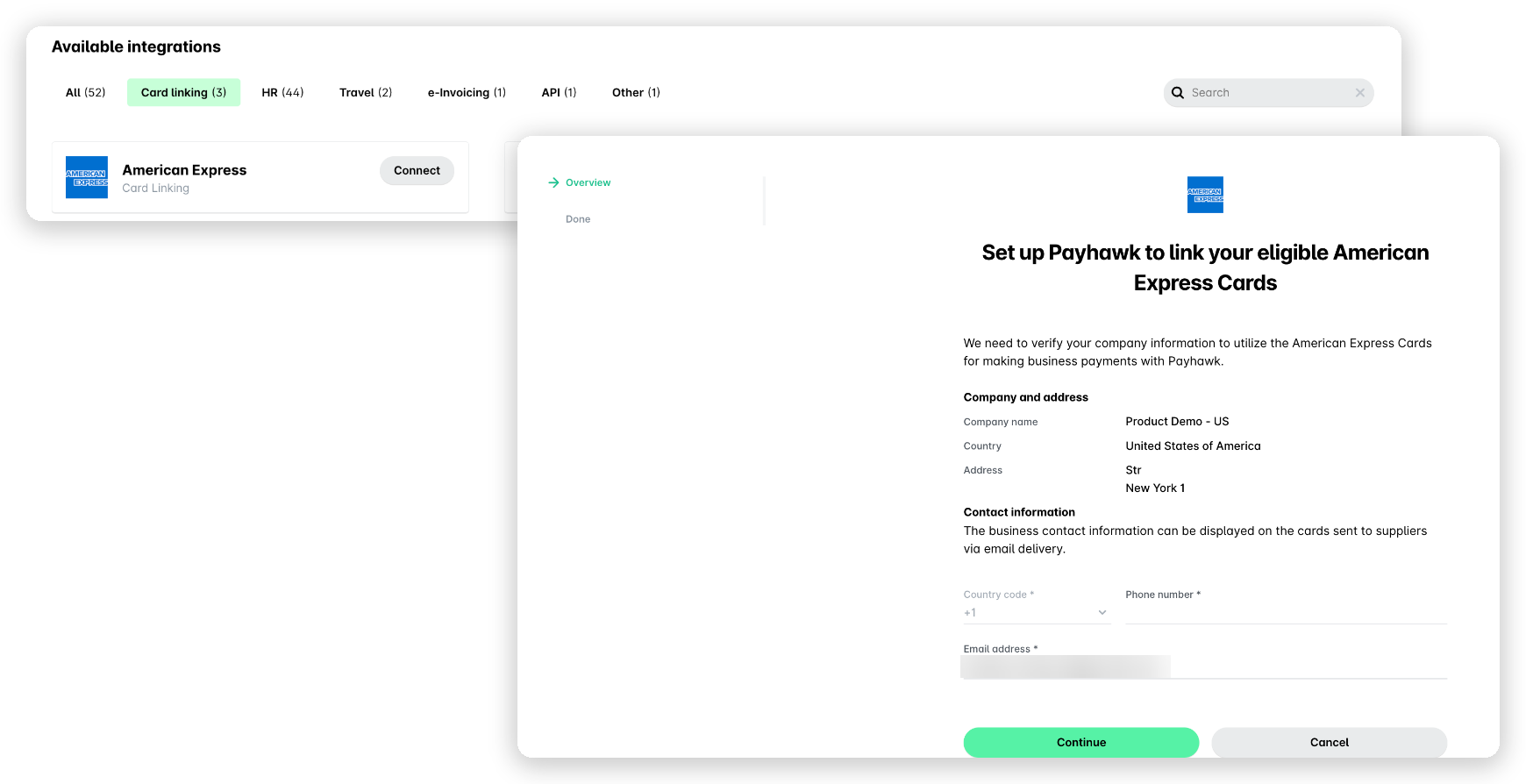
In the Payhawk Web Portal, go to the Settings > Integrations > Available integrations > Card linking tab.
In the American Express field, click on Connect.
On the page that opens, fill in the required information about your company. Click on Continue.
When the setup is done, click on the Link your first card button to start linking your Main Cards.
Disconnecting American Express from Payhawk
Disconnecting American Express from the Payhawk system will not close any linked or virtual American Express Cards in Payhawk. However, you won't be able to link or issue new American Express Cards.
To disconnect Payhawk from American Express:
In the Payhawk Web Portal, go to Settings > Integrations.
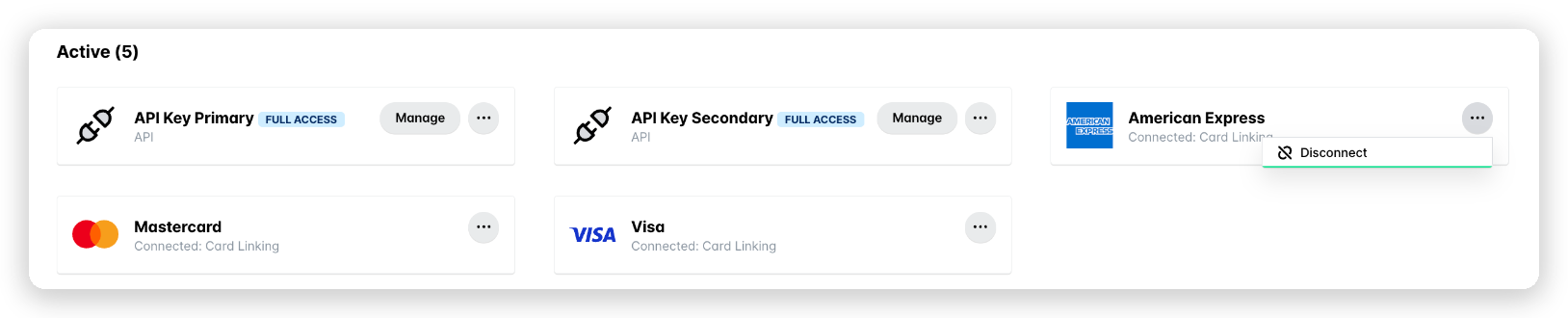
In the Active section, open the three-dot menu of American Express and select Disconnect.
In the dialog that opens, click on Disconnect to confirm your choice.
Useful resources