Payhawk supports direct integration to Exact Online, providing you with the flexibility to effortlessly export and sync your expenses between the two systems.
For more information, see the article about exported data between Payhawk and Exact Online.
Initial interaction between Payhawk and Exact Online
By connecting to your Exact Online subsidiary, you allow Payhawk to perform the following:
Sync your Chart of accounts, VAT Rates, Cost Centers, Cost Units, Projects, and Departments.
Create a bank account in Exact Online for each of your active currencies.
Create Payhawk General and Fees accounts.
Sync your Payhawk and Exact Online balances from a specific point in time.
Automatically push expenses and payments in real time.
Prerequisites
Before you connect Payhawk to Exact Online, make sure you have:
Payhawk Administrator rights.
Administrator rights for Exact Online.
Connecting to Exact Online
To start connecting your Payhawk account to Exact Online, follow the steps:
Open the app switcher in the top-left corner and go to Settings > Integrations.
Under Available integrations, find Exact Online and click on Connect.
On the next screen, click Continue.
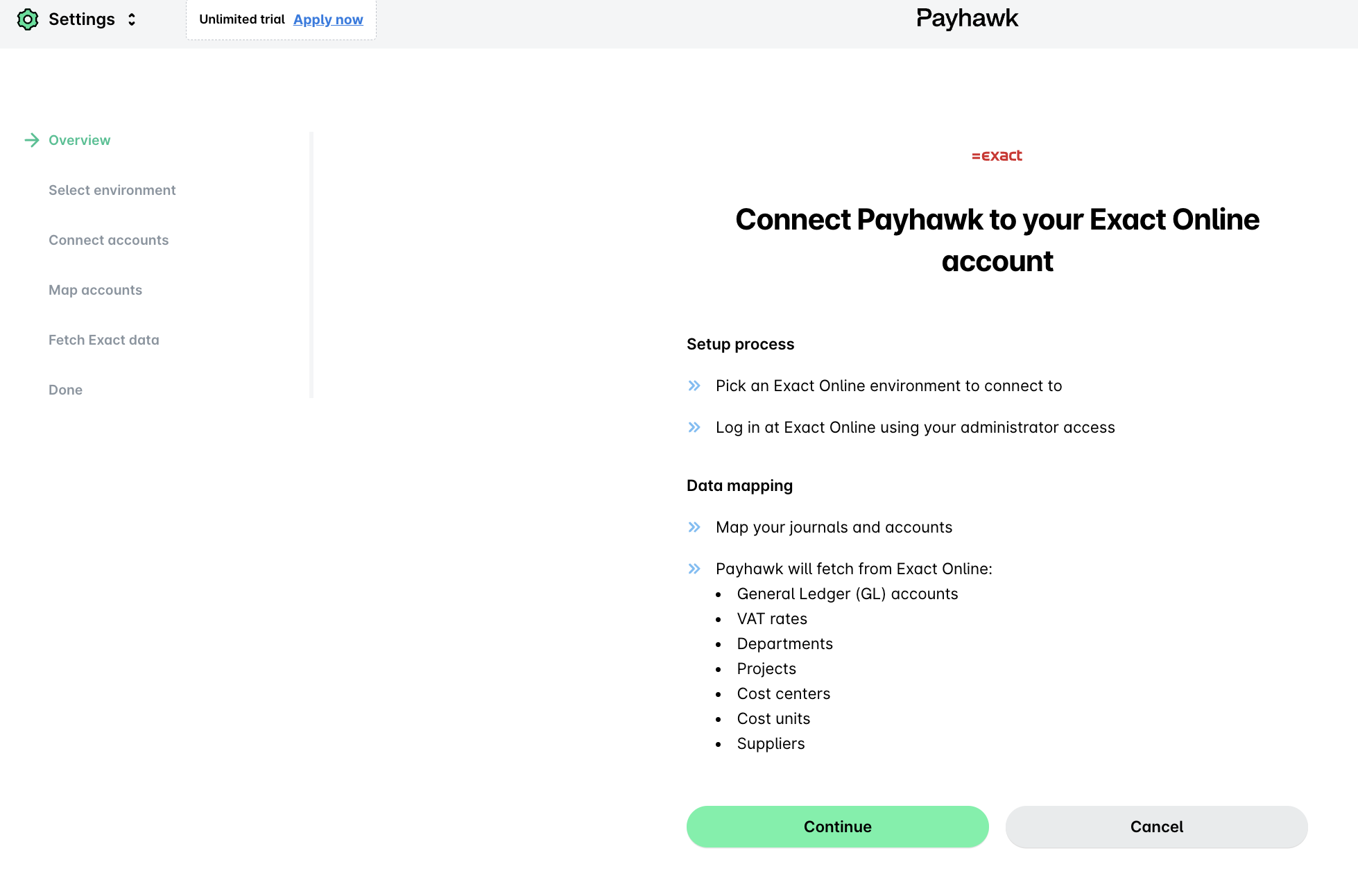
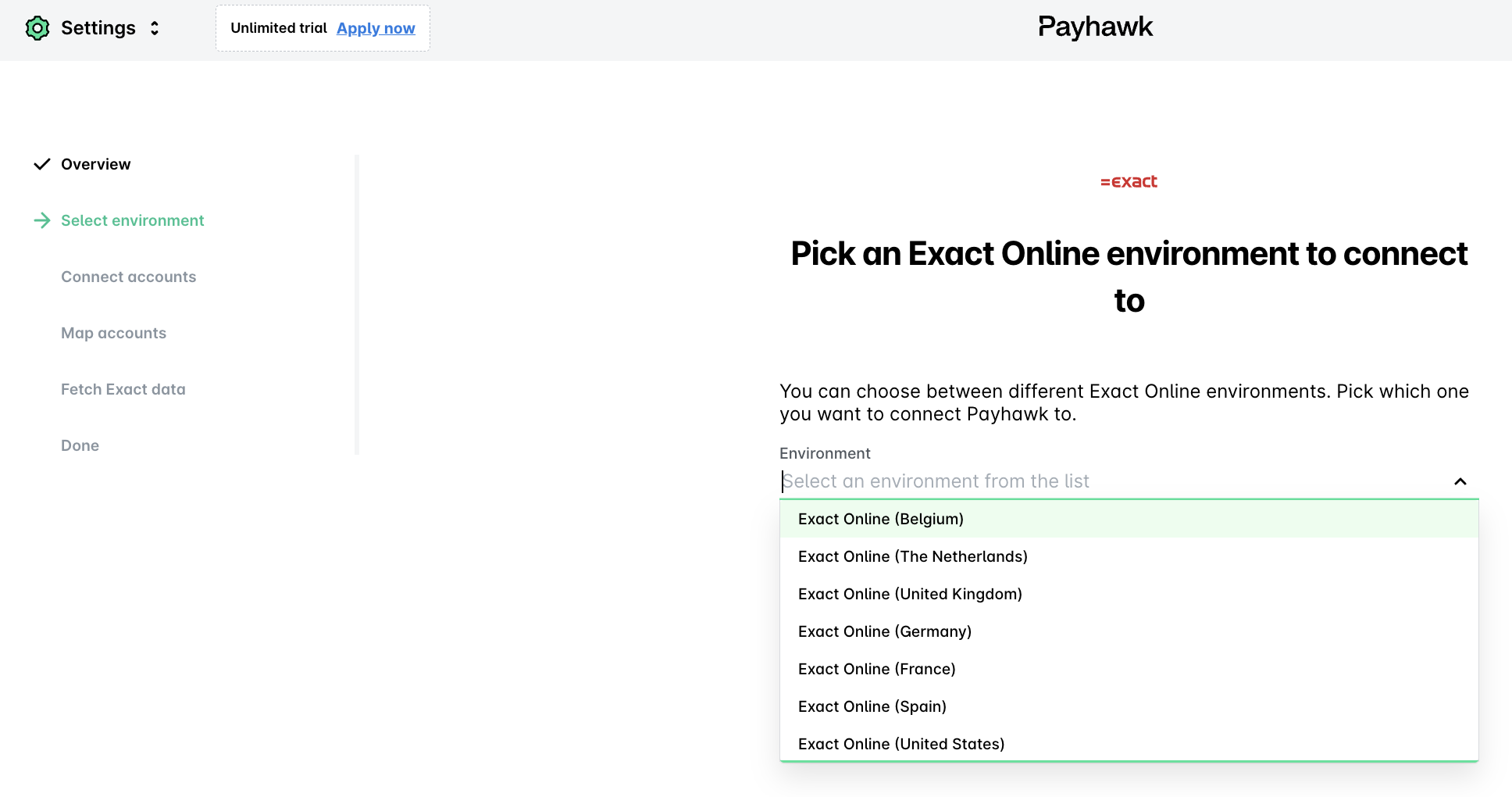
Select to which environment you want to connect. Payhawk integrates to all Exact Online environments.
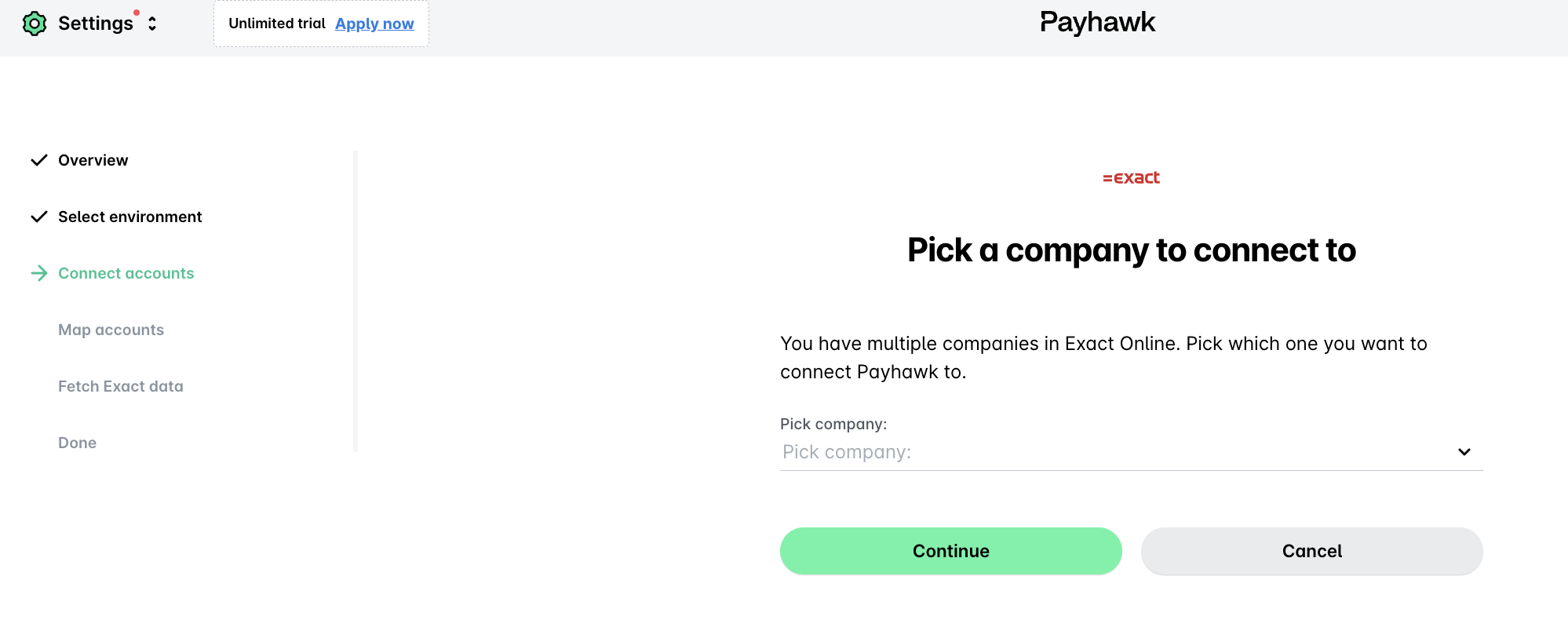
After you've granted Payhawk access to Exact Online, select the company to which you want to connect.
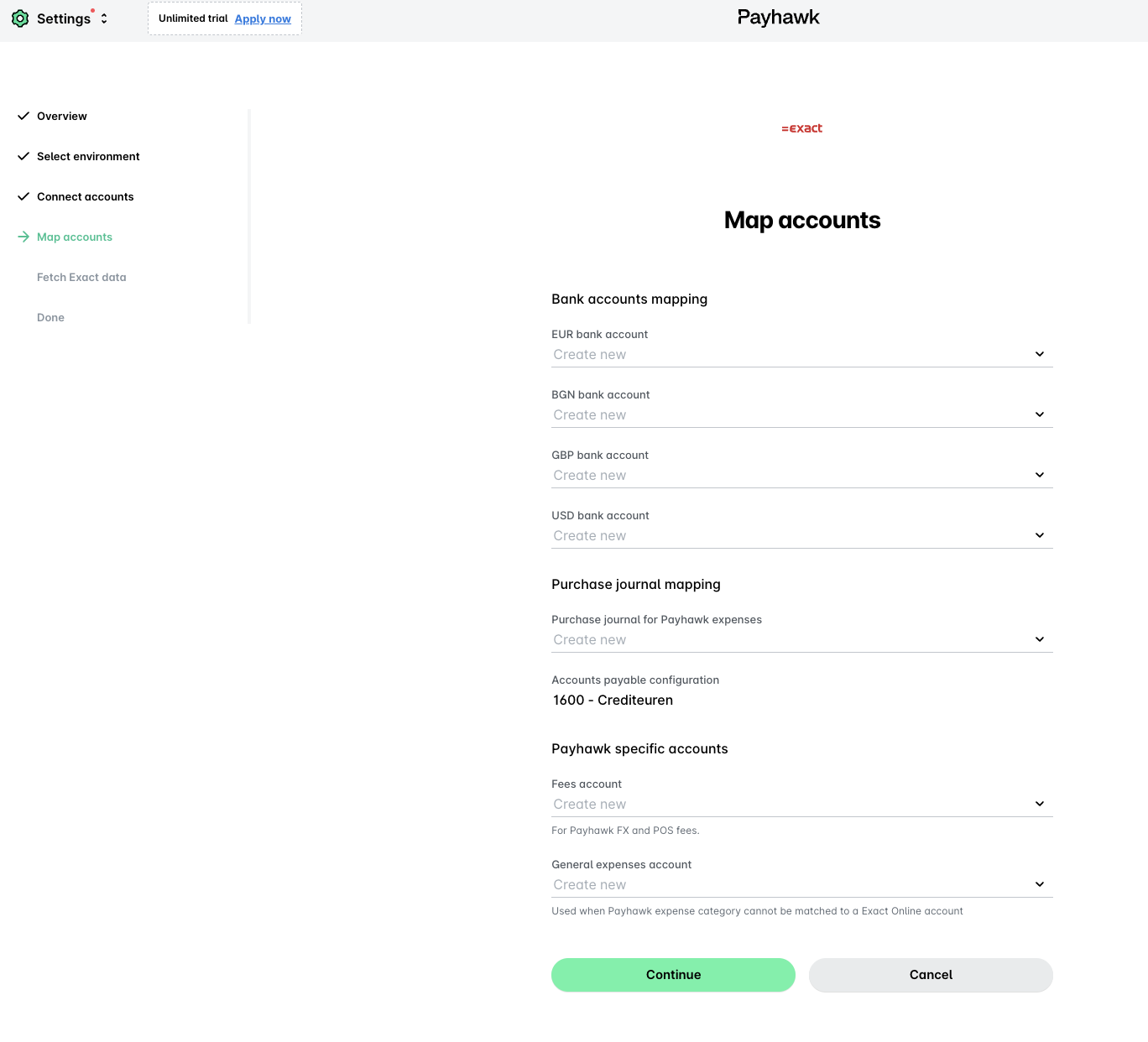
In the Map accounts dialog, set up the following configurations:
Select which purchase journal you'd want to use.
Select a bank journal for each Payhawk bank account.
Select which account will be used for FX & ATM Fees.
Note that Payhawk creates a Payhawk General account, which is used whenever mapping cannot be performed.
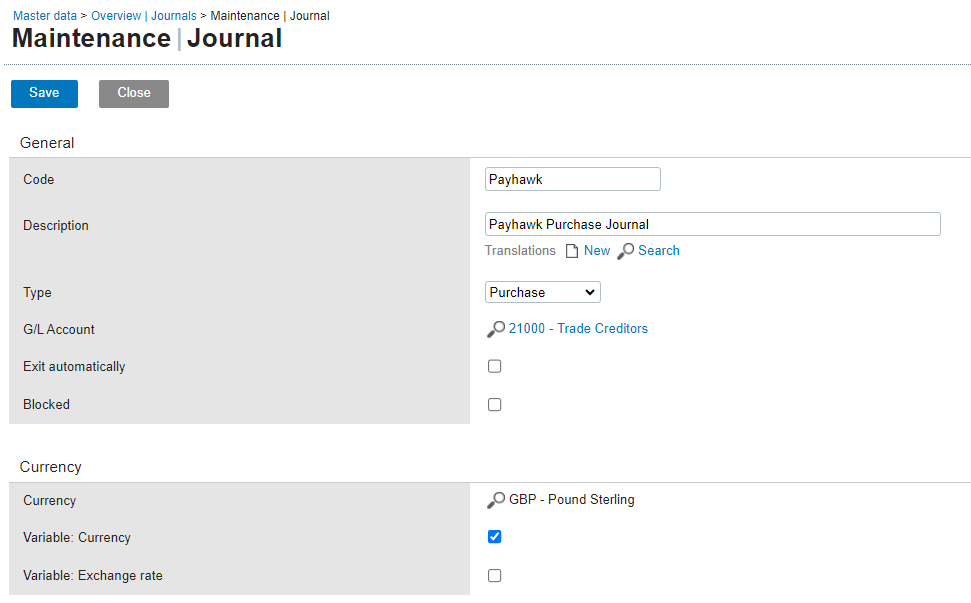
Exporting expenses in a currency other than the base one requires you to enable the Variable: Currency multi-currency feature for the purchase journal that was selected during the setup of the integration.
Notes on configuration
The integration setup from the last time Payhawk and your accounting system were connected will be automatically re-applied the next time you connect.
You can edit the current integration setup without disconnecting from your accounting system. In Payhawk, go to Settings > Integrations, click on the three-dot menu of the desired ERP system, and select Edit configuration.
Next steps