Payhawk supports user-friendly options for mapping the chart of accounts in Exact Online with the respective accounting categories in Payhawk.
When you connect to your Exact Online organization for the first time, Payhawk automatically pulls the available chart of accounts. Later, you can manually update them at any time.
Expenses with categories that are not mapped to the Exact Online chart of accounts will be automatically mapped to the Payhawk General expense account which Payhawk creates in Exact Online.
To synchronize your categories from Exact Online with the corresponding Payhawk categories, follow the steps:
In the Payhawk Web Portal, go to Settings > Fields library.
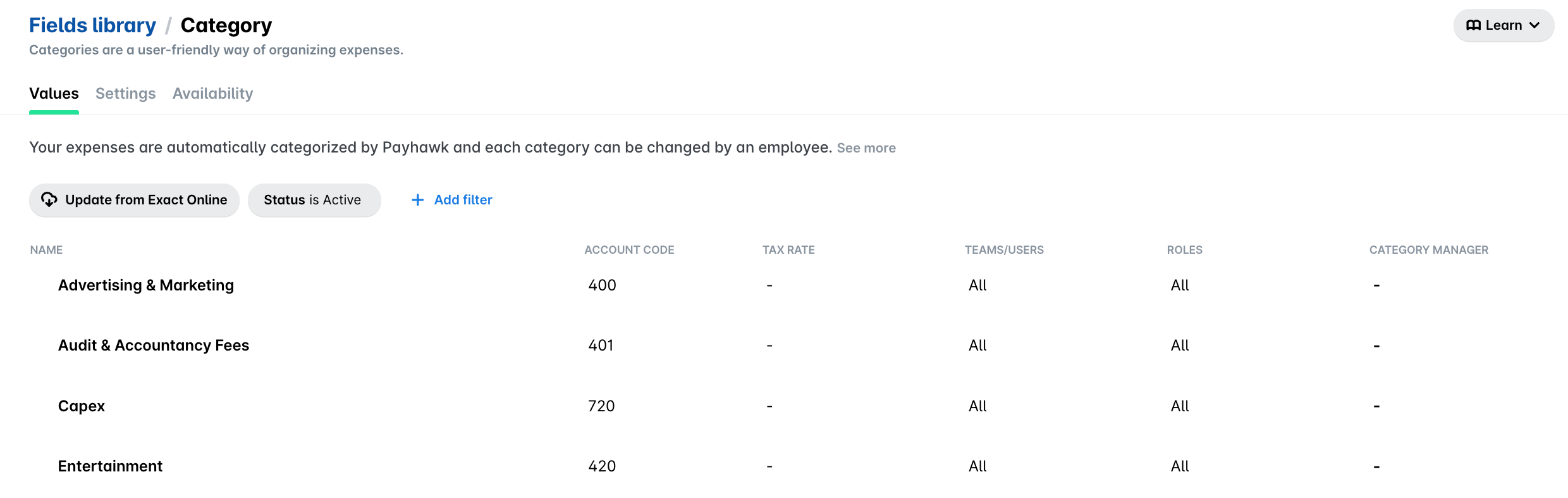
Click on Category.
Click on the Update from Exact Online button.
Payhawk lists your categories with the account codes from your Exact Online chart of accounts in the Account code column.
To add a category, delete one, or change its account code, make the change in Exact Online and click on Update from Exact Online again.
Next steps