Payhawk Administrators can connect Payhawk to Mastercard, allowing the platform to receive authorization and settlement data for cardholder transactions. This connection enables seamless transaction data synchronization and management within Payhawk.
The recommended way
Connecting the two systems happens automatically when a Payhawk Administrator at your company links the first corporate Mastercard card to Payhawk.
Only Payhawk Administrators can perform this initial linking. To do so, go to the Payhawk Dashboard, click on Link a card, and follow the prompts. Alternatively, you can open the app switcher in the top-left corner, go to Cards > Linked cards, and click on New to link the first corporate card.
Once the first Mastercard card has been linked by a Payhawk Administrator, all cardholders at the company can individually link their own Mastercard cards from Cards > Linked cards.
Connecting the two systems
To explicitly authenticate Mastercard with Payhawk from Settings > Integrations is also supported:
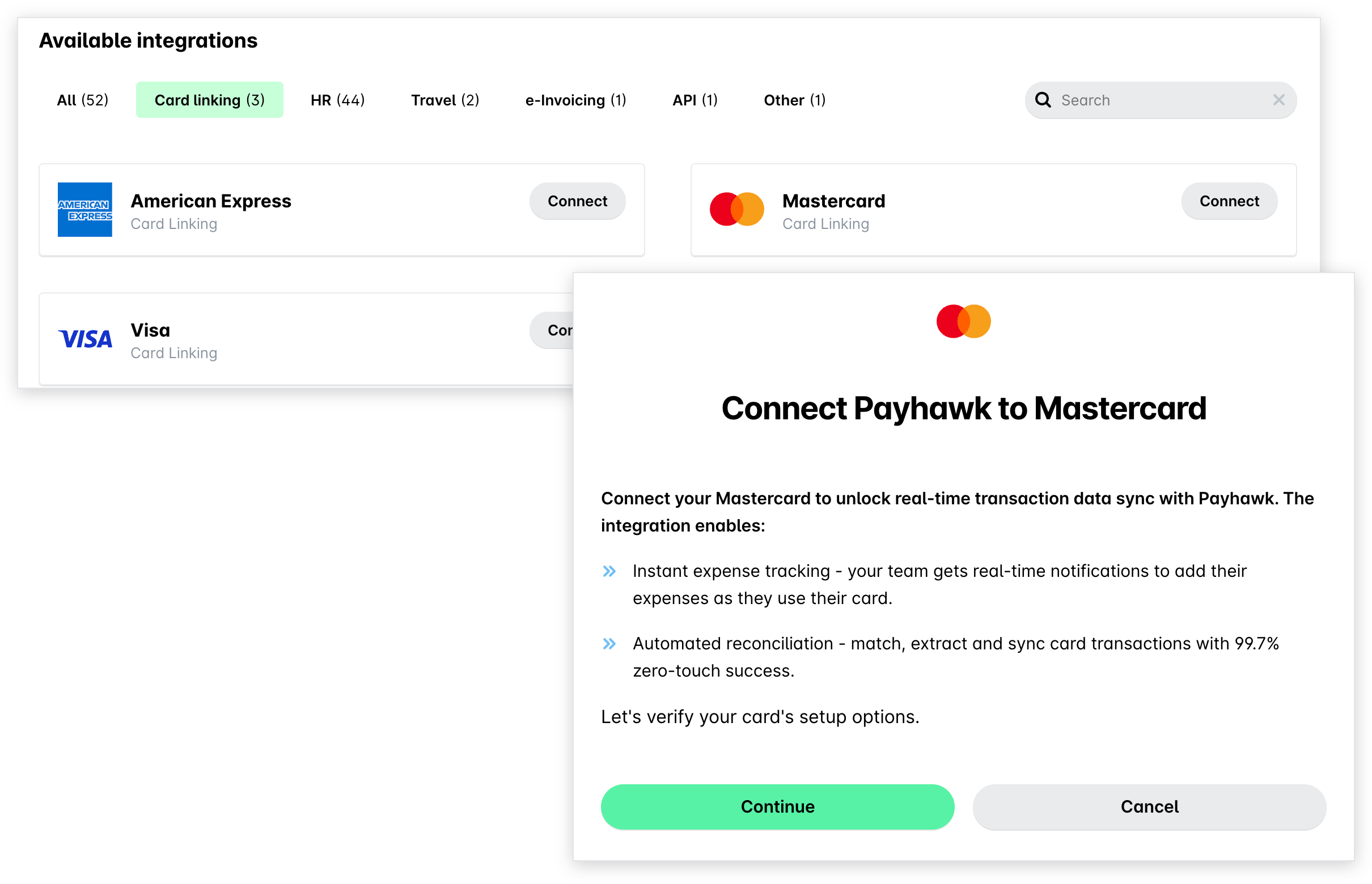
In the Payhawk Web Portal, open the app switcher in the top-left corner and go to the Settings > Integrations > Available integrations > Card linking tab.
In the Mastercard field, click on Connect and, then, on Continue.
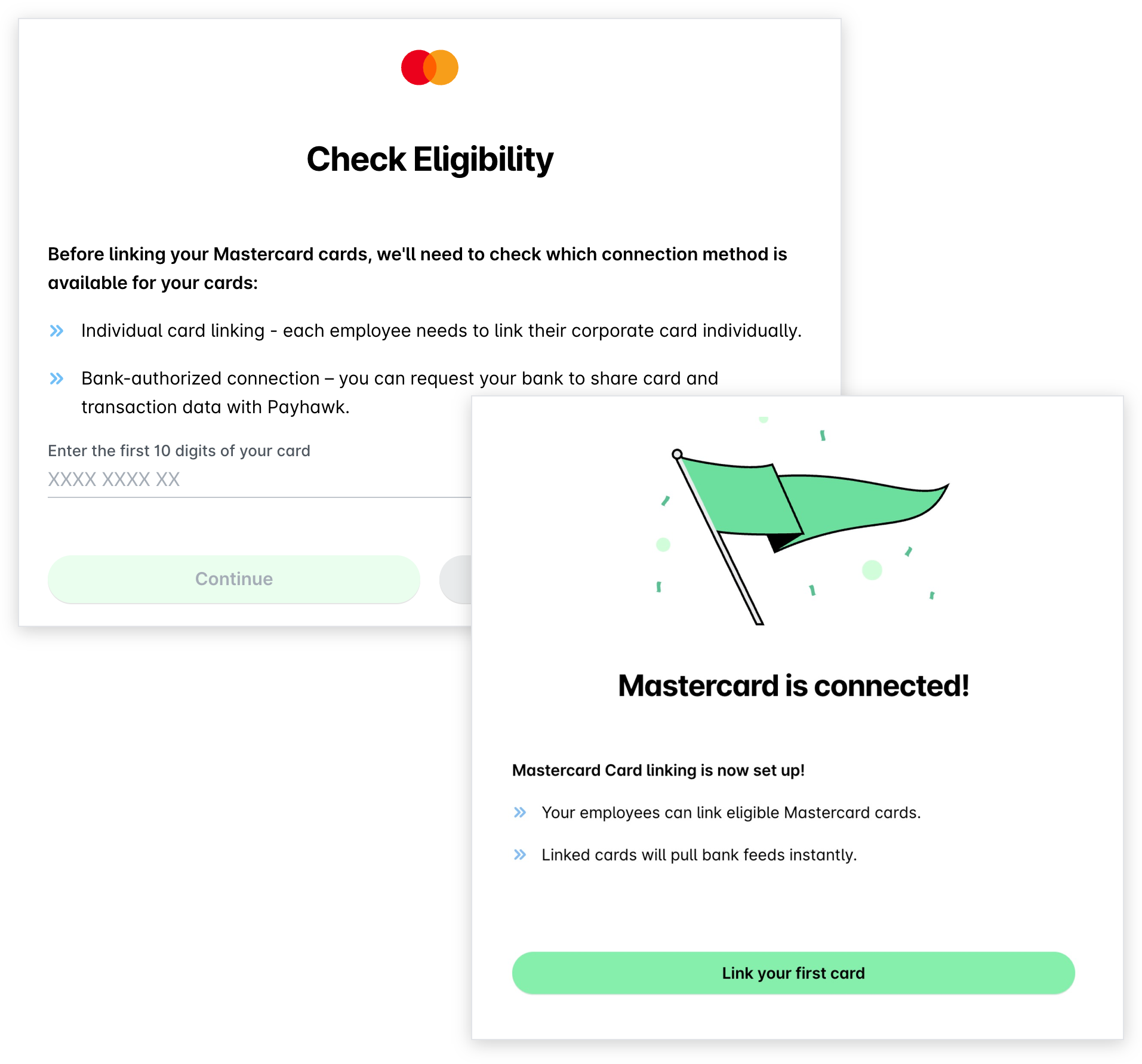
On the Check Eligibility screen, enter the first 10 digits of your card and click on Continue. If your BIN code is eligible for individual card linking, the success screen will load. Click on Link your first card.
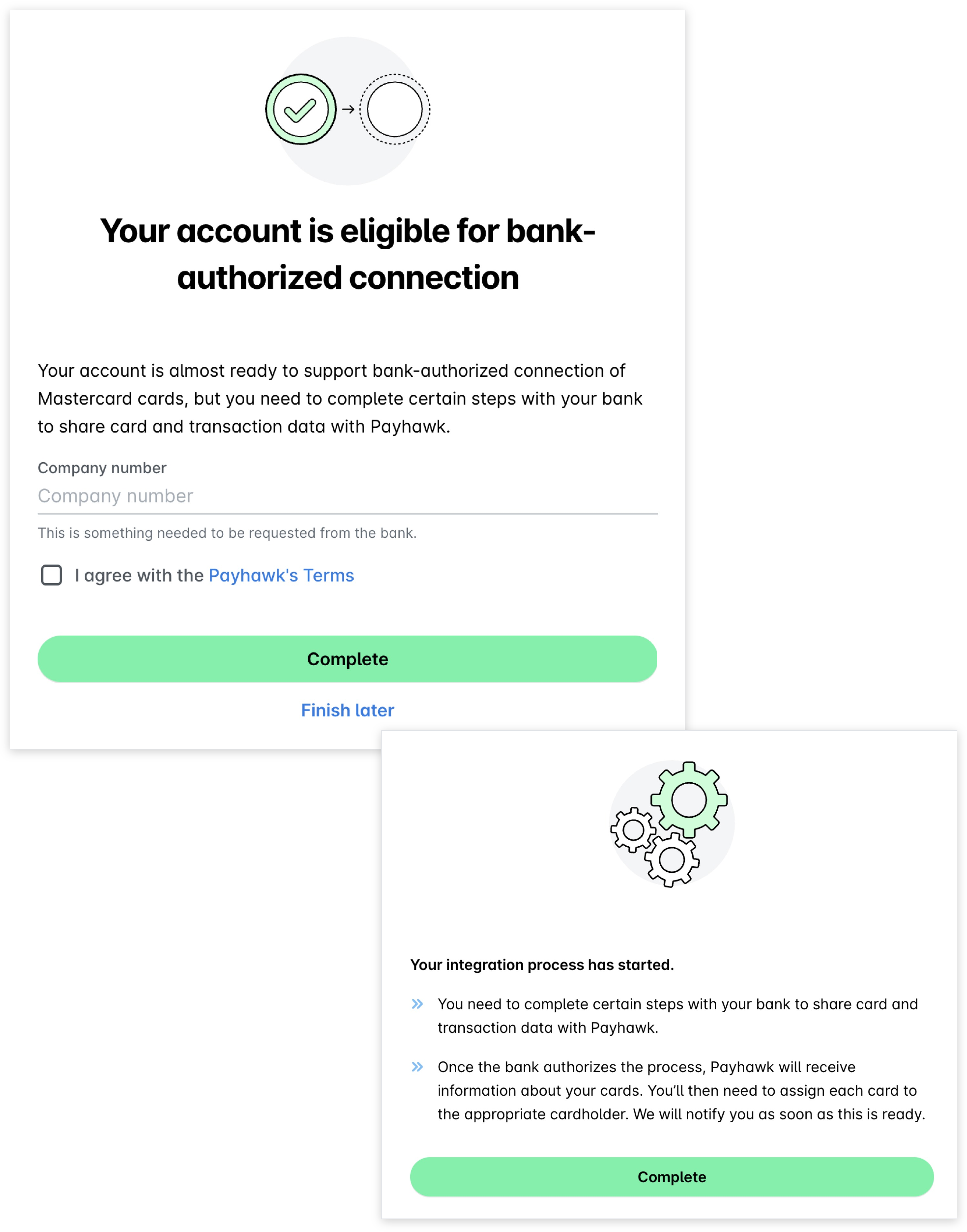
If your BIN is eligible for bulk card linking:
On the next screen, select the checkbox and click on Complete.
On the screen confirming that your integration process has started, click on Complete.
Disconnecting Mastercard from Payhawk
Disconnecting Mastercard from the Payhawk system will not close any linked Mastercard cards in Payhawk. However, you won't be able to link new Mastercard cards.
To disconnect Payhawk from Mastercard:
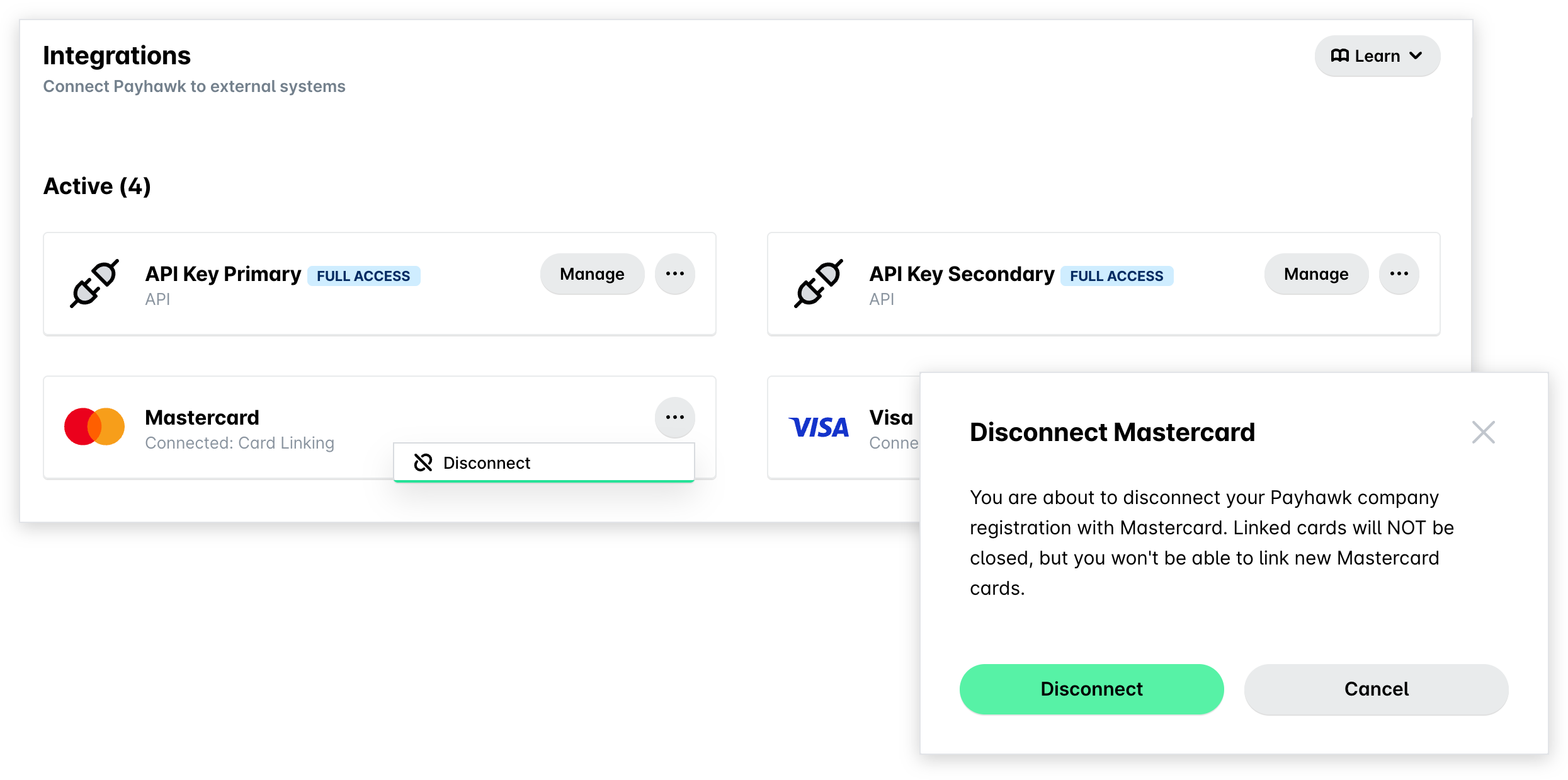
Open the app switcher in the top-left corner and go to Settings > Integrations > Active tab.
In the Mastercard field, click on the three-dot menu and select Disconnect.
In the dialog that opens, click on Disconnect to confirm your choice.
Useful resources