Personio is an all-in-one, cloud-based Human Resource Information System (HRIS) designed to help small and medium-sized companies manage the entire employee lifecycle - from recruitment and onboarding to payroll and performance management.
Payhawk supports integration with Personio through utilizing the Merge API.
To successfully connect Payhawk with your HR system, first review the Payhawk connection recommendations and the Merge setup guide to cover all requirements.
Connecting to Personio
To connect Payhawk to the Personio HR Information System:
Go to Settings > Integrations > Available integrations > HR.
Go to the Personio card and click on Connect.
Select the checkbox and click on Continue.
In the dialog that opens, click on I am an admin. Then, on Next.
Provide the credentials required to connect to Personio and click on Next.
If you have trouble getting the necessary data to continue, click on the Stuck? See detailed instructions link with screenshots link to access the Merge authorization guide for the HR system.
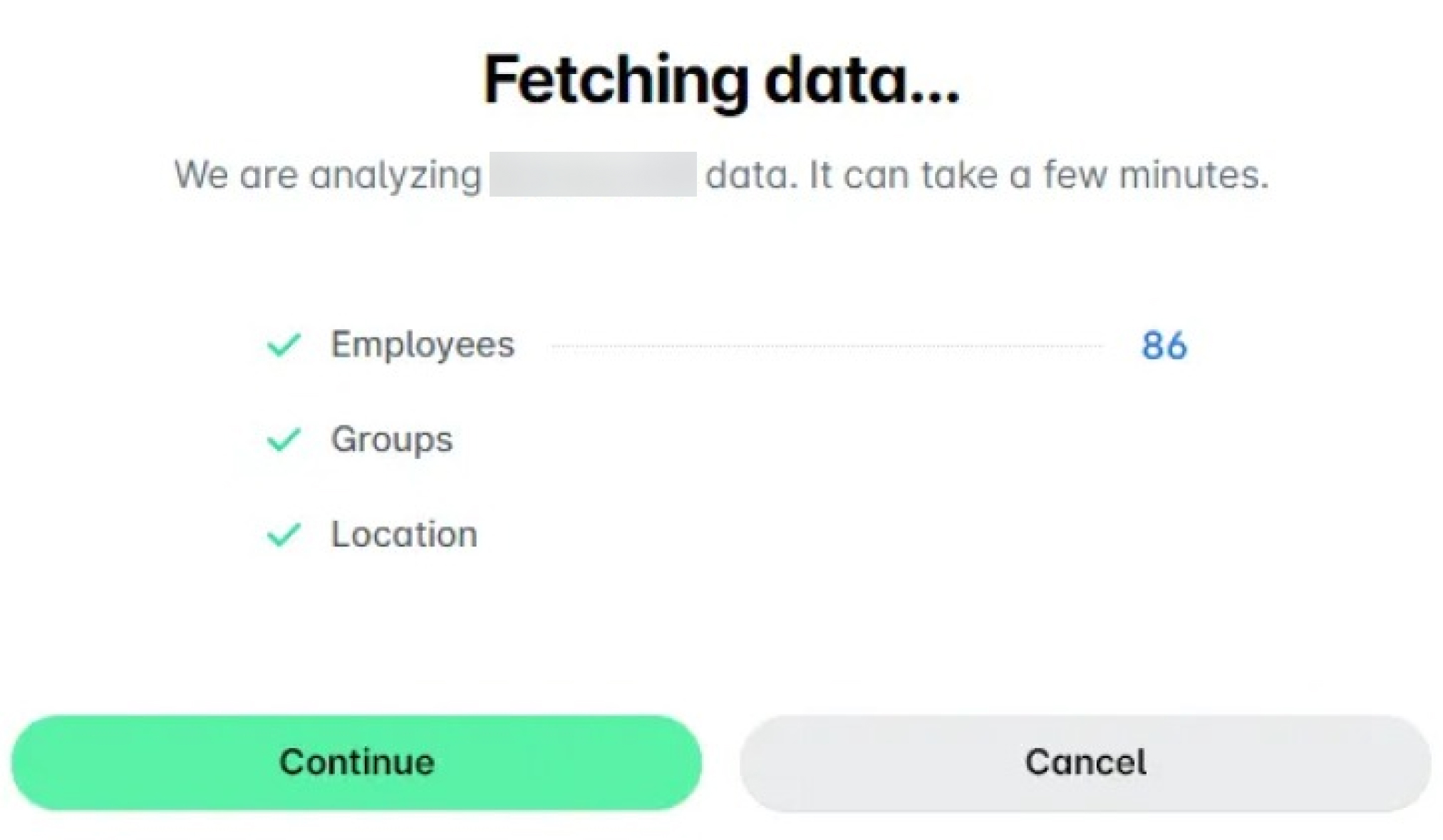
As a result, Payhawk will connect and fetch data from your HR system. Once the process is complete, you can review the data that will be synced between the systems. Click on Continue.
Complete the process by clicking on Done. As a result, employees will be automatically retrieved into the Payhawk system and your active Personio integration will now be visible in the Settings > Integrations > Active section.
Choosing who joins Payhawk
With the classic connection, Payhawk syncs every employee whose Personio status is Active. The classic connection can't filter employees by employment type or any other attribute. The Personio API credentials limit which employee attributes Payhawk can read, not which employees Payhawk syncs.
With the new HR system connection (currently in Payhawk Labs), you can choose who joins Payhawk in the Who joins Payhawk step. For more information, see the article on connecting your HR system with Payhawk.
If you connect Personio on the group level, you can also exclude employees by leaving their HR value unmapped. For more information, see the article on connecting the group to your HR system.
Disconnecting from Personio
To disconnect from your active Personio integration:
Go to the Settings > Integrations > Active section and find Personio.
Click on its three-dot menu and select Disconnect.