Your card may have been stolen or you may have lost it. Or, you may suspect that someone has used your card for a fraudulent transaction or you may not be able to recognize a payment that's gone out of your card.
In such cases, you can freeze (block) your card so that no further payments can be made with it until you unfreeze (unblock) it.
If your PIN has been blocked for any reason, you will no longer be able to freeze or unfreeze your card.
If you are not able to block your card, contact a Payhawk administrator at your company to do it on your behalf.
Freezing your Payhawk card in the app
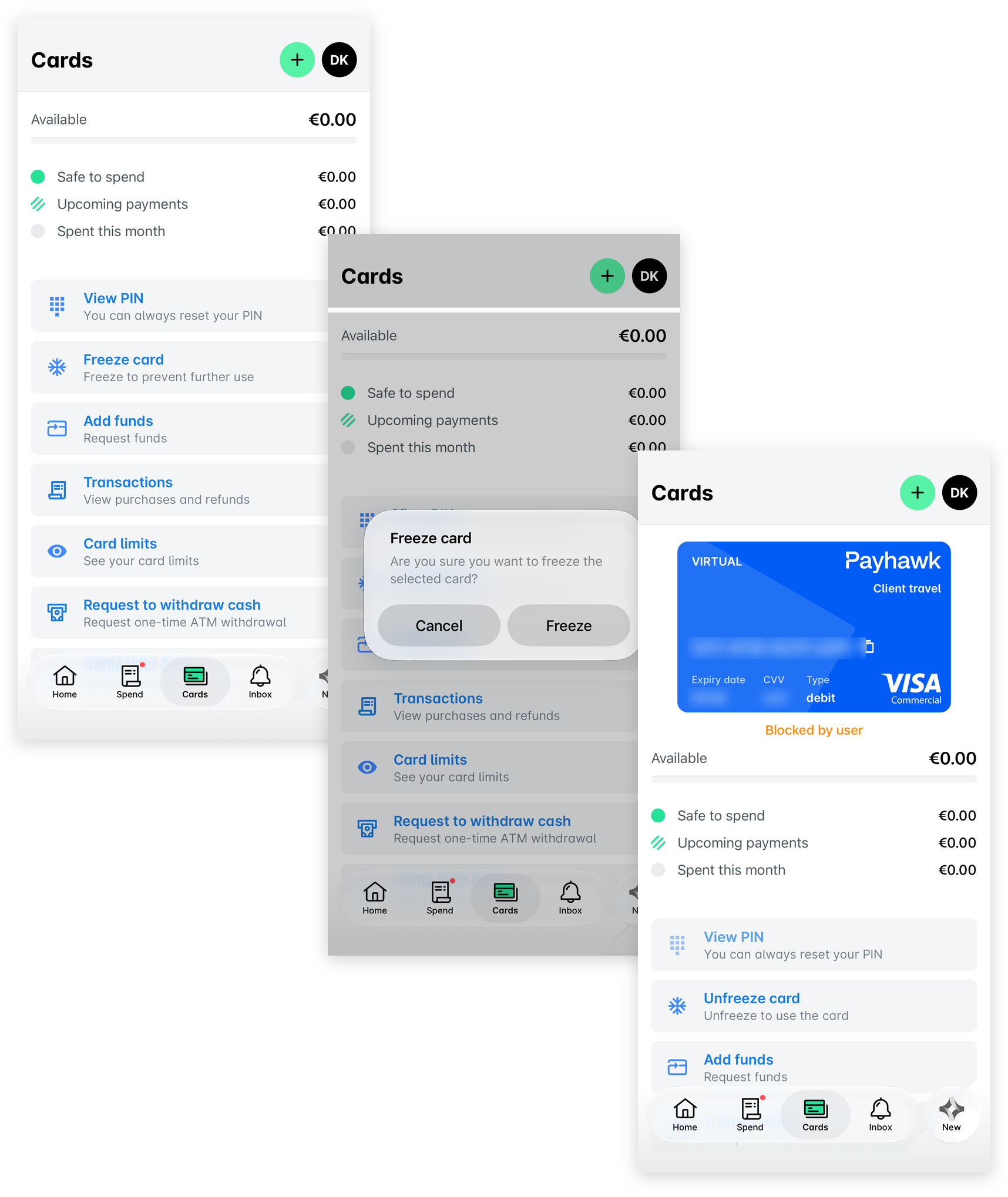
To freeze your Payhawk corporate card from the Payhawk mobile app:
In the Payhawk mobile app, tap Cards and authenticate.
Select the Freeze card option.
In the confirmation dialog, tap on Freeze.
As a result, the status of your card will be updated to Blocked by user.
Unfreezing your Payhawk card in the app
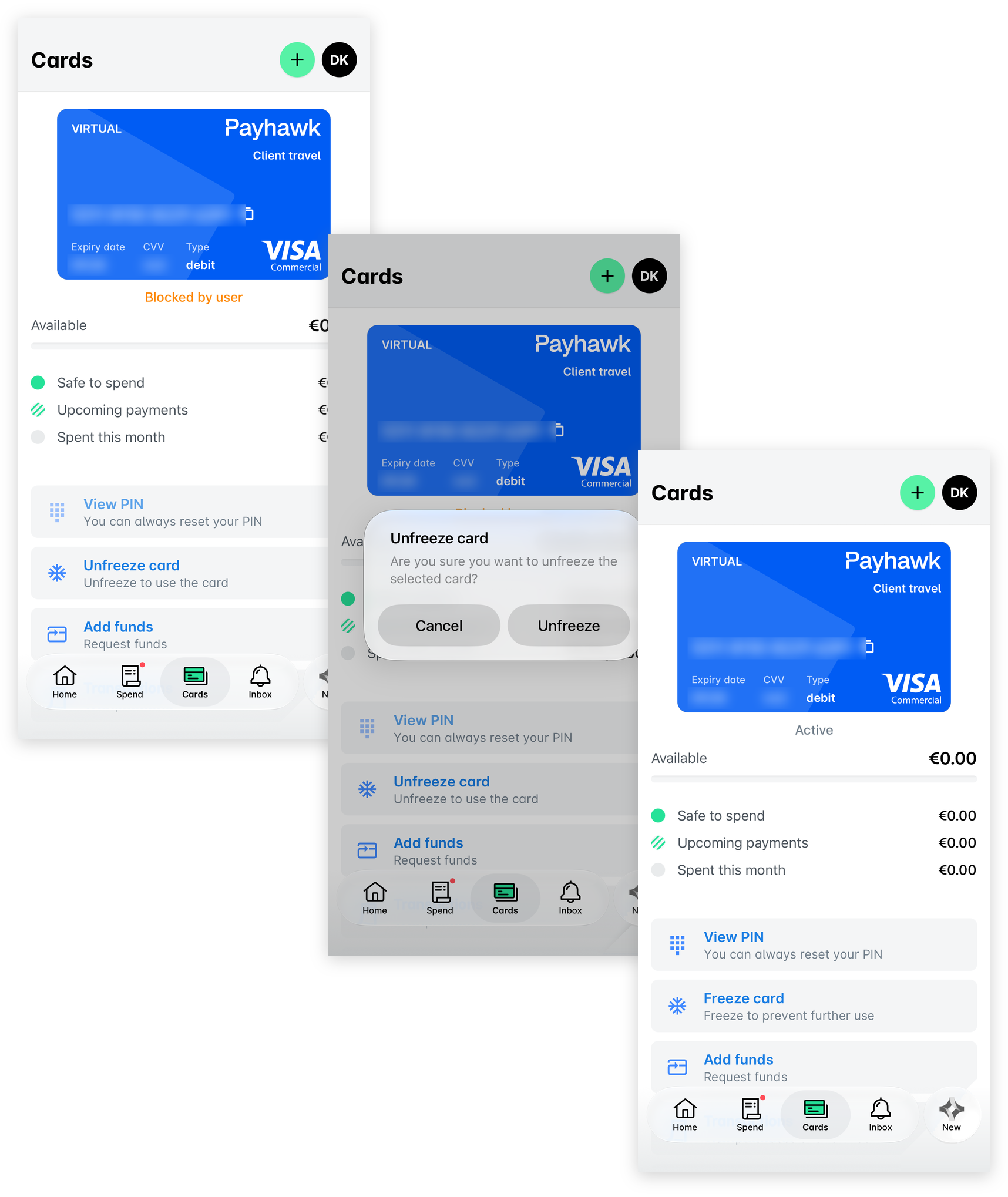
To unfreeze your Payhawk corporate card from the Payhawk mobile app:
In the Payhawk mobile app, tap Cards and authenticate.
Select the Unfreeze card option.
In the confirmation dialog, tap on Unfreeze.
As a result, the status of your card will be updated to Active.
Freezing your Payhawk card in the portal
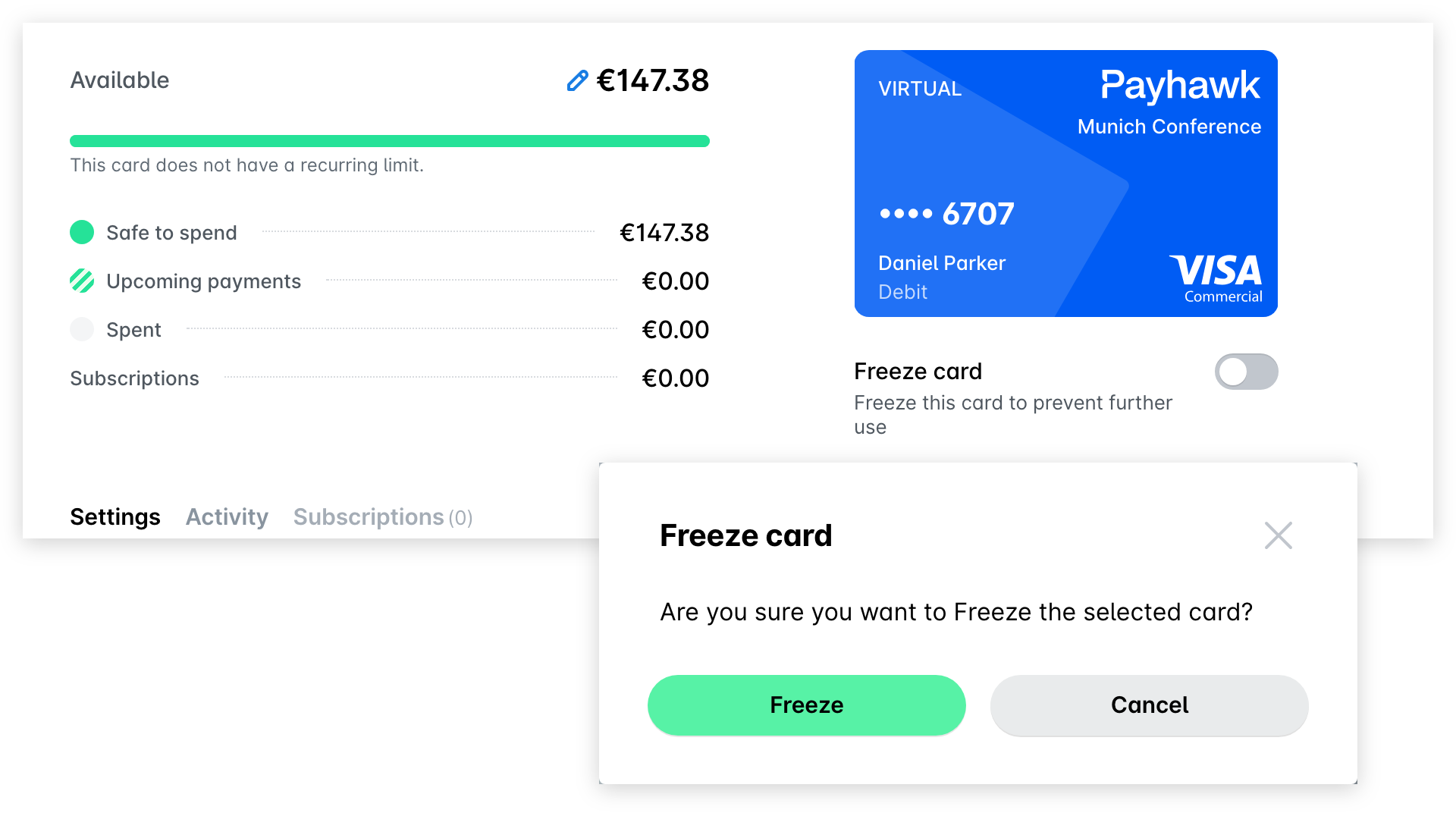
To freeze your Payhawk corporate card from the Payhawk web portal:
In the Payhawk web portal, go to Cards.
Select the desired card by clicking on it.
Switch on the Freeze toggle button.
In the confirmation dialog that opens, click on Freeze. As a result, the toggle button under the card will switch to Unfreeze card.
Unfreezing your Payhawk card in the portal
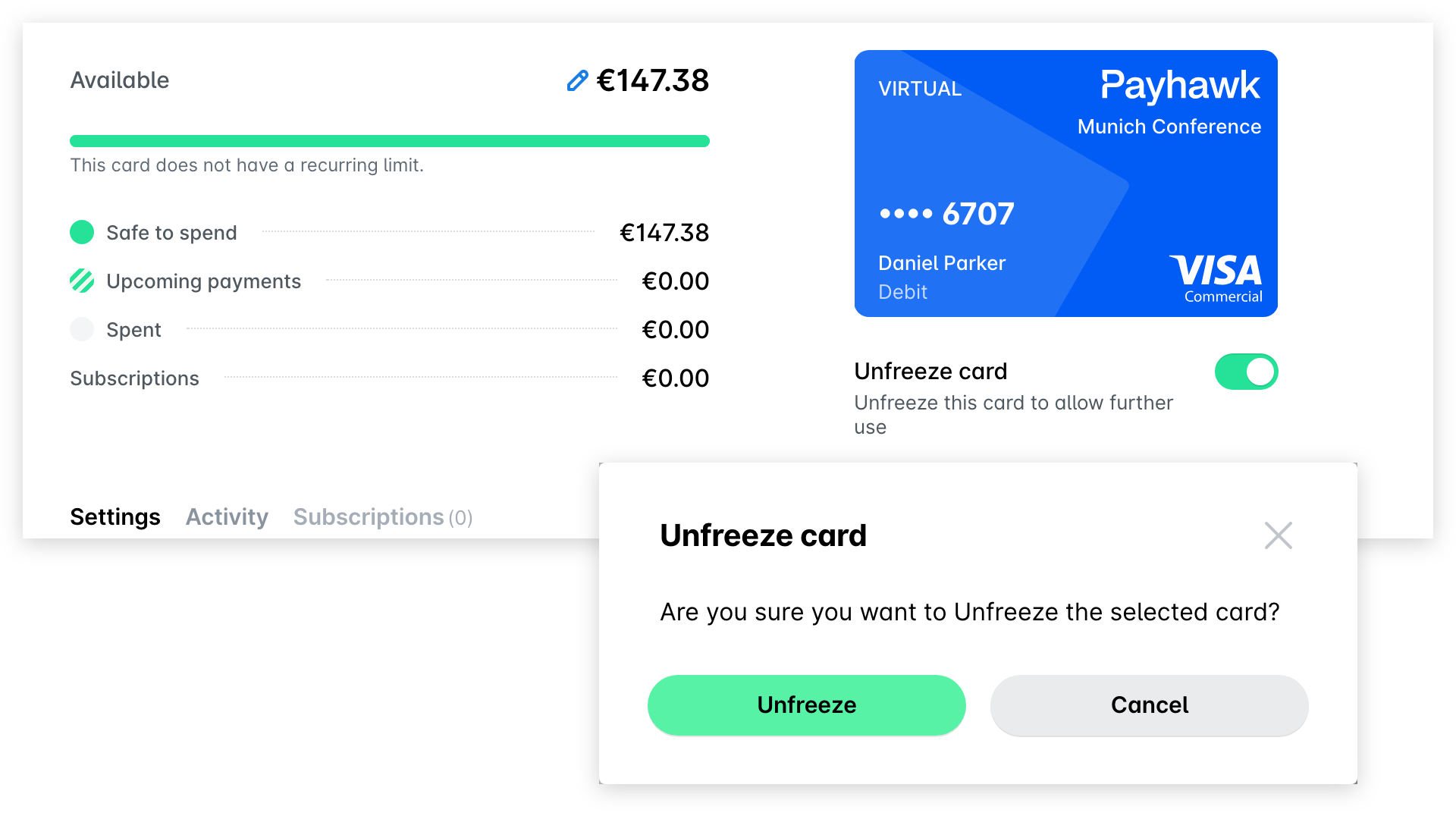
To unfreeze your Payhawk corporate card from the Payhawk web portal:
In the Payhawk web portal, go to Cards.
Select the desired card by clicking on it.
Switch on the Unfreeze toggle button.
In the confirmation dialog that opens, click on Unfreeze. As a result, the toggle button under the card will switch to Freeze card.
Useful resources