To be able to deposit money in your Payhawk accounts over top-ups, you need to link an external bank account to the system first.
Payhawk partners with Yapily and allows you to link external accounts in banks that are part of Yapily's open infrastructure across Europe and the UK. You can also manually add bank accounts that can be used for marking expenses as paid and to download SEPA XML payment run files.
The employee linking your company's bank accounts must have Super Administrator or Super User rights at the respective bank.
Linking bank accounts to Payhawk
Each bank provider delivers their own user experience on logging in and authorizing the linking of the bank account.
To be able to link an external account, the bank has to be supported by Yapily's open banking API. Otherwise, see how to manually add an external account to Payhawk.
To link your bank account to Payhawk:
In the Payhawk Web Portal, open the app switcher in the top-left corner and go to Funds.
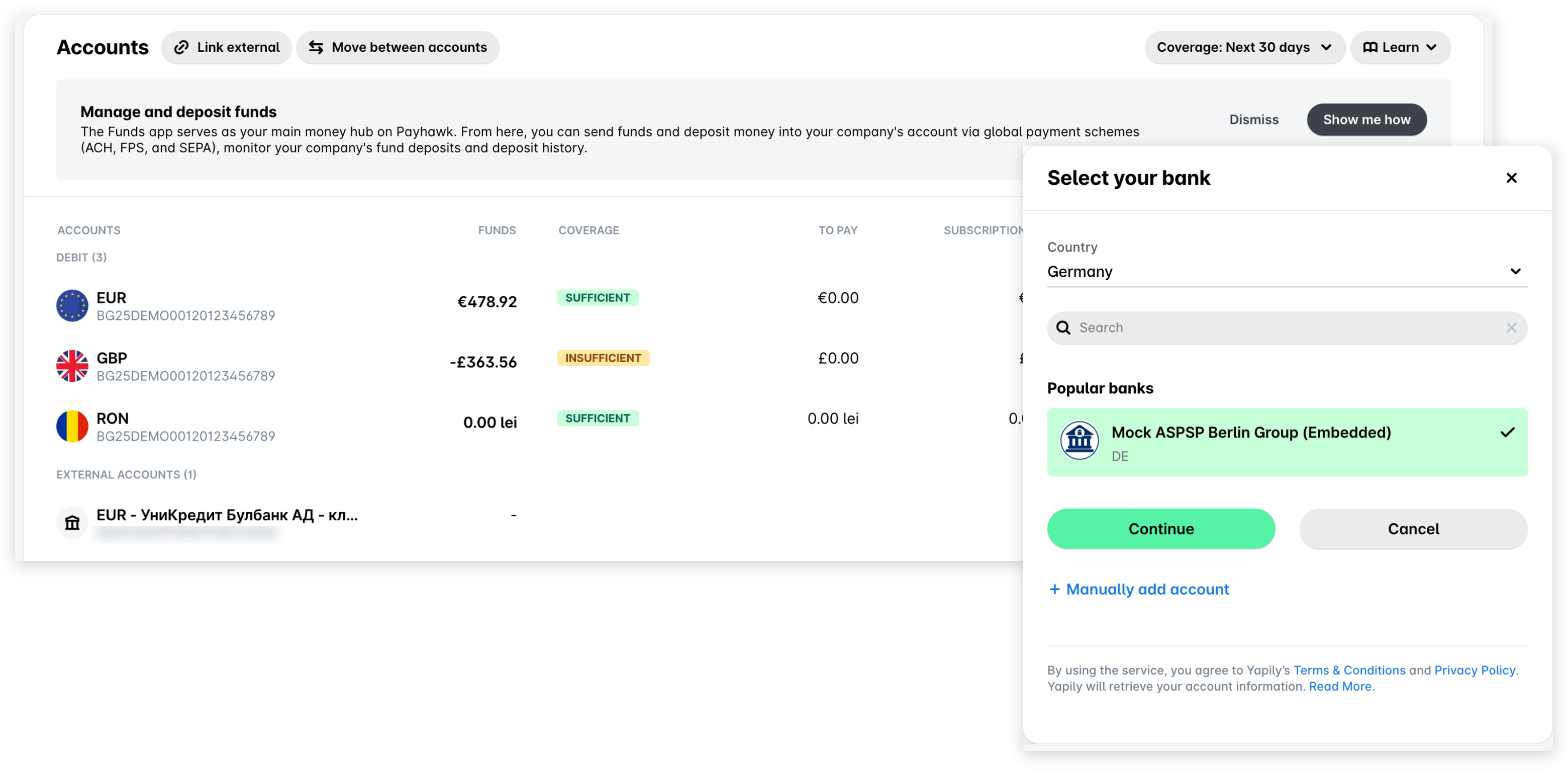
At the top of the page, click on Link external.
In the panel that opens:
Select the country of your bank.
Select or find your bank and click on Continue.
Depending on your bank provider, you'll enter one of the following flows:
You'll be redirected to the website of the selected bank to provide your required login credentials. Follow the instructions.
You'll remain in the Payhawk Web Portal to provide your online banking credentials (username and password) and go through an authentication (for example, SMS code). Follow the instructions.
(Optional) Switch on the toggle if you want to hide the available balance on the linked bank account.
On the success screen, click on Ok. As a result, the linked account will be visible in the EXTERNAL ACCOUNTS section.
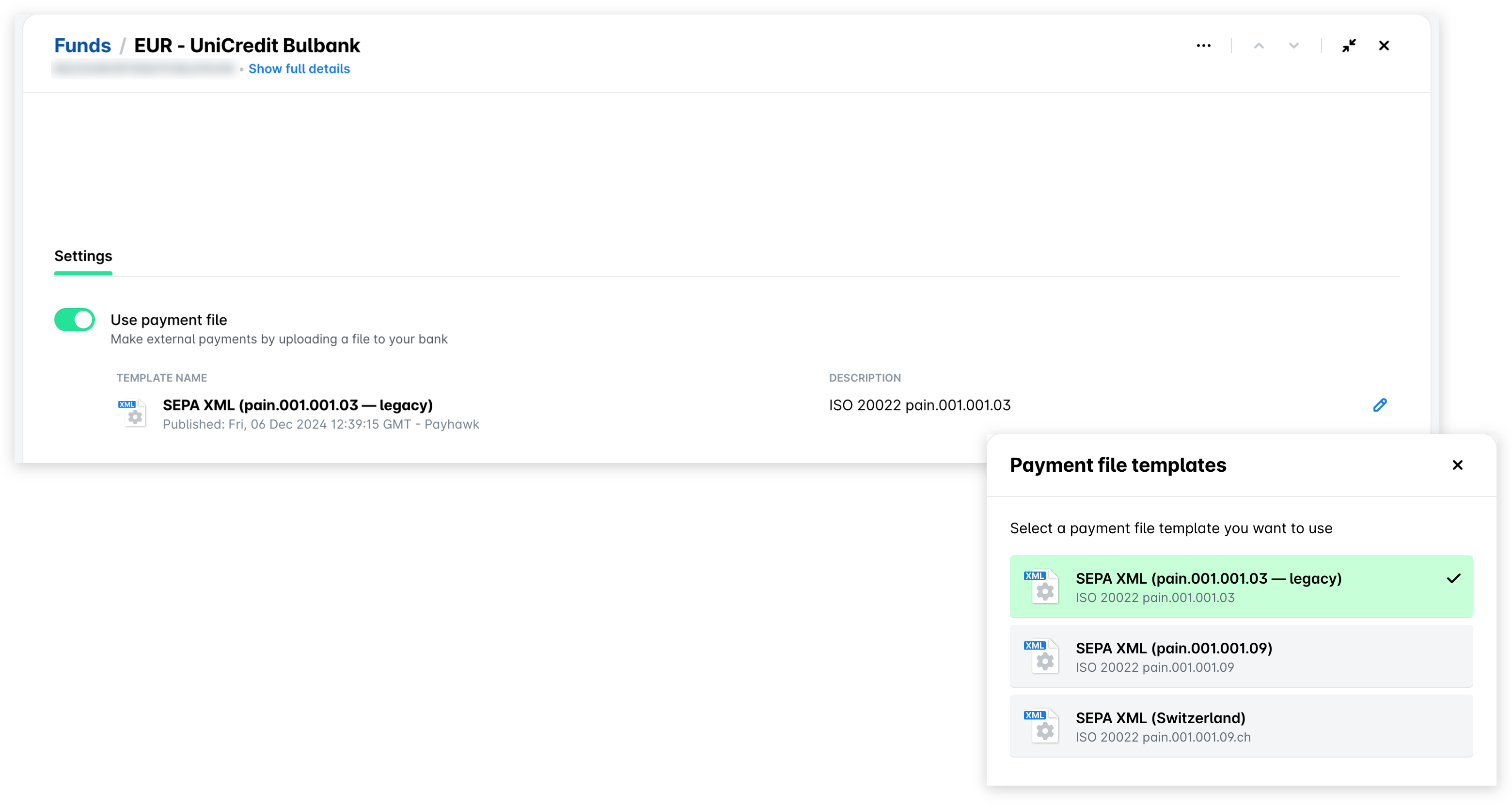
(Optional) Under the Settings tab of the newly linked account, you can enable the usage of payment run files for this bank account when paying expenses outside Payhawk:
Switch on the Use payment file toggle.
In the dialog that opens, select the SEPA XML format.
To edit the format or version of the selected payment run files, click on the Edit (pencil) icon and, in the Payment file templates panel, select the format or version you want to use.
Linking bank accounts from your Payhawk currency accounts
You can link an external bank account to your debit or credit Payhawk account:
Open the app switcher in the top-left corner and go to Funds.
Select the desired currency account and click on + Add funds.
In the panel that opens, click on Link a bank account.
Select the country of your bank and the bank itself. As a result, you'll be redirected to the website of the financial institution. Log in and follow the instructions.
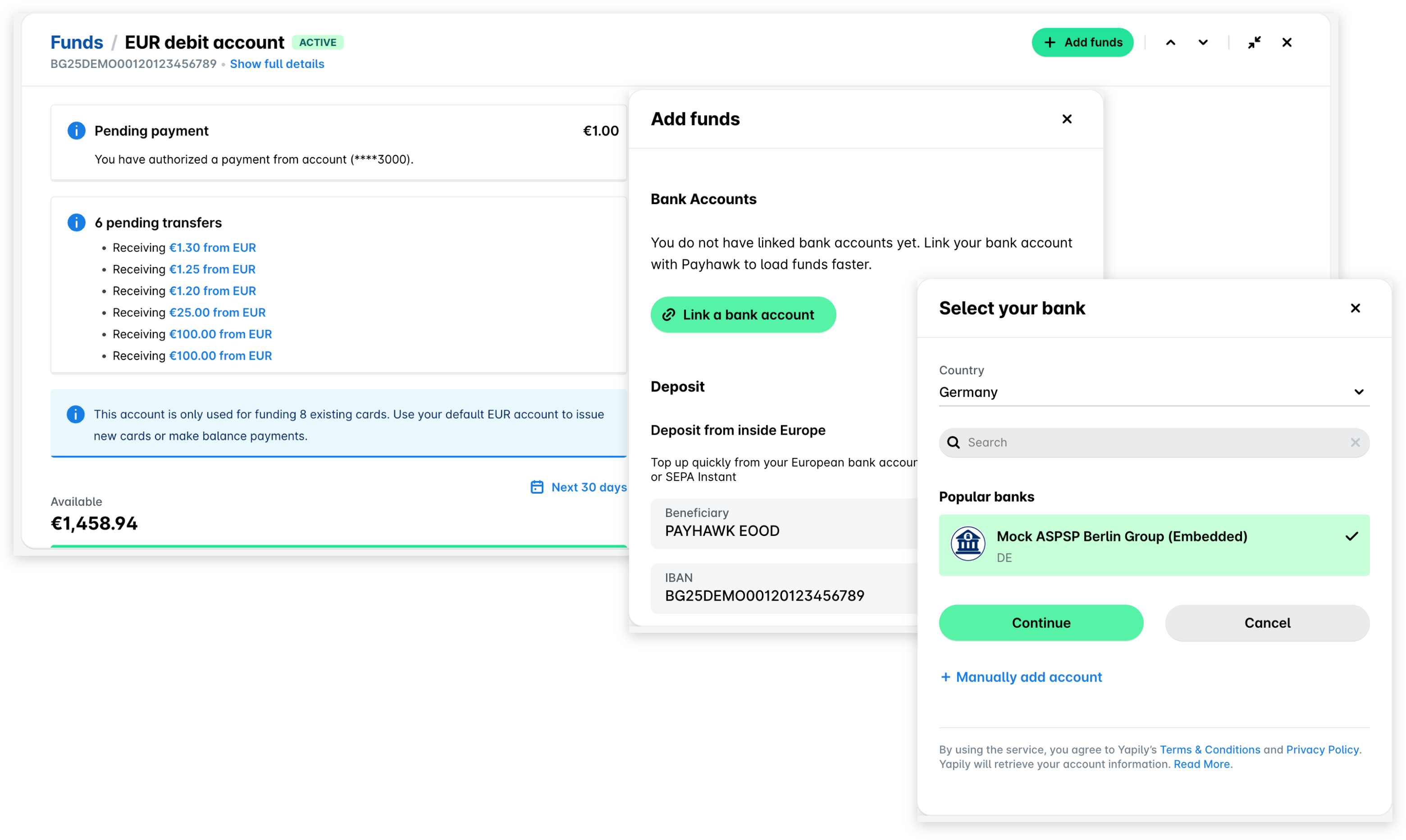
Once the bank account is successfully linked, you will be able to see your linked account in the EXTERNAL ACCOUNTS section.
Unlinking bank accounts from Payhawk
You can't unlink a linked bank account in the Payhawk Web Portal. To unlink it or change its details, contact Payhawk support.
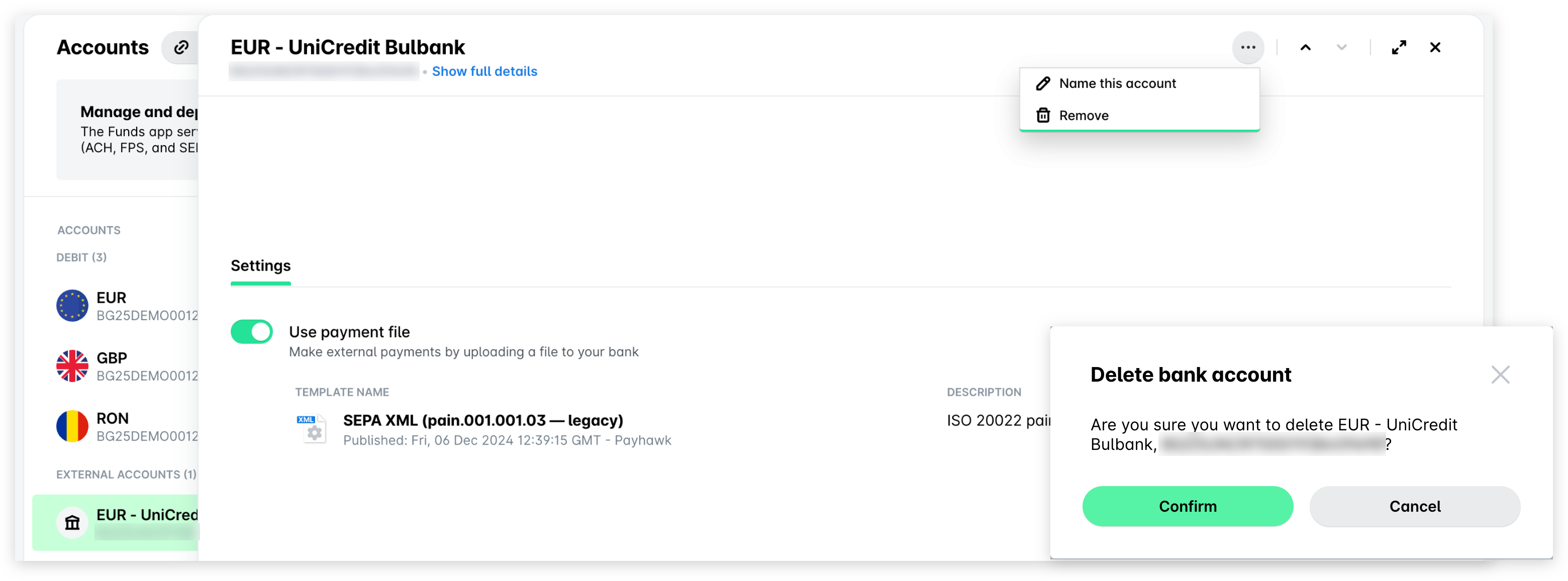
To remove a bank account you added manually:
Open the app switcher in the top-left corner and go to Funds.
In the EXTERNAL ACCOUNTS section, select the account, click on its three-dot menu, and select Remove.
In the Delete bank account dialog, click on Confirm.
Useful resources