Apart from adding external accounts through the Yapily open banking API and linking them to Payhawk, you can also manually add accounts to the system.
These accounts can be used as a payment source for expenses marked as paid in Payhawk, allowing you to download SEPA XML payment run files for seamless processing.
Adding external bank accounts
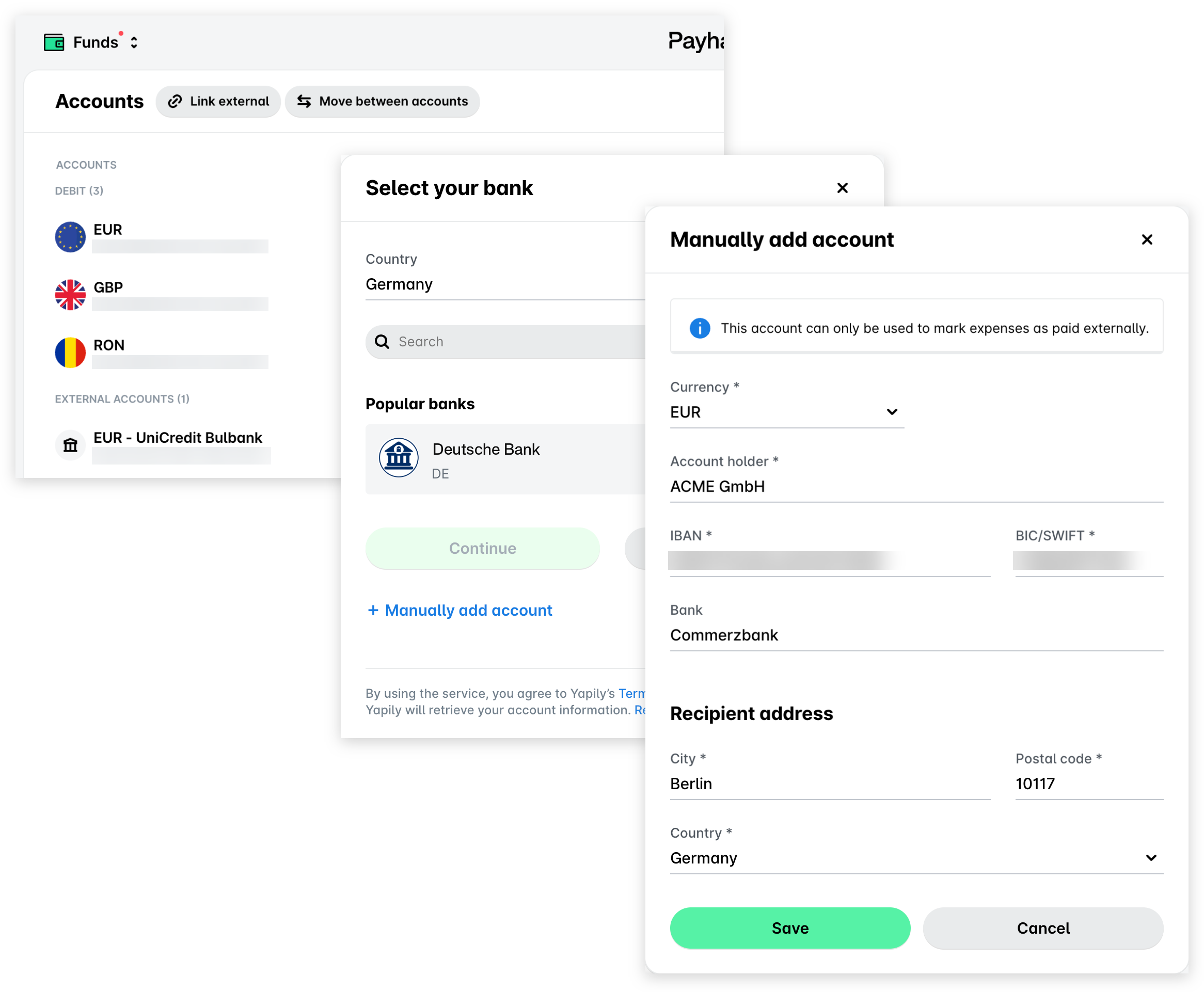
To manually add an external account to Payhawk:
In the Payhawk Web Portal, open the app switcher in the top-left corner and go to Funds.
At the top of the page, click on Link external.
In the panel that opens, select the + Manually add account option.
Enter the credentials your bank requires you to log in and click on Save.
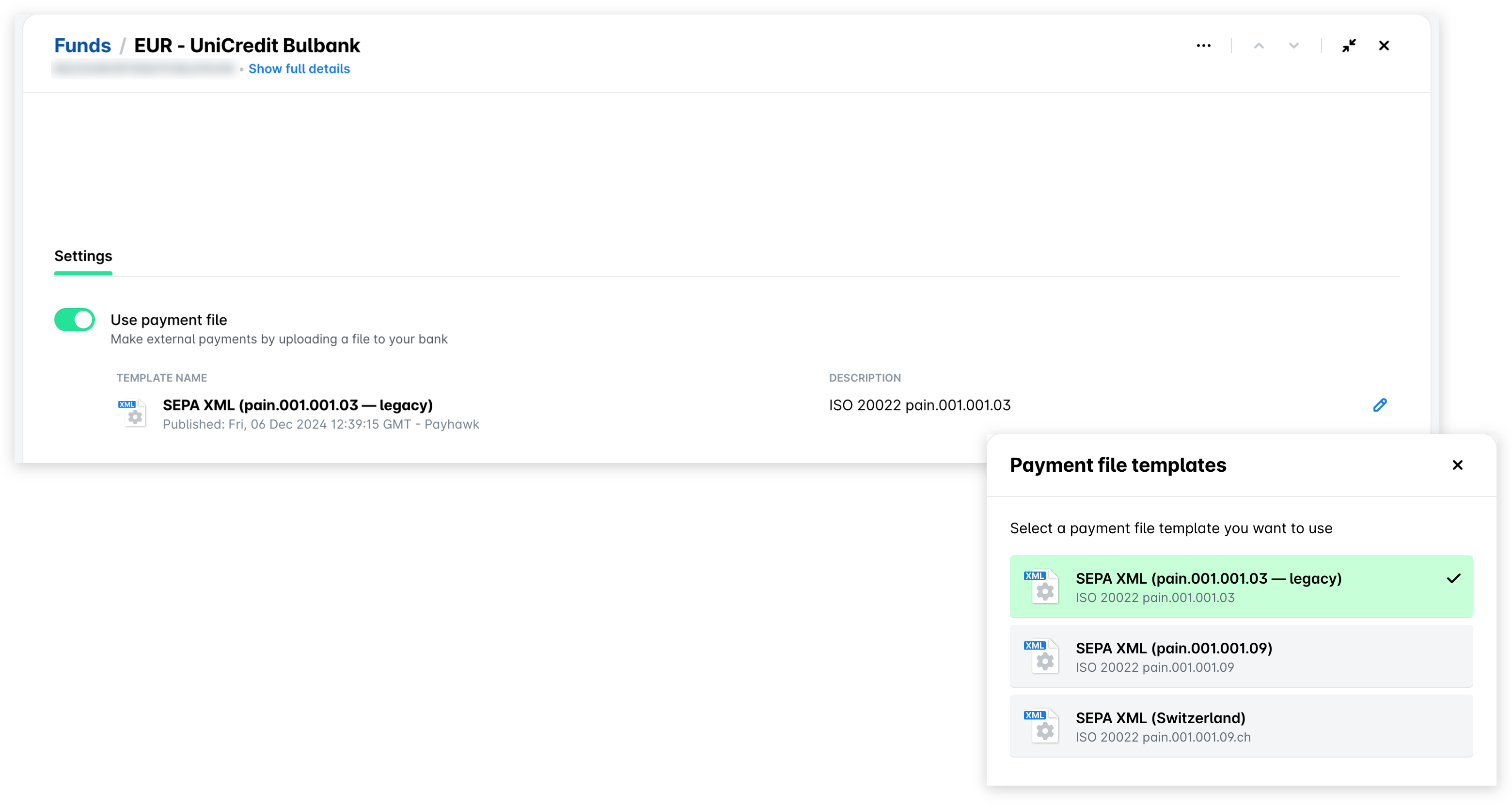
(Optional) Under the Settings tab of the newly linked account, you can enable the usage of payment run files for this bank account when paying expenses outside Payhawk:
Switch on the Use payment file toggle.
In the dialog that opens, select the SEPA XML format.
To edit the format or version of the selected payment run files, click on the Edit (pencil) icon, update the format or version, and click on Save.
Naming external bank accounts
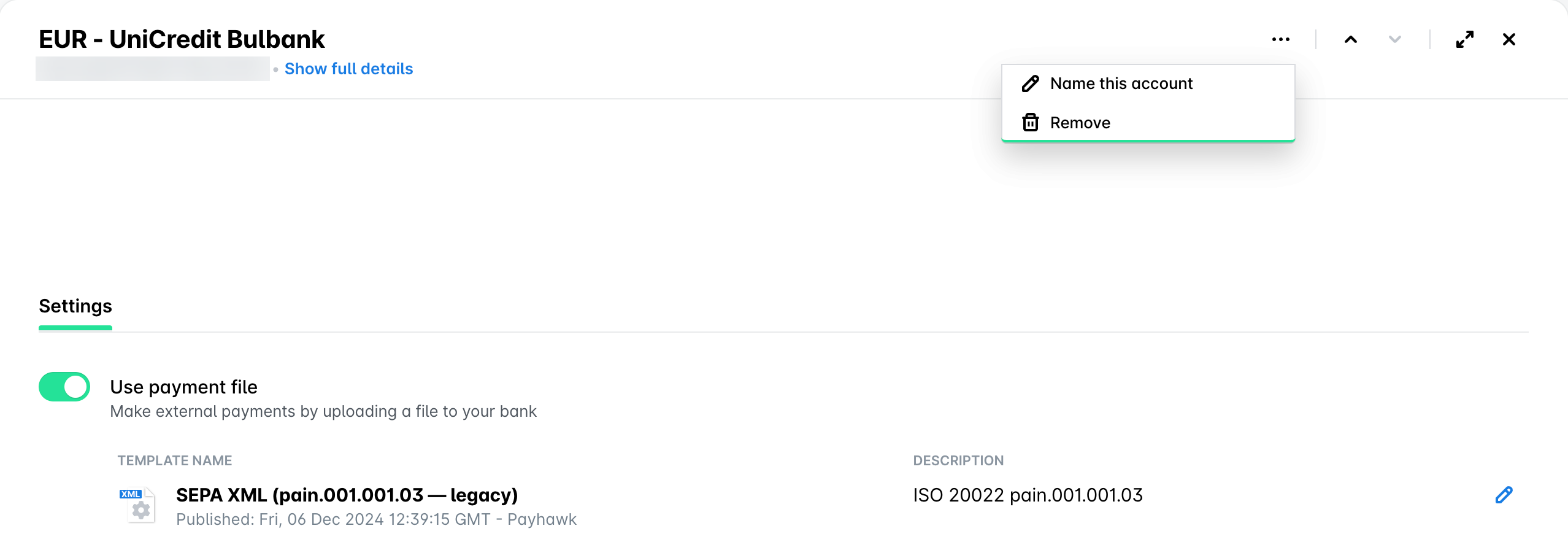
To name the desired external bank account:
Click on its three-dot menu and select Name this account.
In the dialog that opens, fill in the desired name and click on Save.
Deleting external bank accounts
To delete an external bank account:
Click on its three-dot menu and select Remove.
In the dialog that opens, confirm and click on Delete.
Useful resources