Employees of US- and Canada-based companies can link their corporate Visa cards to Payhawk from the Payhawk web portal.
Linking your Visa card to Payhawk is possible only after a Payhawk Administrator at the company has connected the Visa integration to Payhawk.
Some suppliers may take additional time to process and reflect payments made with your linked Visa card. Hence, a potential delay in real-time notifications.
To link your Visa card to Payhawk:
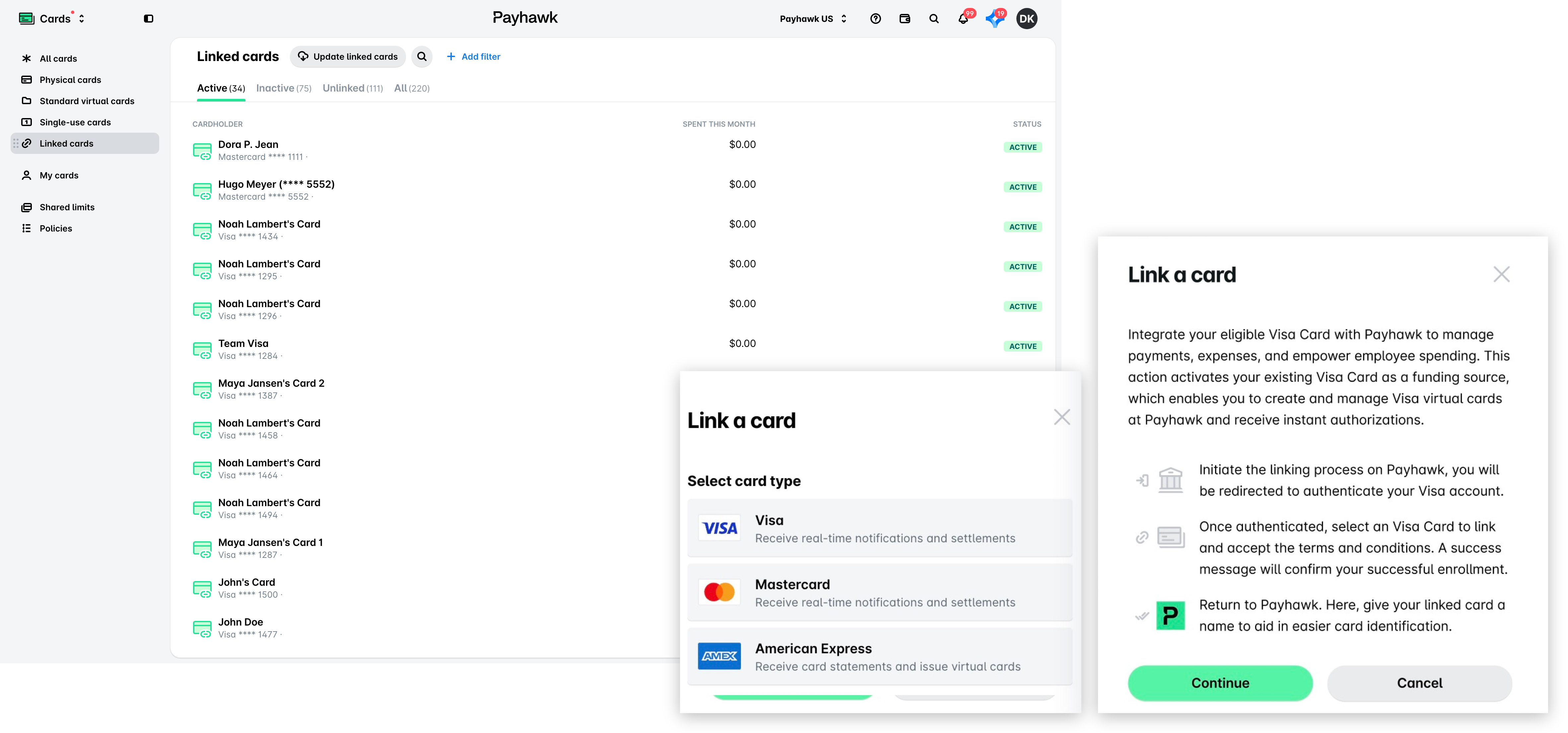
In the Payhawk Web Portal, open the app switcher in the top-left corner and go to Cards > Linked cards.
Click on the New button.
In the dialog that opens, select Visa.
Next, select the checkbox to agree to the Payhawk terms and click on Continue.
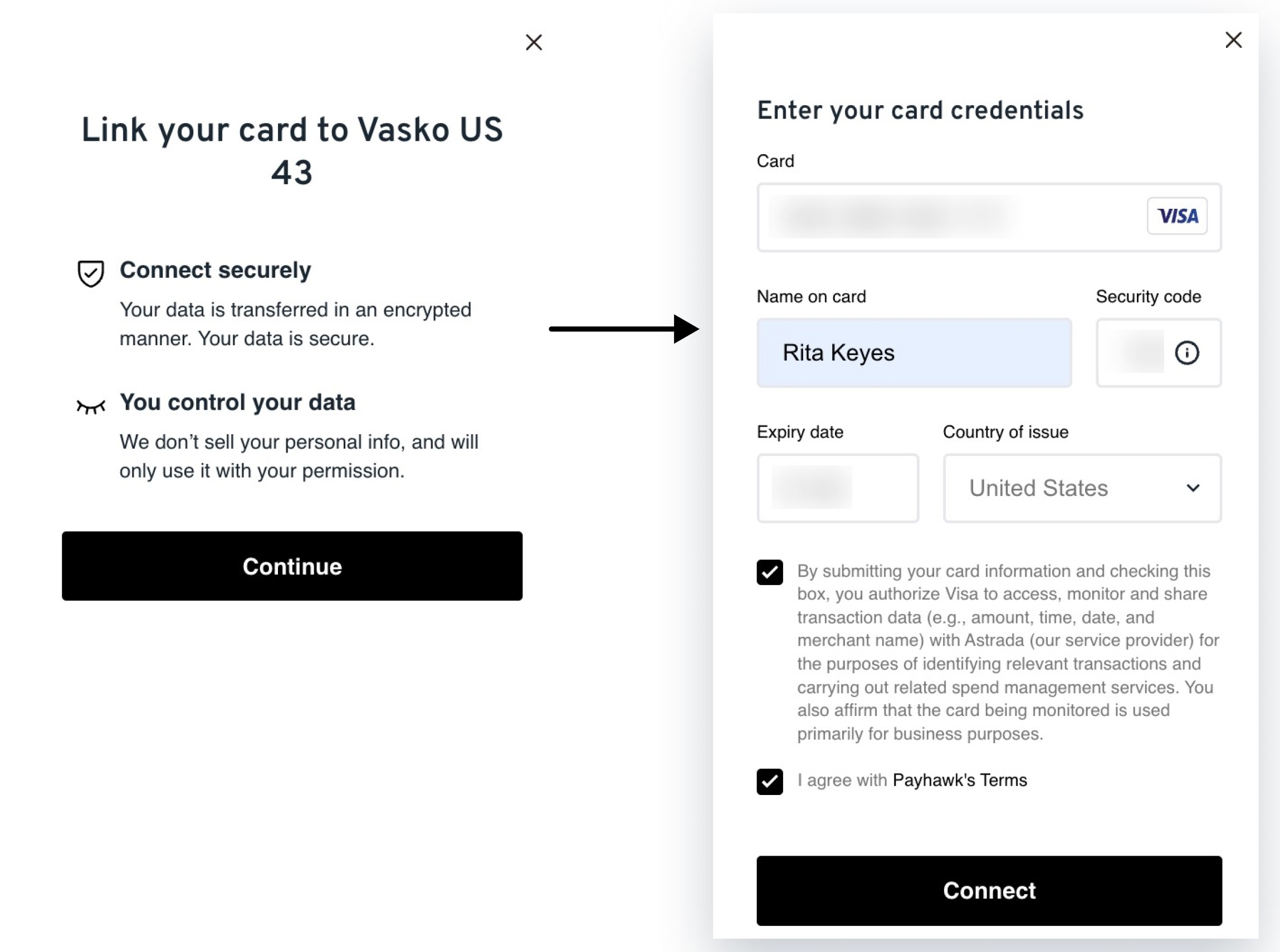
On the next screen, click Continue again.
In the dialog that opens, fill in your card details, select the checkboxes, and click on Connect.
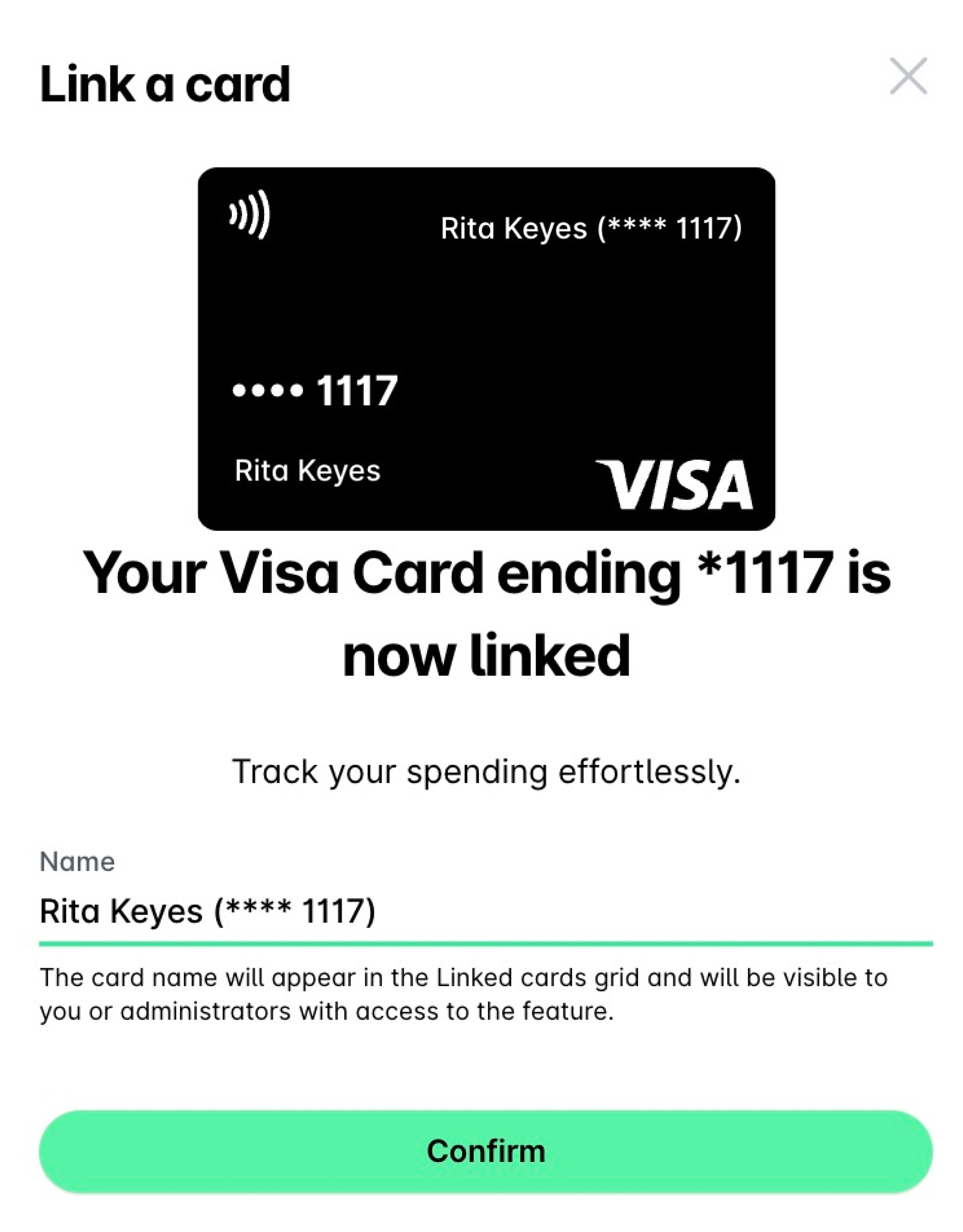
On your linked card screen, rename your card if you want to and click on Confirm.
Useful resources