You can define fields, manage their visibility and external ID settings, and apply their configuration to the whole group of entities or individual entities.
Creating fields for your group
To create fields for your group of entities:
In the Group Dashboard, open the app switcher in the top-left corner and go to Settings > Fields library.
Click on + Add field.
Follow the steps for creating custom fields on the individual level.
Creating parent and child values for group fields
In the Group Dashboard:
Open the app switcher in the top-left corner and go to Settings > Fields library and select the desired field.
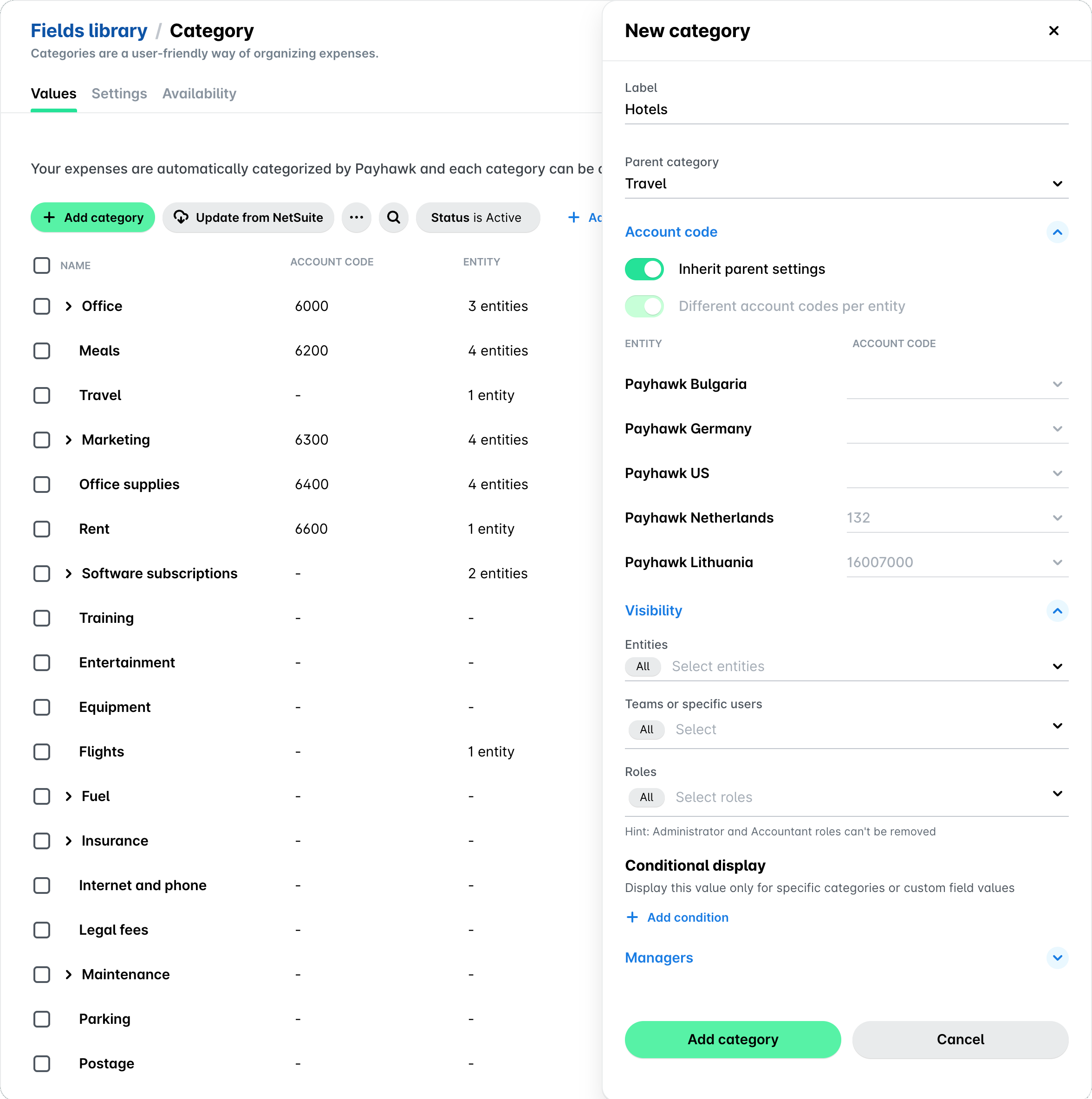
Under Values, click on + Add category.
In the panel that opens, fill in a name for your value.
To create a new parent value, leave the New parent category field empty.
To create a new child value, select the parent category for it from the drop-down list.
Under Account code, enter the account code for your value:
Switch on the Inherit parent settings toggle button to enable the value to inherit the account code from your group settings.
Switch on the Different account codes per entity toggle button to enable different account codes per entity.
Under Visibility, select which entities, teams or specific users will use this value, and which roles can see and change the value of this field.
Under Conditional display, click on + Add condition to to choose when this value will be visible.
Click on Add category.
Reordering fields for your group
To reorder the fields for your group of entities:
Open the app switcher in the top-left corner and go to Settings > Spend > Spend types.
Select the desired spend type by clicking on it, for example, Bill.
Navigate to its Fields tab.
Under Categorization, drag and drop fields to reorganize them.
Reordering the custom expense fields for your group does not affect the order of custom fields defined in a custom export definition.
Visibility, configuration, and operations settings for values and child values
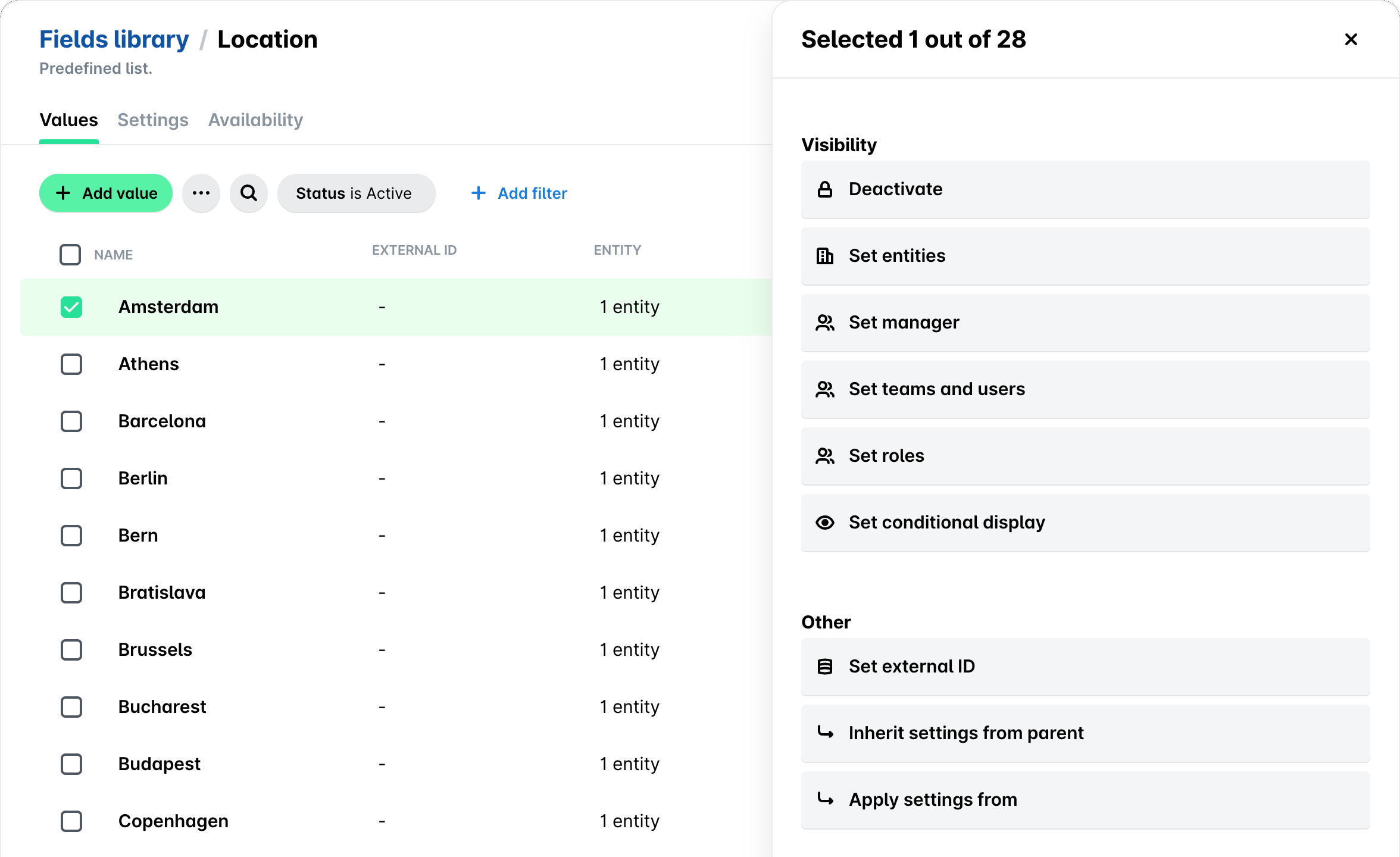
You can select group values and child values and apply various actions to them such as:
Deactivate a value or child value.
Reactivate an inactive value or child value.
Delete values and child values.
The following actions can also be done from the settings of the parent values and their child values.
Set the visibility of the value or child value for the entities within the group.
Set the external ID of the value or child value for the entities within the group.
Set the value or child value manager for the entities within the group.
Apply value or child value settings from other values or child values.
For child values, inherit parent value settings.
Bulk visibility, configuration, and operations settings
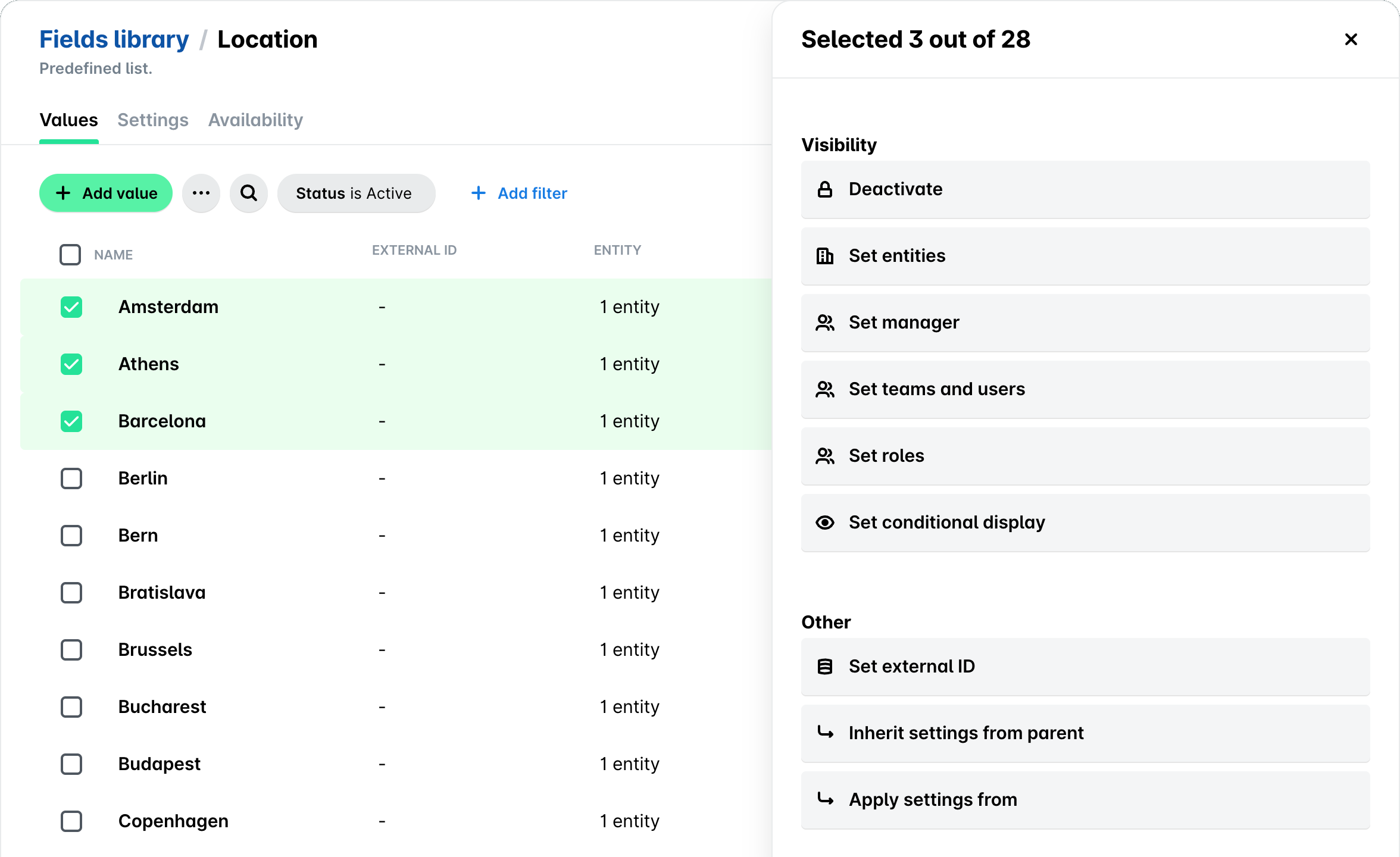
You can apply the visibility, configuration, and operations settings to two or more values and child values by selecting them.
Useful resources