Once you've assigned your Additional Card Members's cards in Payhawk, you can view all settled transactions of the assigned Card, name or rename it, or unassign it altogether.
For the terms and conventions on American Express Cards and Cardholders applied across Payhawk's help desk, refer to the guidelines section.
To select any of the available options:
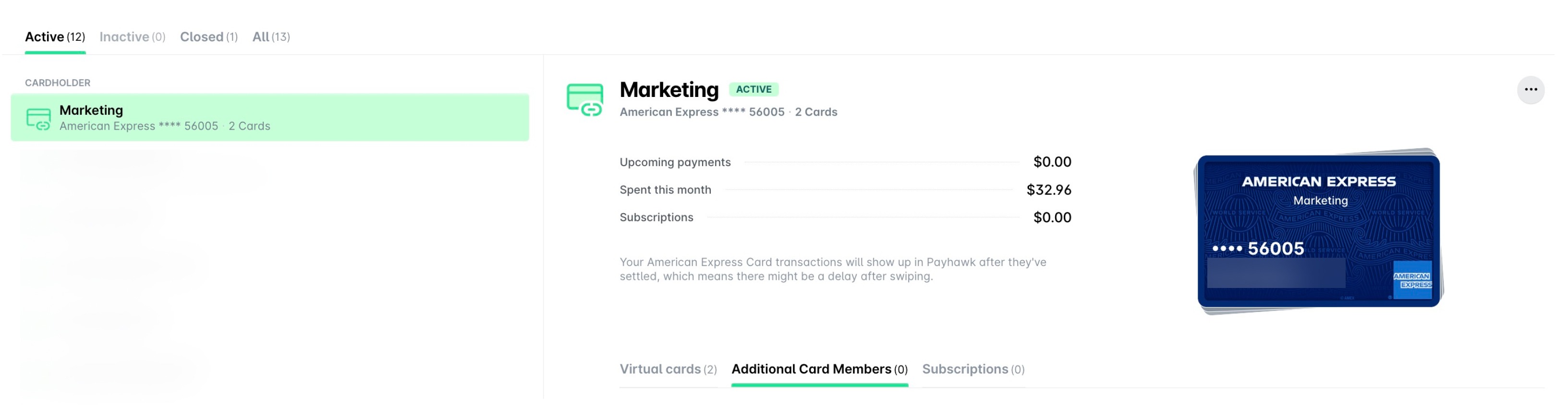
In the Payhawk Web Portal, open the app switcher in the top-left corner and go to Cards > Linked cards and select the assigned Additional Card Member's Card you want.
From its Additional Card Members tab, select the desired assigned Card.
Viewing the settled transactions of assigned Cards
To view all expenses that have been paid with your assigned Additional Card Members' Cards, select the View all option. As a result, you'll be redirected to the Spend > All tab.
Naming and renaming assigned Cards
To name or rename your assigned Card, select the Name this card option. In the dialog that opens, enter the desired name and click on Save.
Unassigning Cards from Payhawk
Unassigning an Additional Card Member's Card will automatically remove it from the list and you won't be able to view its future transactions.
To unassign an Additional Card Member's Card from Payhawk, select the Unassign card option. In the dialog that opens, select the checkboxes and confirm your choice by clicking on Confirm.
Useful resources