You can quickly and easily filter requests at your company from the Requests app by using the built-in views and available filters.
Default views for requests
Depending on employees' roles, the Requests app provides the following default views:
All employees can use the My requests default view to select only the requests they've submitted.
In addition to My requests:
Team Managers can access the default My team requests default view to select the requests submitted by their teams.
Payhawk Accountants and Payhawk Administrators can use the Company requests default view and monitor all employee requests.
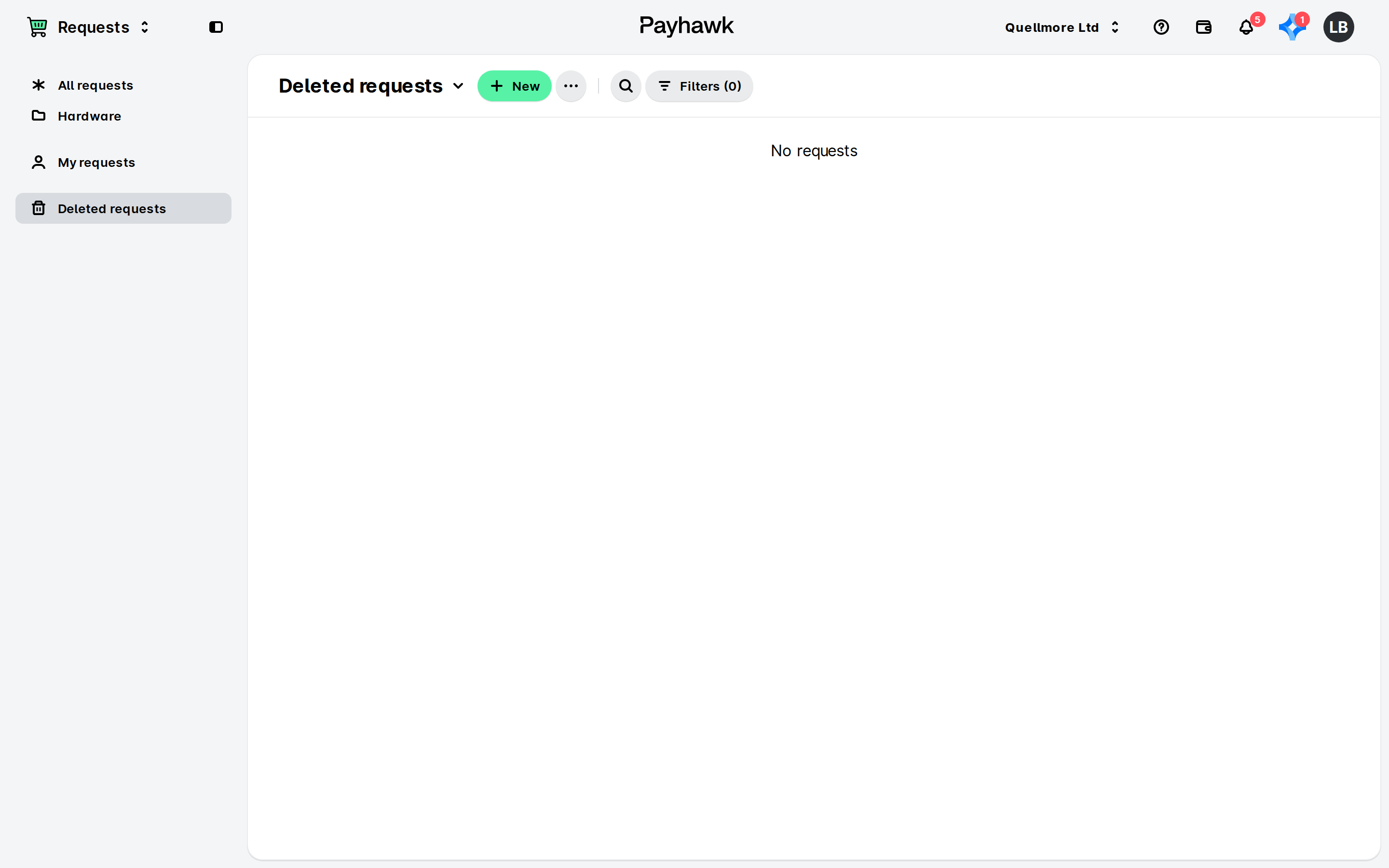
Employees across the company can access the Deleted requests view to review any requests they have previously removed.
Saving filtered views
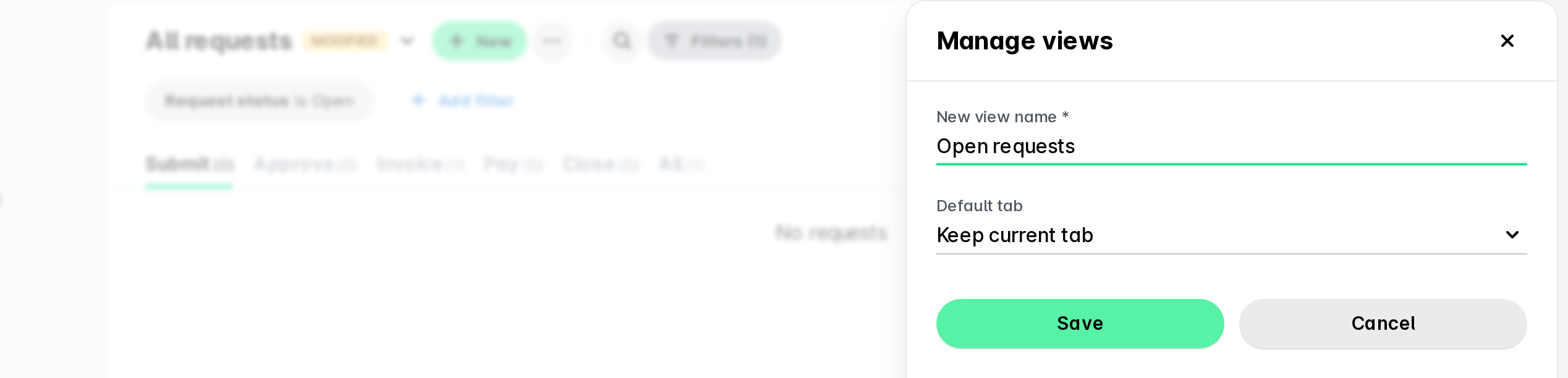
To save your view and persist the applied filters after you have filtered the requests as required:
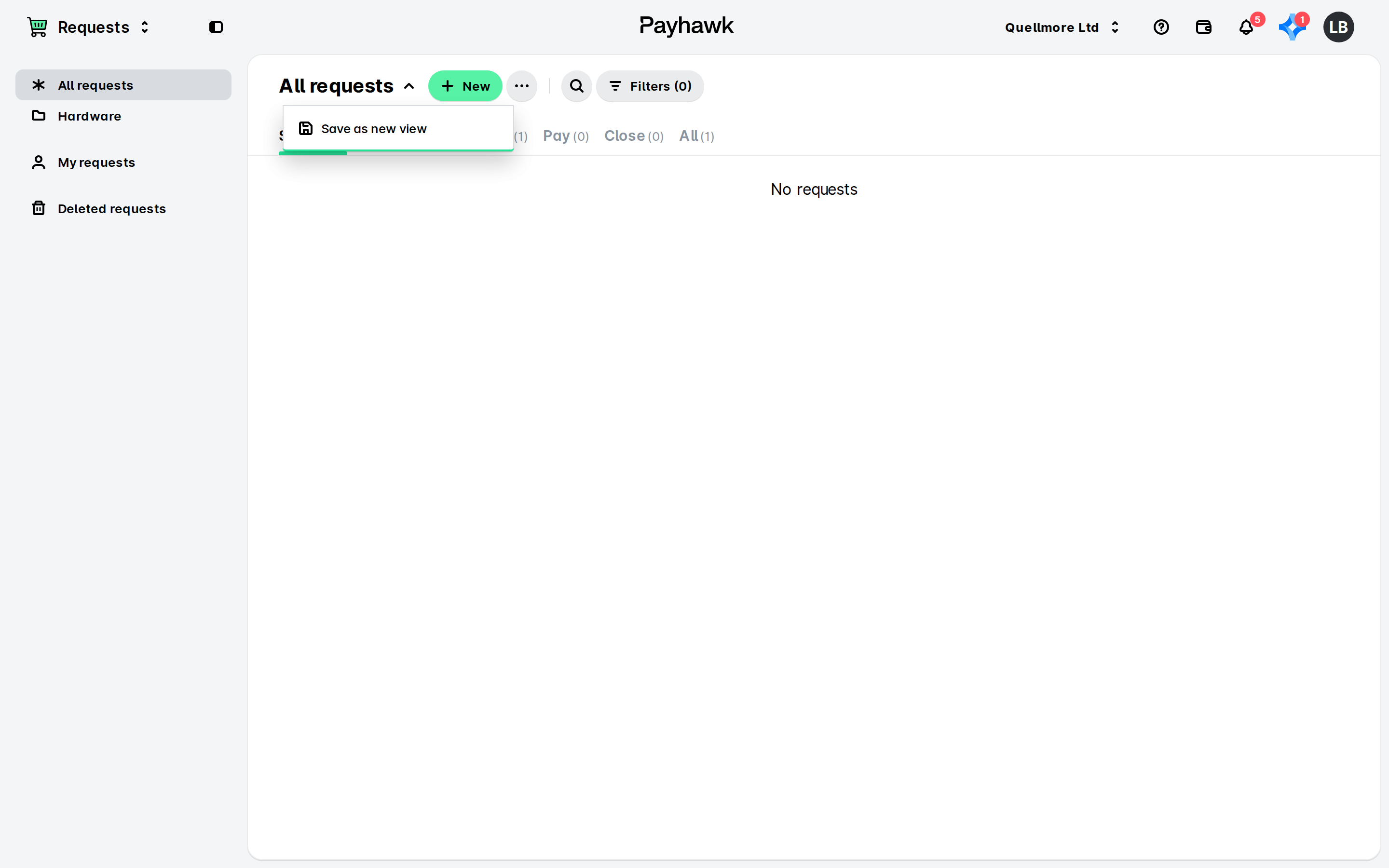
In the Requests app, click on the Save view button.
In the dialog that opens, enter a name for your view.
Click on Save.
Accessing saved filtered request views
To access your saved filtered request views, look in the left menu of the Requests app where your saved views appear under Saved views.
Managing saved filtered request views
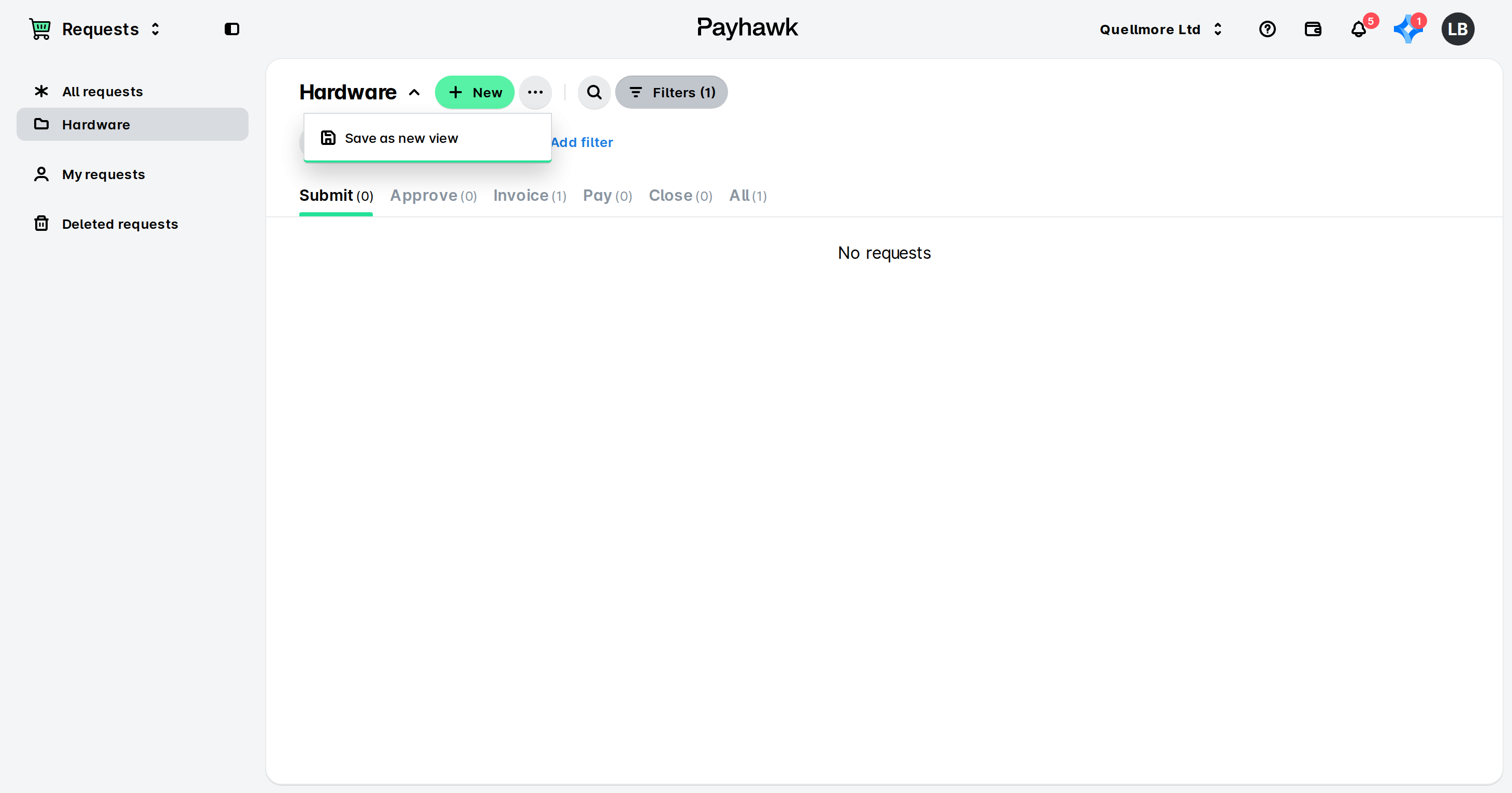
To edit an existing filtered request view:
Open the app switcher in the top-left corner and go to the Requests app.
Under Saved views, click on the three-dot menu next to the desired saved view and click on Edit.
Update the view's name and default tab.
Click on Save.
To delete an existing filtered request view:
In the Requests app, under Saved views, click on the three-dot menu next to the desired saved view and click on Delete.
Click on Confirm.
Useful resources