As a Payhawk Accountant, you can efficiently search through, sort, and organize your company's requests and purchase orders by applying the available filters and attributes, grouped in categories.
Filters allow you to group requests based on data, such as an expense category, specific budget, or supplier, or based on criteria, such as who created the request, whether it is reviewed or not, its approver, and more. After applying filters to the requests, you can save that view for quick access whenever needed.
Searching through requests
You can search through requests by their title and identifier. The search option applies to all requests across all tabs.
To search for a specific request:
In the Payhawk Web Portal, open the app switcher in the top-left corner and go to Requests.
Click on the Search icon. In the input field, enter the desired value, for example, 3984, as a request ID. If a request has an associated purchase order, you can also search for it using the PO number, for example, PO-000751.

Applying filters to requests
You can utilize and aggregate the available filters to quickly get the information you need about requests at your company.
Open the app switcher in the top-left corner and go to Requests.
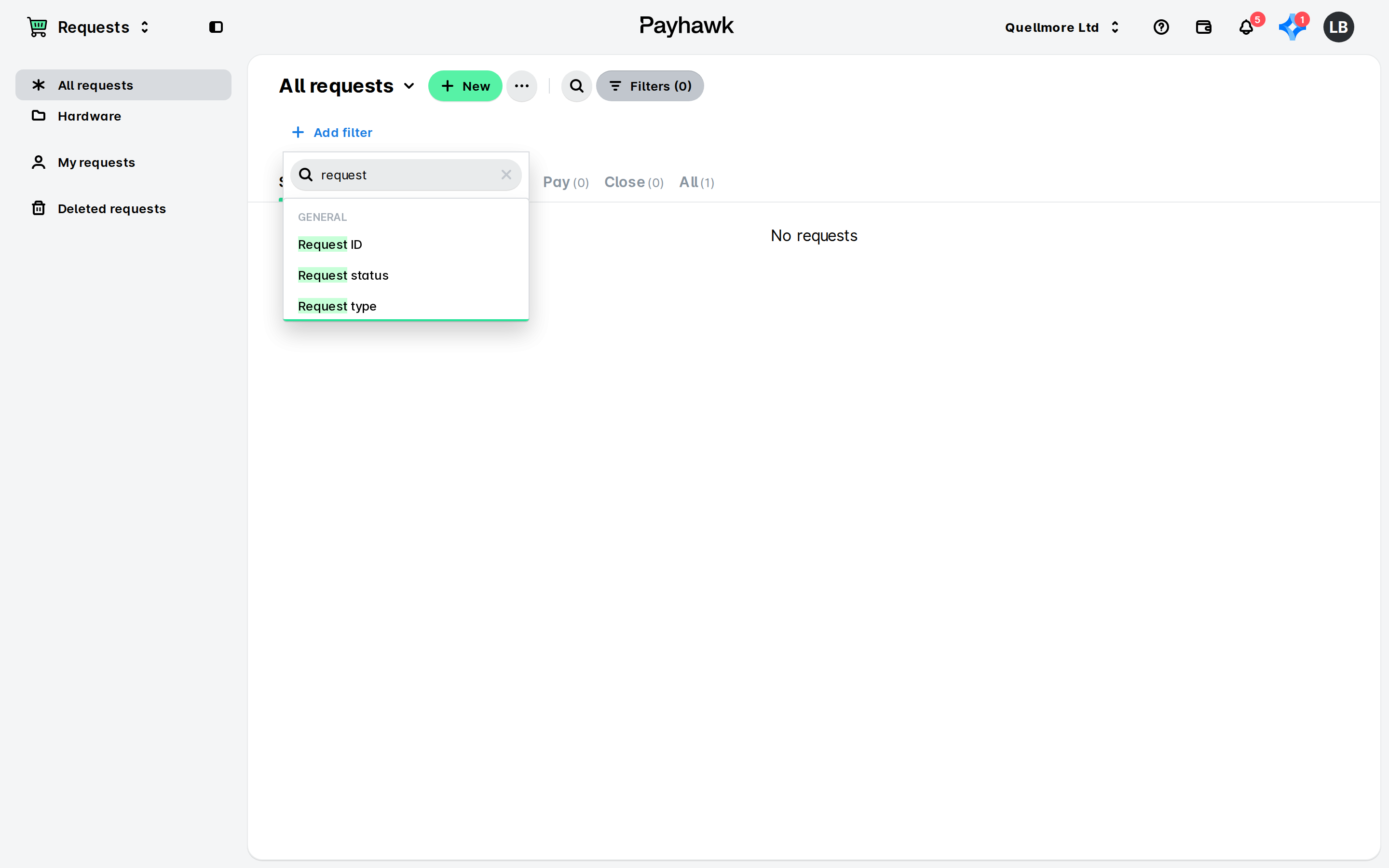
Click on + Add filter.
Select the criteria, enter the required values (if any), and click on Done.
To further refine your search, add other filters by clicking + Add filter and adding the desired criteria in the same way.
Once you've filtered the requests based on the desired criteria, you can save the filtered view to access it quickly later on when needed.
Useful resources