If the name on your personal Payhawk account is incorrect due to a typo or a name change, you can update it from your personal profile.
Updating your profile name in the Mobile App
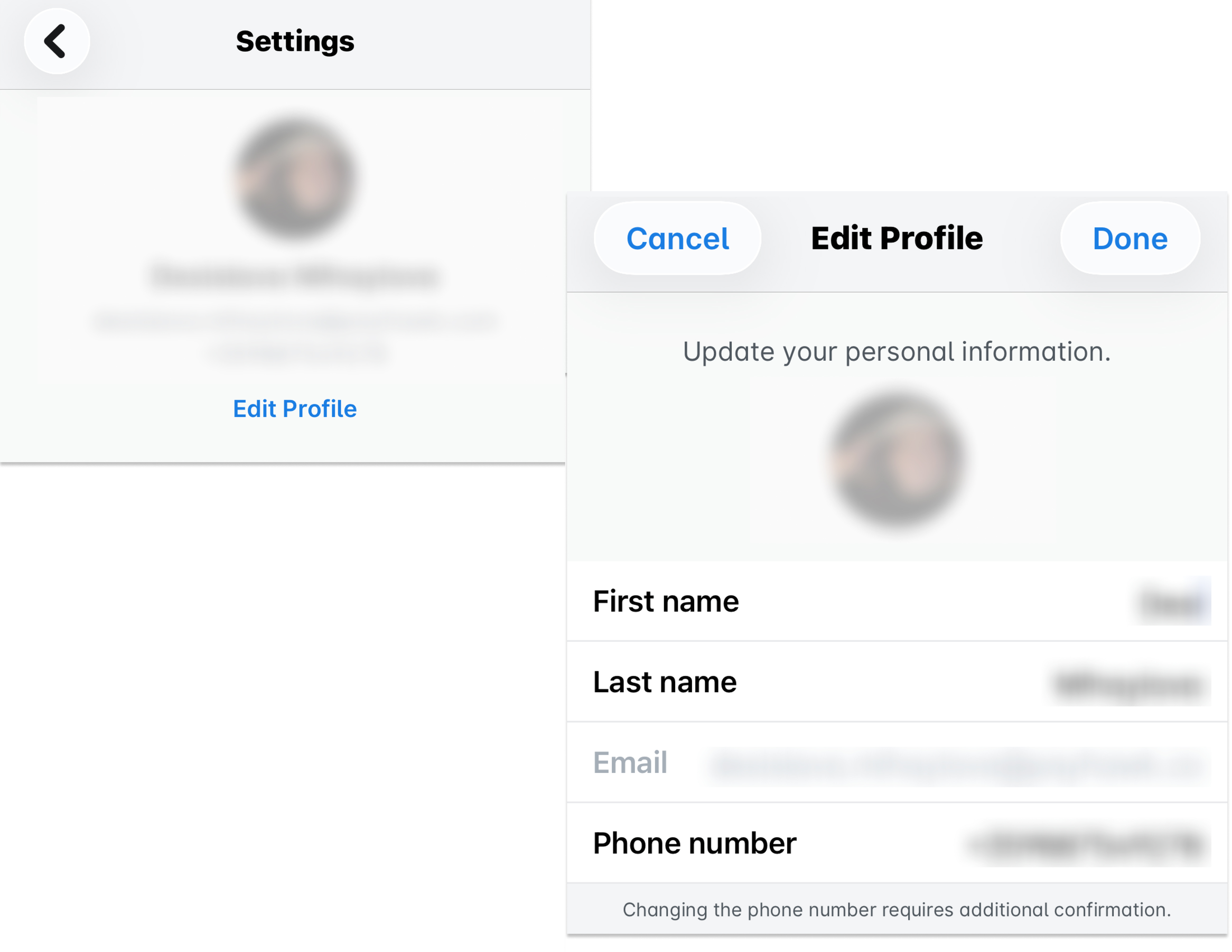
To update your profile name in the Payhawk Mobile App:
Tap your profile picture and select Edit Profile.
Tap your first or last name depending on which one you’d like to update and edit it.
It is mandatory to have first and last names with which your Payhawk account is associated.
Updating your profile name in the Web Portal
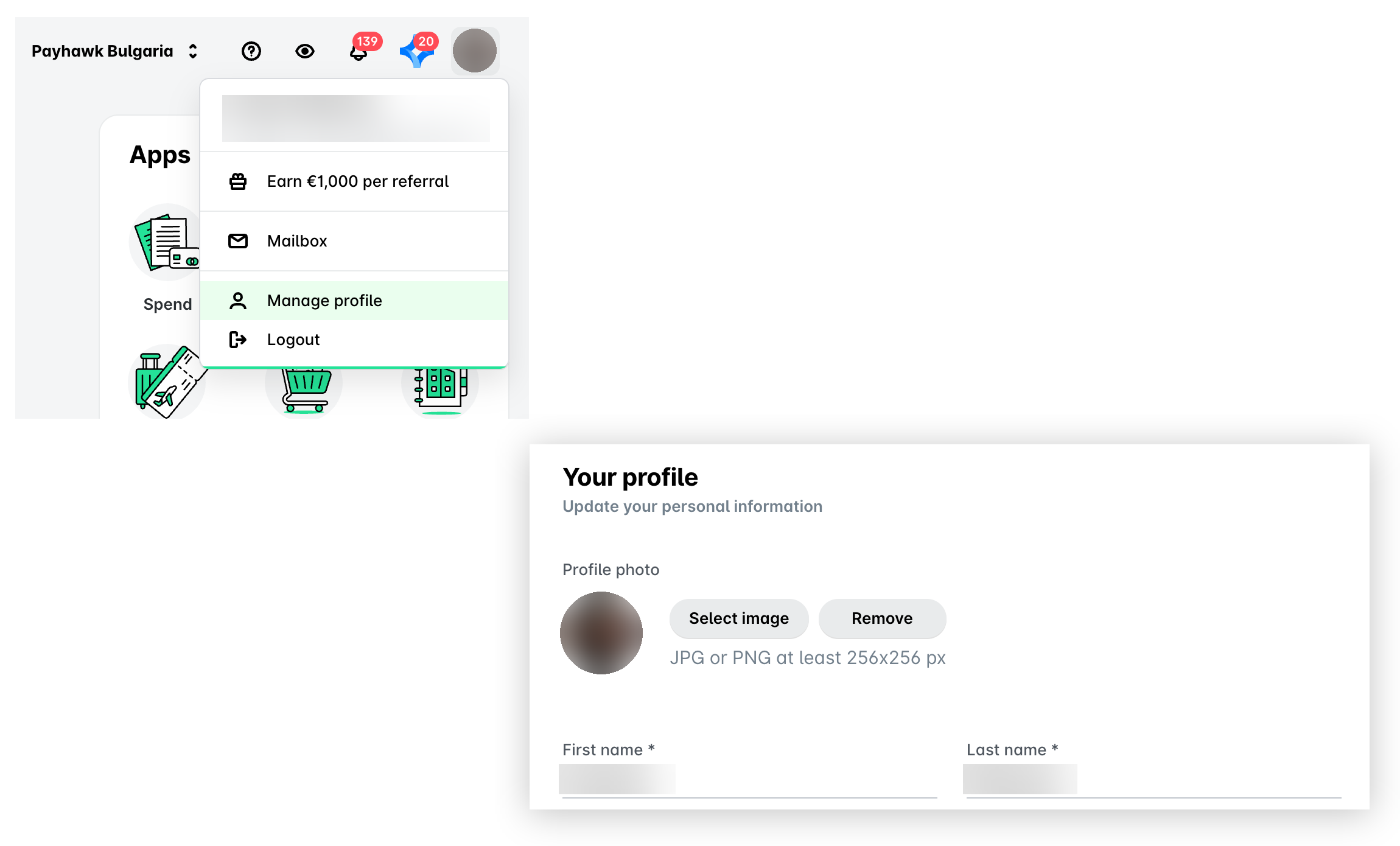
To update your profile name in the Payhawk Web Portal:
Click on your profile icon and select the Manage profile option.
Go to Personal info > Your profile and update your name.
Click on Save changes.
If you have cards issued to your Payhawk account, updating your name in the Payhawk Web Portal won’t change the name on your existing cards. To update the name on a card, the current card must be closed and a new one issued. If this applies to you, contact your company's Payhawk Administrator.
Useful resources