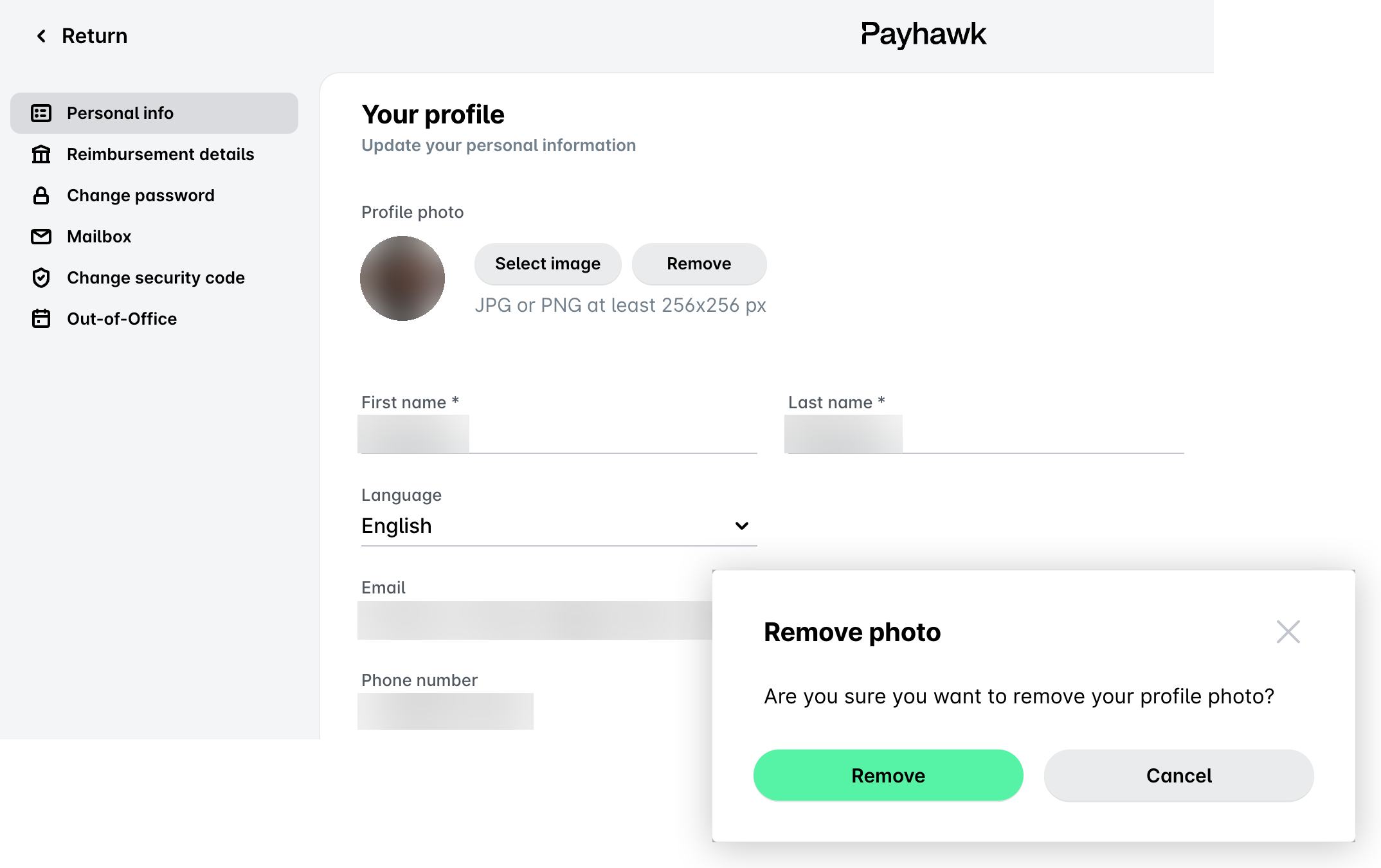
The picture for your Payhawk profile is automatically populated with your profile picture from the HR information system your company is using or your corporate Google account if your company uses the SSO protocol.
However, you can add another profile picture for your Payhawk account which will override the picture that has automatically been synced from the external sources.
Your Payhawk profile picture will not affect your profile pictures in the external systems.
Your Payhawk profile picture will take precedence over any images synced from external systems.
You can update your Payhawk profile picture from the Payhawk Web Portal only.
Uploading a profile picture
To upload a new picture for your Payhawk profile:
In the Payhawk Web Portal, click on your profile icon and select the Manage profile option.
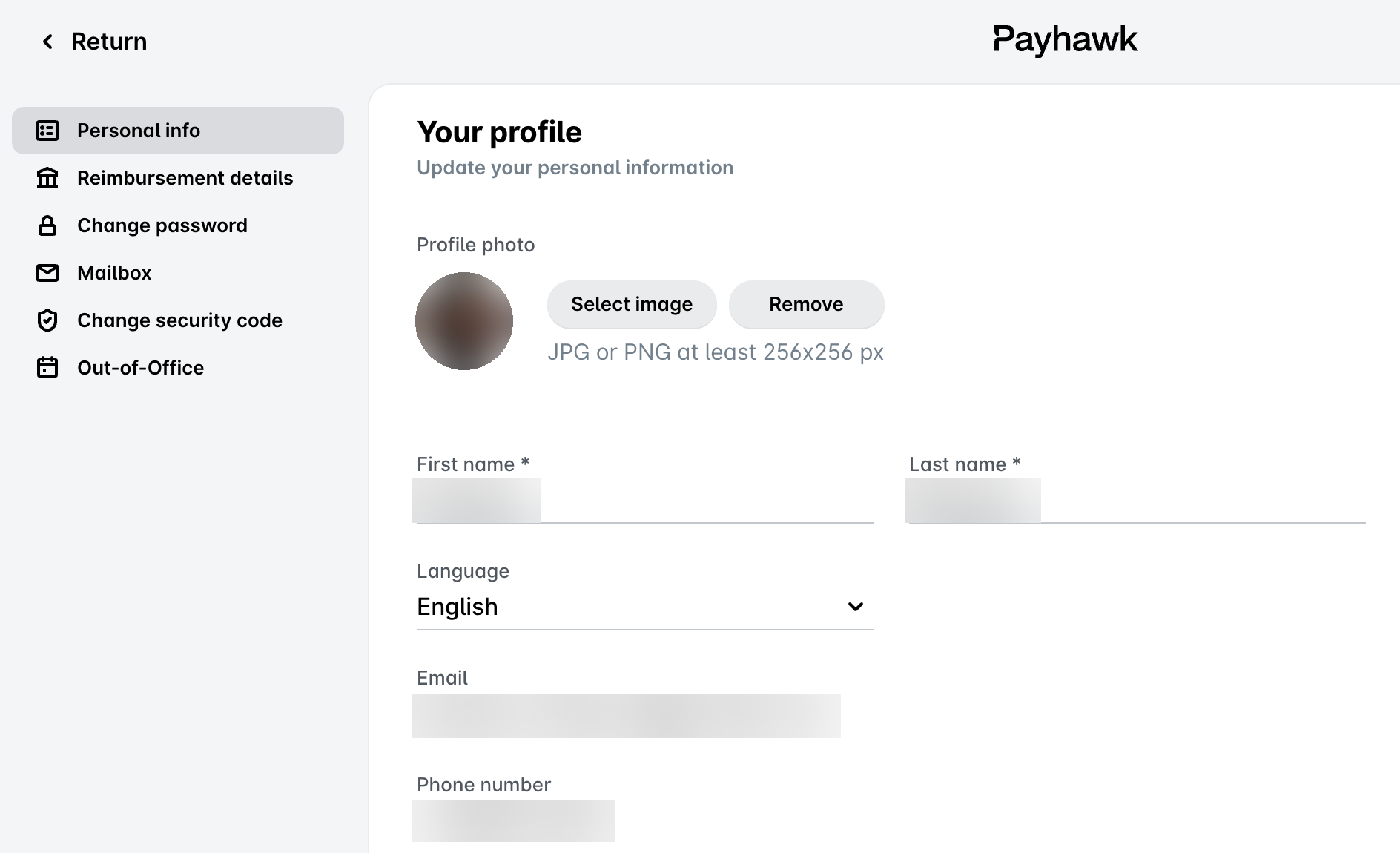
Under Profile photo, click on Select image.
Select the desired image from your local directory.
When the image is uploaded to your profile, click on Save changes.
Removing your profile picture
To remove your Payhawk profile picture:
In the Payhawk Web Portal, click on your profile icon and select the Manage profile option.
Under Profile photo, click on Remove.
In the dialog that opens, confirm you want to remove the photo by clicking on Remove.
Click on Save changes.