You can view detailed card updates for a specific card in its Activity tab. This includes linked cards and the virtual cards issued on top of them.
The Activity tab for each card shows the following updates:
Fund updates - Include any updates to the card's fund balance, such as transaction amounts and the available funds at that time.
Card changes - Include any updates to the card's status, balance type, and PIN resets.
Failed transactions - Include any failed transactions along with their corresponding amounts and reasons for failure.
Policy updates - Include any updates to the card's associated spend policy, such as the card being added to or removed from a policy.
Viewing card activity in the Web Portal
To view the activity of a card:
In the Payhawk Web Portal, go to Cards.
Select the desired card and go to the Activity tab.
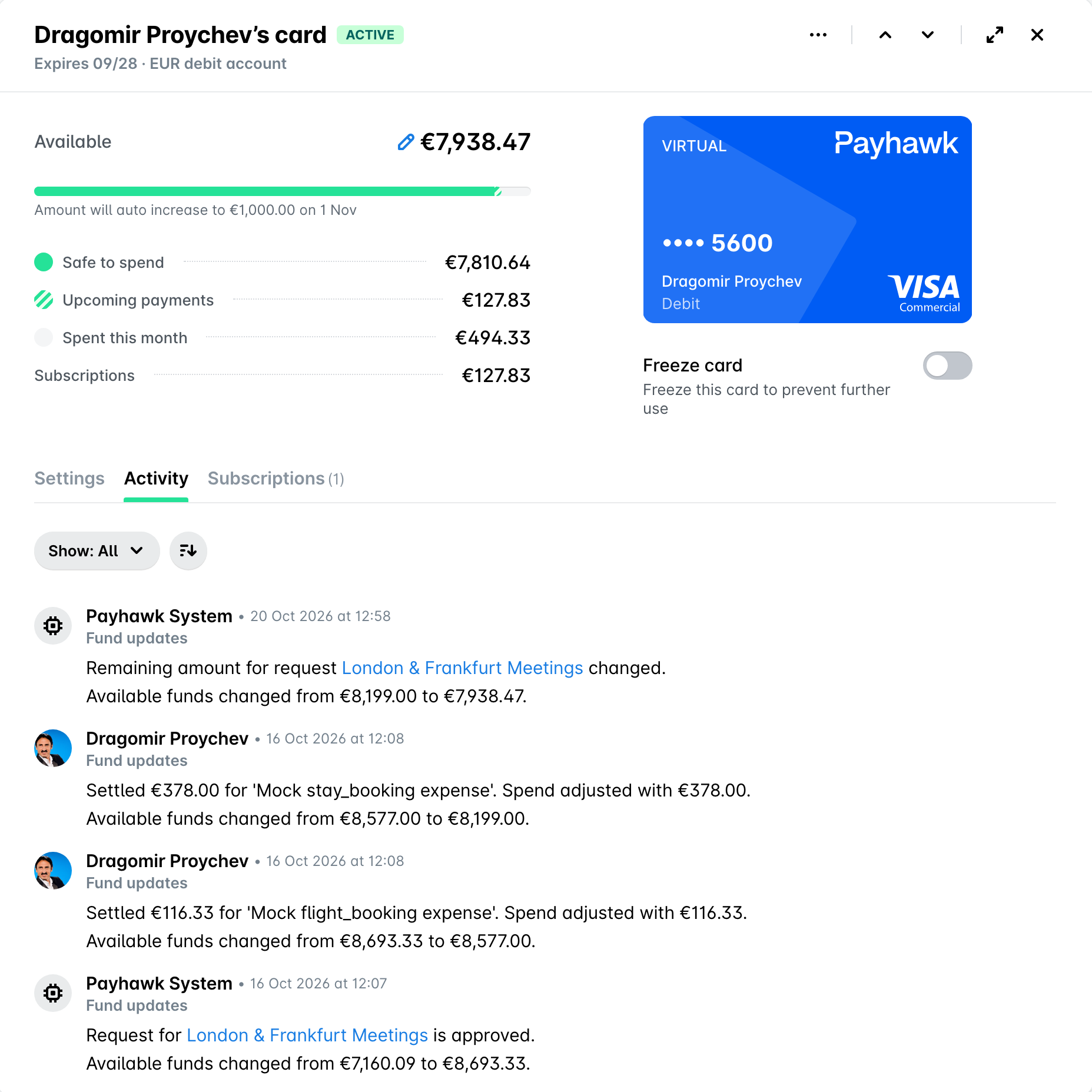
From the Activity tab, you can filter card updates using the Show menu, which lists Card changes, Fund updates, Failed transactions, and Policy updates as checkboxes. All four are ticked by default, and the button label updates to show which ones are currently selected.
Sorting card activity
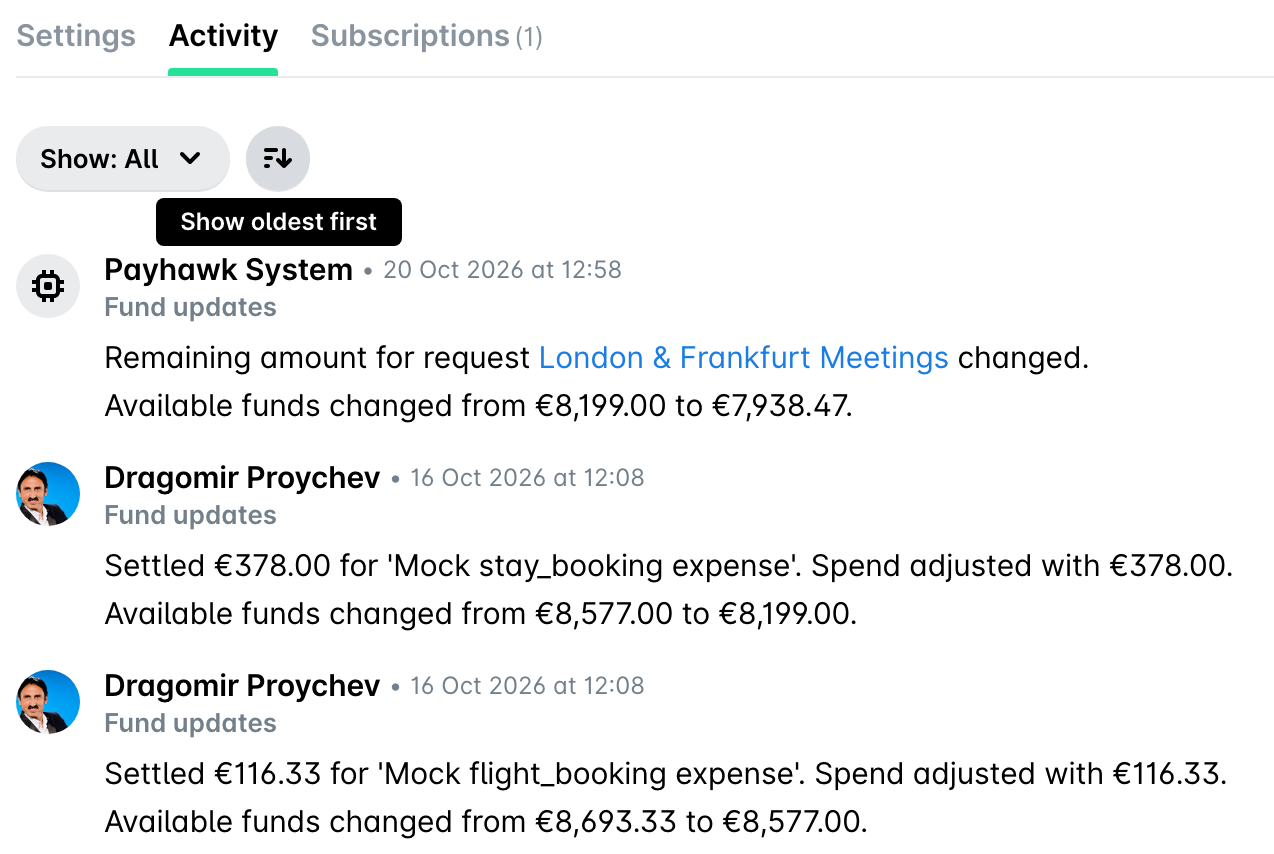
You can sort card activity from the latest updates to the oldest ones or vice versa by clicking on the sort icon next to the Show menu. The following rules apply:
The selected sorting order applies to all card updates.
By default, the latest card updates appear at the top.
The selected sorting order will be stored for future user sessions.
Useful resources